

Checking Documents Status on the E-Invoice Portal to Update it on “Edara”
Last updated:
After submitting documents to the E-Invoice Portal, their status is not updated immediately. It takes some time for the system to process them. Therefore, you need to check the status to update it in the system.
For example, documents you requested to cancel will not have their status updated until three days have passed. After this period, you will need to check the status of the documents on the E-Invoice Portal to confirm their status and update it in "Edara."
Additionally, after submitting documents, you may need to check their status to determine whether they are valid or have been rejected by the portal.
Below are the steps for checking and updating document statuses.
Checking Documents Status on the E-Invoice Portal to Update it on “Edara”
- Go to Data Module.
- Open the Integration page.
- Click on “Manage”.
- Select the Narration as “Check Documents Status”.
- Specify the date of the documents you want to check their status.
- Choose the document type.
- Click “Show”.
- Select the invoices you wish to check.
- Click “Check Status”.
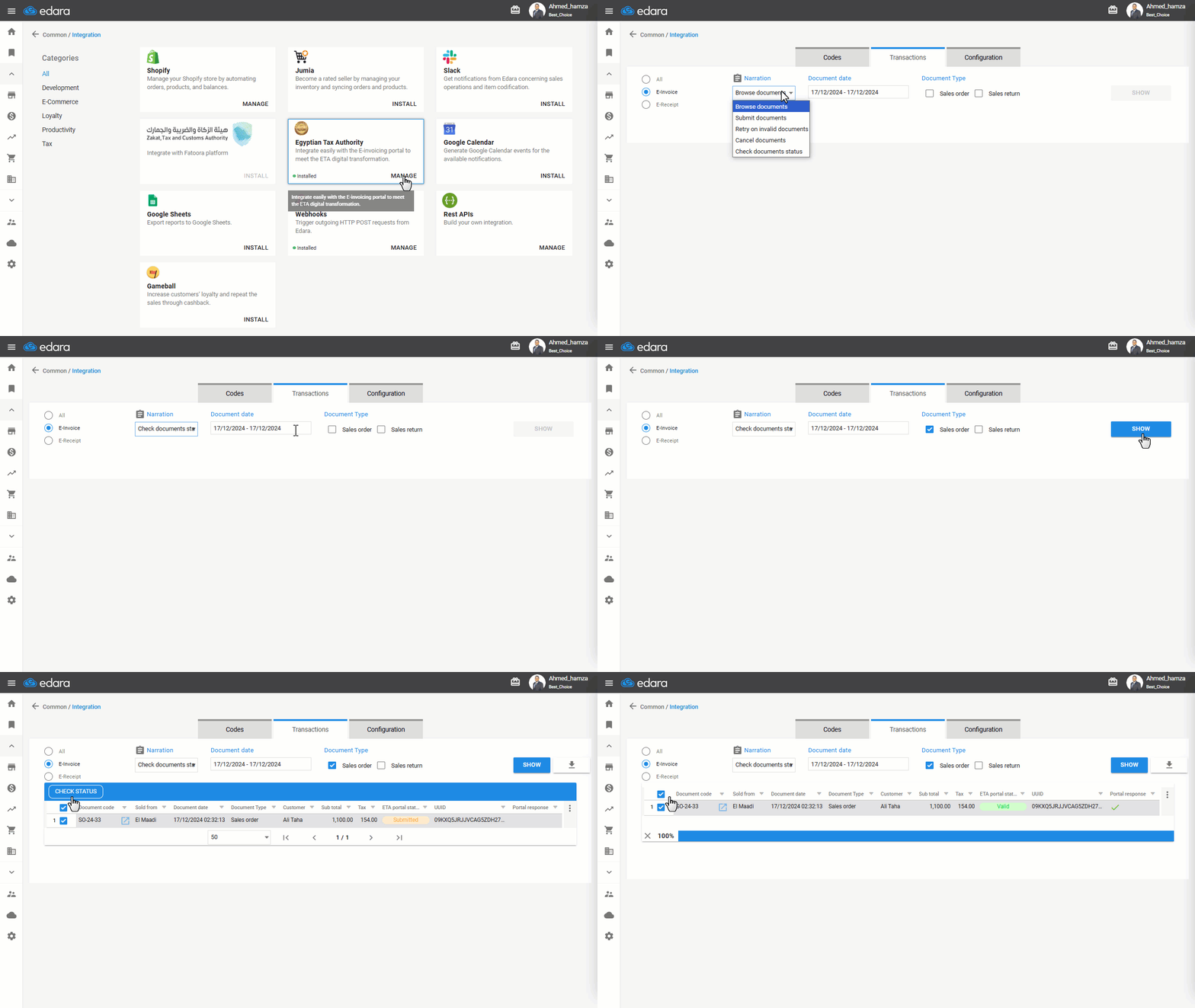
Note: You can download the invoices as an Excel file by clicking “ ”.
”.
If you encounter any challenges or have questions during these processes, you can contact our technical support team, who are ready to assist you at any time.