

Displaying the E-Invoice Document Through the Tax Authority Portal
Last updated:
You can access your e-invoice directly on the Tax Authority Portal, within the system, to review or print it whenever needed.
Displaying the E-Invoice Document Through the Tax Authority Portal
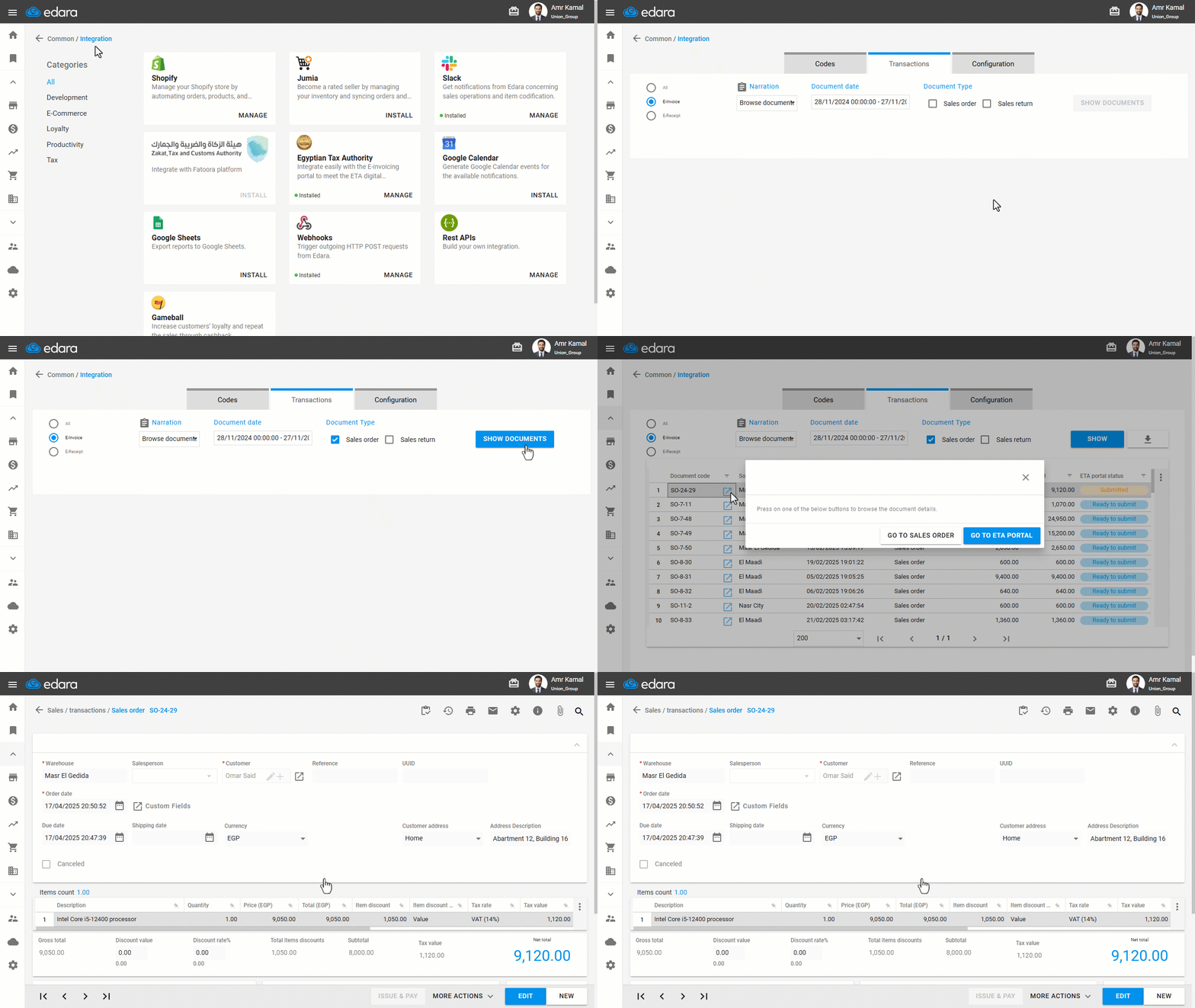
- Go to “Data”.
- Open the “Integration” page.
- Click on “Manage” under the “Egyptian Tax Authority”.
The default tab here is the “Transactions” tab.
- Select the document type.
- Click on “Show documents”.
- Click on the “
 ” icon.
If the invoice has not been sent to the Tax Authority Portal, a new window will open inside Edara to display the document.
If the invoice has been sent, a window will appear allowing you to choose either “Go to Sales Order” or “Go to ETA Portal”.
After selecting an option, a new window will open displaying the document details.
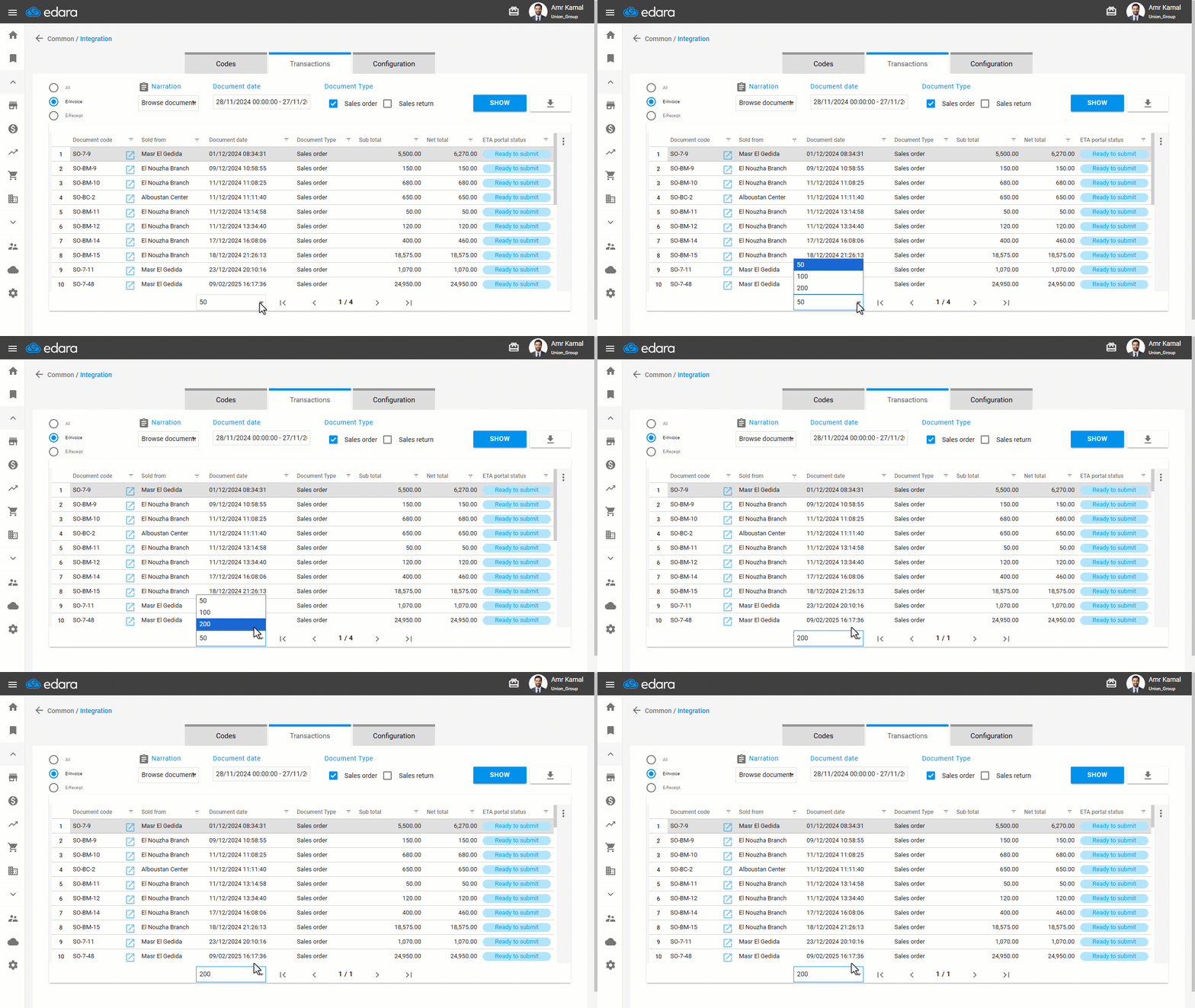
Note: You can increase the number of displayed orders by clicking on the “ ” icon, then selecting the number of orders you want to show on the page.
Note: You can now export invoice data directly from the Transactions page to an Excel file by clicking on the “ ” icon, choosing “Current Page” or “All Pages”, then clicking on “Export”.
If you encounter any challenges or have questions during these processes, you can contact our technical support team, who are ready to assist you at any time.