

Controling User Roles via Edara 3.0
Last updated:
Successful management depends on accurately defining the roles of employees, to prevent overlapping tasks or manipulation of any data belonging to the company, so “Edara” provides the ability to control the roles of each user on the system in accordance with their job duties.
To enhance control, reviewing user roles and modifying the data of any user is only available to the system administrator.
Controlling User Roles via Edara 3.0
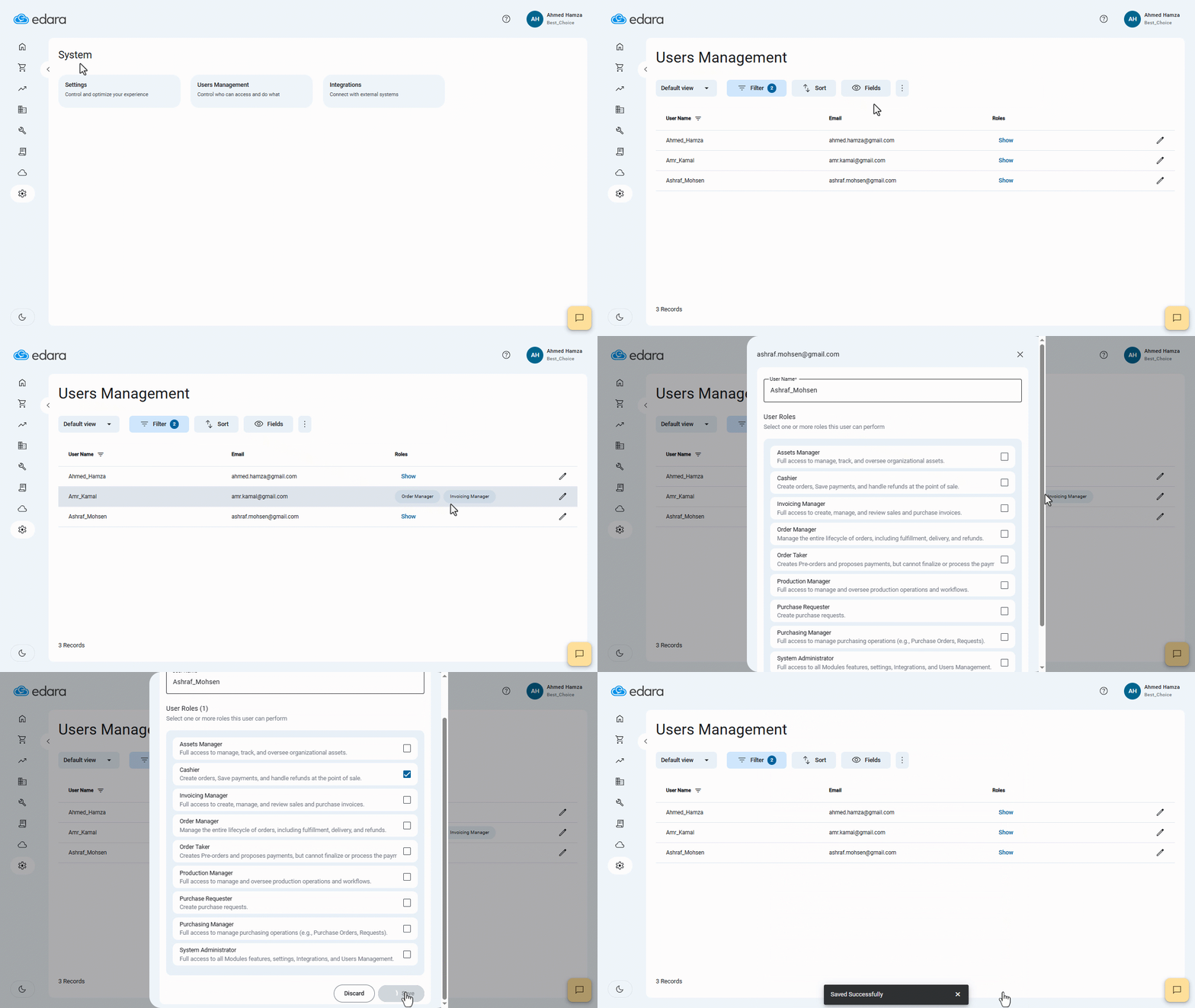
- Go to the system.
- Open the "Users Management" page.
- Click on "Show" to view the roles (permissions) of each user.
- Click on "
 " next to the user whose roles are to be modified.
 - Select user roles according to their job duties (you can also change the user name).
- Click on "Save".
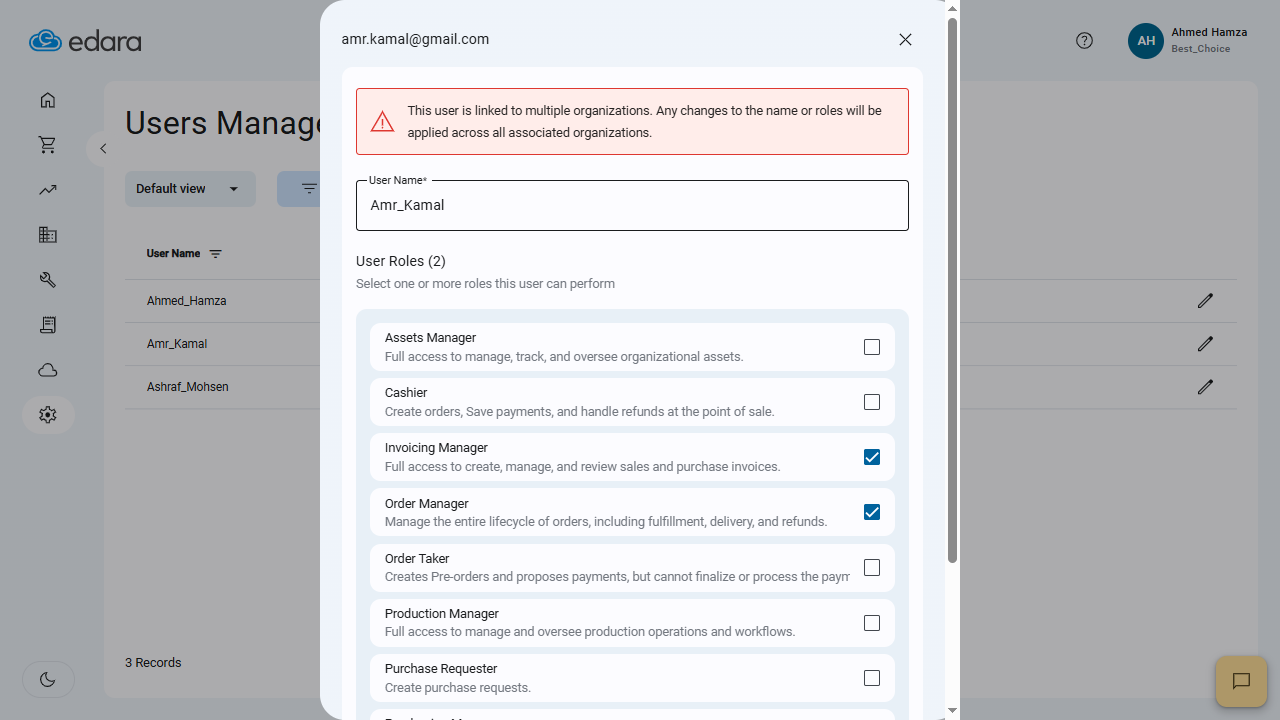
Note: If a user is associated with multiple organizations, any changes made to the user's data will be applied to all associated organizations.
Note: The roles available on the system are:
- Asset Manager: Full access to manage, track, and oversee organizational assets.
- Cashier: Create orders, Save payments, and handle refunds at the point of sale.
- Invoicing Manager: Full access to create, manage, and review sales and purchase invoices.
- Order Manager: Manage the entire lifecycle of orders, including fulfillment, delivery, and refunds.
- Order Taker: Creates Pre-orders and proposes payments, but cannot finalize or process the payment.
- Production Manager: Full access to manage and oversee production operations and workflows.
- Purchase Requester: Create purchase requests.
- Purchasing Manager: Full access to manage purchasing operations (e.g., Purchase Orders, Requests).
- System Administrator: Full access to all Modules features, settings, Integrations, and Users Management.
Frequently asked questions
Do the changes apply to all organizations linked to the user?
If a user is associated with multiple organizations, any changes made to the user's data will be applied to all associated organizations.
If you encounter any challenges or have questions during these processes, you can contact our technical support team, who are ready to assist you at any time.