

Sharing the Table View with Users
Last updated:
Any user can create their own table view, filter and organize the data, and show/hide fields to maintain the proper view without having to repeat these steps every time.
To make it even easier for users, “Edara” allows users to share the table view with any other user, with full control over each user's level of access.
This feature is available on these pages:
- Purchase Requests.
- Purchase Orders.
- Delivery Zones.
- Users Management.
In this article, we walk through the steps needed to share tables.
Sharing the Table View with Users
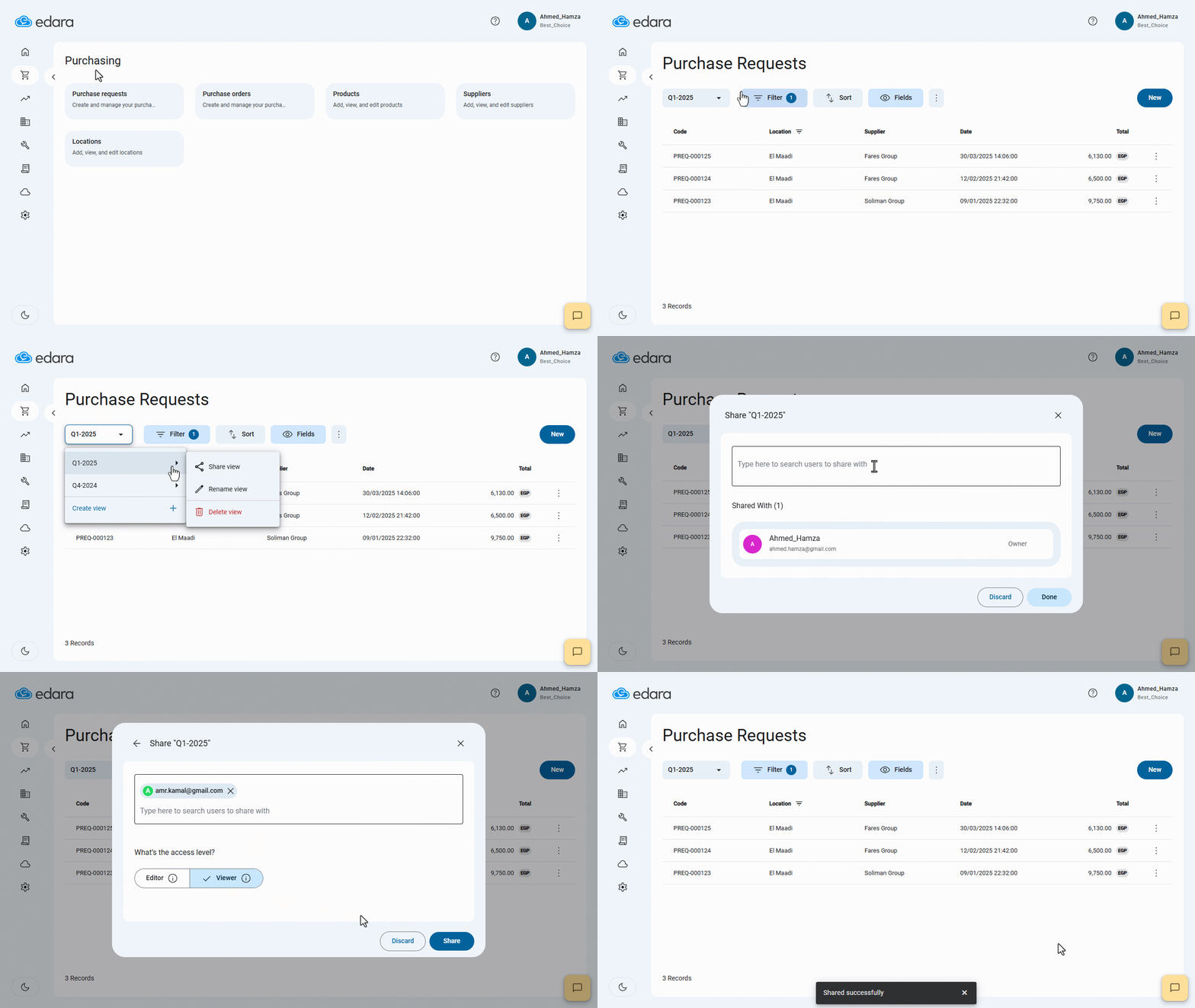
Here is an example of implementing this feature on the “Purchase Requests” page:
- Go to the Purchase module.
- Open the "Purchase Requests" page.
- Click on the field for Display Views.
- Hold the arrow on the desired form until the side menu appears.
- Click on "Share View".
- Find the user to share the form with.
- Select the user's role if it is: (Editor - Viewer).
- Click on "Share".
Note: 1- The editor's permissions are:
- Can edit the table view (e.g., filters, sort, visible fields).
- Cannot share view (Owner only).
- Cannot rename view (Owner only).
- Cannot delete view (Owner only).
2- The viewer permissions are:
- Can access and use this view.
- Cannot edit the table view (only Editors and Owners can).
- Cannot share view (Owner only).
- Cannot rename view (Owner only).
- Cannot delete view (Owner only).
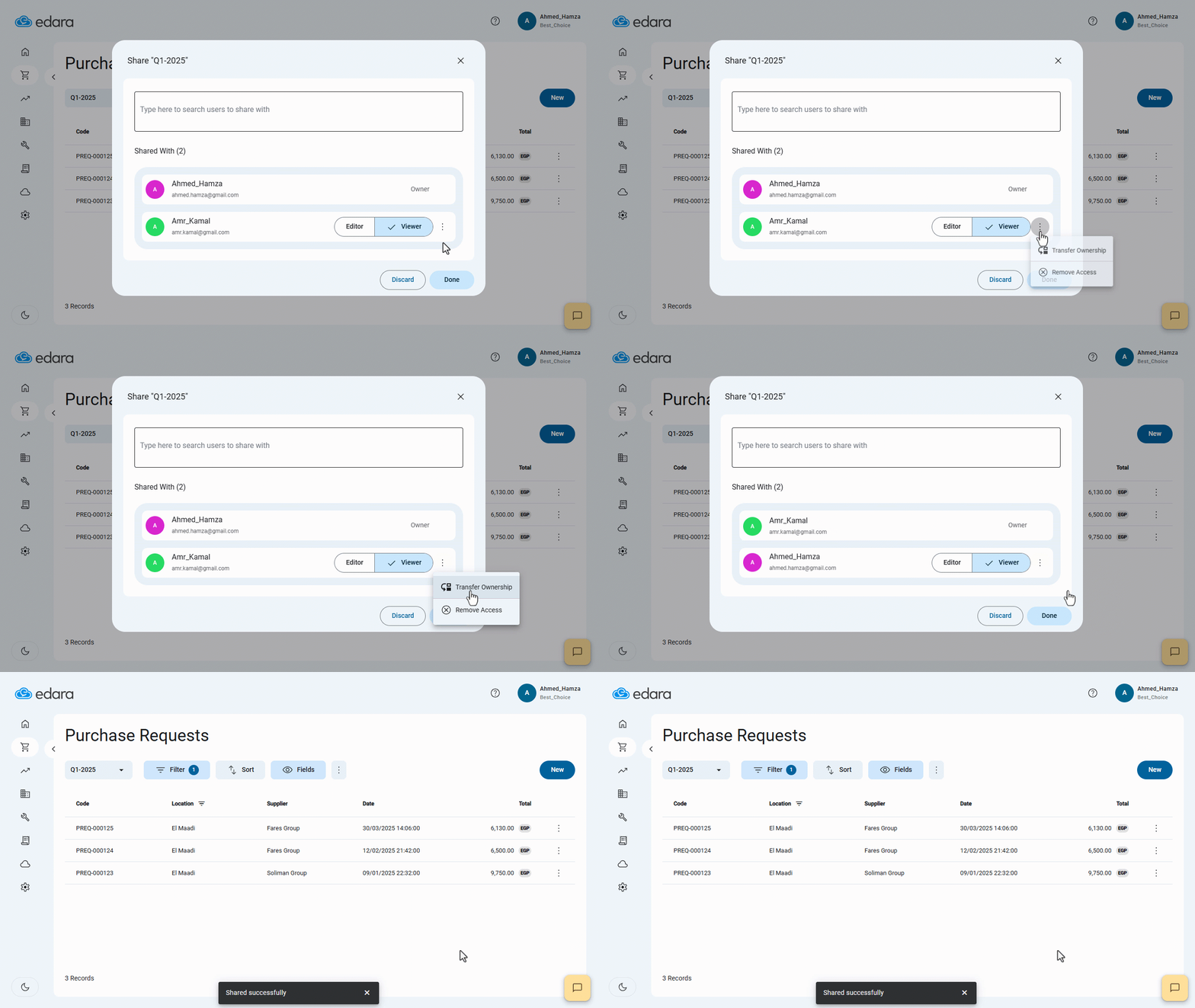
Note: If you want to transfer ownership of the view to another user, you can follow the same steps until step 6, then:
- Click "⁝" next to the user's name.
- Click on "Transfer Ownership".
- Click on "Save".
Frequently asked questions
How do I transfer ownership of a view to another user?
If you want to transfer ownership of the view to another user, you can follow the same steps until step 6, then: Click "⁝" next to the user's name, Click on "Transfer Ownership", Click on "Save".
If you encounter any challenges or have questions during these processes, you can contact our technical support team, who are ready to assist you at any time.