

Configuring Fields in Purchase (Order/Request/invoice) Lines
Last updated:
When creating purchase documents, you may need to display some product-related fields, and hide the rest as they are not needed, especially in processes that require quick or simple input.
That’s why “Edara” allows you to customize fields within purchase pages, giving you the flexibility to show or hide fields such as Discount, Tax, Part Number, and more. You can also reorder them to match your workflow.
Configuring Fields in Purchase (Order/Request/invoice) Lines
The following example uses a Purchase Order:
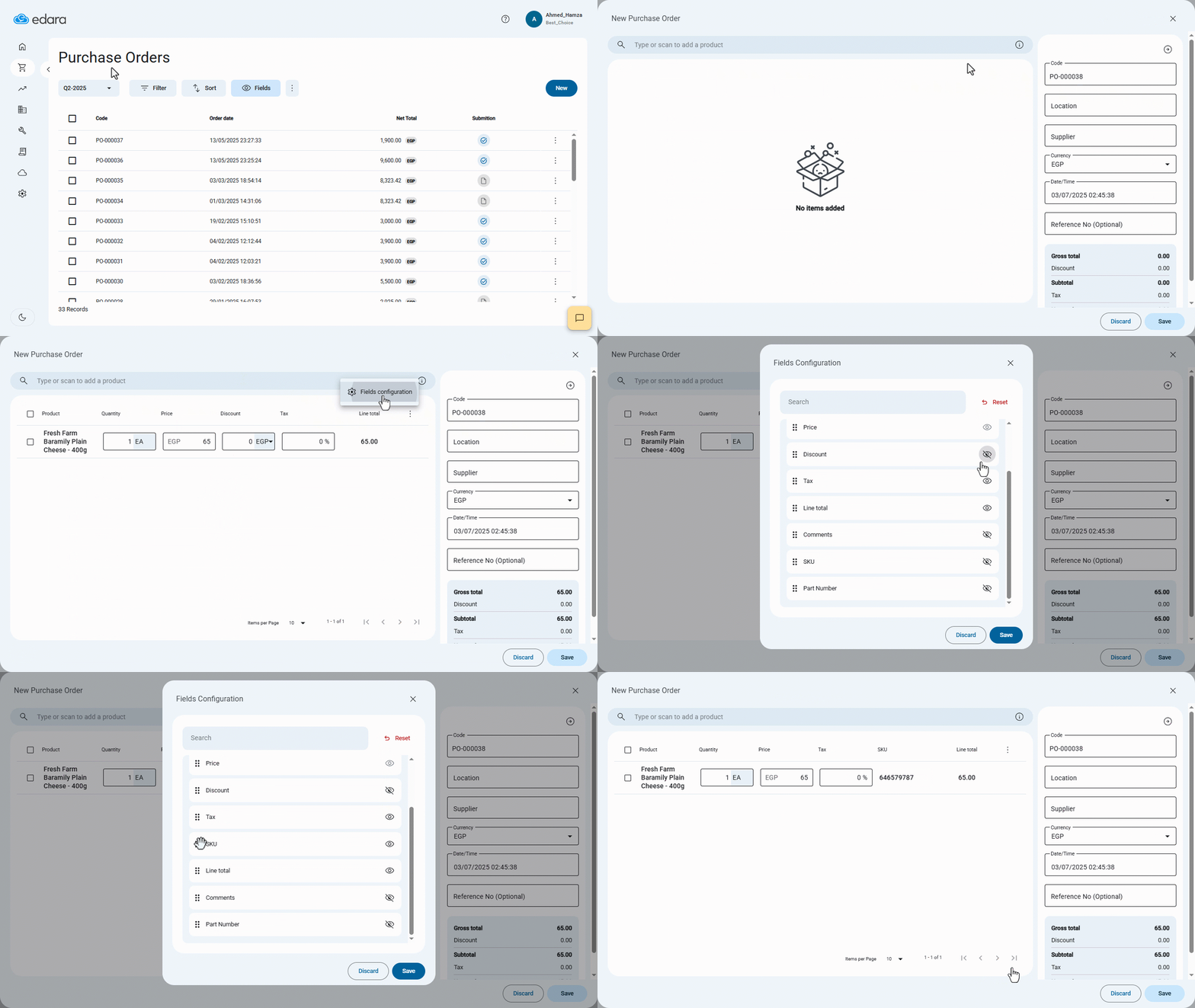
- Go to the Purchase module.
- Open the “Purchase Orders” page.
- Click on “New”.
- Add the products you want to purchase.
- Click on the “⁝” icon.
- Select “Fields Configuration”.
- Show, hide, or reorder fields as needed.
- Click on “Save”.
The customized field layout will be displayed every time you create a purchase document, as shown in the example below:
Notes:
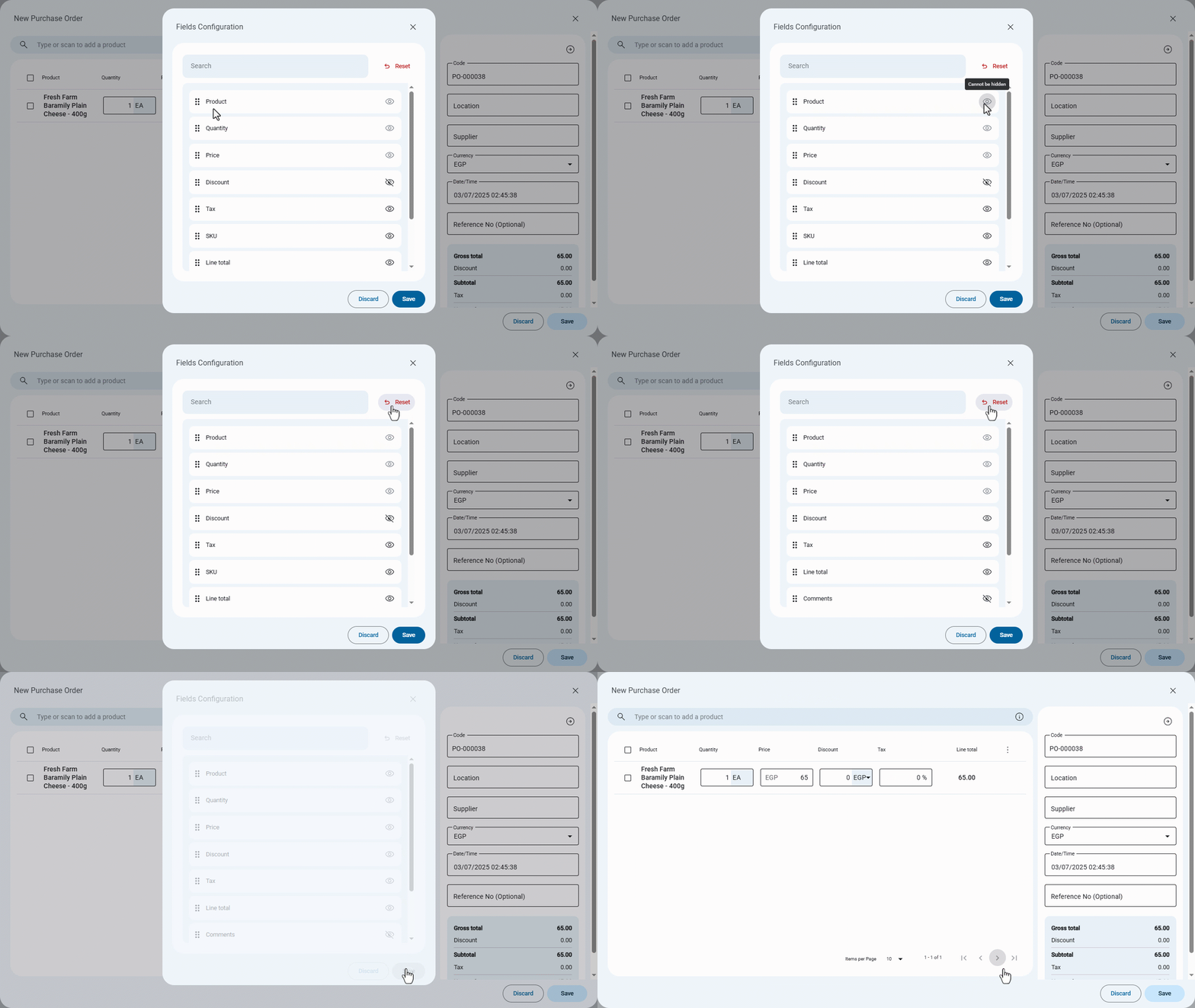
- Some fields (e.g., Product Name, Quantity, Price) are mandatory and cannot be hidden. The system will notify you if you try to hide them.
- You can reset to the default layout anytime by clicking “Reset”.
Frequently asked questions
Can I hide any field?
Some fields (e.g., Product Name, Quantity, Price) are mandatory and cannot be hidden. The system will notify you if you try to hide them.
If you encounter any challenges or have questions during these processes, you can contact our technical support team, who are ready to assist you at any time.