

Configuring the Purchases Module Settings for "Edara 2.0" and "Edara 3.0" Integration
Last updated:
To complete the integration of "Edara 2.0" with "Edara 3.0", you will need to adjust the settings of the Purchases module.
Configuring the Purchases Module Settings for "Edara 2.0" and "Edara 3.0" Integration
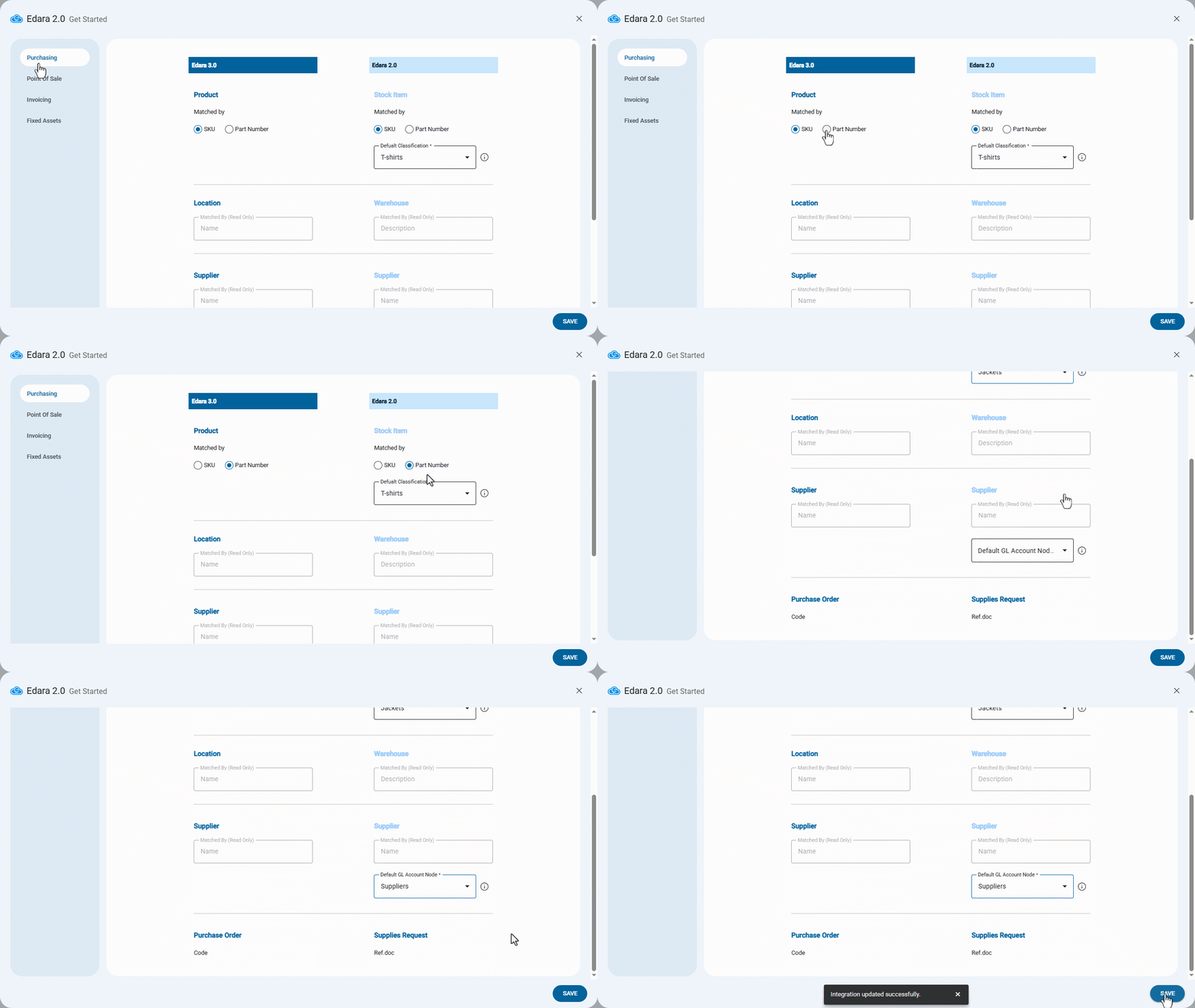
During the integration between “Edara 2.0” and “Edara 3.0”, the Purchases settings page will appear. From here:
- Select the item matching method in “Edara 2.0” based on either: (SKU - Part number)
- Select the product matching method in “Edara 3.0” based on either: (SKU - Part number)
During the setup, products in “Edara 3.0” will be linked with items in Edara 2.0 based on the chosen matching method. After the initial Integration is completed, this setting will no longer have any effect.
- Choose the default classification. (When a product is created in “Edara 3.0”, it will be saved in “Edara 2.0” under this classification.)
Notes:
- The location in “Edara 3.0” is matched by Name with the warehouse in Edara 2.0 by Description, and they are linked during the integration setup according to this matching method.
- The supplier in Edara 3.0 is matched with the supplier in Edara 2.0 by Name, and they are linked during the integration setup according to this matching method.
- Select the default account node (when creating a supplier in “Edara 3.0”, it will be saved in “Edara 2.0” under this node)
Note: When a purchase order is created and submitted in “Edara 3.0”, a supply request is automatically created in “Edara 2.0”. The two documents are matched using the “purchase order Code” and the supplies request “Reference Number”.
- Click on “Save”.
Frequently asked questions
How are suppliers matched between the two versions?
The supplier in Edara 3.0 is matched with the supplier in Edara 2.0 by Name, and they are linked during the integration setup according to this matching method.
If you encounter any challenges or have questions during these processes, you can contact our technical support team, who are ready to assist you at any time.