

Bulk Linking of "Edara 2.0" and "Edara 3.0"
Last updated:
Instead of linking items one by one, the system allows you to link multiple items at once. For example, if you have 5 stock items in “Edara 2.0” and 5 matching products in “Edara 3.0”, you can select them all and complete the linking in a single step.
This applies to products, locations, and suppliers, making the bulk linking feature especially helpful when working with large data sets—saving you significant time during the initial setup.
Bulk Linking of "Edara 2.0" and "Edara 3.0"

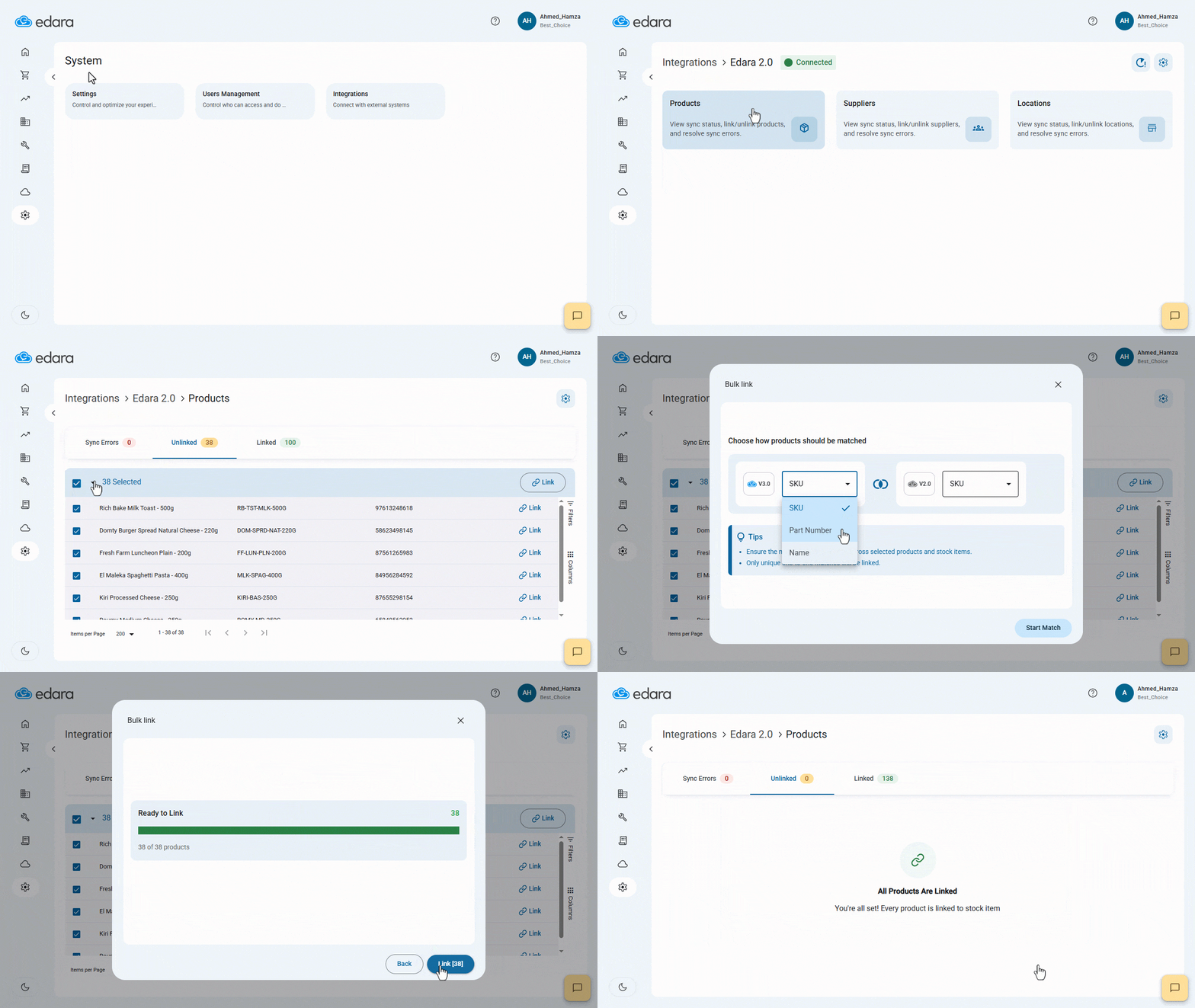
- Go to System.
- Open the “Integrations” page.
- Click on “Edara 2.0”.
- Choose the section you want to link: (Products, Locations, or Suppliers).
- Open the “Unlinked” section.
- Select all items using the checkbox ◻.
- Click on “Link”.
- Choose the preferred linking method.
- Click on “Start Match”.
- Click on “Link”.
- Click on “Got it”.
Note: You can also bulk unlink items from the “Linked” tab if needed.
Frequently asked questions
Can I unlink items in bulk?
You can also bulk unlink items from the “Linked” tab if needed.
If you encounter any challenges or have questions during these processes, you can contact our technical support team, who are ready to assist you at any time.
Did this answer your question?