

Using the Payment Screen and Setting Dates for Saved Documents
Last updated:
The "Payment Screen" feature helps process multiple payments at once, useful for cashiers during high-volume sales. It also allows you to enter delayed payments with the correct collection date, ensuring accurate financial tracking.
Using the Payment Screen and Setting Dates for Saved Documents
- Go to the Accounting module.
- Open the “Payment” page.
- Use the "Advanced Search" to filter the sales orders that need to be settled (e.g., by date, Fulfillment status, Proposed payment, etc.).
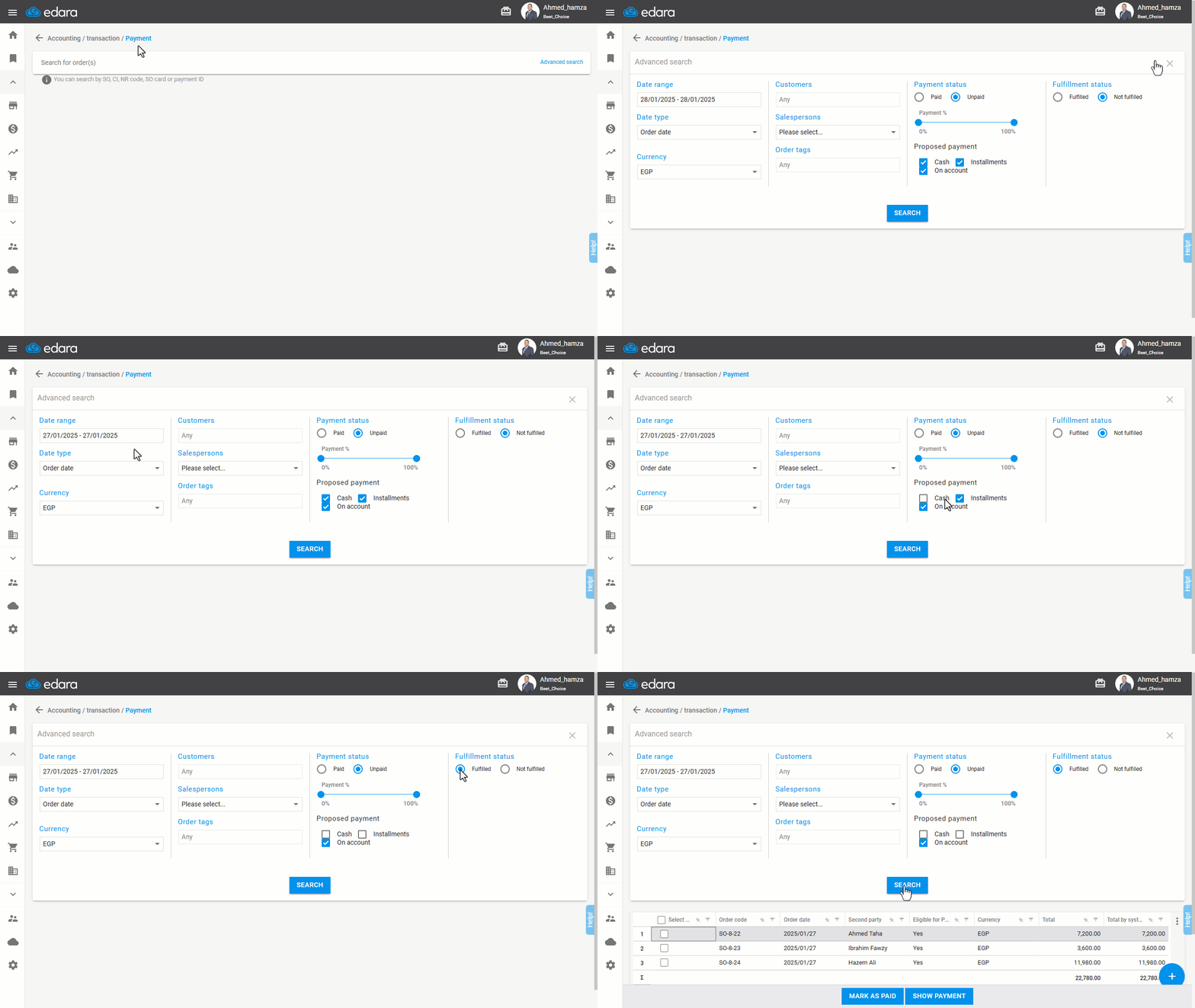
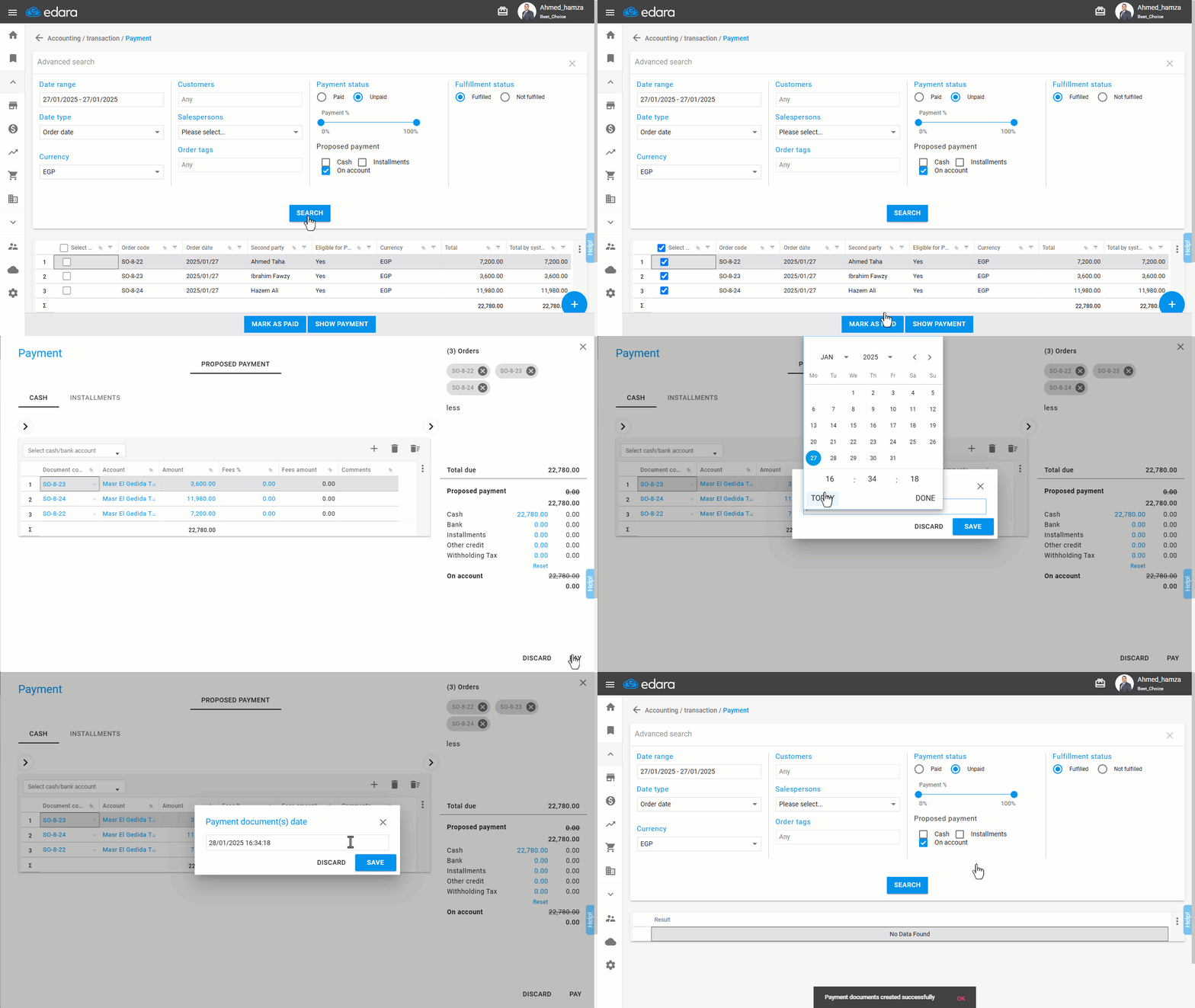
- Click on "Show Payment".
- Click "Pay".
Note: The date will default to today's date. But if you need to change the payment date for saved documents, first enable the "Allow Changing Document Date When Creating" setting.
- Click "Save".
Frequently asked questions
Can I record a payment with a date other than today?
The date will default to today's date. But if you need to change the payment date for saved documents, first enable the "Allow Changing Document Date When Creating" setting.
If you encounter any challenges or have questions during these processes, you can contact our technical support team, who are ready to assist you at any time.