

Viewing the Cash Report
Last updated:
The Cash Report enables the treasury officer to track the inflow and outflow of cash in the company, helping to monitor collections, and payments, and ensure the accuracy of financial transactions.
Viewing the Cash Report
- Go to the Accounting module.
- Click on “Cash Report”.
- Select the “Cash document type” you want to view.
- Choose the “Treasury”.
- Set the Period.
Note: You can control the period for users by specifying/not specifying time in the date picker.
- Select the User.
Note: "Edara" allows customization of results using the following filters:
- "For NR/NP cashing only": To display documents used only for check payments.
- "Not for NR/NP cashing only": To display documents not used in check payments.
- "Posted only": To display documents that have posted.
- "Not Posted only": To display documents that have not been posted.
- "Has related sales document only": To display documents linked to sales orders only.
- Select the Salesperson.
Note: Ensure that the salesperson responsible supervises the users whose documents you wish to view.
- Display the required columns using “Custom View”.
- Click on “Generate”.
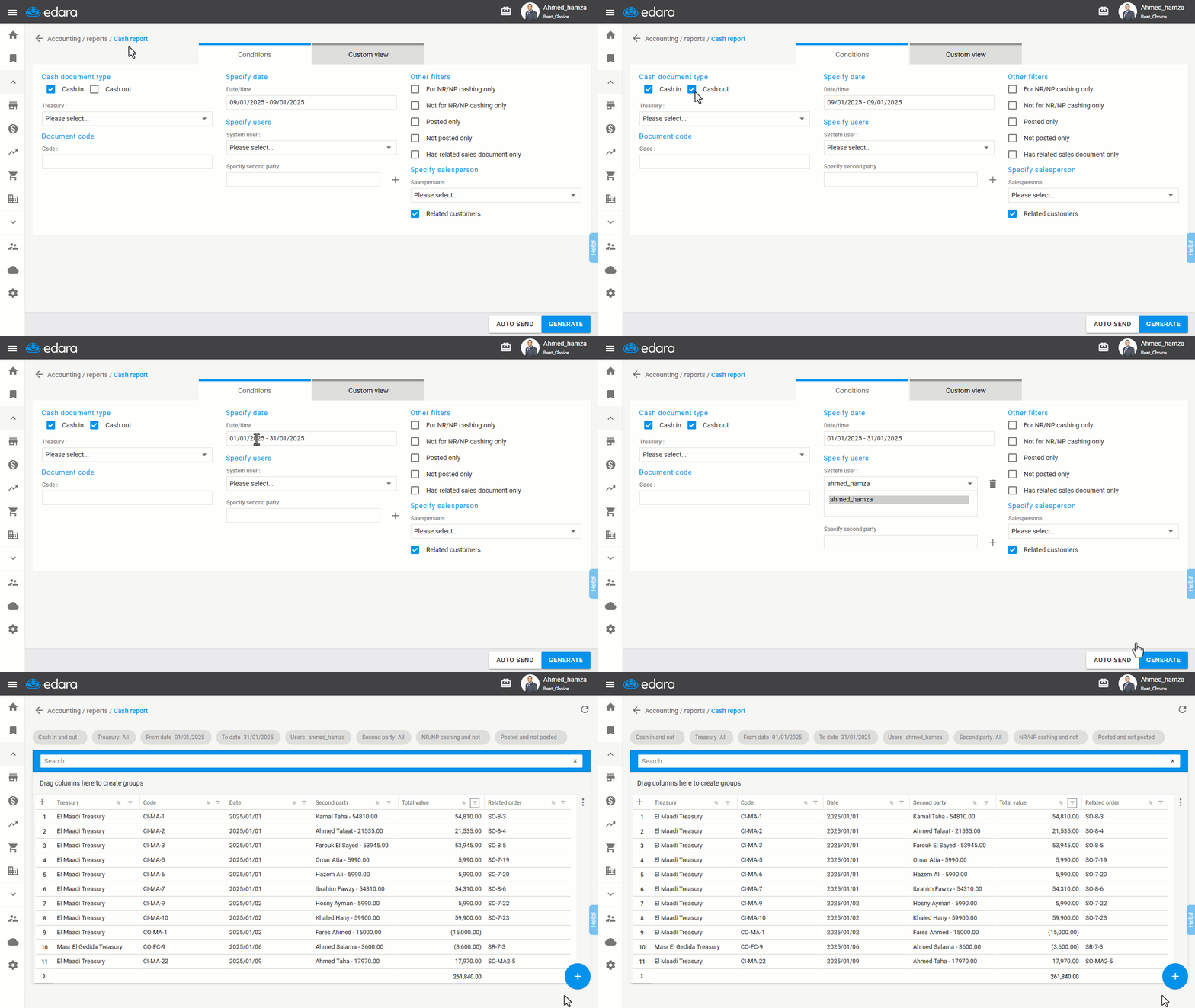
Note: The report can be exported to Excel or Google Sheets, or printed by clicking the "+" button.
Frequently asked questions
Which filters are available in the cash report?
"Edara" allows customization of results using the following filters: "For NR/NP cashing only": To display documents used only for check payments, "Not for NR/NP cashing only": To display documents not used in check payments, "Posted only": To display documents that have posted, "Not Posted only": To display documents that have not been posted, "Has related sales document only": To display documents linked to sales orders only.
If you encounter any challenges or have questions during these processes, you can contact our technical support team, who are ready to assist you at any time.