

Using Journal Entry to Record the Withholding Tax for a Sales Order
Last updated:
If you have created a sales order and later receive a notification from the client regarding the payment of Withholding Tax, you need to record this transaction without modifying the previously recorded sales order.
To do so, you can create a journal entry linked to the sales order, ensuring that the financial transaction is recorded correctly.
The following steps are an example of a sales order generated from a sales store.
Using Journal Entry to Record the Withholding Tax for a Sales Order
- Go to the Accounting module.
- Open the "Journal Entry" page.
- Ensure that the "Classic Layout" is selected for the display mode.
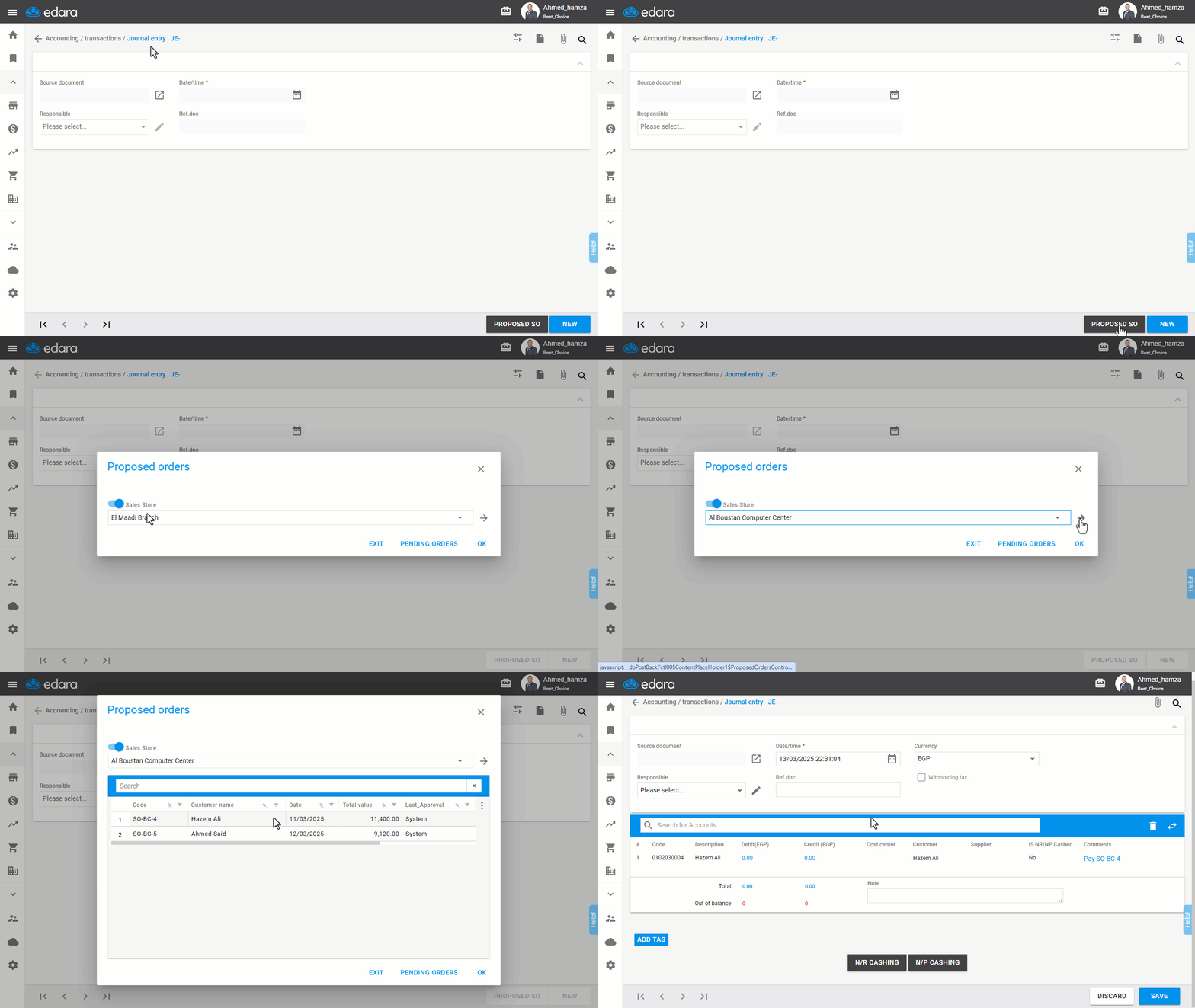
- Click on "Proposed SO".
- Click on "
 " to switch to the Sales Stores List.
 - Select the relevant Sales Store.
- Click "→".
At this stage, all (unpaid) sales orders created from the selected sales store will be displayed.
- Double-click the desired sales order to create a new journal entry linked to it. (A row for the customer account will be automatically generated).
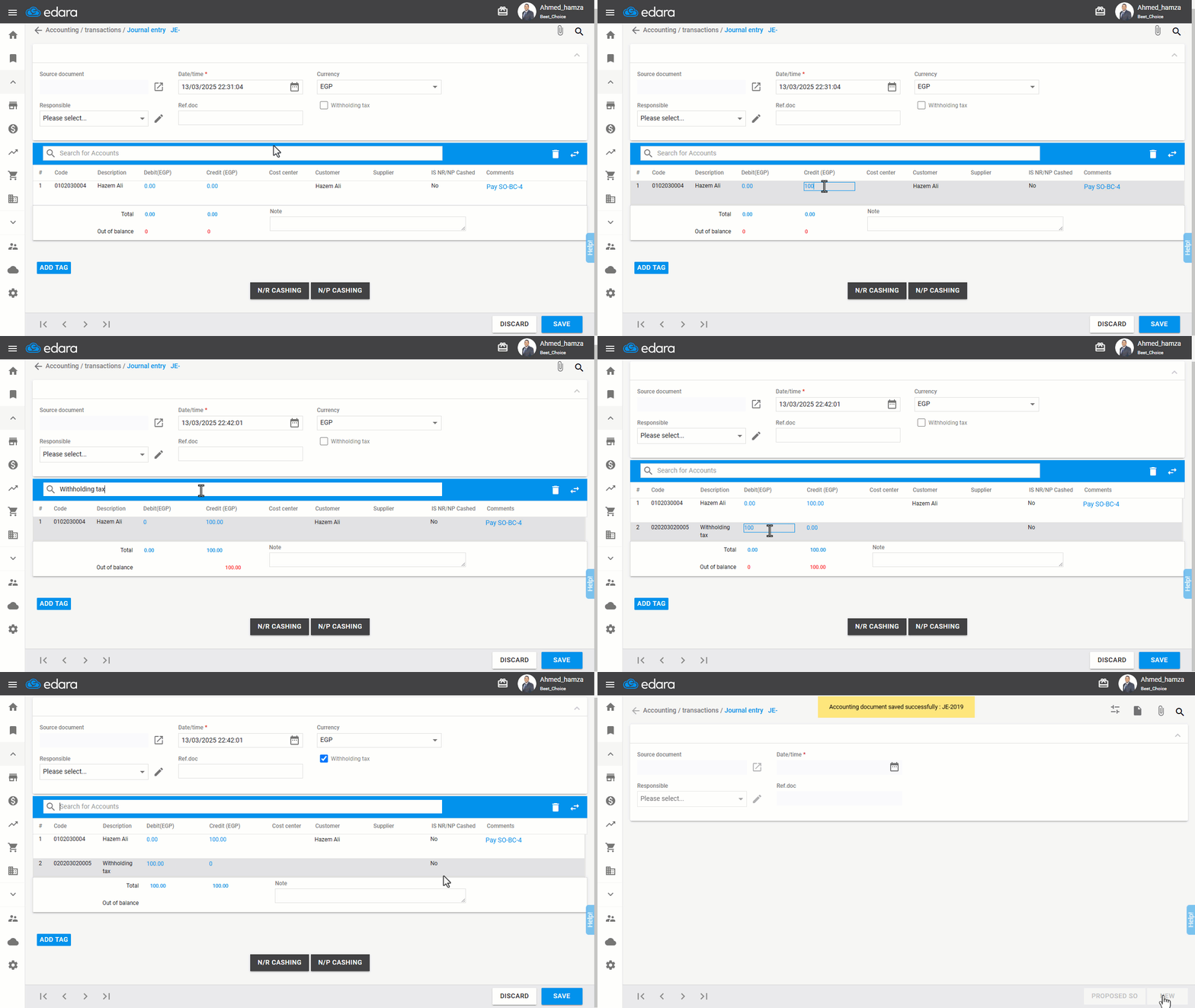
- Enter the notification amount on the credit side.
- Search for the "Withholding Tax" account.
- Enter the tax amount on the debit side.
- Enable the "Withholding Tax" option.
- Click on "Save".
Note: If the sales order was created from a warehouse instead of a sales store, follow the same steps while selecting the warehouse at the beginning—without switching to the Sales Stores List.
Frequently asked questions
Can I follow the same steps for a sales order created from a warehouse?
If the sales order was created from a warehouse instead of a sales store, follow the same steps while selecting the warehouse at the beginning—without switching to the Sales Stores List.
If you encounter any challenges or have questions during these processes, you can contact our technical support team, who are ready to assist you at any time.