

Displaying the Journal Entry Listing Page
Last updated:
Instead of relying on a single viewing method (the classic layout that allows navigation through entries one by one using arrows), you can now view journal entries on a listing page, provided you have the necessary permissions. And you can switch between available layouts based on your needs.
The listing page offers several benefits, including the ability to filter results by document date and posting status, rearrange columns, save preferred display settings, and automatically apply them when reopening the page.
Displaying the Journal Entry Listing Page

You can display the journal entry listing page in two main steps:
1- Granting Permission to Access the "Journal Entry Listing Page"
- Go to the Users module.
- Select “Page Permissions”.
- Choose the user or group of users you want to grant access.
- Click the “+” next to Accounting, then Transactions, then Entries.
- Check the box “▢” next to "Journal Entry Listing Page".
- Click on “Save”.
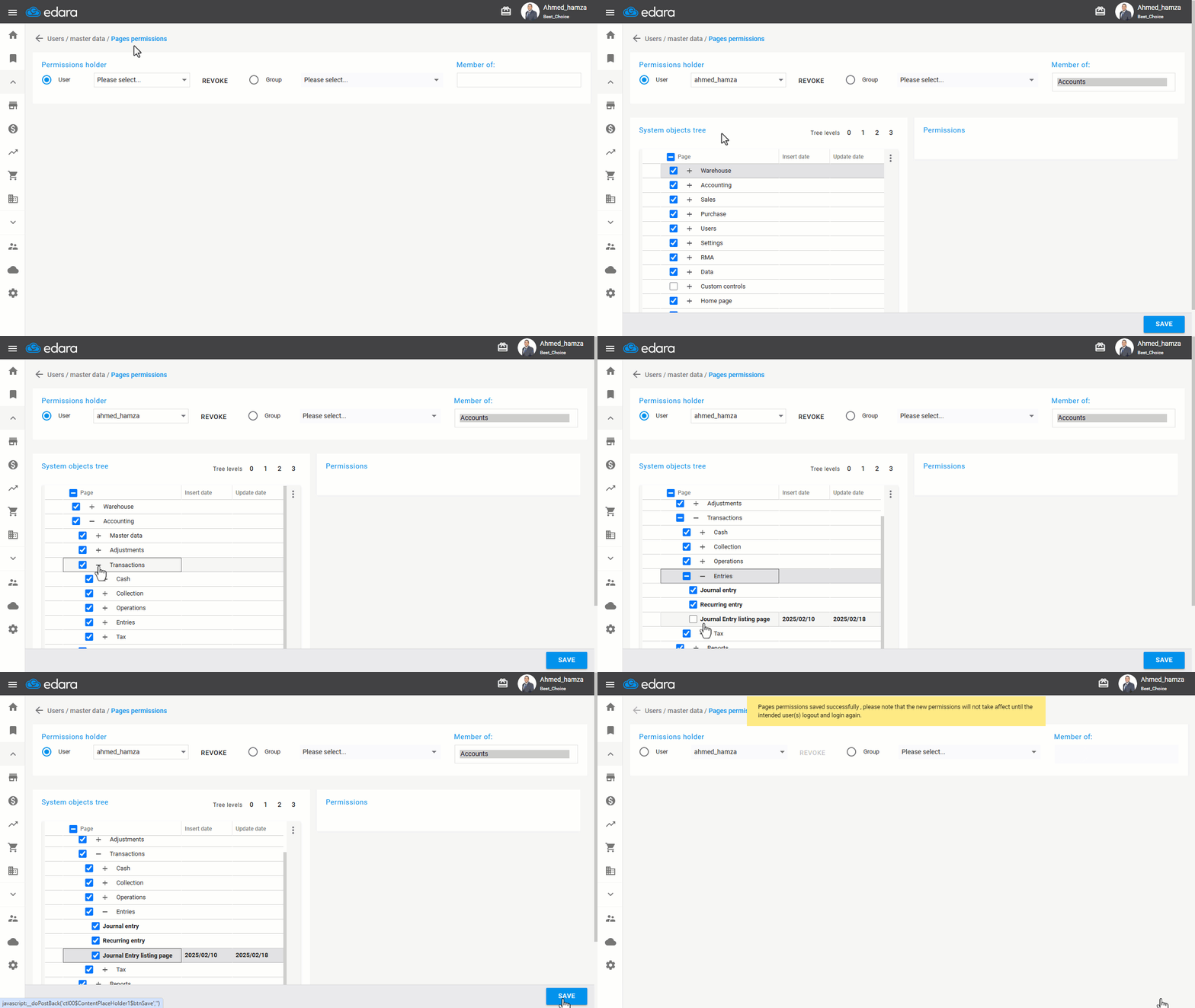
Note: The user with the required permission must log out and log back in to activate it.
2- Changing the Layout of the Journal Entry Page
- Go to the Accounting module.
- Open the “Journal Entry” page.
- Click on "
 " to change the layout.
 - Select "Listing" to browse and manage journal entries in an organized table.
- Click on "Filters" to specify "Document Date" and "Posting Status".
- Click on "Apply".
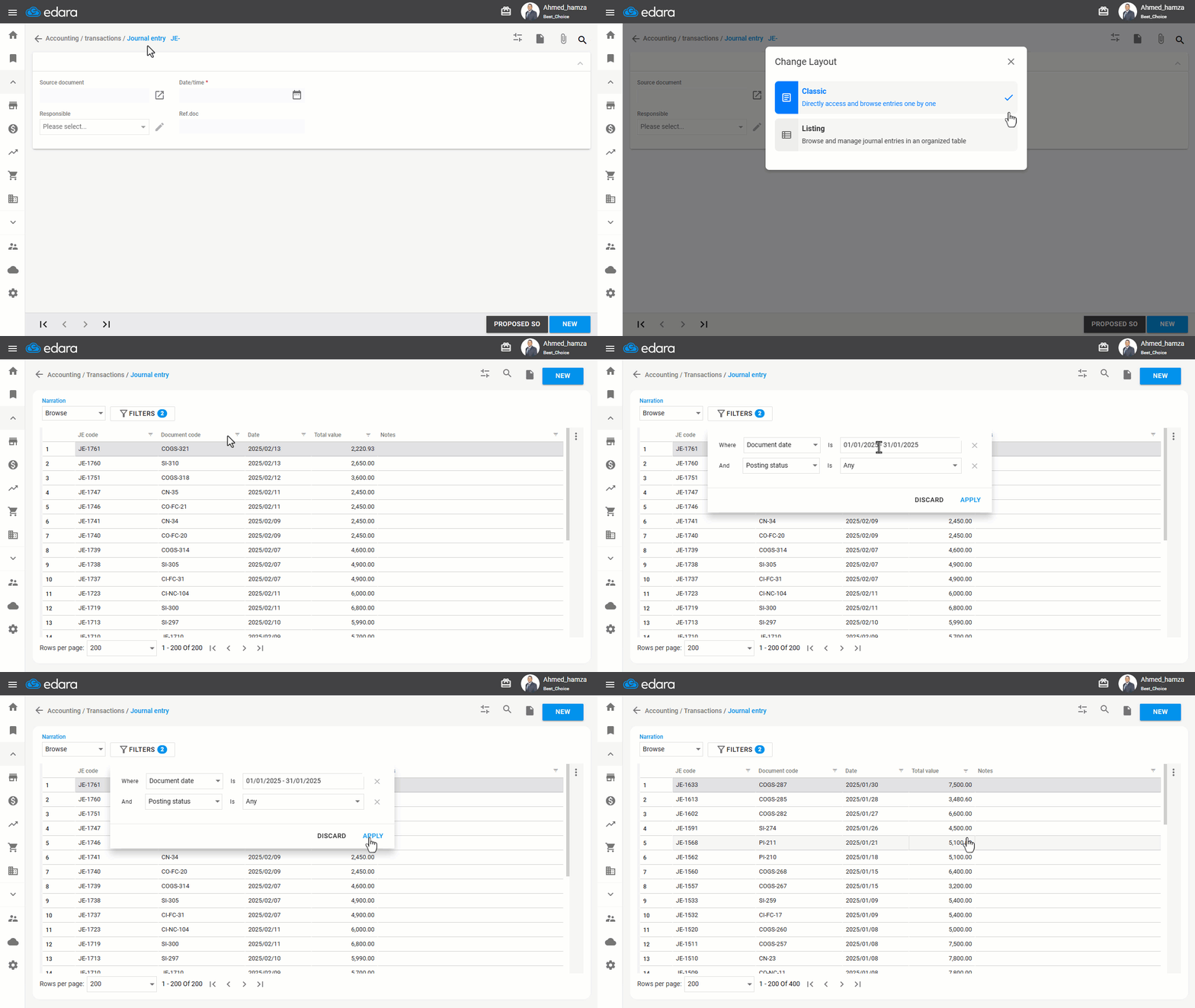
Note: The list will only display journal entries that the user has permission to view, and they are sorted in descending order by entry code by default.
Note: Viewing journal entries on a listing page offers several advantages, such as:
- Controlling the number of rows displayed per page, with options of 200, 500, or 1000 rows.
- Filtering results by clicking the filter icon “
 ” next to each column.
 - Customizing the display by showing or hiding columns, rearranging their order, and sorting them in ascending or descending order, then saving these preferences for future use.
- Double-clicking on any row to open the journal entry in a separate tab.
Frequently asked questions
When does the “Journal Entry Listing Page” permission take effect?
The user with the required permission must log out and log back in to activate it.
If you encounter any challenges or have questions during these processes, you can contact our technical support team, who are ready to assist you at any time.