

Viewing Journal Entries Listed by Lines
Last updated:
When reviewing transactions within a specific period, displaying the Journal Entry List by Lines helps in efficiently reviewing entries and identifying errors.
Viewing Journal Entries Listed by Lines
Ensure the user has permission to display the journal entry listing page. Then, follow these steps:
- Go to the Accounting module.
- Open the "Journal Entry" page.
- Click "
 " to change the layout.
 - Select "Listing" to browse and manage journal entries in an organized table.
Note: To modify the “document date” or “posting status”, click "Filters".
- Click on "List By".
- Select "Lines".
- Click "Apply".
Note: By default, the following columns will be displayed:
- JE Code
- Document Code
- Date
- Account
- Debit
- Credit
- Line Total (System currency international code): (Debit or Credit * Exchange rate)
- Cost Center
- Comments
Additionally, other available columns include:
- Document Type
- Warehouse Document
- Currency
- Exchange Rate
- Account Code
- Customer
- Supplier
- Header Account (appears only with cash documents and receivable/payable notes)
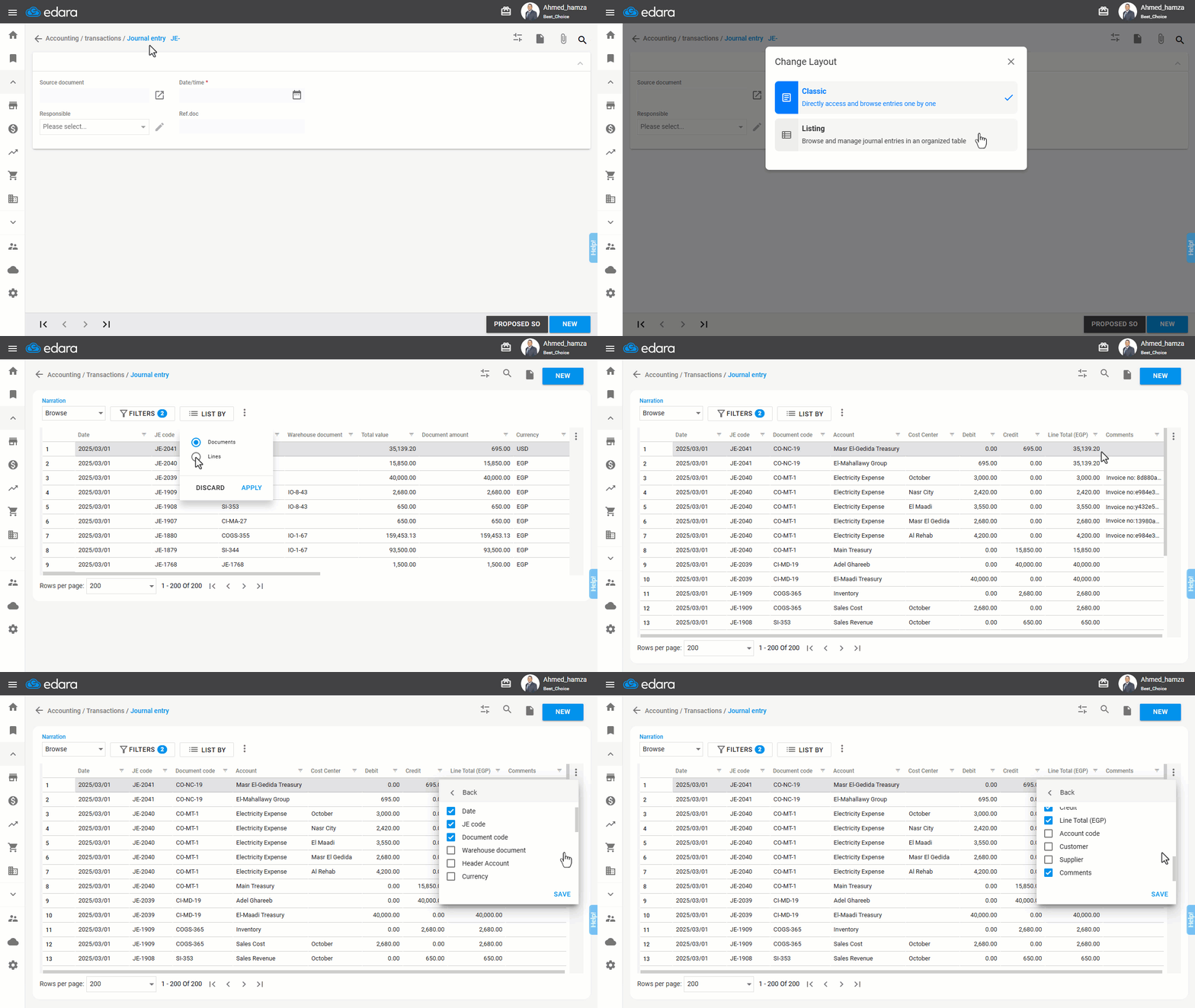
Note: After Applying These Steps:
- The system will only display journal entries the user has permission to view.
- Entries will be listed in descending order based on the JE code, with lines within each entry arranged in their original creation order.
- Users can save a customized view by adjusting column visibility, rearranging their order, and sorting them in ascending or descending order.
- Double-clicking any line will open the entry in a separate tab for further review.
If you encounter any challenges or have questions during these processes, you can contact our technical support team, who are ready to assist you at any time.
Did this answer your question?