

Configuring the Electronic Signature Settings in "Edara"
Last updated:
Through the electronic signature, it is confirmed that the invoice issued or sent is indeed from the concerned client, ensuring the credibility of business and financial operations.
To ensure this is implemented efficiently, it is essential to correctly configure the electronic signature settings in "Edara".
Configuring the Electronic Signature Settings in "Edara"
Before configuring the settings, you need to be aware of the activation requirements, which are:
- Electronic Signature/Stamp Settings File – Windows
- EInvoiceSignerApp
- Signature Settings configuration in "Edara"
To integrate with the e-invoice, download the following programs on the device in use:
- E-Signature - E-Seal Driver (Windows) – Egypt Trust
- EInvoiceSignerApp_1.0.3.zip – Google Drive (if the token is purchased from Egypt Trust)
Note: If the token is purchased from “Misr for Central Clearing, Depository and Registry (MCDR)”, you will need to download and install the following files on your device:
- "Epass" file.
- "Install Certificates" file.
Note: If the token is purchased from Delta Trust, you will need to download and install theactivation tool.
The steps are as follows:
1- Accessing the Electronic Signature/Stamp Settings File – Windows
- Download the file from the Egypt Trust website shown in link no. 1 (containing Egypt Trust Root CA Certificates setup and ePass2003 Driver Setup for token management – electronic signature USB).
- Extract the ZIP file and install "Egypt_Trust_Activation.msi".
- Make sure to select Private CSP during setup.
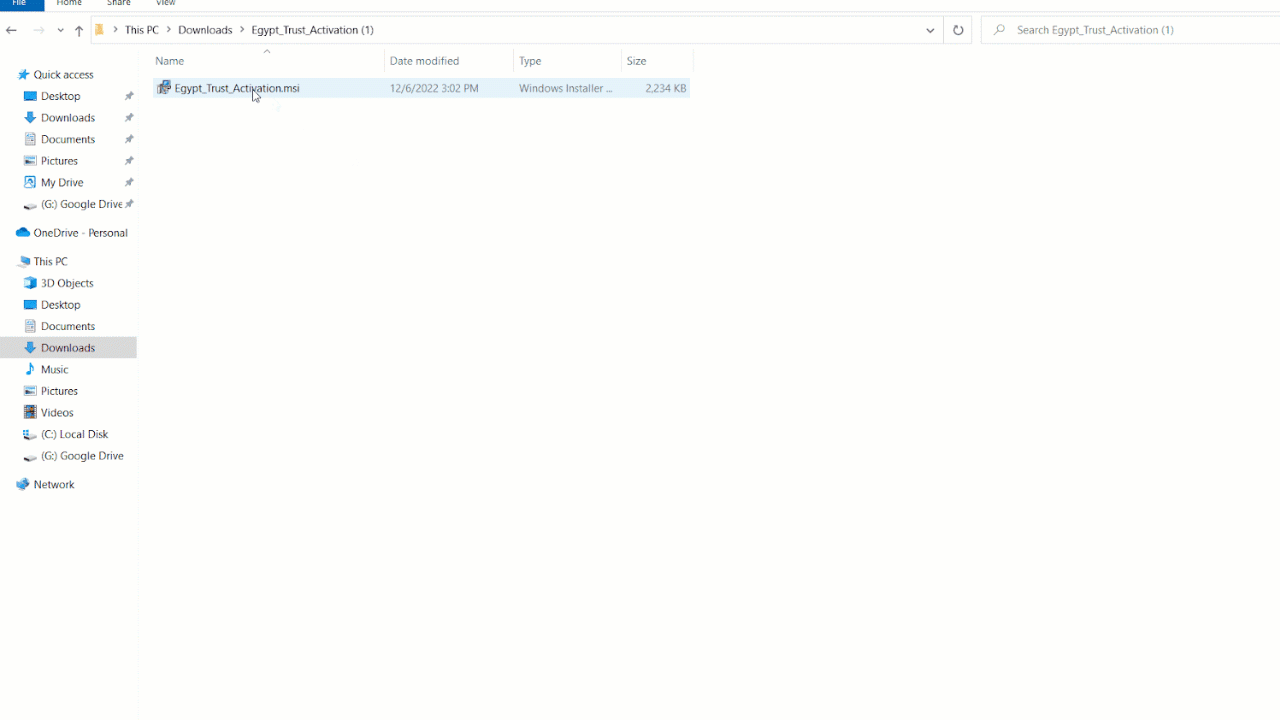
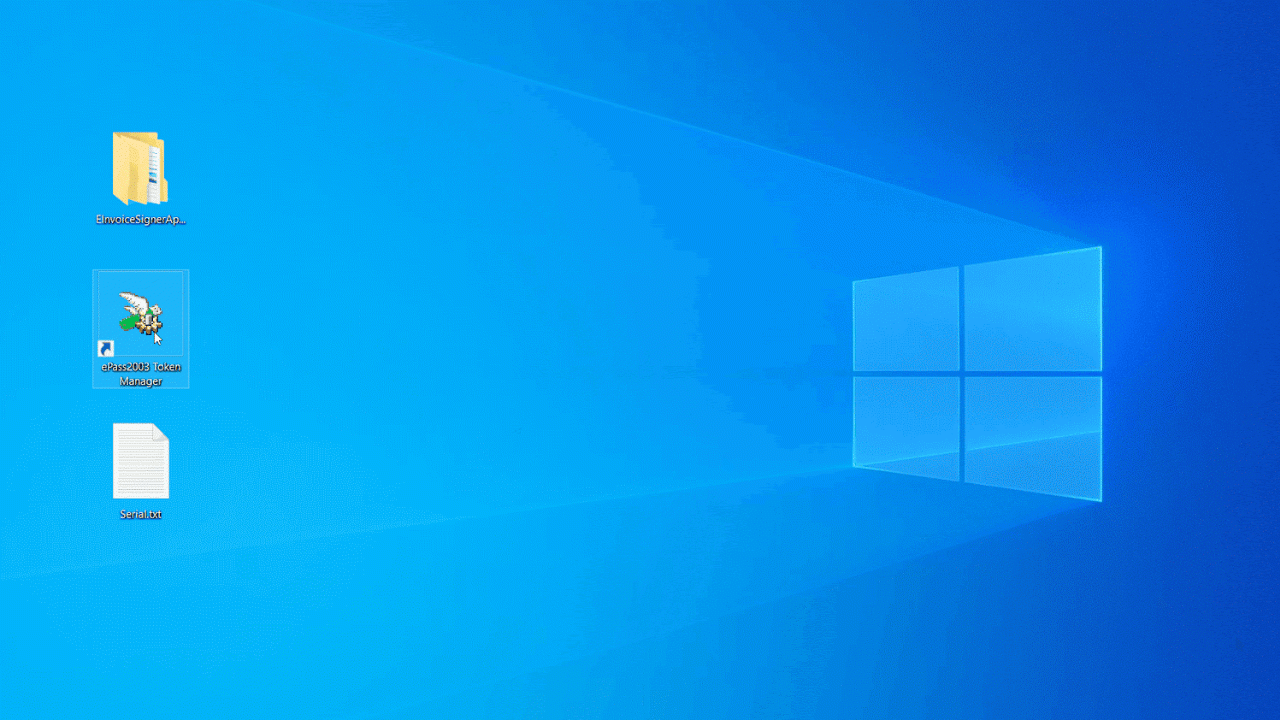
- Open ePass2003 token manager.
- Connect the electronic signature USB (Token).
- Log in and enter the PIN Code.
- Double-click on the certificate name.
- Select Details and copy the Serial Number.
- Paste the serial number into any external file.
2- Accessing the EInvoiceSignerApp
- Download the file from link no. 2 and extract it.
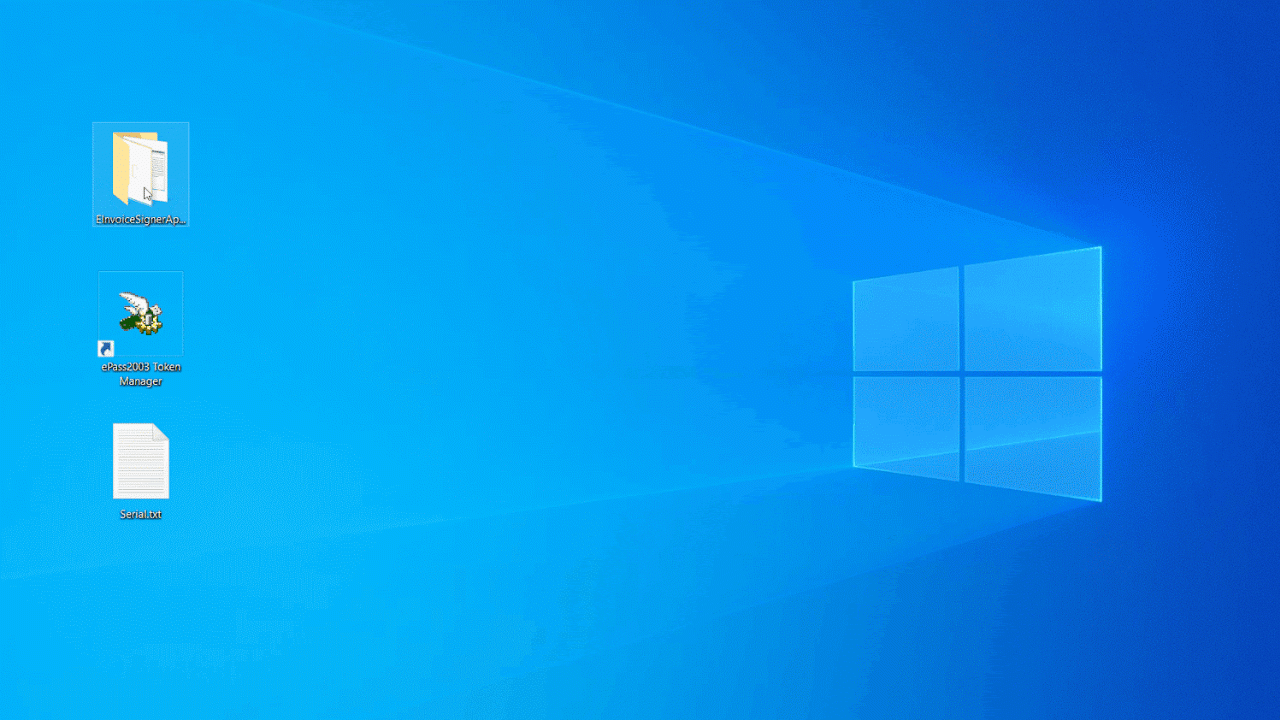
- Open the “EInvoiceSignerApp” folder.
- Locate the file "EInvoiceSignerApp.exe.config".
- Right-click and select "Open with: Notepad".
- Add the serial number you copied earlier between quotation marks after “HardwareToken:CertificateSerialNumber”.
- Save and close the file.
- Open EInvoiceSignerApp.exe.
- Enter the PIN Code and press “Enter”.
Note: Keep the EInvoiceSignerApp running while sending invoices to the portal.
3- Configuring the Signature Settings in "Edara"
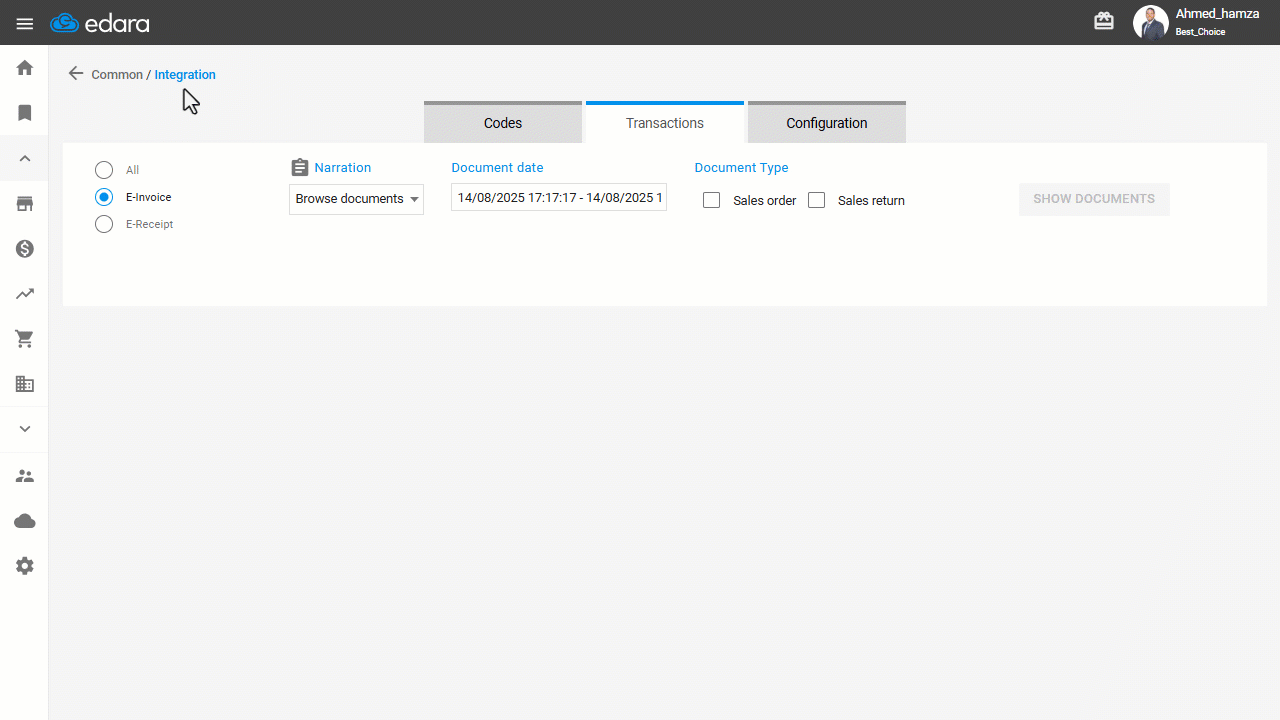
- Log in to "Edara".
- Go to Data.
- Open the “Integration” page.
- Click on "Egyptian Tax Authority".
- Open the Configuration page and go to the signature settings section.
- Add the Signature PIN Code and the Signature Device Serial Number (copied earlier in CertificateSerialNumber).
- Click on "Save".
You can now test the sending process.
Frequently asked questions
Does EInvoiceSignerApp need to stay open?
Keep the EInvoiceSignerApp running while sending invoices to the portal.
If you encounter any challenges or have questions during these processes, you can contact our technical support team, who are ready to assist you at any time.