

Editing a Sales Return Linked to a Receive return
Last updated:
You may need to edit a sales return after creating it in cases such as incorrect data or when you need to modify stock items, quantities, or prices related to the return, to ensure the accuracy of the data and the related transactions.
Editing a Sales Return Linked to a Receive return
First: Deleting the Receive returns
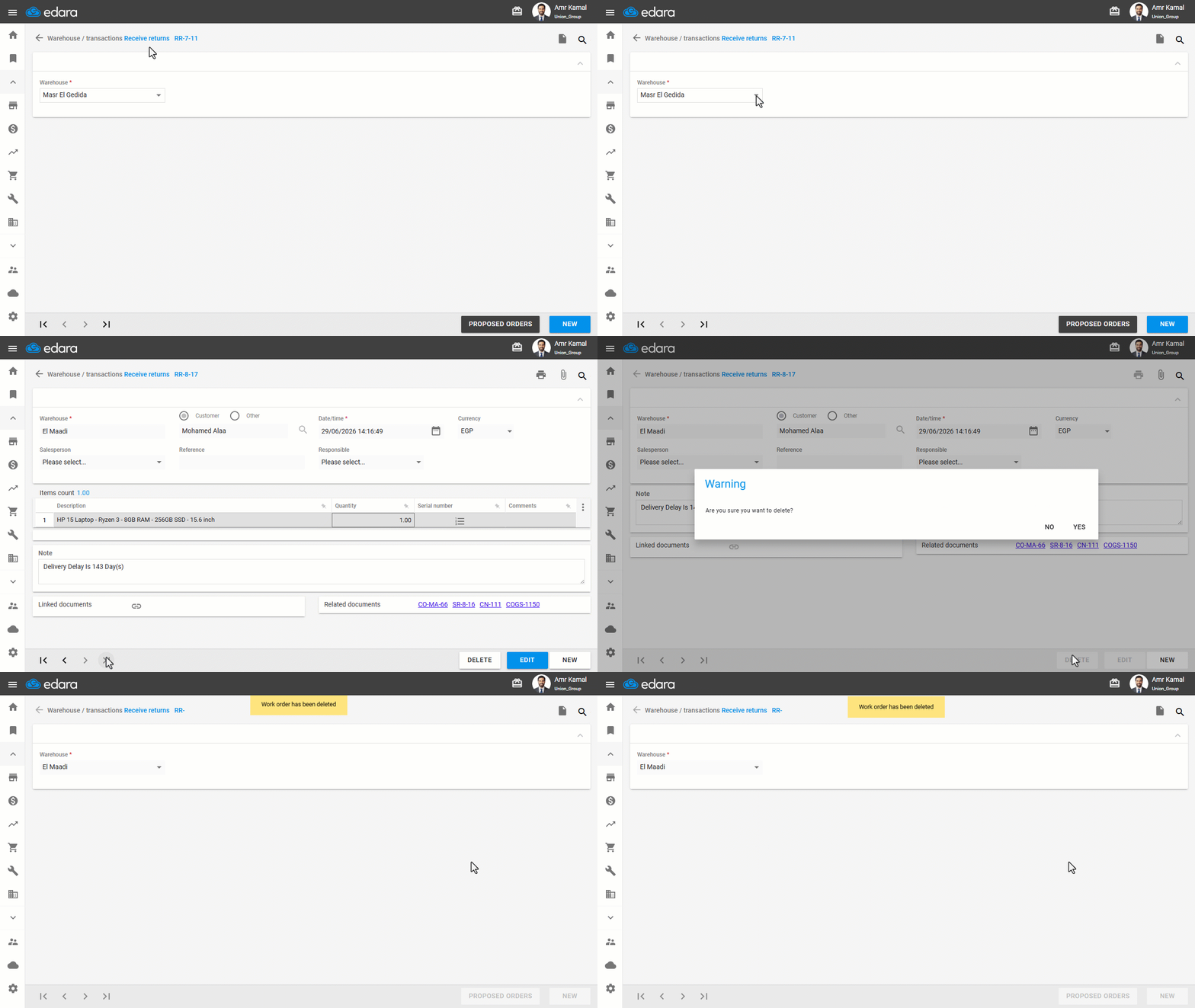
- Go to the "Warehouse" module.
- Open the "Receive returns" page.
- Select the warehouse.
- Search for the required Receive returns using the "🔍" icon or through the arrows at the bottom of the page.
- Click on "Delete".
- Click on "Yes" to confirm deletion.
Note: You can delete Receive Return by clicking on the RR document from the related documents in the sales return you want to edit, if you have permission to access the sales return.
Second: Deleting Related Transactions
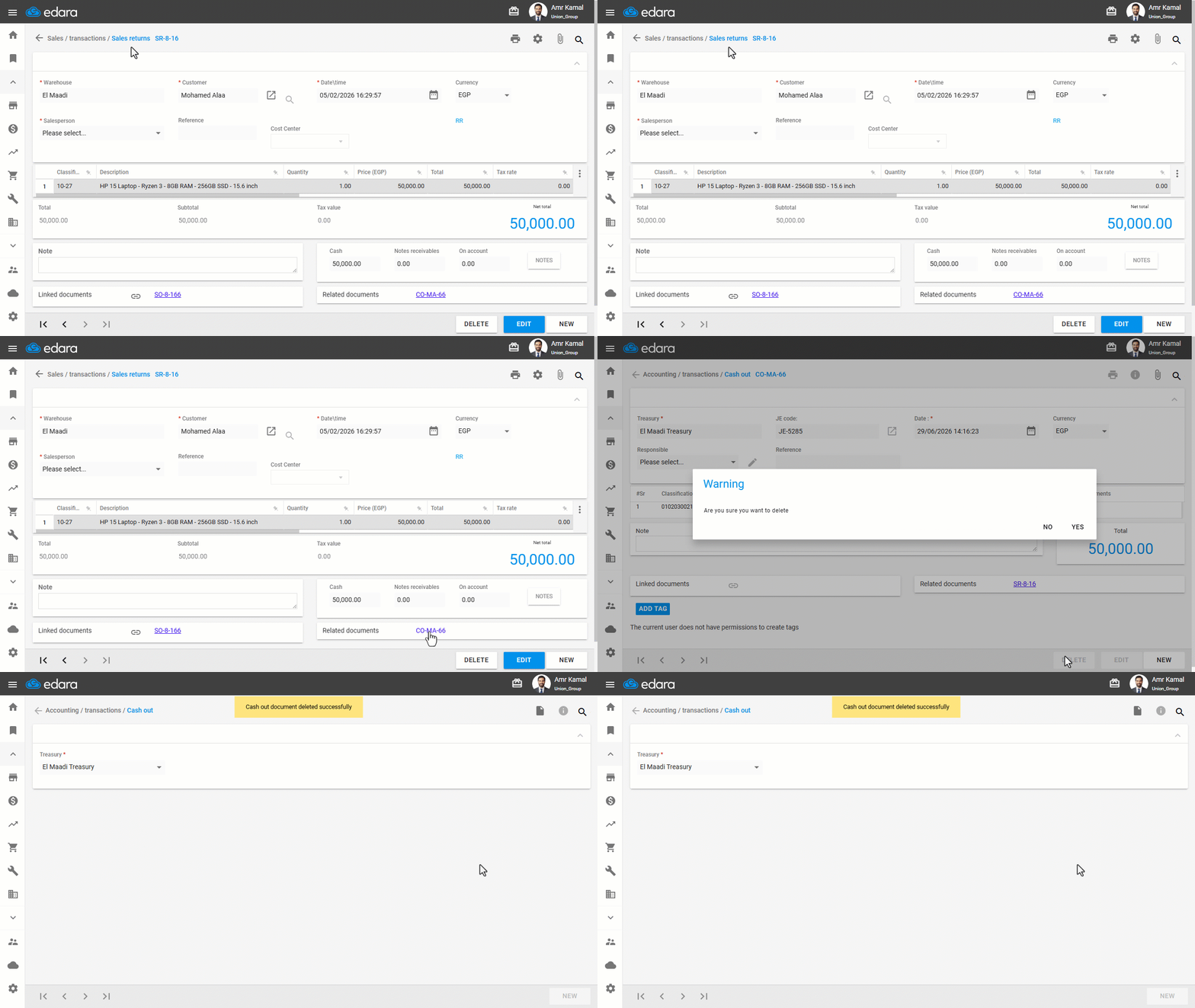
Make sure to delete all transactions related to the sales return, such as Cash out, by clicking on the document code next to the related documents. You will be redirected to the source document page, and then click on "Delete".
Third: Canceling Approvals for the Sales Return
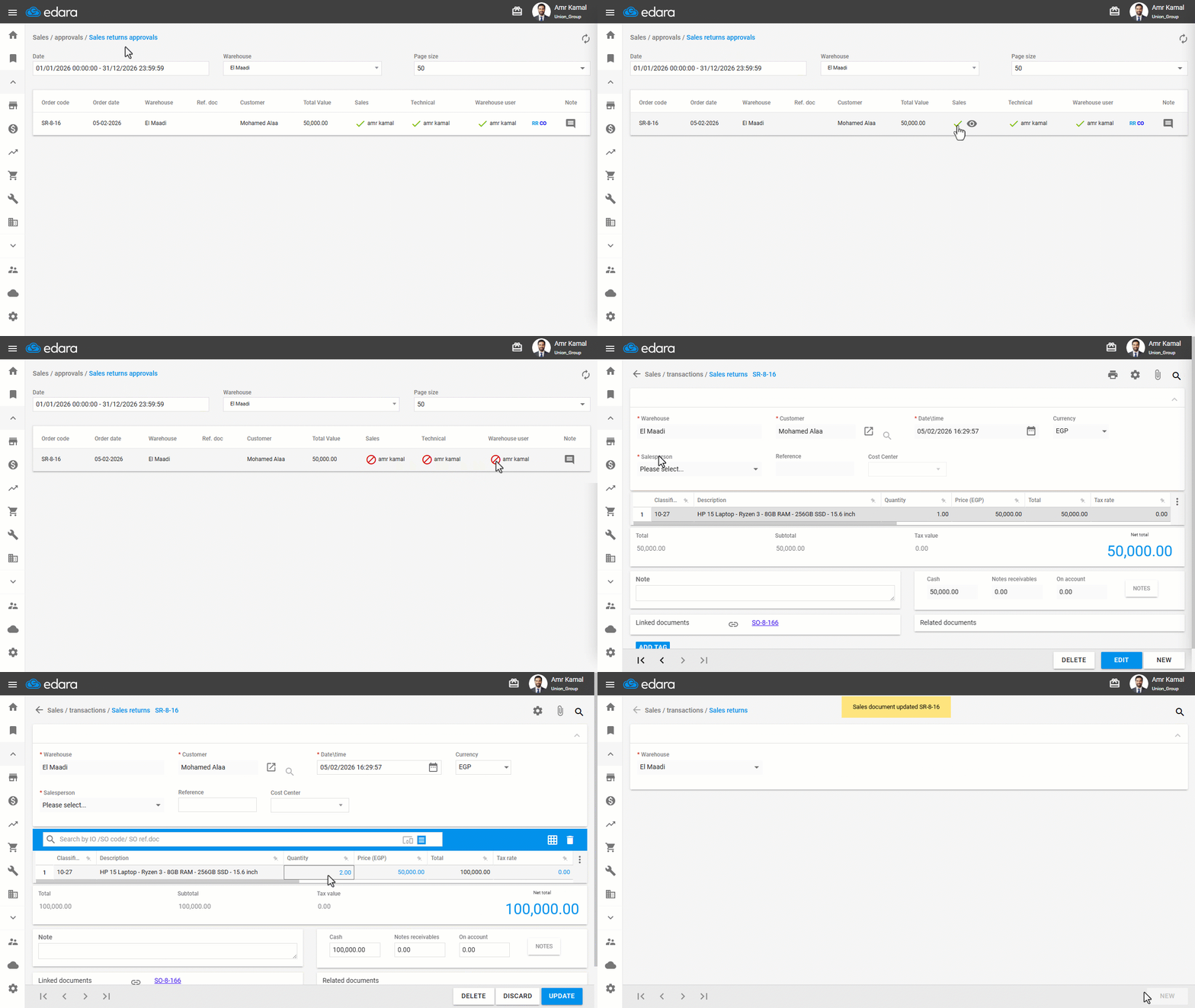
- Go to the "Sales" module.
- Open the "Sales return approvals" page.
- Click on "✔️" so it changes to "🚫" to cancel the approval.
- Hover over the Order code.
- Click on "
 " to open the sales return.
 - Click on "Edit".
- Apply the required changes.
- Click on"Update".
Note: If you need to edit the date, make sure first that you have permission to do that.
After completing the required changes, you will need to approve again and save the documents related to the sales return.
Frequently asked questions
Can I delete the receive return from inside the sales return?
You can delete Receive Return by clicking on the RR document from the related documents in the sales return you want to edit, if you have permission to access the sales return.
What do I need to edit the return date?
If you need to edit the date, make sure first that you have permission to do that.
If you encounter any challenges or have questions during these processes, you can contact our technical support team, who are ready to assist you at any time.