

Creating a Return for a Sales Order with Multiple Stock Items
Last updated:
If you have a sales order containing multiple stock items and need to create a sales return (whether for all stock items or only a part of them), you can select the items in bulk to save time and effort.
Creating a Return for a Sales Order with Multiple Stock Items
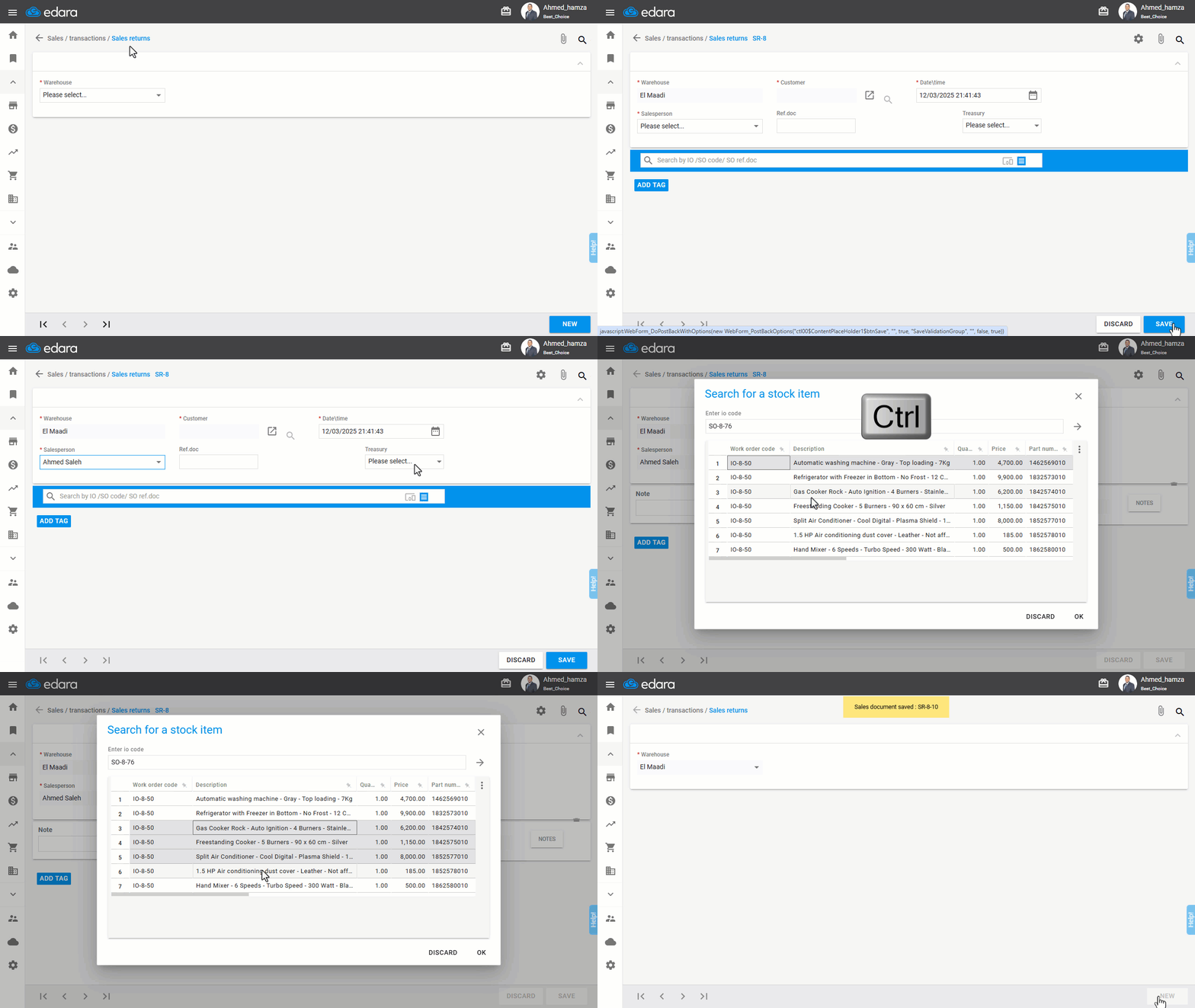
- Go to the Sales module.
- Open the “Sales Returns” page.
- Select the “Warehouse”.
- Click on “New”.
- Choose the Return Date.
- Select the “Salesperson” from the dropdown list (if applicable).
- Choose the “Treasury” from which the return amount will be processed.
- Search for the Sales Order you want to return.
- Press and hold the “Ctrl” key on your keyboard.
- Select all the stock items you want to return.
- Click “OK”.
Note: If you want to select all stock items at once, you can press (Ctrl + A) and then click "OK".
- Click on “Save”.
Frequently asked questions
How do I select all stock items at once?
If you want to select all stock items at once, you can press (Ctrl + A) and then click "OK".
If you encounter any challenges or have questions during these processes, you can contact our technical support team, who are ready to assist you at any time.
Did this answer your question?