

Adjusting Settings to Connect with WooCommerce
Last updated:
Once you have installed the plugins needed to connect “Edara” with WooCommerce you will need to adjust some settings to complete the linking steps correctly.
We explain the steps.
Adjusting Settings to Connect with WooCommerce
In order to adjust the settings, you need to do several steps, namely:
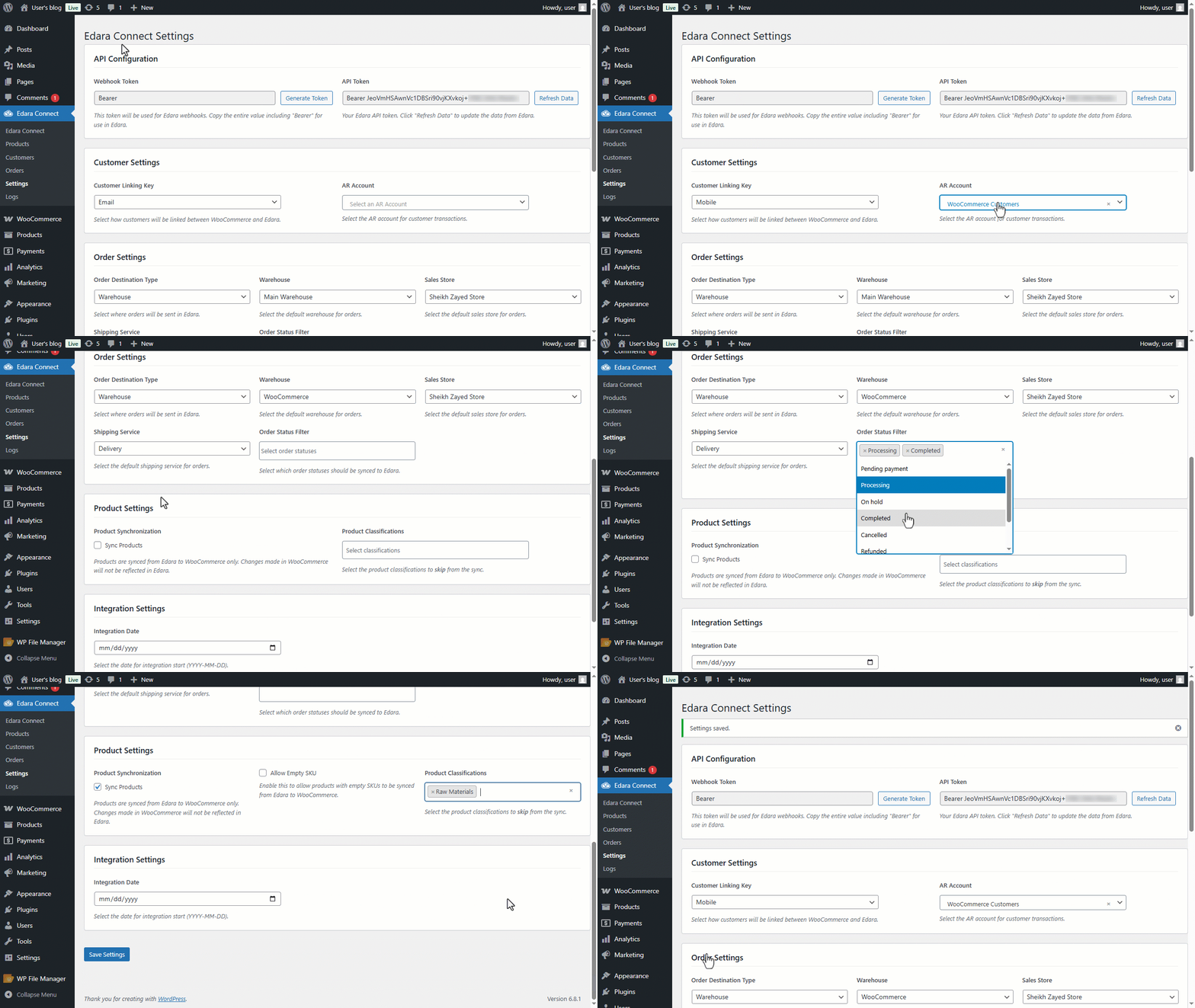
1- Adjust the settings of the "Edara Connect" plugin
- Go to the "Edara Connect" plugin.
- Open the "Settings" page.
- Select the "Customer Linking Key" (commonly used: "Mobile").
- Select "AR Account" to record transactions on it in "Edara".
- Select the "Order Destination Type" to be (Warehouse or Sales Store).
- Choose the default warehouse (or sales store) to link to.
- Select the default shipping service for orders.
- Select the status of the order sent to “Edara” from the "Order Status Filter" field.
- Activate the "Sync Products" option to allow product data to be sent from “Edara” to “WooCommerce”.
Note: You can also allow products on “Edara” to be linked to “WooCommerce” without using the SKU by enabling the "Allow Empty SKU" setting, then the linking is based on the item's ID number, but it is common not to enable it (especially when linking data together for the first time).
- Select the Product Classifications excluded from linking (if you want to send data for all stock items from "Edara" to "WooCommerce" this field should be left blank).
- Select the start date of linking from "Integration Date".
- Click on "Save Settings".
2- Adjust WooCommerce settings
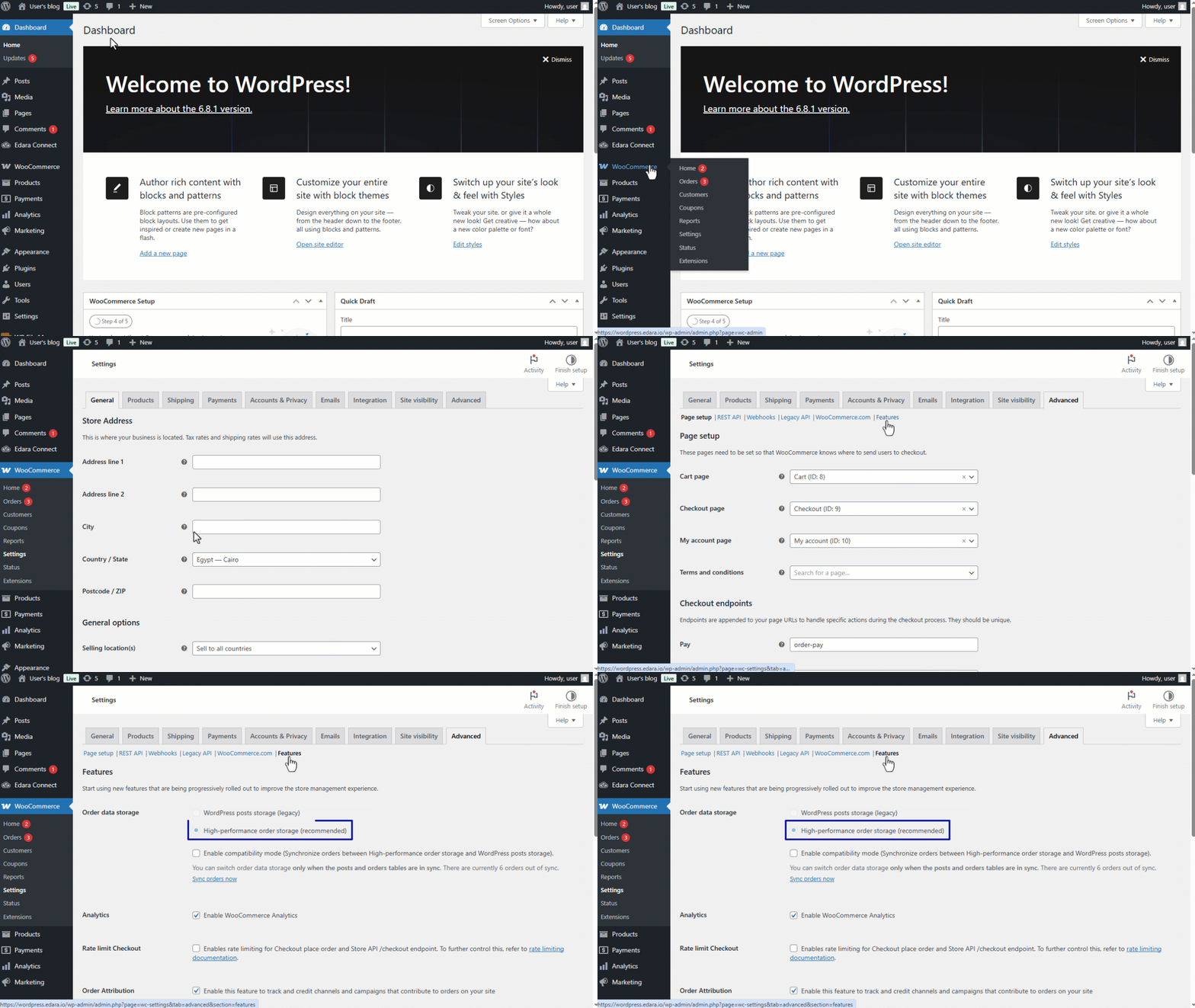
- Go to the "WooCommerce" WordPress plugin.
- Open the "Settings" page.
- Select the "Advanced” Settings.
- Open the "Features" page.
- Select Store Order Data to be: (High-performance order storage).
Note: Sometimes, if you find that you are on the legacy mode (WordPress posts storage), and you cannot change this setting, then enable compatibility mode (Synchronize orders between High-performance order storage and WordPress posts storage).
- Click on "Save Changes".
Frequently asked questions
What if I can’t change the order data storage?
Sometimes, if you find that you are on the legacy mode (WordPress posts storage), and you cannot change this setting, then enable compatibility mode (Synchronize orders between High-performance order storage and WordPress posts storage).
If you encounter any challenges or have questions during these processes, you can contact our technical support team, who are ready to assist you at any time.