

Installing the Required Plugins to Connect with WooCommerce
Last updated:
“Edara” offers the possibility of integrating with WooCommerce, which helps to simplify e-commerce operations by synchronizing data between them (products, customers, sales orders, etc.).
Installing the Required Plugins to Connect with WooCommerce
Note: First make sure the WooCommerce plugin is activated on WordPress, then follow the steps below:
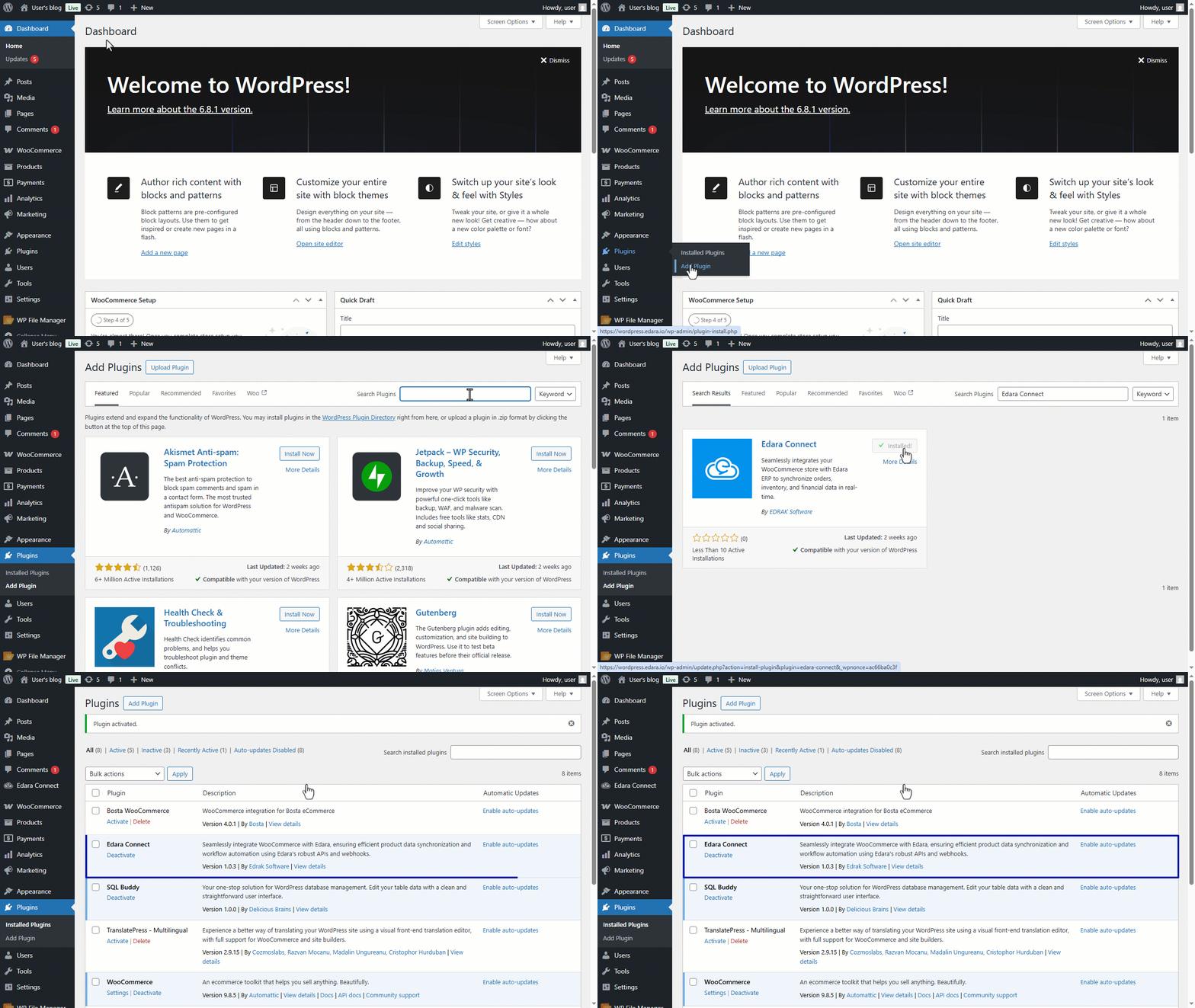
1- Installing the “Edara Connect” plugin
- Go to WordPress.
- Click on "Plugins".
- Select "Add Plugin".
- Search for the "Edara Connect" plugin.
- Start installing the plugin by clicking on "Install Now".
- Click on "Activate".
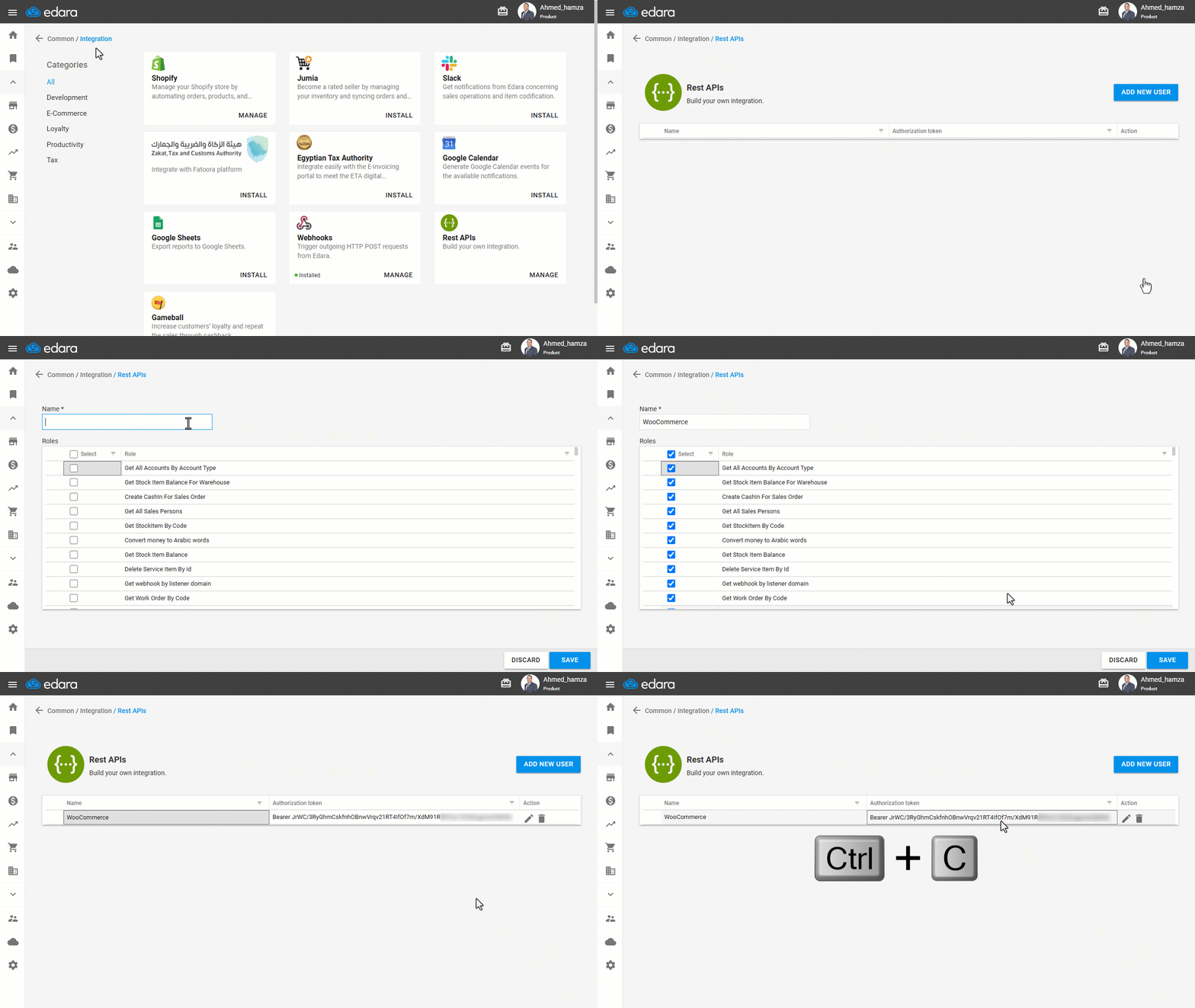
2- Adding the API Token
- Open Edara.
- Go to Data.
- Open the "Integration" page
- Click on "Manage" under the "Rest APIs" field.
- Click on "Add New User".
- Specify the name
- Specify the necessary permissions.
- Click on "Save".
- Copy the "API Token" corresponding to the user you added.
Note: Make sure you give this new user all the permissions for the data you need to share between "Edara" and "WooCommerce".
- Go to "WordPress" again.
- Open the "Edara Connect" page.
- Choose "Settings".
- Paste the “API Token”.
- Click on "Connect".
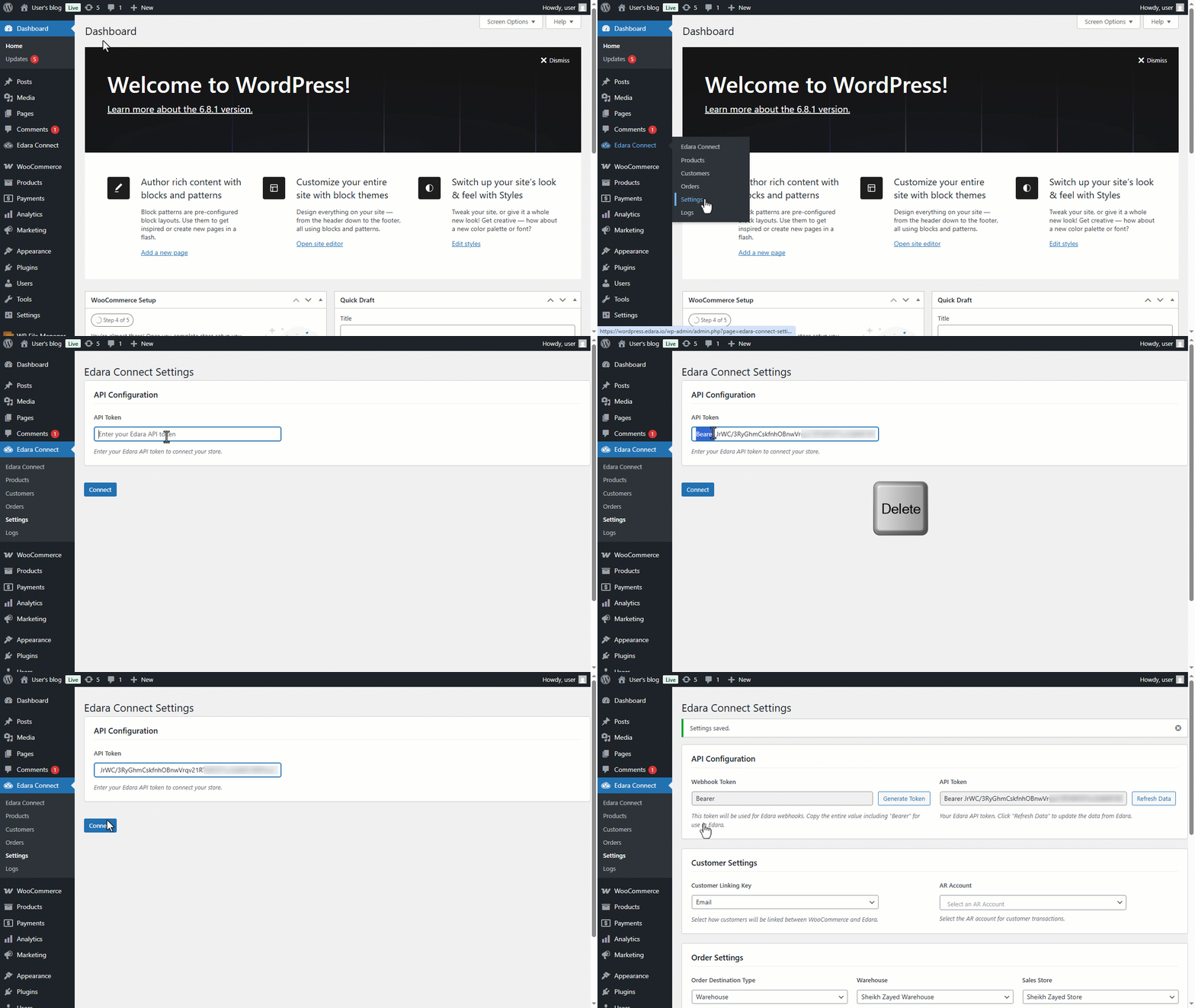
Note: Once you have connected “Edara Connect” with “WooCommerce” on WordPress, you will need to adjust some settings for both, to complete the integration steps properly.
Canceling the WooCommerce integration
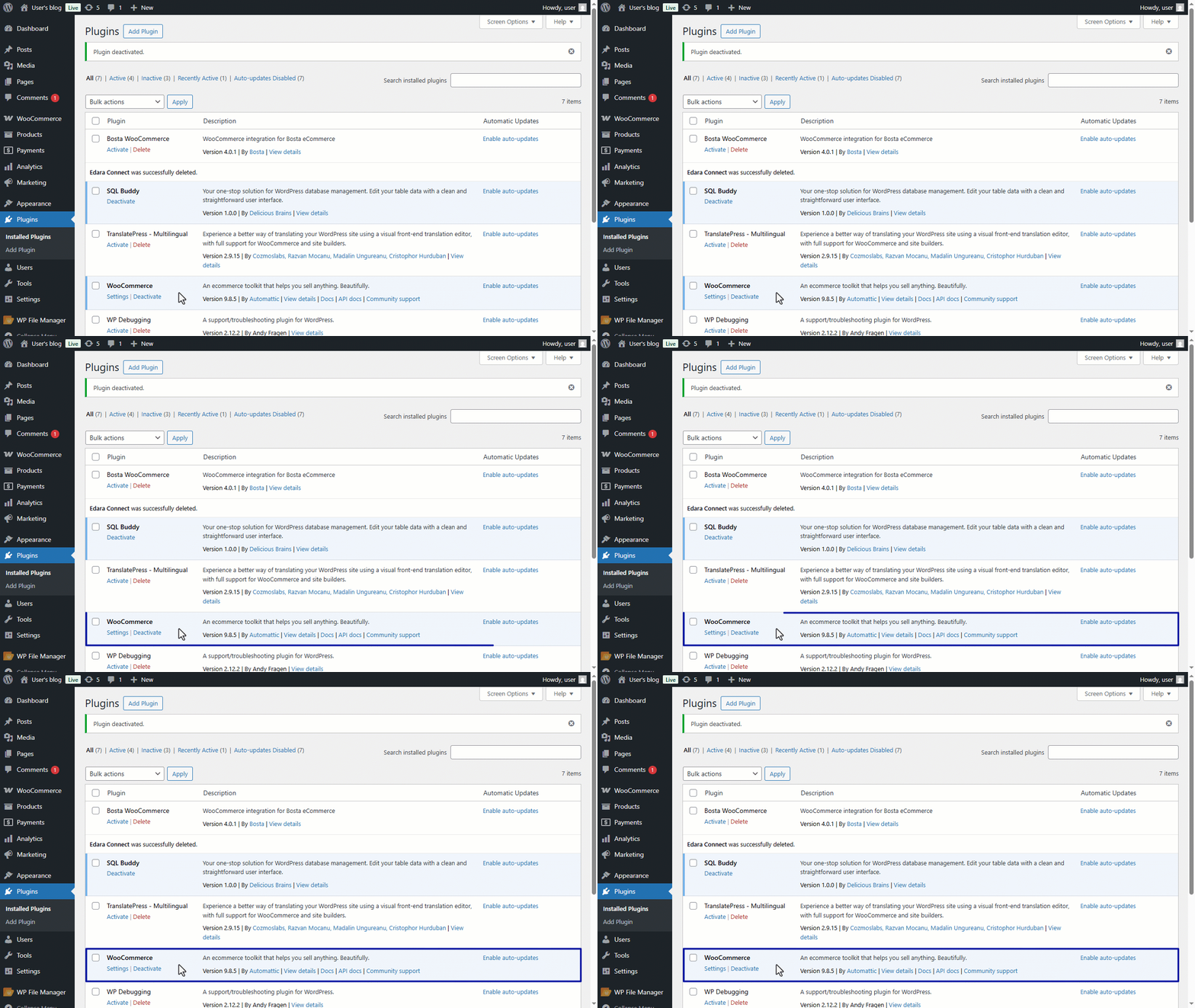
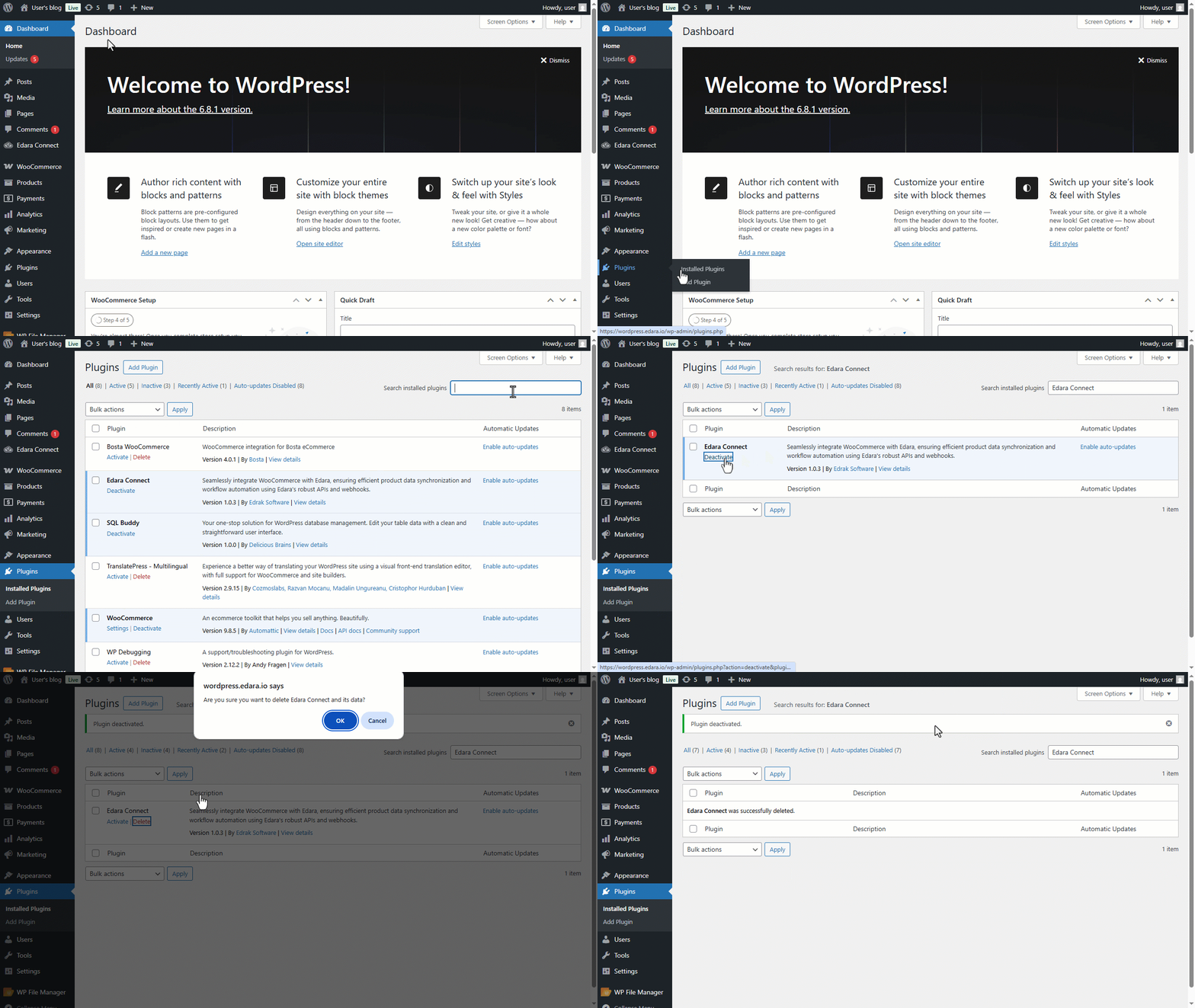
If you need to revoke this integration between "Edara" and "WooCommerce", you can do so in the following steps:
- Go to WordPress.
- Click on "Plugins".
- Select "Installed Plugins".
- Search for the "Edara Connect" plugin.
- Click on "Deactivate".
- Click on "Delete".
- Click “OK” to confirm the deletion.
If you encounter any challenges or have questions during these processes, you can contact our technical support team, who are ready to assist you at any time.