

Displaying the List of Promotions
Last updated:
“Edara” allows you to filter results on the Promotions page to easily locate specific offers, either by name or by start/end date.
Displaying the List of Promotions
- Go to the Point of Sale module.
- Open the “Promotions” page.
- Click on “Columns” (top left) to choose which columns to display.
Note: Available columns include:
- Promotion Name.
- Start Date.
- End Date.
- Cash Registers.
- Created By.
- Created Date.
- Last Modified By.
- Last Modified Date.
Once you’ve selected the columns you want to view:
- Click on “Filters”.
- Choose the conditions you want to filter by (e.g. Promotion Name, Start Date, End Date).
- Click on “Apply”.
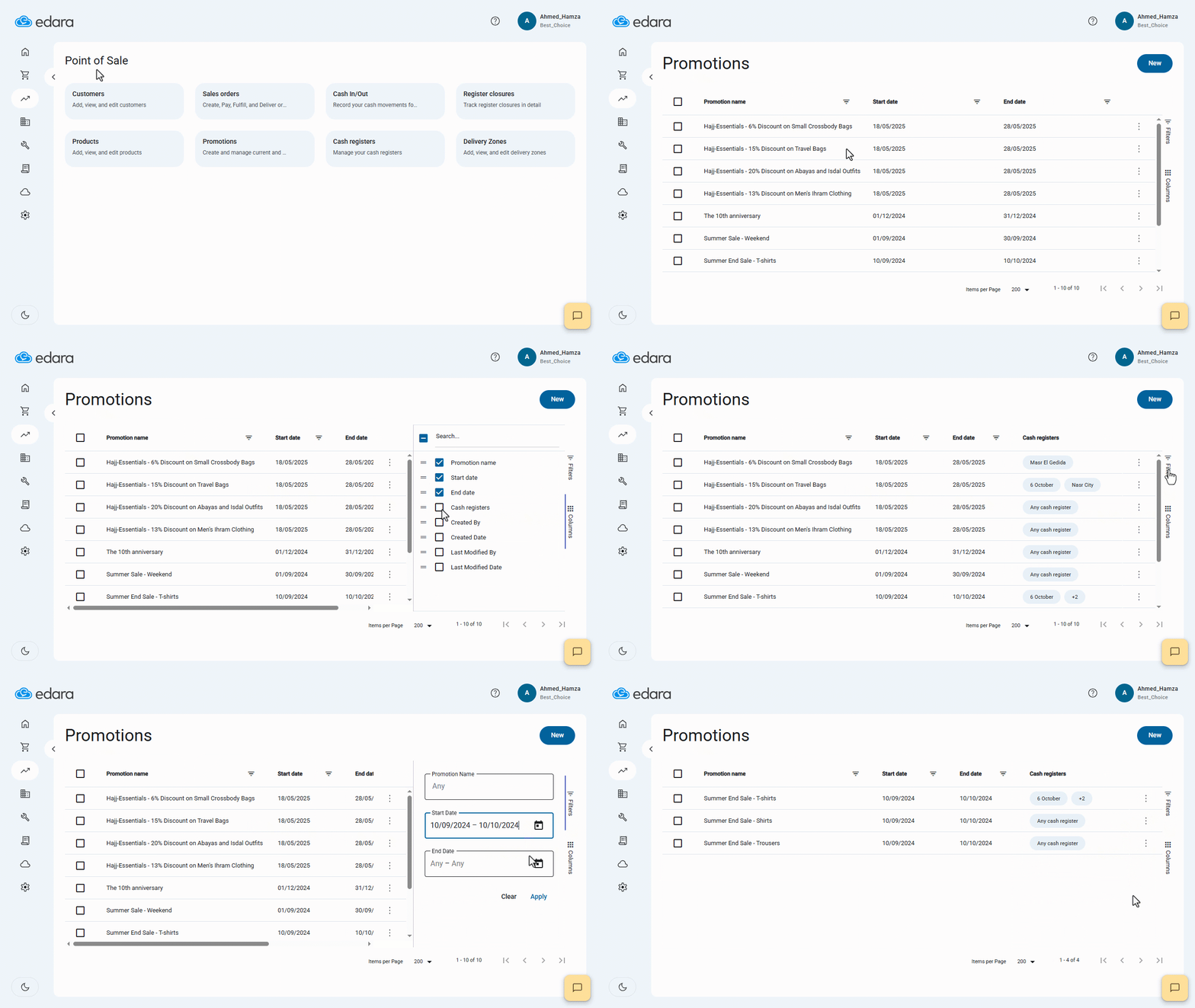
Note: The layout of the “Promotions” page gives you several customization features:
- Control the number of rows per page — choose from (200, 500, 1000, or 2000).
- Quick filter by clicking the filter icon "
 " next to any displayed column.
 - Save a custom view after adjusting which columns appear, their order, and sorting preferences (ascending/descending).
Frequently asked questions
Which columns can I show on the Promotions page?
Available columns include: Promotion Name, Start Date, End Date, Cash Registers, Created By, Created Date, Last Modified By, Last Modified Date.
If you encounter any challenges or have questions during these processes, you can contact our technical support team, who are ready to assist you at any time.
Did this answer your question?