

Adding Multiple Products in Bulk When Creating Promotional Offers
Last updated:
When creating promotions for a large number of stock items/products, you may need to add them all at once instead of selecting each product separately. This can be done by copying the product names and pasting them all at once while setting up the promotion.
Adding Multiple Products in Bulk When Creating Promotional Offers

You can add products in bulk within the “Benefits” and “Conditions” sections, or in the “Benefits” section only, depending on the type of offer.
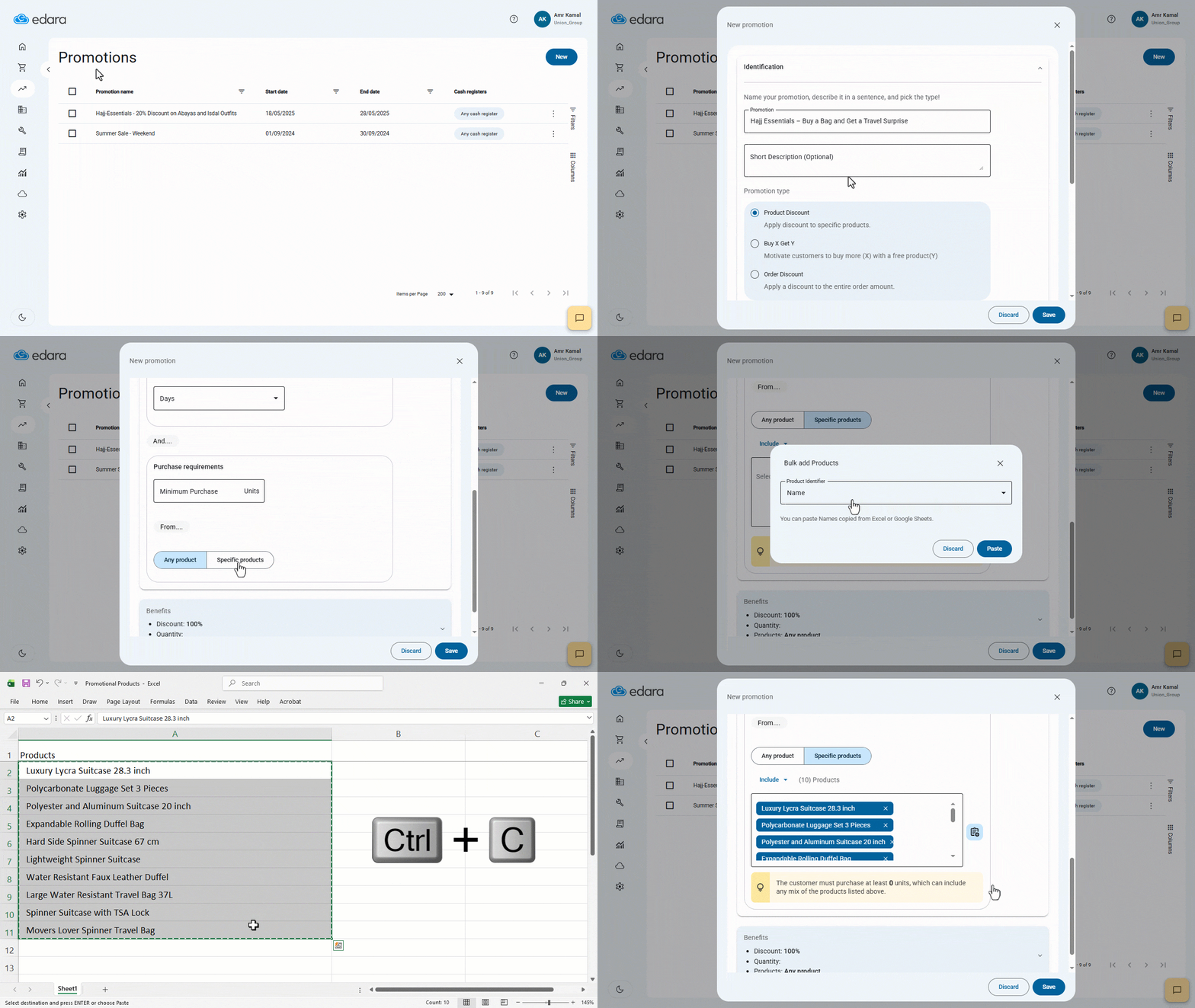
The following example explains how to add products in a “Buy X Get Y” offer. Follow these steps:
- Go to the “Point of Sale” module.
- Open the “Promotions” page.
- Click on “New”.
- Choose the type of promotion “Buy X Get Y”.
- Go to the “Conditions” section.
- Select “Specific Products”.
- Click on the “Bulk Add Products” icon.
- Select the Product Identifier (the name is the currently available Product Identifier).
- Copy the list of product names, with each name on a separate line.
- Click on “Paste”.
A window will open showing the number of valid products to be added, as well as the number of invalid products.
- Click on “Add”.
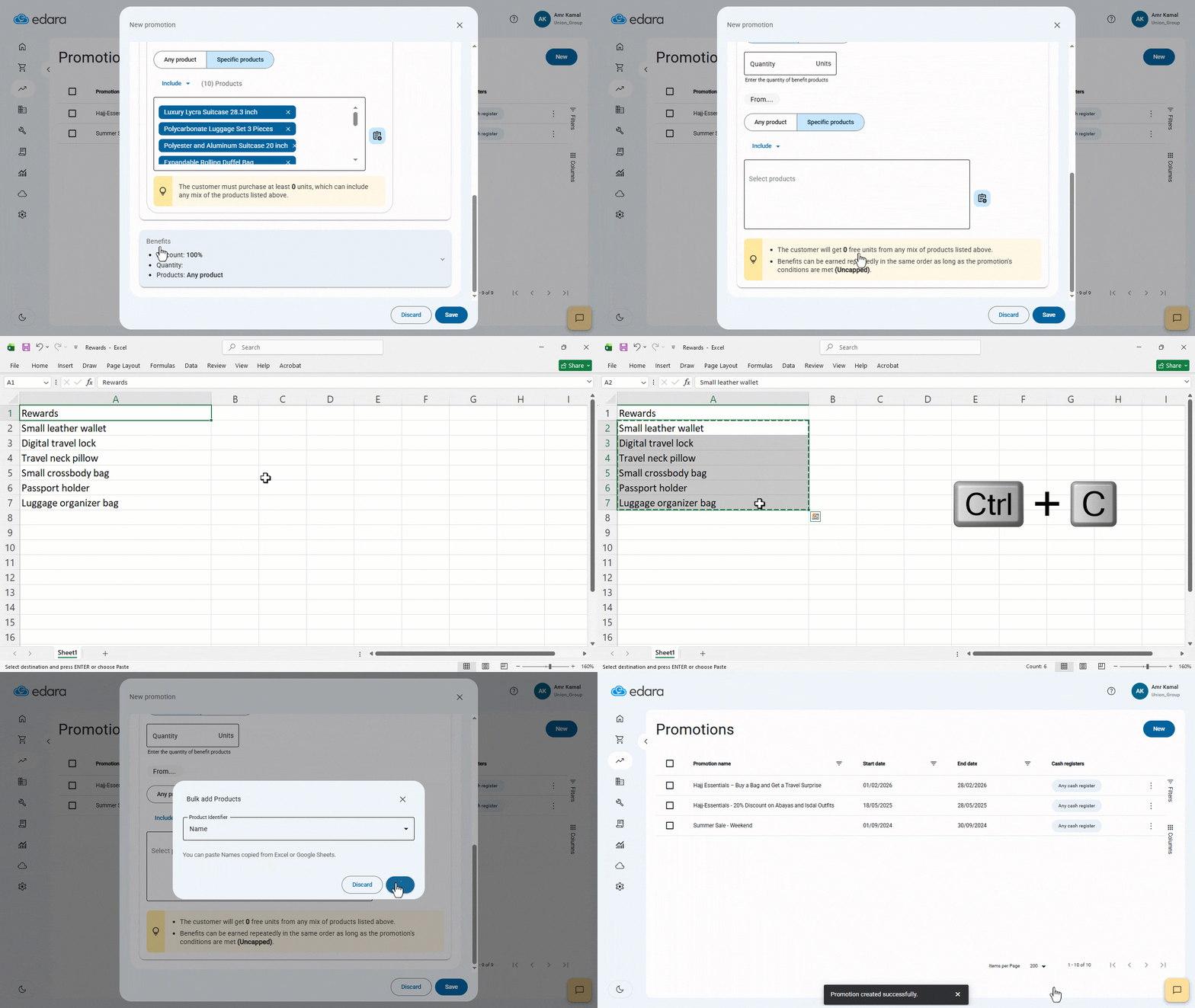
- Go to the “Benefits” section.
- Perform the same steps to add products in bulk.
- Click on “Save”.
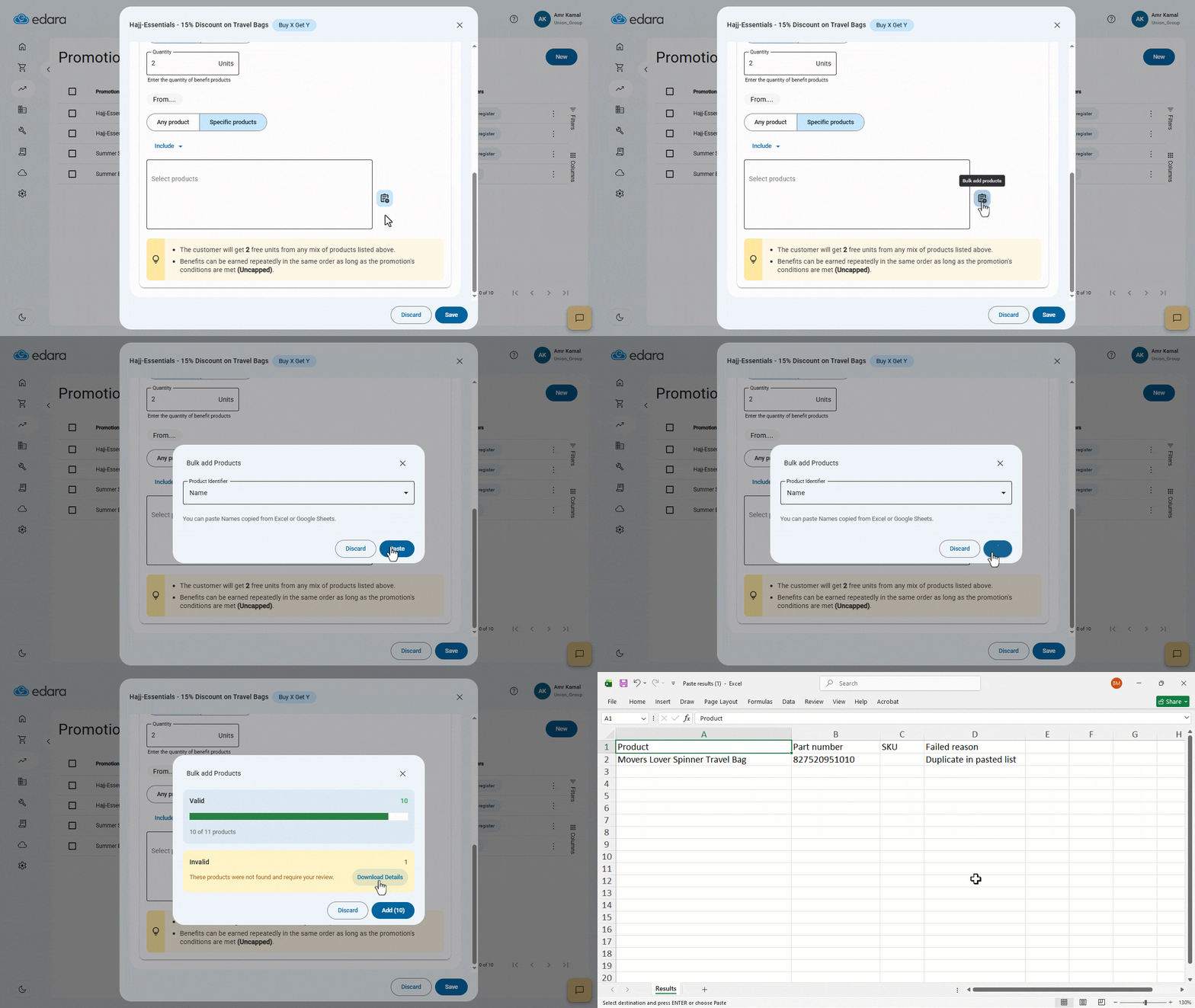
Note: Products may be invalid for addition if there are duplicates or if the product name is not registered in the system. Duplicate checks include repeated values in the pasted list and products that were previously added to the same promotion.
You can click on “Download Details” to obtain an Excel file listing invalid products and the reason.
Note: You can use the bulk product entry feature in all cases where you need to select products within promotions.
Frequently asked questions
Why are some products shown as invalid?
Products may be invalid for addition if there are duplicates or if the product name is not registered in the system. Duplicate checks include repeated values in the pasted list and products that were previously added to the same promotion.
Can I add products in bulk in every promotion type?
You can use the bulk product entry feature in all cases where you need to select products within promotions.
If you encounter any challenges or have questions during these processes, you can contact our technical support team, who are ready to assist you at any time.