

Filtering by Condition in pages
Last updated:
Edara allows filtering data to be displayed according to specific conditions, simplifying the review process.
One method of filtering is condition-based filtering. For example, if you want to see all items priced "greater than" a certain amount, this method will help you quickly access the required data.
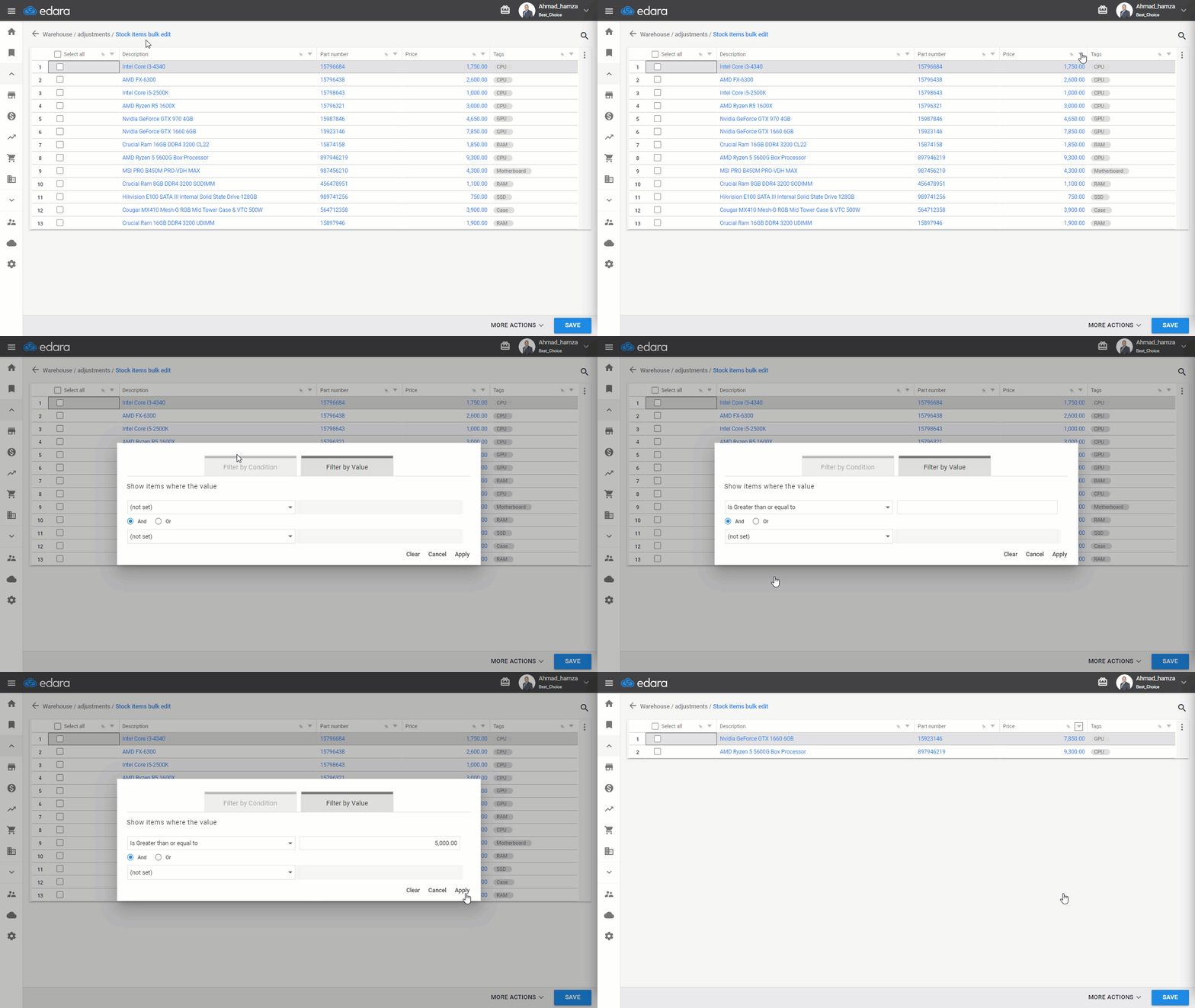
The following steps are an example of filtering by condition on the "Stock items bulk edit" page.
Filtering by Condition in the Stock items bulk edit
- Go to the Warehouse Module.
- Select “Stock items bulk edit”.
- Specify the conditions for the items you want to modify, if applicable.
- Select the columns to display from “Columns”.
- Click on “Generate”.
- Click on
 next to the desired columns.
 - Select “Filter by Condition”.
- Choose the required condition (e.g., Equals, Contains, etc.).
- Click “Apply”.
Note: This feature is not limited to the "Stock items bulk edit" page; you can use it in any report within "Edara".
Frequently asked questions
Is filtering by condition only available on the Stock items bulk edit page?
This feature is not limited to the "Stock items bulk edit" page; you can use it in any report within "Edara".
If you encounter any challenges or have questions during these processes, you can contact our technical support team, who are ready to assist you at any time.