

Sending Reports via E-mail
Last updated:
“Edara” helps you automate sending reports via email on a regular basis, based on the conditions and schedule you define.
For example, you can use this feature to fulfill a supplier’s request to receive warehouse stocks and Stock sell-out reports periodically at specific times.
Examples of reports that can be sent via email include:
- Warehouse stocks.
- Stock cost.
- Stock sell out.
- Stock sell-out summary.
- Cash Report.
- Gross Profit.
In this article, we’ll walk you through the steps.
Sending Reports via Email
There are two types of reports that can be sent via email. We explain the difference using these examples:
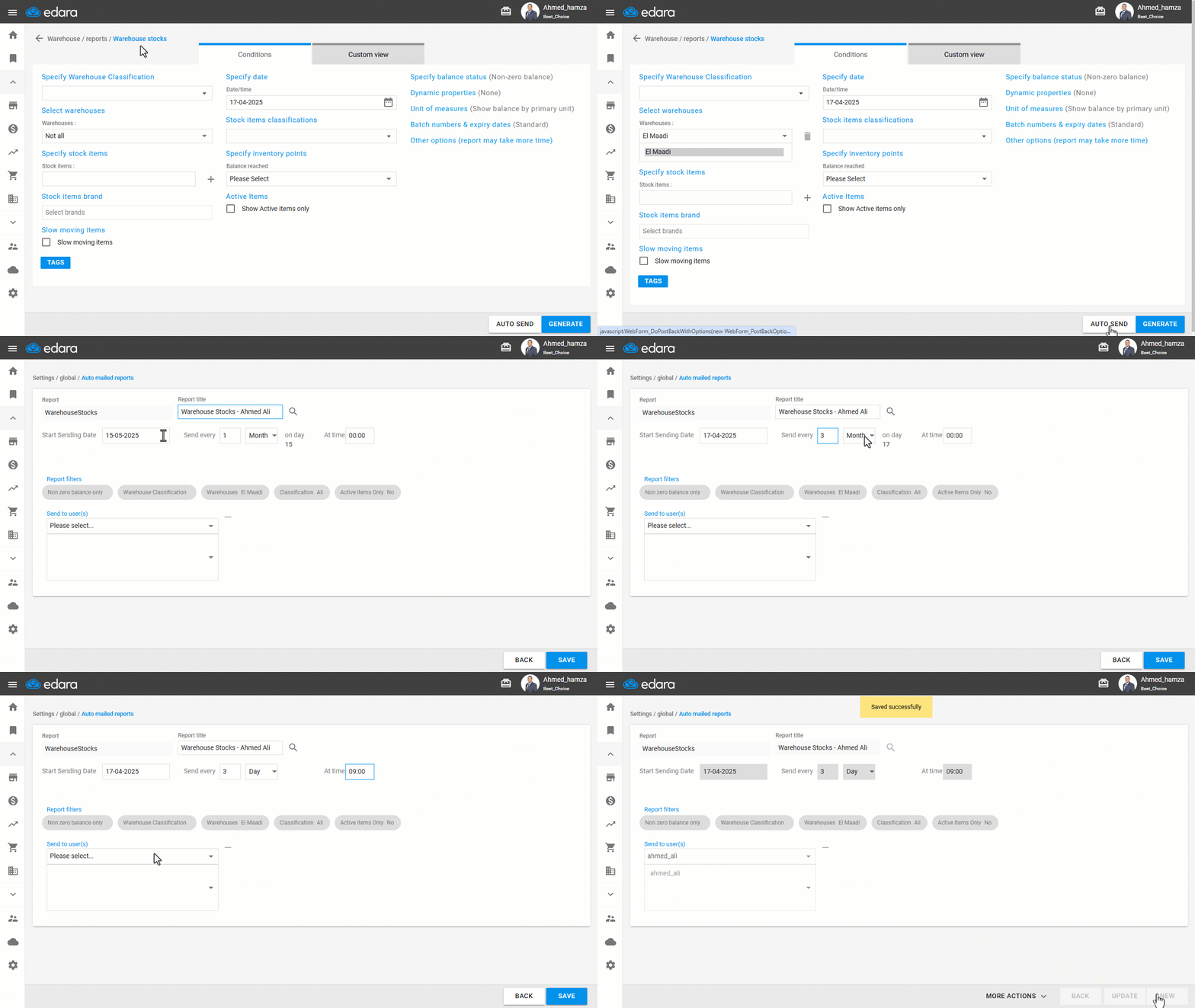
1- Warehouse Stocks Report
- Go to the Warehouse Module.
- Open the "Warehouse Stocks Report" page.
- Select the warehouse(s) for which you want to send the report.
- Define the report conditions.
- Click "Auto Send".
- Enter the “report title” (make sure the title is unique).
- Specify the “Start sending date” to send the report continuously.
Note: The date set in the "Report Conditions" page will not be used. The system only relies on the "Start sending date" you enter in the "Auto Send" page.
- Choose the repeat interval from “Send Every” (e.g., every "7 days" or every "3 months", etc.).
- Select the time of day for sending the report from the “At Time” field.
- Choose the user(s) whose email should receive the report.
- Click on “Save”.
Note: Example: If you set the repetition interval to “every 3 days”, the start date to “April 17, 2025”, and the sending time to “9:00 AM”, the system will send the warehouse stocks report for the selected warehouses to the specified user every 3 days at the set time. So, the first report will be sent at “9:00 AM on April 17, 2025”, the next one at “9:00 AM on April 20, 2025”, then again at “9:00 AM on April 23, 2025”, and so on.
Note: As a general rule, if you want to send a report on a monthly basis, you should set the recurrence interval to “every 1 month”, and then select a start sending date (e.g., April 15, 2025). In this case, the system will automatically send the report to the user on the 15th of each month. However, if the start sending date falls on a day that doesn’t exist in all months, the system will automatically send the report on the closest available day in that month. For example: If you set the repetition to “every 1 month” and the start date to “May 31, 2025”, the system will send the report on the last day of each month, since some months have only 30 days and February has 28 (or 29) days.
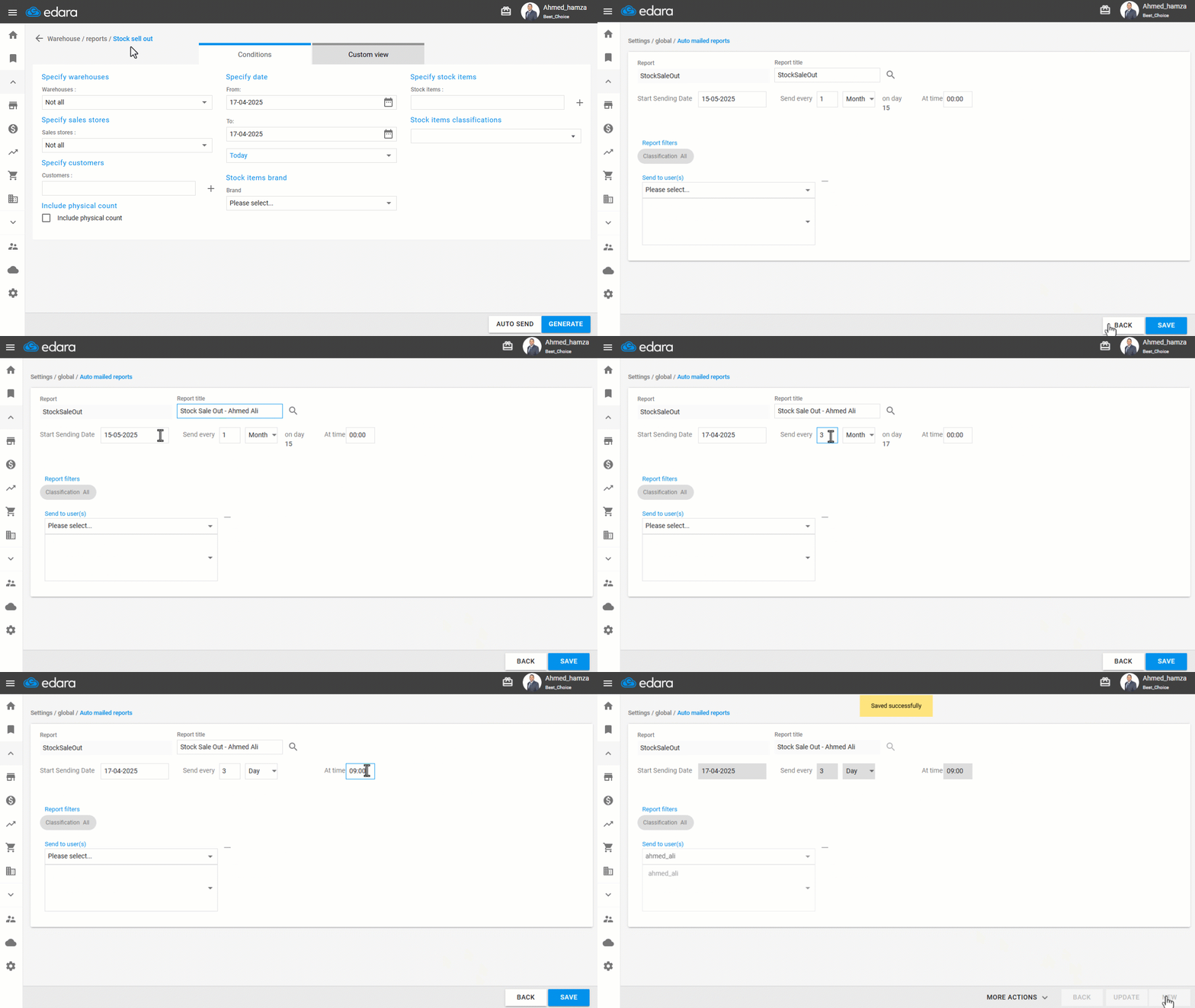
2- Stock sell out Report
You can send this report via email by following the same steps mentioned earlier, but from the “Stock sell-out Report” page instead.
The difference here lies in the reporting period:
In the “Warehouse Stocks” Report, the system sends a snapshot of stock item balances in the warehouse at a specific date and time. Whereas in the “Stock Sell-out” Report, the system sends a summary of each stock item’s sales over a defined time range.
The following example illustrates the difference more clearly.
Note: Example: If you set the repetition interval to “every 3 days”, the start date to “April 17, 2025”, and the sending time to “9:00 AM”, the system will send the stock sell-out report — for the selected warehouses or stores — every 3 days at that time. The first report will be sent at “9:00 AM on April 17, 2025”, covering the sales period (from “9:00 AM on April 14” to “9:00 AM on April 17”). The next one will be sent at “9:00 AM on April 20”, covering the period (from April 17 to April 20), and so on.
Frequently asked questions
Is the date set in the report conditions used for auto send?
The date set in the "Report Conditions" page will not be used. The system only relies on the "Start sending date" you enter in the "Auto Send" page.
What happens if the start sending date is a day that some months don't have?
As a general rule, if you want to send a report on a monthly basis, you should set the recurrence interval to “every 1 month”, and then select a start sending date (e.g., April 15, 2025). In this case, the system will automatically send the report to the user on the 15th of each month. However, if the start sending date falls on a day that doesn’t exist in all months, the system will automatically send the report on the closest available day in that month. For example: If you set the repetition to “every 1 month” and the start date to “May 31, 2025”, the system will send the report on the last day of each month, since some months have only 30 days and February has 28 (or 29) days.
If you encounter any challenges or have questions during these processes, you can contact our technical support team, who are ready to assist you at any time.