

Showing Count of First-Level Grouping in Report Results
Last updated:
To provide clearer insights into aggregated data, “Edara” displays the number of first-level grouped rows in all system reports.
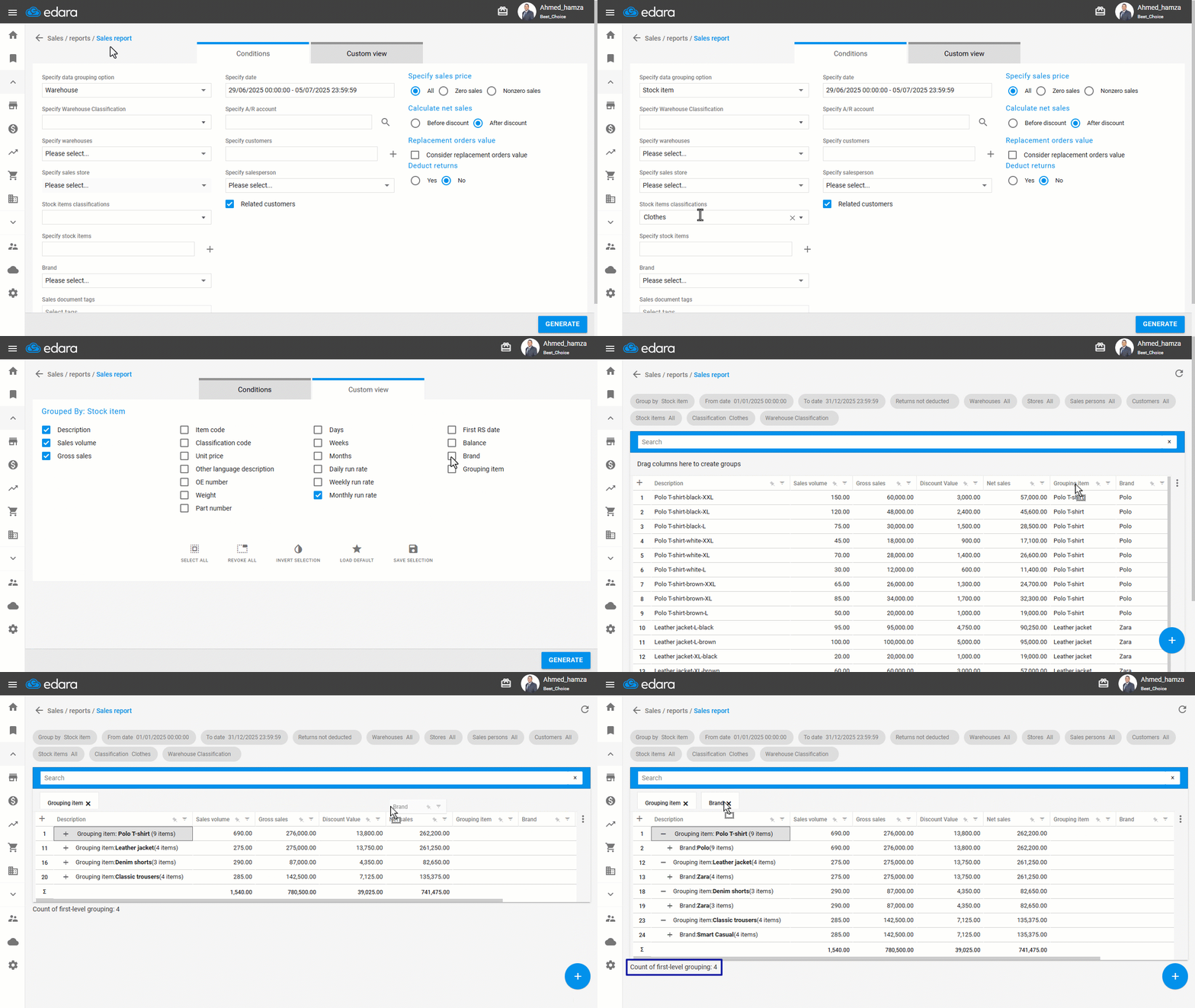
For example, in the Sales by Stock Item report, you may want to group results by Grouping Item to find out how many grouping items were sold during a specific period. You can do this by following the steps below.
Showing Count of First-Level Grouping in Report Results
The following example uses the Sales Report:
- Go to the Sales module.
- Open the “Sales Report” page.
- Specify the data grouping option to be: (Stock Item).
- Set the report filters based on your needs.
- Select the columns you want to display in the report.
- Click on “Generate”.
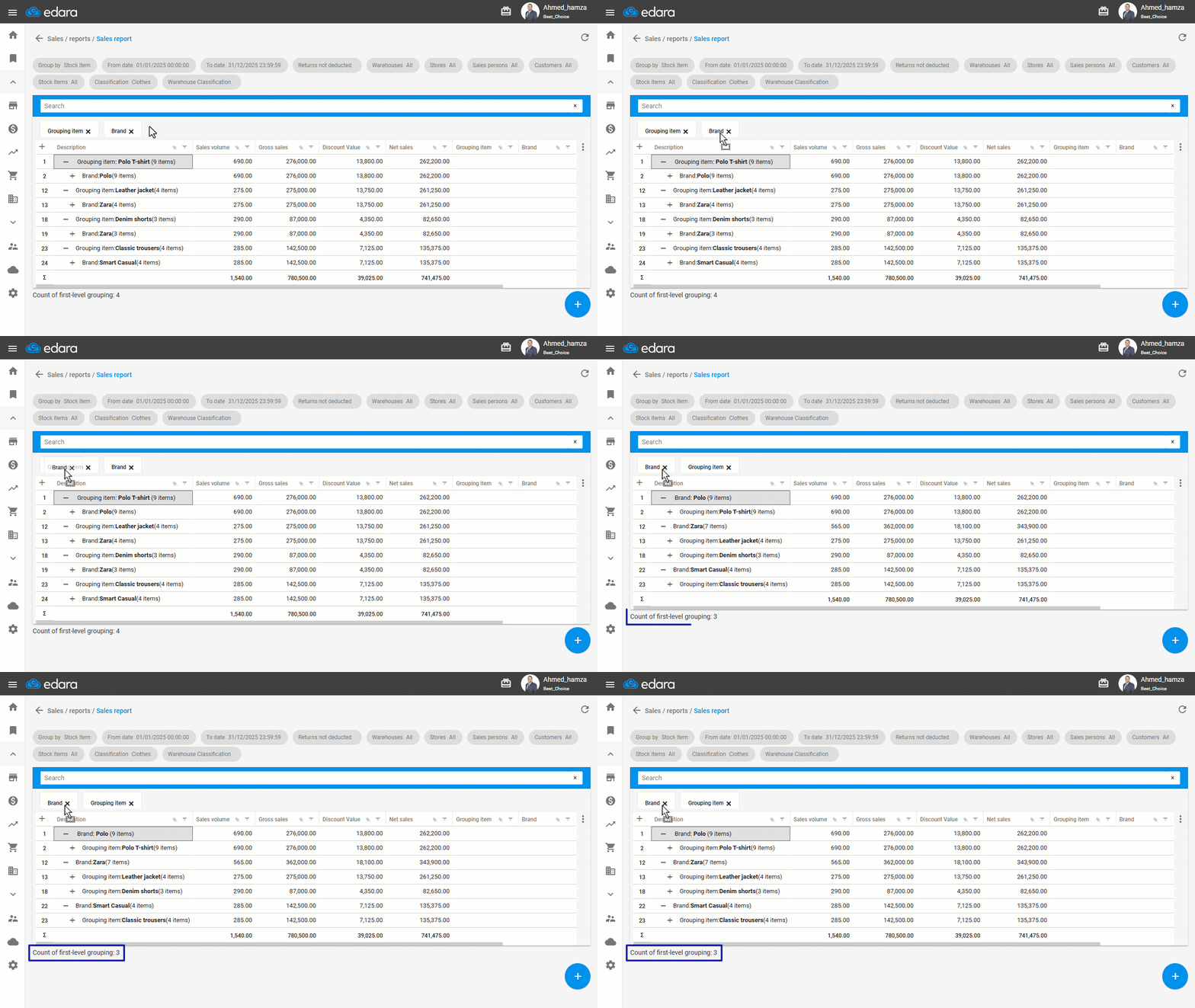
- Group the results using report columns (e.g., Grouping Item, Brand).
You will now see the first-level group count displayed at the bottom of the report, as shown in the image below:
Note: The system calculates the count based only on the first level of grouping. If you change the grouping order or add new group levels, the count will update accordingly.
If you encounter any challenges or have questions during these processes, you can contact our technical support team, who are ready to assist you at any time.