

Importing Grouping Items Properties (Dynamic Properties)
Last updated:
Before creating grouping items, dynamic properties such as colors and sizes must already be created in the system. You can use the “Data Manager” to import these properties and their values in bulk instead of entering them manually.
Importing Grouping Items Properties (Dynamic Properties)

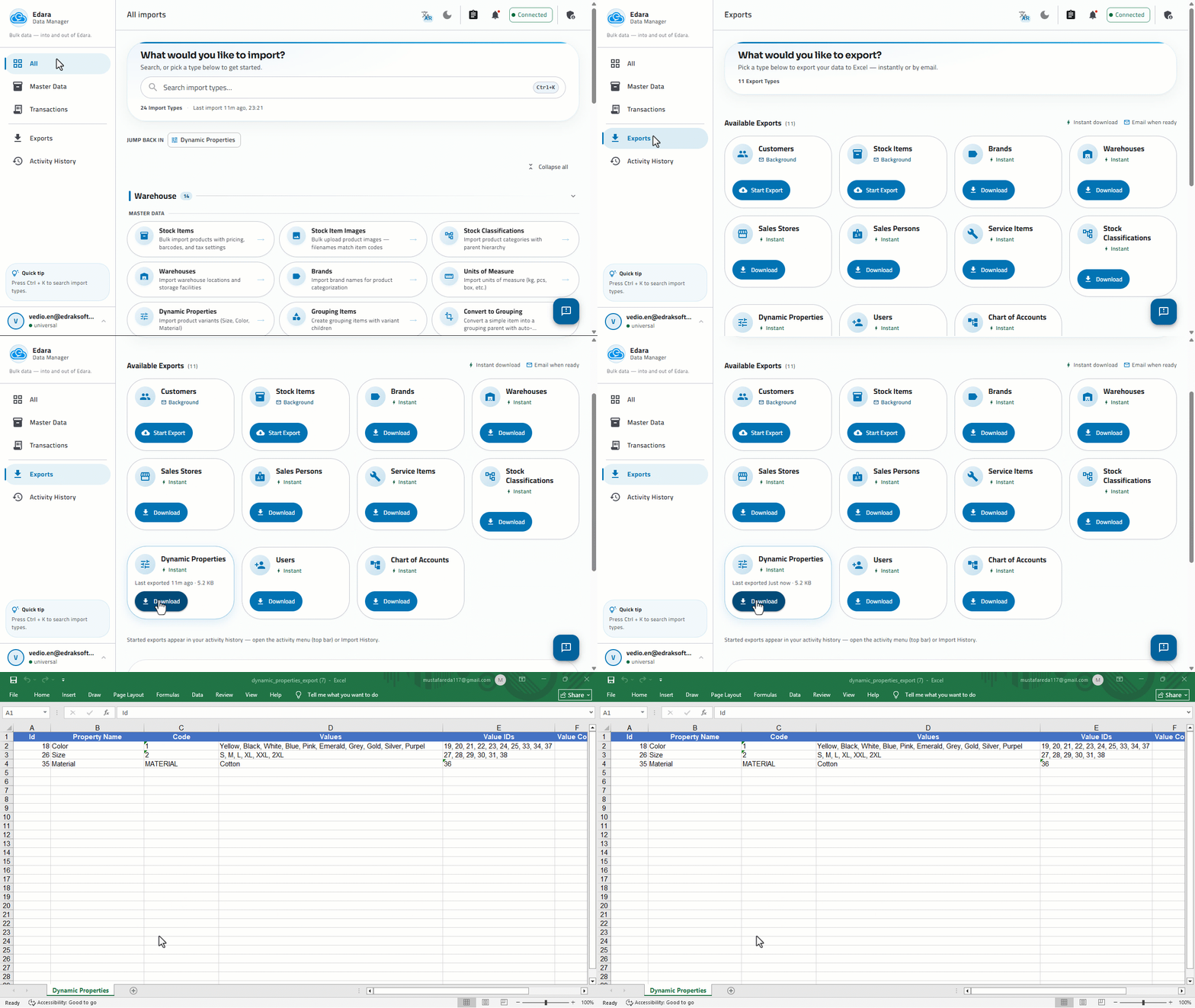
Before starting, it is recommended to export the “Dynamic Properties” report to review the properties and values already registered in the system. This allows you to add only new properties or values without duplicating existing data.
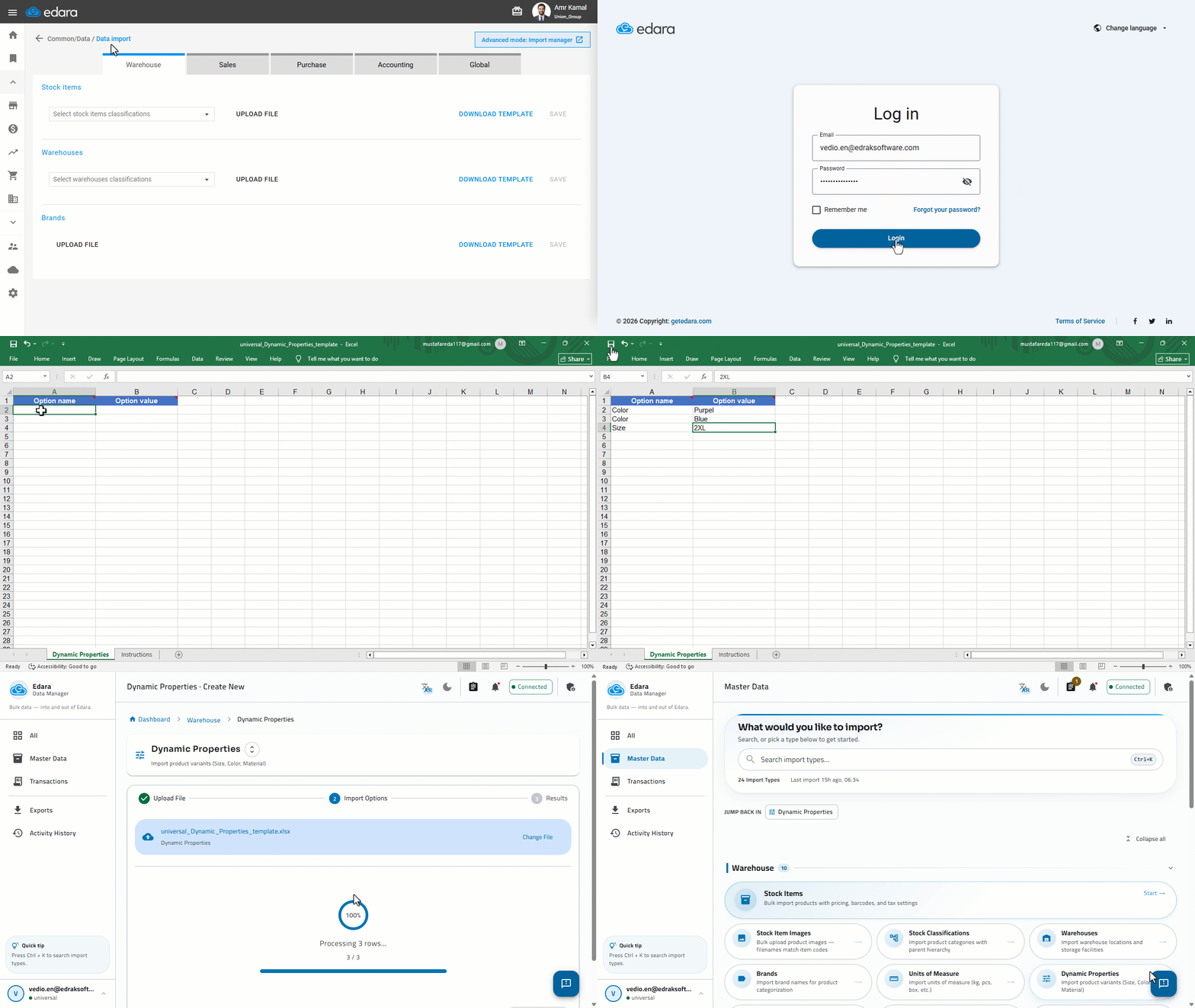
- Go to “Data”.
- Open the “Data import” page.
- Click on “Advanced mode: Data Manager”.
- Click on “Sign In”.
- Enter your “Edara” account email and password.
- Select “Dynamic Properties”.
- Click on “Download Template”.
- Enter the properties data in the template file by adding the Option Name and its Option Values, such as Color (Red, Blue, Black) or Size (S, M, L).
- Save the file after entering the data.
- Upload the template file.
- Click on “Validate Data”.
The system will validate the imported data. If any errors are detected, they will be displayed, and you can export an error file for review, correct the data, and upload the file again for validation.
- Review the validation results, then click on “Start Import”.
- Click on “Done” once the import is complete.
Notes:
- The import file is based on two required columns: Option Name and Option Value.
- If the same property name appears in multiple rows within the import file, the system creates a single property and adds all associated values to it.
- If the property already exists in the system, it will not be created again; only the new values will be added.
- The same value must not be used under more than one different property, so it can be used later when importing grouping items.
- The system automatically skips duplicate values during the import process.
- The system does not distinguish between uppercase and lowercase letters when comparing property names or values; therefore, identical values except for case are considered to be the same value.
- The maximum length for a property Name is 100 characters, while the maximum length for a property Value is 200 characters.
- You can refer to the example and the instruction file attached within the template file to learn how to enter the data correctly before starting the import process.
Frequently asked questions
What happens if the property already exists in the system?
If the property already exists in the system, it will not be created again; only the new values will be added.
If you encounter any challenges or have questions during these processes, you can contact our technical support team, who are ready to assist you at any time.