

Linking to a Grouping Item Using “Data Manager”
Last updated:
You may need to link items already registered in the system to an existing grouping item, allowing you to group multiple child items under one parent item.
Linking to a Grouping Item Using “Data Manager”
Before starting, make sure that the parent item to which the items will be linked is created and registered as a grouping item, while the child items are registered as independent items.
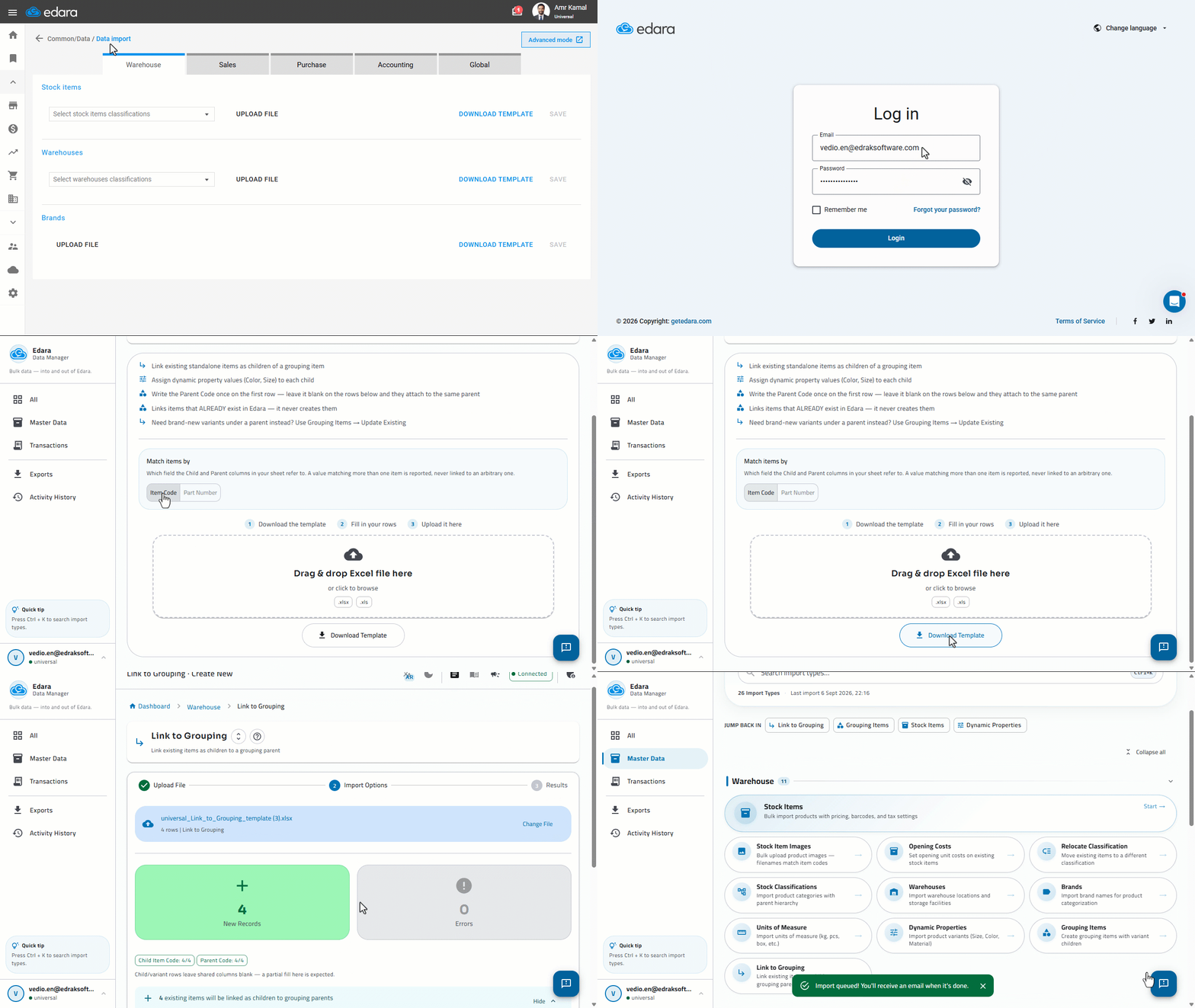
- Go to “Data”.
- Open the “Data import” page.
- Click on “Advanced mode”.
- Click on “Sign In”.
- Enter your “Edara” account email and password.
- Click on “Login”.
- Select “Link to Grouping”.
- Select the item matching method.
- Click on “Download Template”.
- Enter the item data in the template file by adding the Child Item Code, Parent Item Code, and the property values for each item, such as color or size.
- Save the file after entering the data.
- Upload the template file after entering the required data.
- Click on “Validate Data”.
The system will validate the imported data. If any errors are detected, they will be displayed, and you can export an error file for review, correct the data, and upload the file again for validation.
- Review the validation results, then click on “Start Import”.
- Click on “Done” once the import is complete.
Notes:
- The “Link to Grouping” feature is used to link items that already exist in the system to a parent item. It cannot be used to create new child items. If you want to create new variants for a grouping item, you can use the “Update Grouping Items” feature.
- After entering the parent item code in the first row, you can leave the following cells in the Parent Item Code column blank. The system will automatically consider all subsequent child items linked to the same parent item.
- If the parent item already has child items, the new items must have the same properties combination structure previously used.
- The same properties combination cannot be repeated for more than one child item under the same parent item.
- You can refer to the example provided in the template file to learn how to enter the data correctly.
Frequently asked questions
Can new child items be created by linking to a grouping item?
The “Link to Grouping” feature is used to link items that already exist in the system to a parent item. It cannot be used to create new child items. If you want to create new variants for a grouping item, you can use the “Update Grouping Items” feature.
If you encounter any challenges or have questions during these processes, you can contact our technical support team, who are ready to assist you at any time.