

Updating Grouping Items using Data Manager
Last updated:
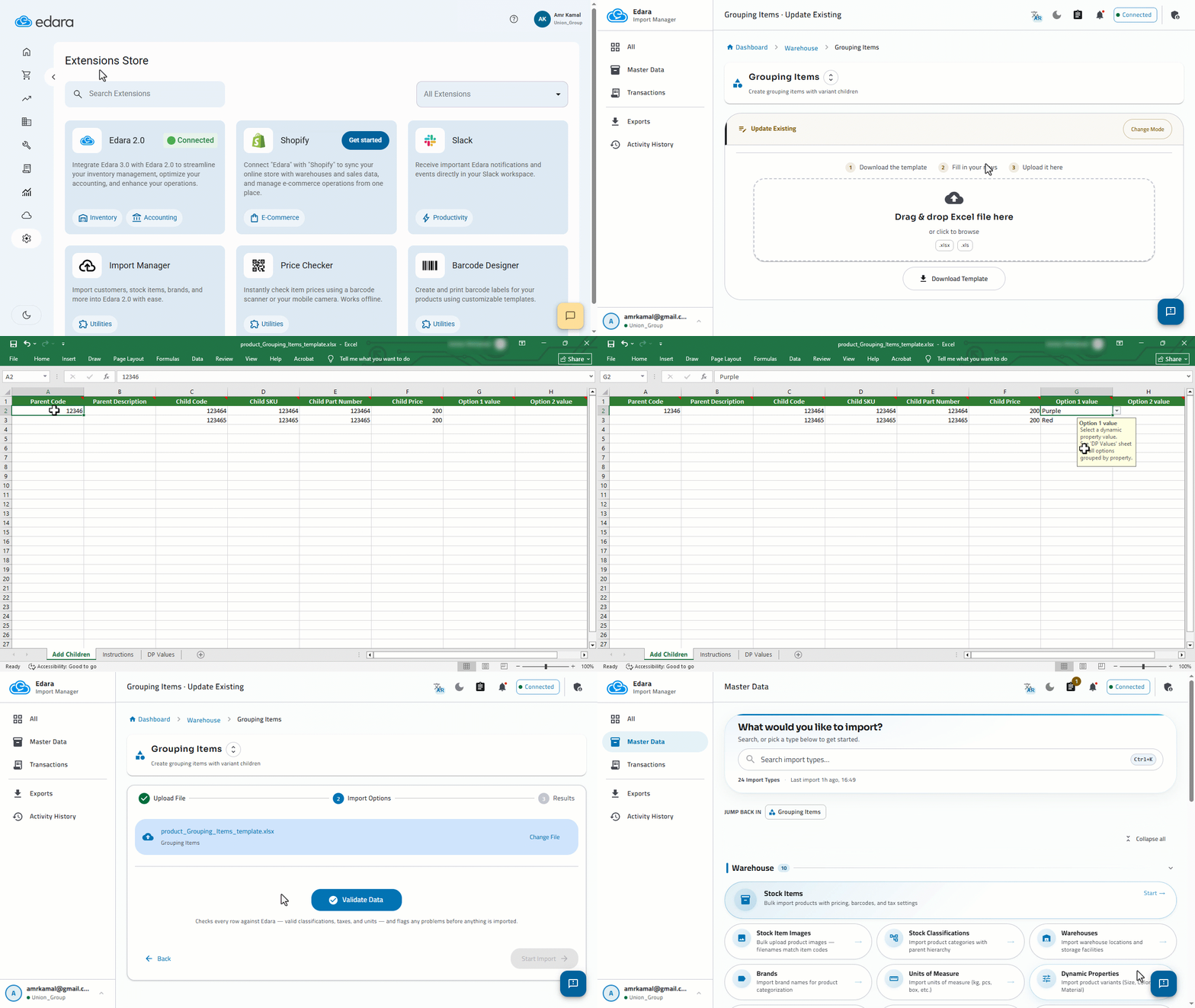
When you need to add new variants to existing grouping items without modifying the current data, you can use the update option to add new child items in bulk.
Updating Grouping Items using Data Manager

- Go to "System".
- Open the "Extension Store" page.
- Click on "DataManager".
- Enter your Edara account email and password.
- Click on "Sign in".
- Click on "Grouping Items".
- Select "Update Existing".
- Click on "Download Template".
- Fill in the template file.
- Upload the form file after entering the required data.
- Click on "Validate Data".
The system will validate the imported data. If any errors are detected, they will be displayed, and you can export an error file for review, correct the data, and upload the file again for validation.
- Click on "Start Import".
- Click on "Done".
After uploading the file, the system performs initial data validation and displays the results, including successful and failed rows with clear error messages.
Notes:
- Each row in the template adds one new child variant to an existing grouping item.
- The first row must include the "Parent Code", while subsequent rows inherit it automatically and should leave it empty.
- Each row must include at least one option value, and all values must exist in the system properties.
- New children must follow the same structure as existing ones, using the same number and type of options.
- Each child must have a unique combination of option values.
- Child description is generated automatically based on the parent and selected option values.
- Child Code, SKU, or Part Number will be generated automatically if left empty.
- Child price is inherited from the parent if not specified.
- The parent item must already exist as a grouping item in the system.
- Delete any sample rows in the template before uploading the file.
- You can refer to the example and the instruction file attached within the template file to learn how to enter the data correctly before starting the import process.
If you encounter any challenges or have questions during these processes, you can contact our technical support team, who are ready to assist you at any time.
Did this answer your question?