

Integration Between "Edara" and "Slack"
Last updated:
The integration between "Edara" and “Slack” allows users to track updates such as (adding, deleting, or modifying) a customer, sales order, or stock item. It also notifies users when stock reaches the reorder level across all warehouses or a specific one.
Integration with Slack
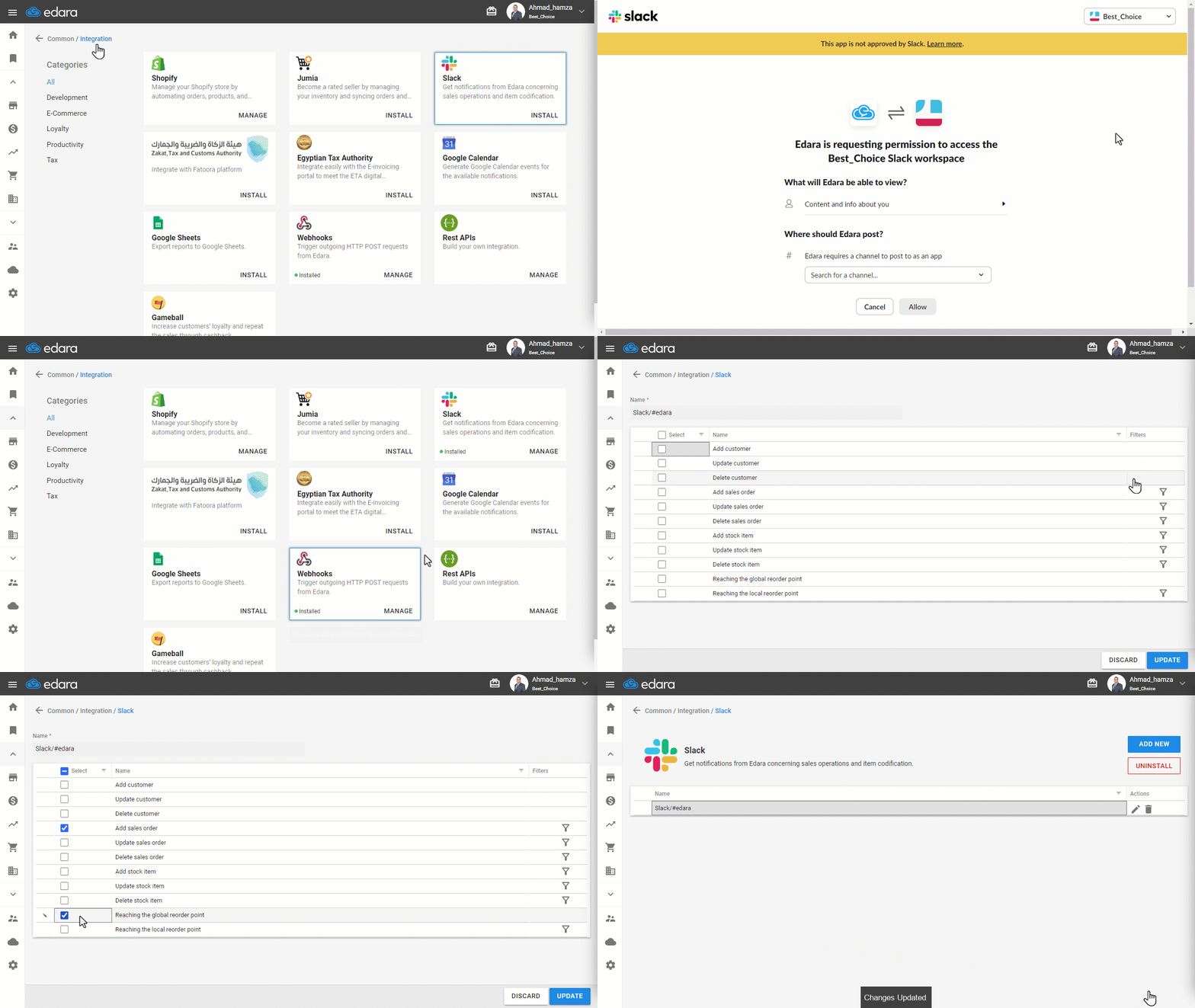
- Go to Data.
- Open the “Integration” page.
- Click “Install” below the Slack logo.
- Log in to your Slack account.
Note: You must have a Slack account to select a Workspace when connecting "Edara" to Slack.
Note: Once completed, the "Install" button will change to "Manage" below the Slack logo.
- Click on “Manage”.
- Click the 🖊 icon next to the created name.
- Select the elements for which you want to receive notifications by checking the relevant boxes.
Note: You can enable notifications for adding, deleting, or modifying a customer, sales order, or stock item, or track when an item reaches its reorder level across all warehouses or a specific warehouse by clicking on “ ”.
”.
- Click on “Update”.
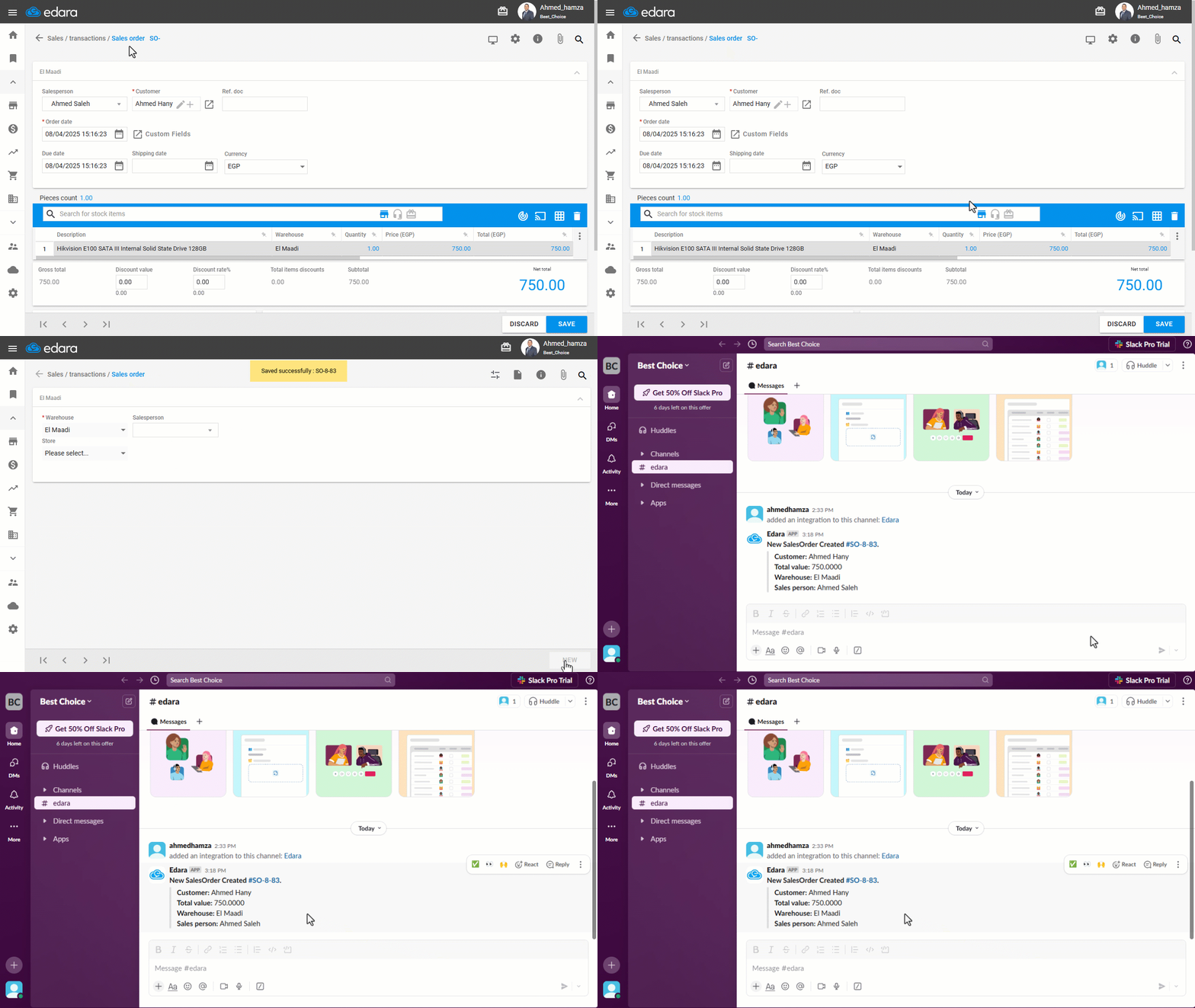
Note: Example: If you enable notifications for adding a sales order without specifying a warehouse or sales store, you will receive an alert whenever a new sales order is created.
Revoking the Integration with Slack
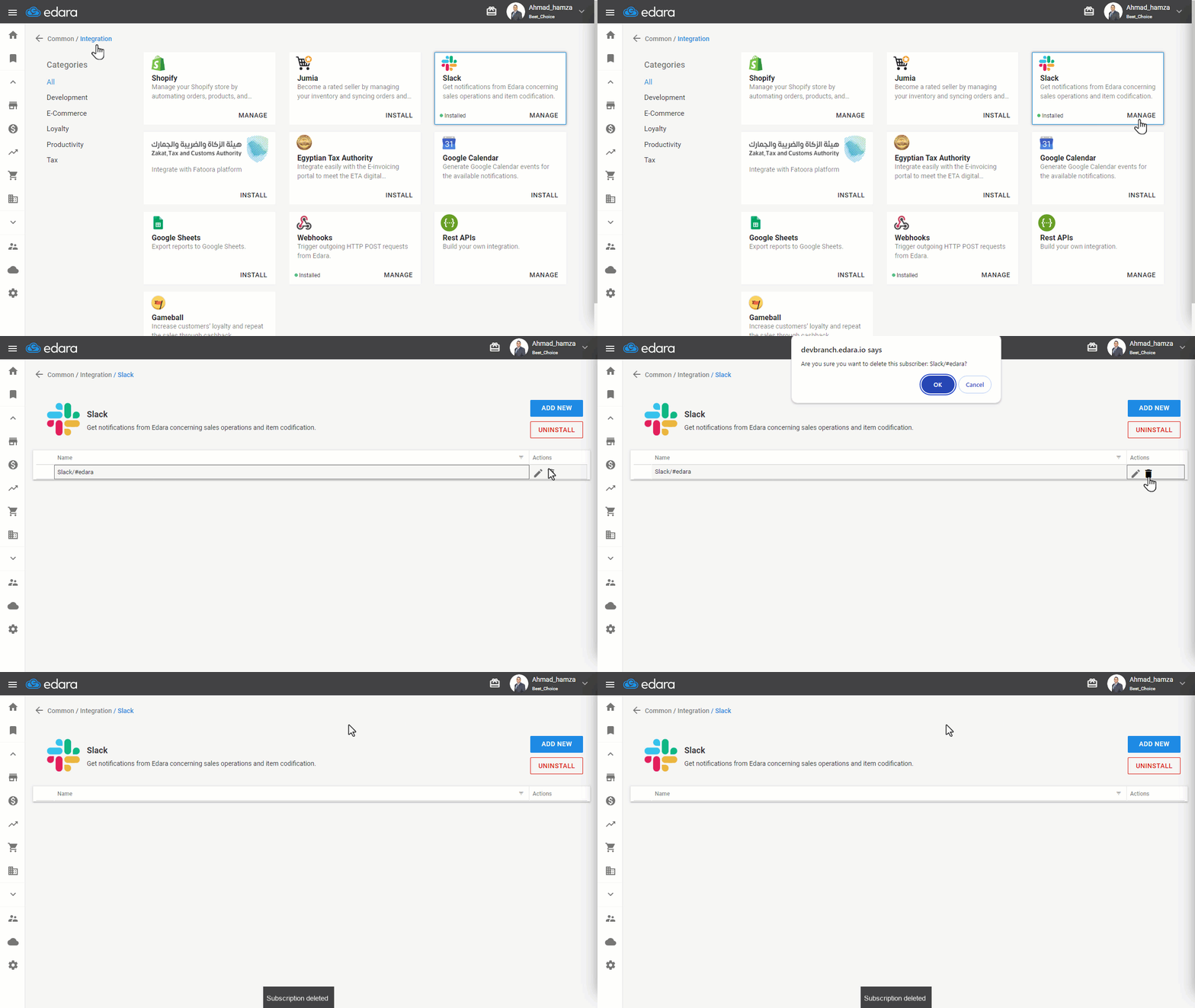
- Go to Data.
- Open the “Integration” page.
- Click “Manage” below the Slack logo.
- Click the deleting icon “
 ” next to the Slack account you want to disconnect.
 - Click “OK” to confirm.
Frequently asked questions
Do I need a “Slack” account?
You must have a Slack account to select a Workspace when connecting "Edara" to Slack.
If you encounter any challenges or have questions during these processes, you can contact our technical support team, who are ready to assist you at any time.