

Managing Slack Notifications for Edara Events
Last updated:
After completing the integration between “Edara” and Slack, you can add events to sync notifications and receive system alerts directly within your workspace.
Managing Slack Notifications for Edara Events
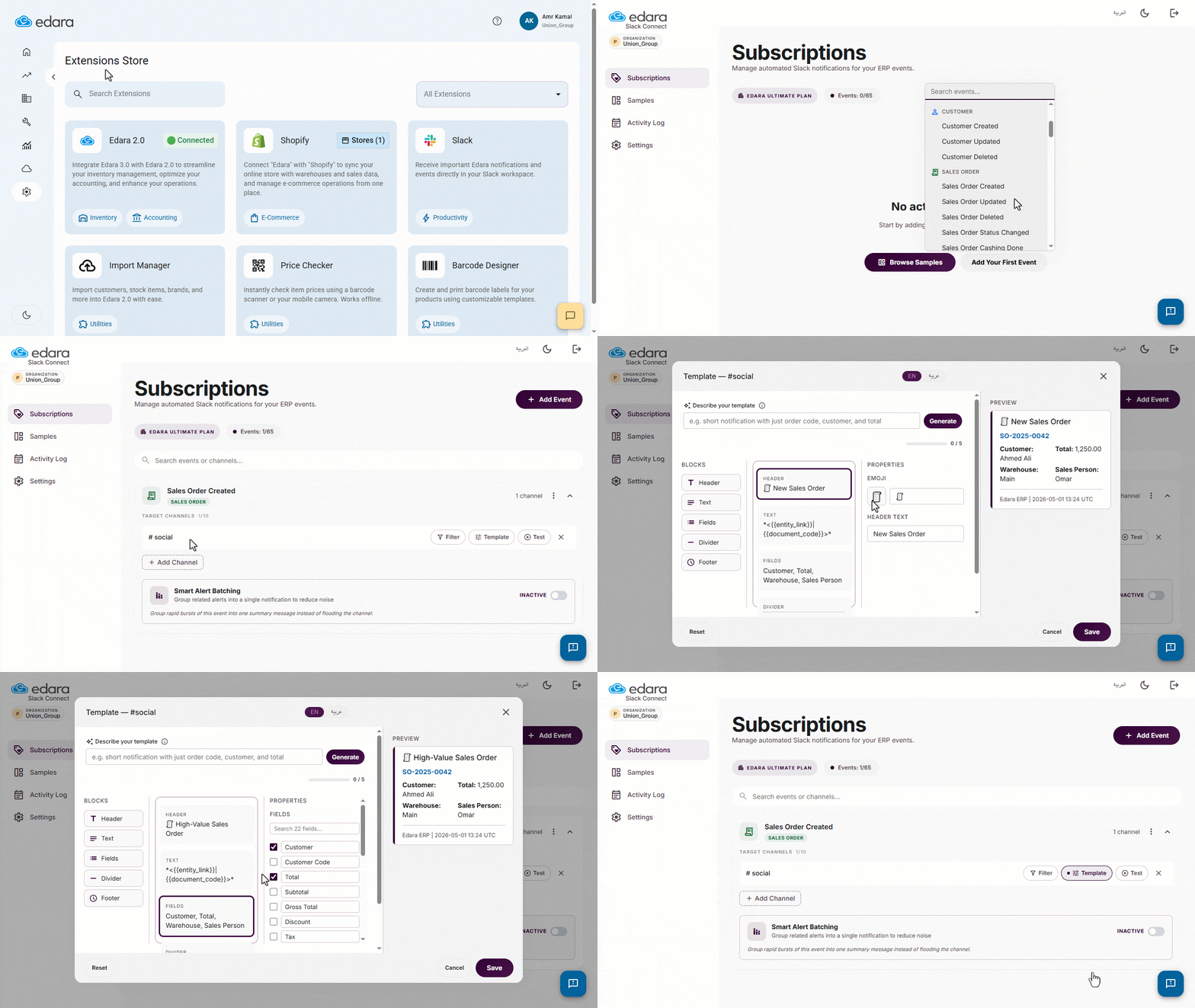
- Go to “System”.
- Open the “Extensions Store” page.
- Click on “Slack”.
You will be automatically redirected to the “Subscriptions” page in Slack Connect.
- Click on “Add Your First Event.
- Select the required event.
- Click on the event you have added.
- Click on “Add Channel”.
- Select the channel where you want to receive notifications.
- Click on “Template”.
The template consists of 5 elements: (Header – Text – Fields – Divider – Footer). You can add elements by clicking on the desired element under Blocks.
- Click on the element you want to edit.
- Adjust the element properties based on your needs.
- Click on “Save”.
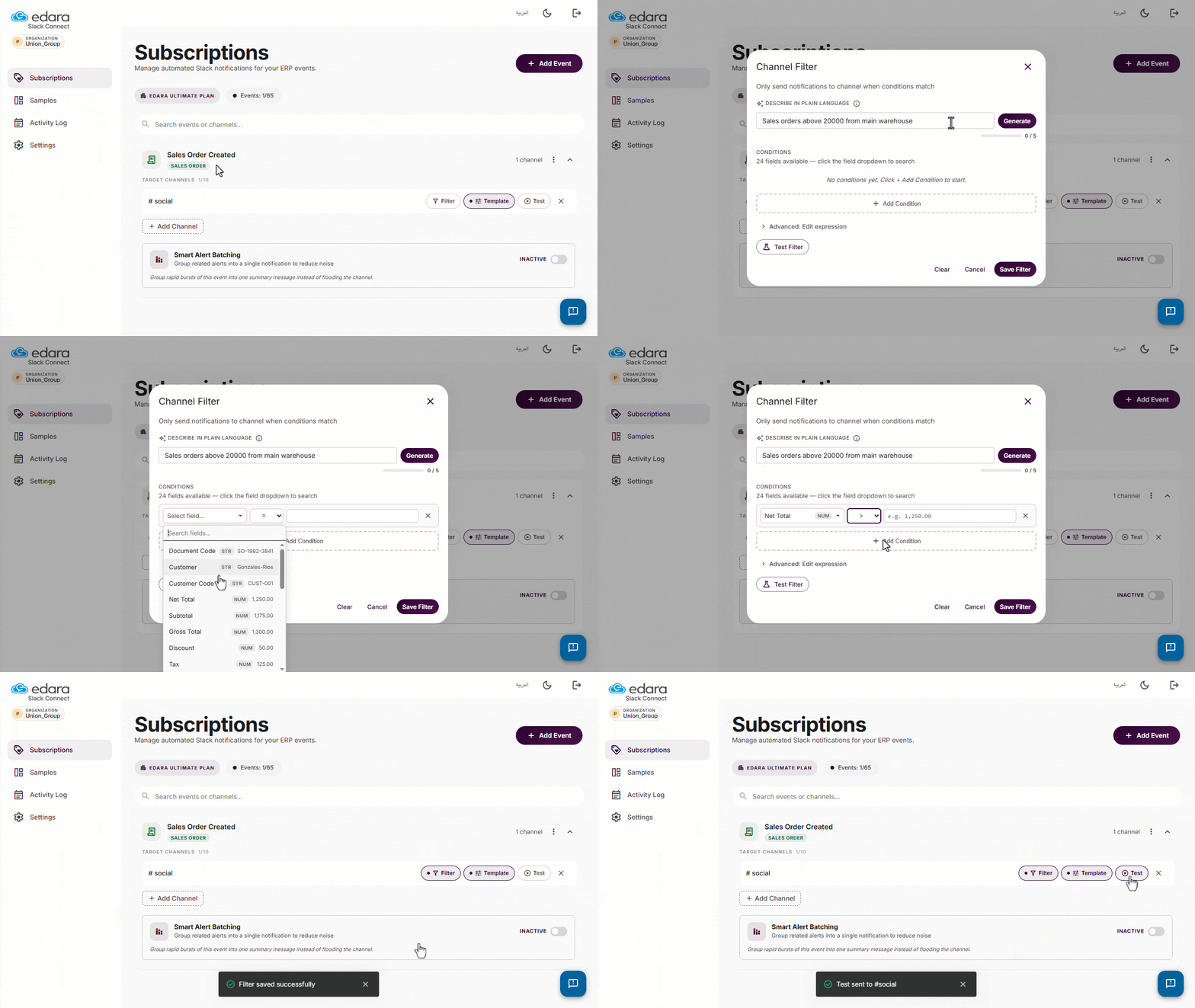
- Click on “Filter”.
- Enter the description.
- Set the required conditions.
- Click on “Save Filter”.
You can test the event by clicking on “Test”, and a notification will be sent to the selected channel.
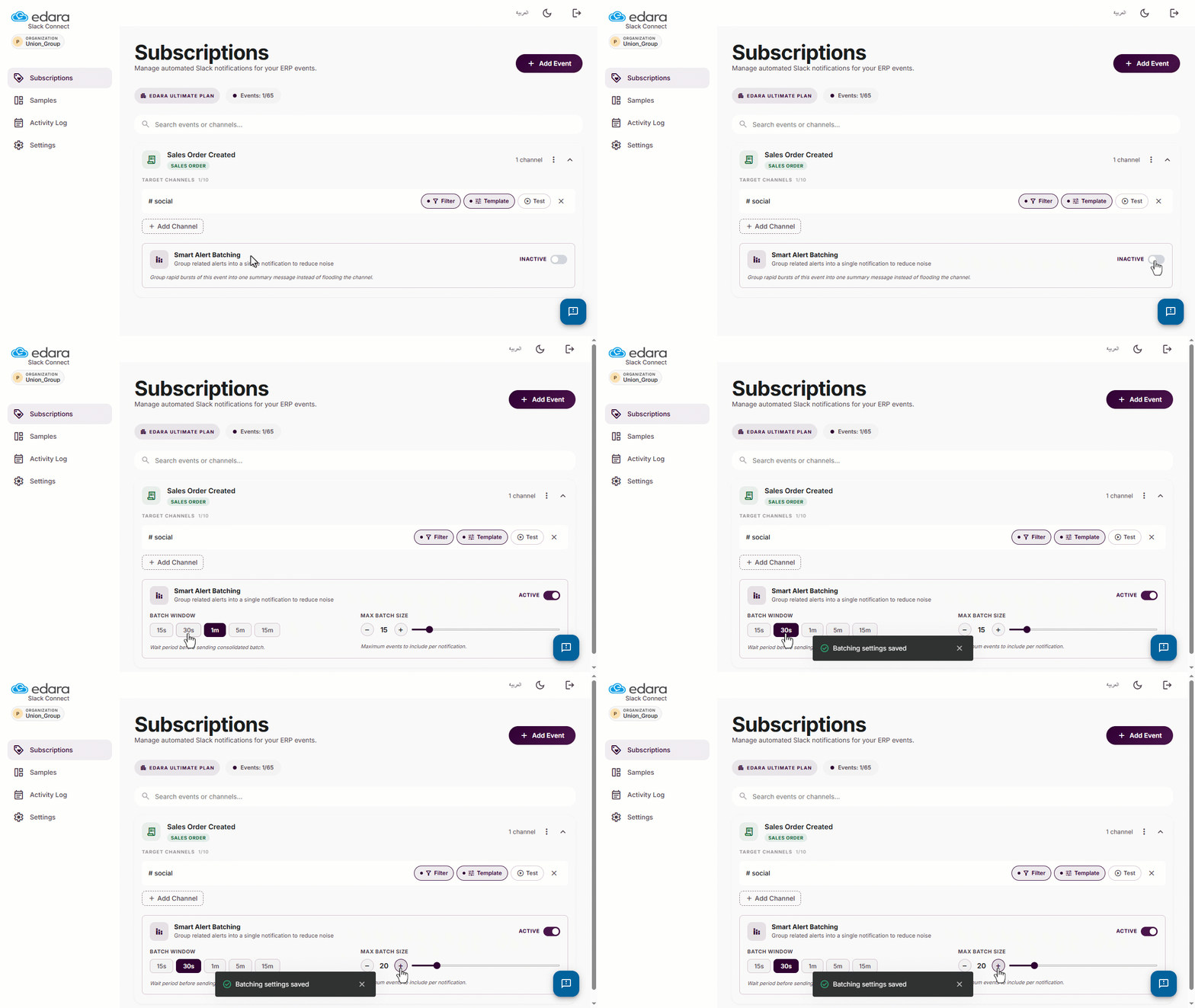
Note: You can group related alerts into a single notification by enabling the “Smart Alert Batching” option.
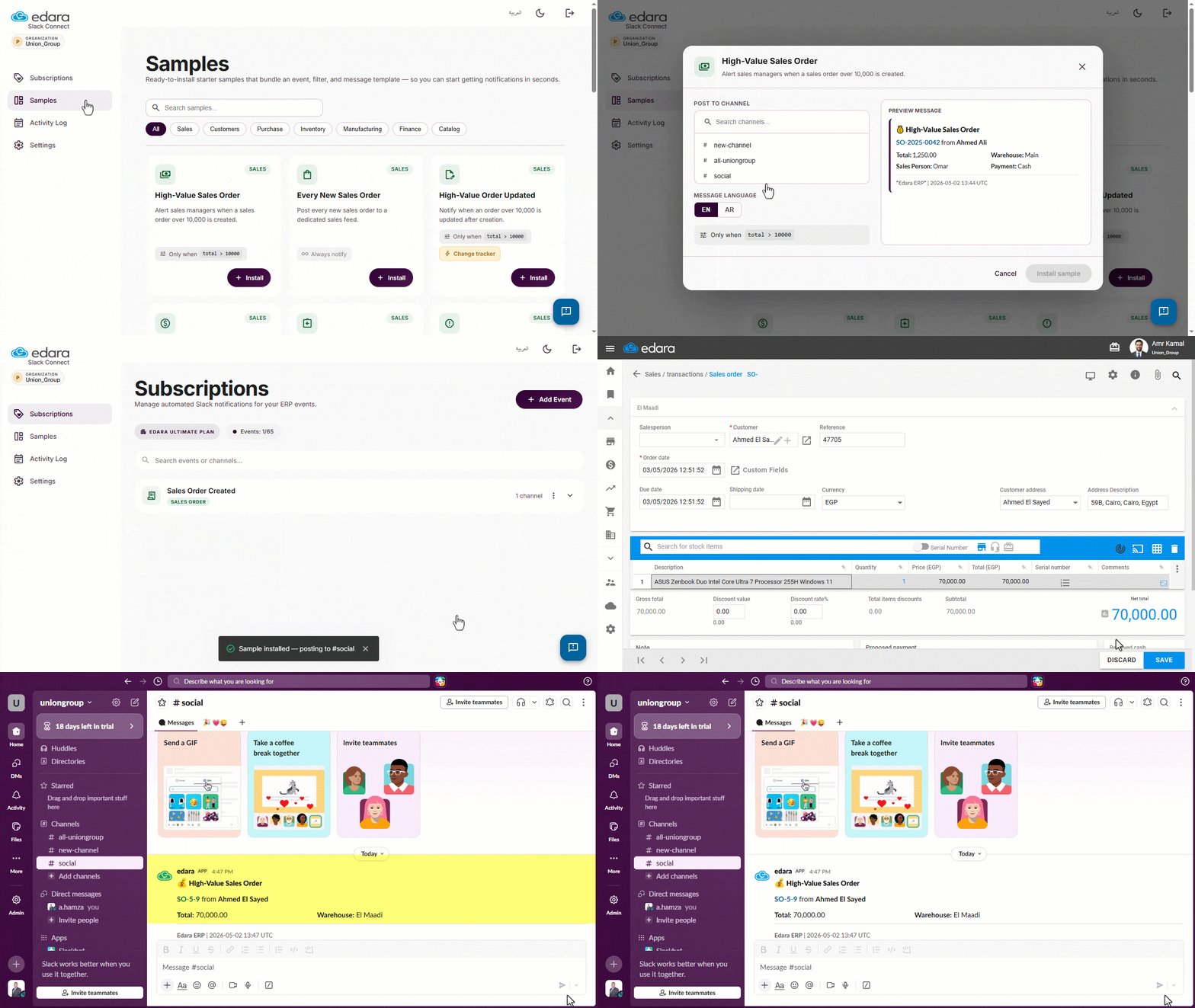
You'll also find a variety of ready-made examples that you can use directly, with the option to customize them to suit your needs by following these steps:
- Go to “Samples”.
- Click on “Install” next to the example you want to add.
- Select the channel and message language.
- Click on “Install Sample”.
You will be automatically redirected to the “Subscriptions” page, where you can manage the event properties using the same steps above.
When the event is triggered — such as creating a high-value sales order — a notification is automatically sent to the selected Slack channel.
Frequently asked questions
Can similar alerts be grouped into one notification?
You can group related alerts into a single notification by enabling the “Smart Alert Batching” option.
If you encounter any challenges or have questions during these processes, you can contact our technical support team, who are ready to assist you at any time.