

Excluding Certain Stock Items from Reorder Point Notifications
Last updated:
In some cases, you may need to exclude certain stock items from reorder point notifications, especially if you no longer need to track them or don't want to receive alerts for them.
Excluding Certain Stock Items from Reorder Point Notifications
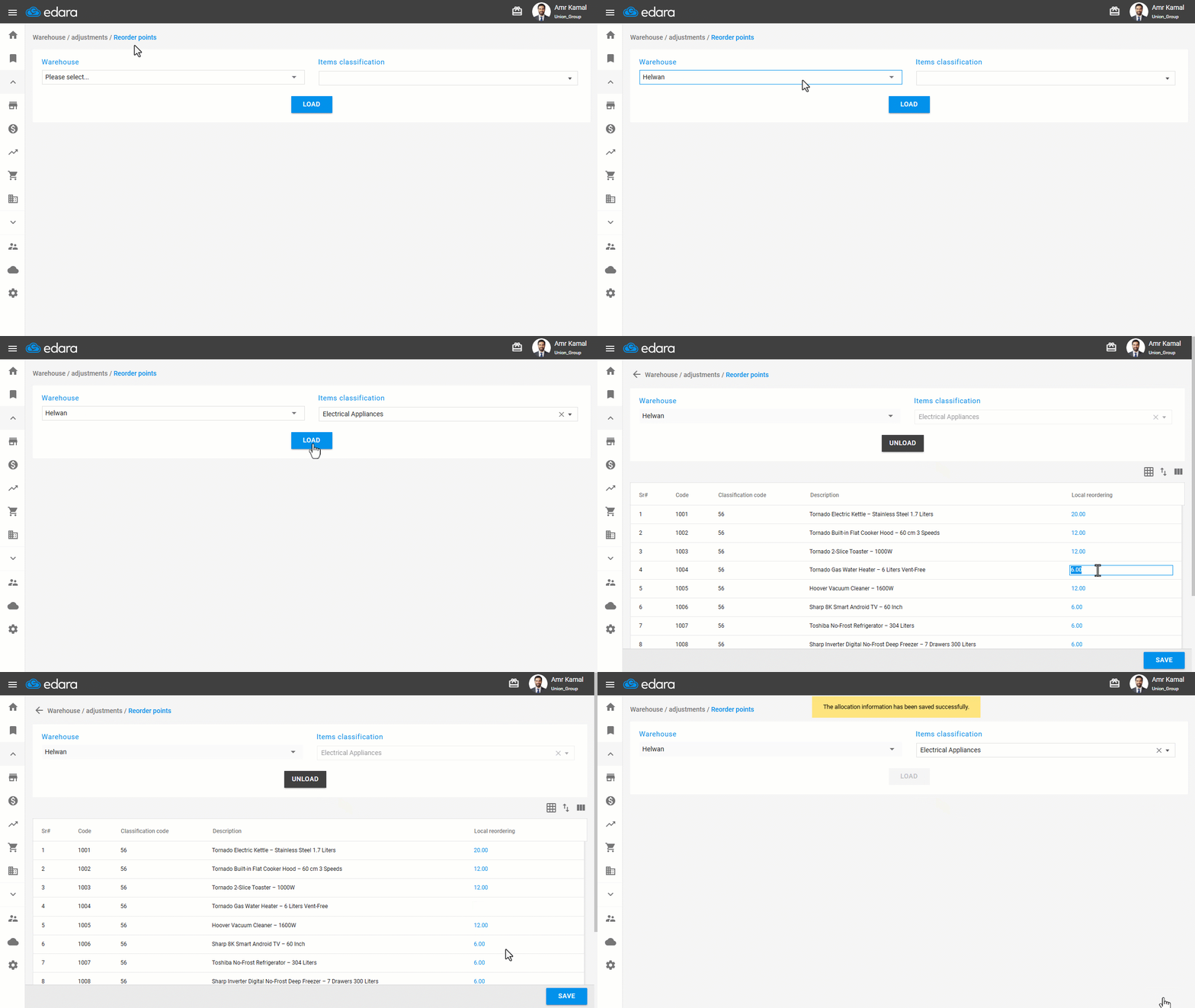
1- From the “Reorder Points” Page
- Go to the “Warehouse” module.
- Open the “Reorder points” page.
- Select the warehouse.
- Select Items classification.
- Click on “Load”.
- Clear the value in the “Local reordering” field for the items you want to exclude.
- Click on “Save”.
2- From the “Stock item” Page
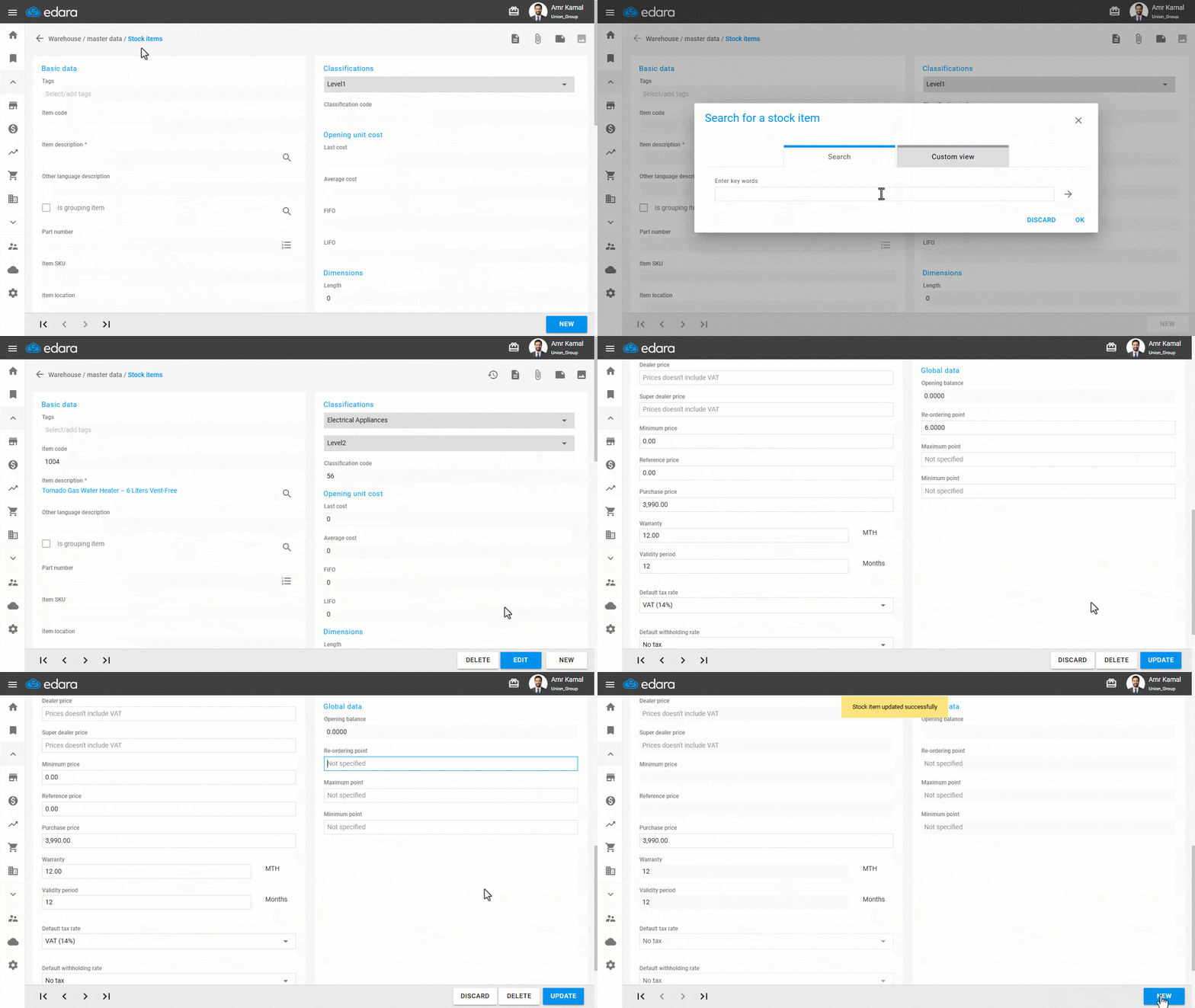
- Go to the “Warehouse” module.
- Open the “Stock items” page.
- Search for the item you want to exclude.
- Click on “Edit”.
- Delete the value in the “Re-ordering point” field. This will change to “Not Specified”.
- Click on “Update”.
If you encounter any challenges or have questions during these processes, you can contact our technical support team, who are ready to assist you at any time.
Did this answer your question?