

Integration with Google Calendar
Last updated:
Integrating “Google Calendar” with “Edara” allows you to effortlessly keep track of important tasks and documents—such as due dates for sales orders, notes payable, and more.
Here’s how to set up the integration.
Integration with Google Calendar

- Go to Data.
- Open the "Integration" page.
- Click on "Install" under Google Calendar.
- Sign in to your Google Calendar account.
Note: After completing the installation, the "Install" button will be replaced with "Manage" under Google Calendar.
- Click on "Manage".
- Click on "
 ".
". - Select the items you want to receive notifications for by ticking the checkbox □.
Note: You can further customize your notifications by clicking the " " icon.
- Click on "Update".
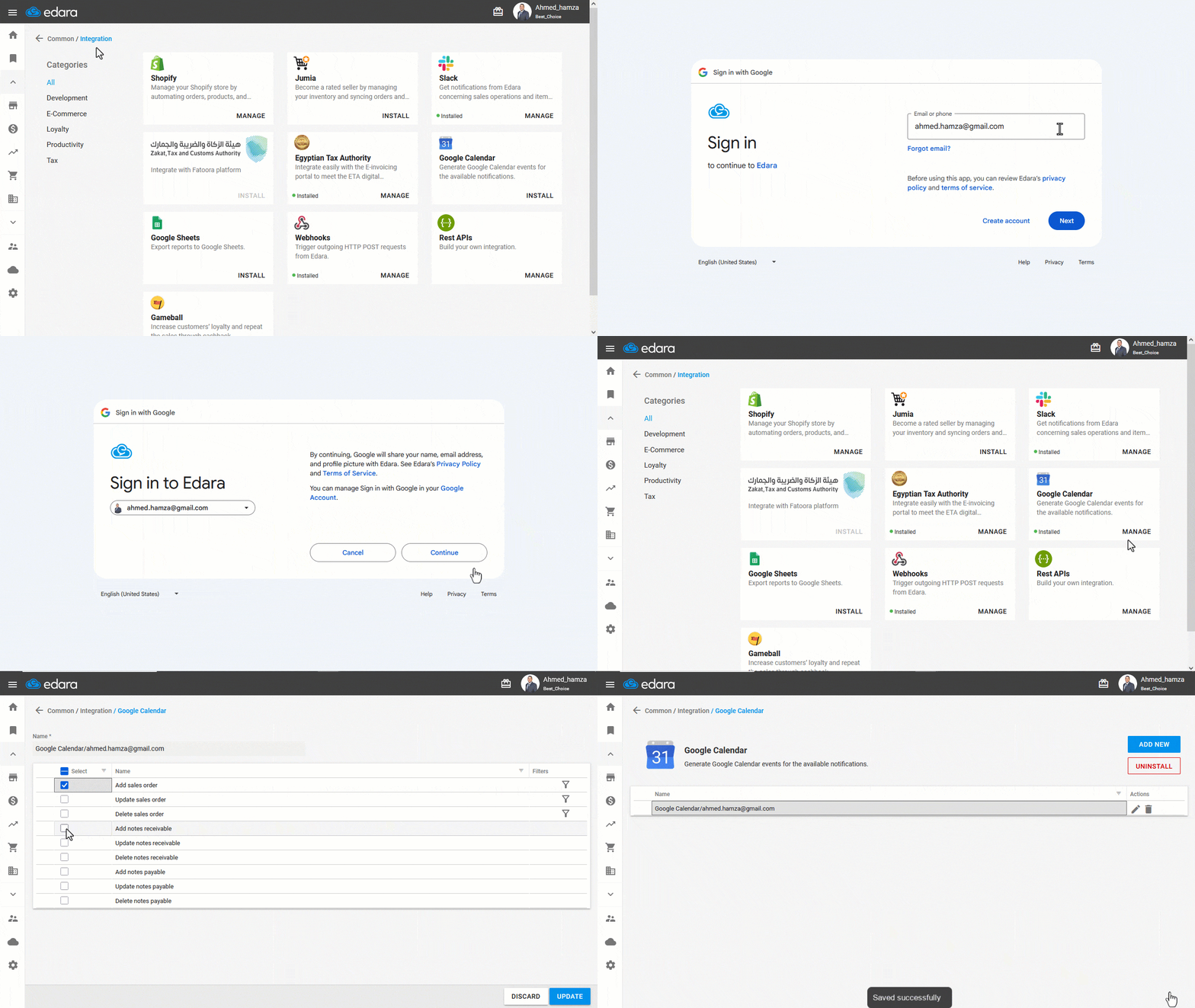
Note: Google Calendar will display the due date of the document, not the creation date.
Revoking the Integration with Google Calendar
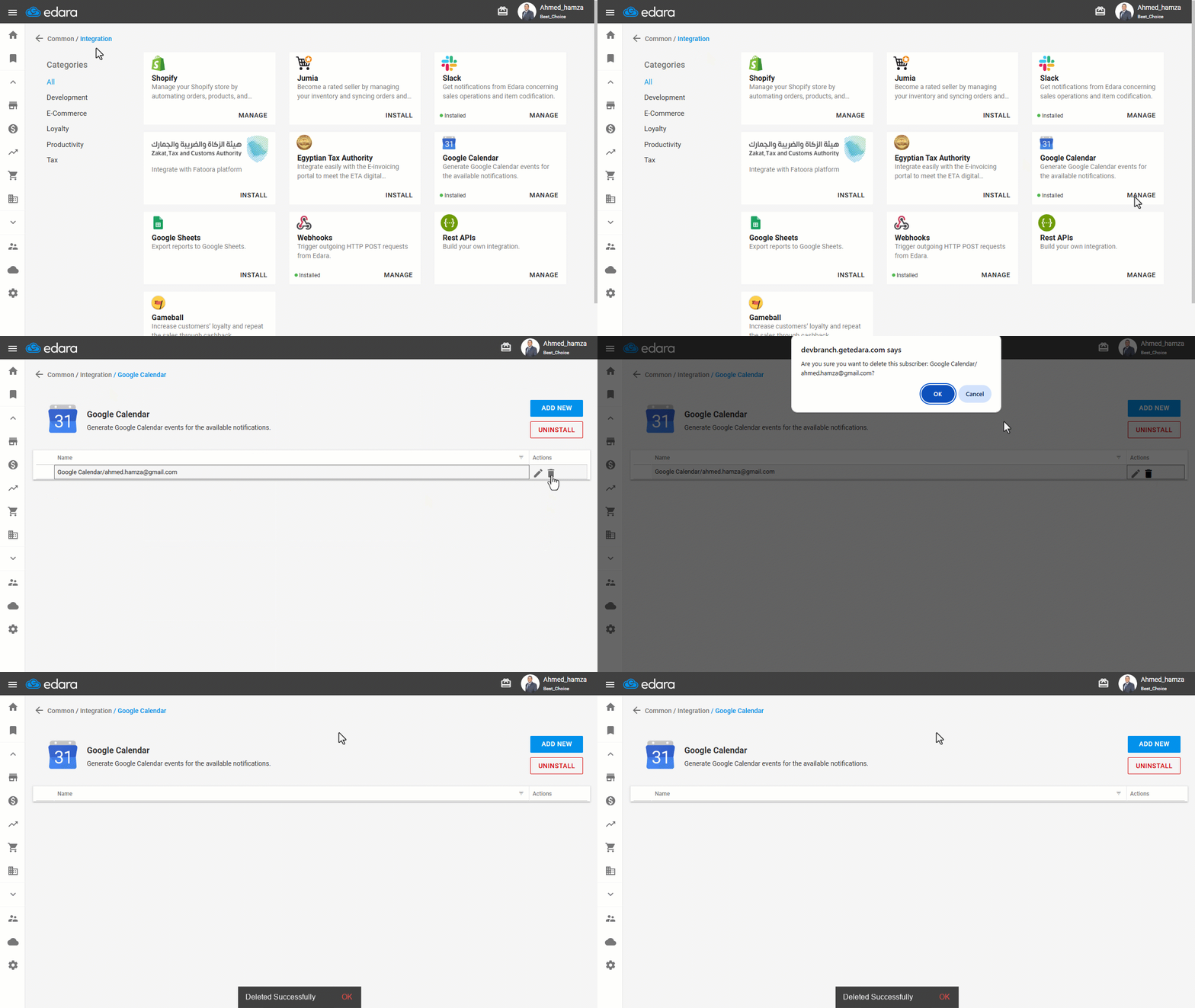
- Go to Data.
- Open the "Integration" page.
- Click on "Manage" under Google Calendar.
- Click on "
 " next to the account to be deleted.
 - Click on "OK" to confirm the deletion.
Frequently asked questions
Which date appears on Google Calendar?
Google Calendar will display the due date of the document, not the creation date.
If you encounter any challenges or have questions during these processes, you can contact our technical support team, who are ready to assist you at any time.
Did this answer your question?