

Integrating with Google Sheets
Last updated:
Integrating with Google Sheets allows you to export data from some of your reports into spreadsheets for record-keeping or further work.
Integrating with Google Sheets
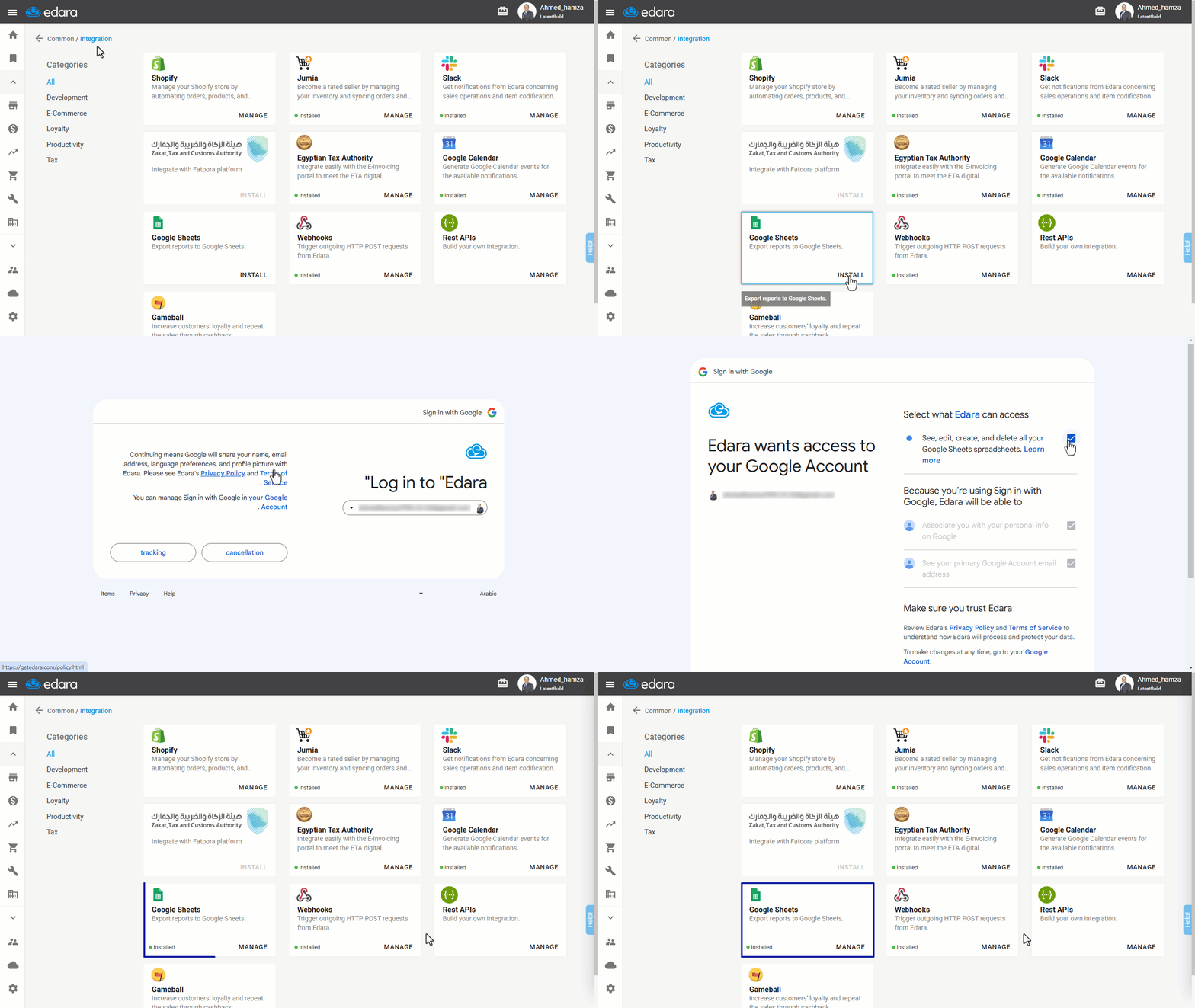
- Go to the Data module.
- Open the “Integration” page.
- Click “Install” under Google Sheets.
- Log in using your email address.
- Click “Tracking”.
- Enable the option to "See, edit, create and delete all your google sheets".
- Click “Continue” again.
Note: Once completed, the word "Manage" will replace "Install" under Google Sheets.
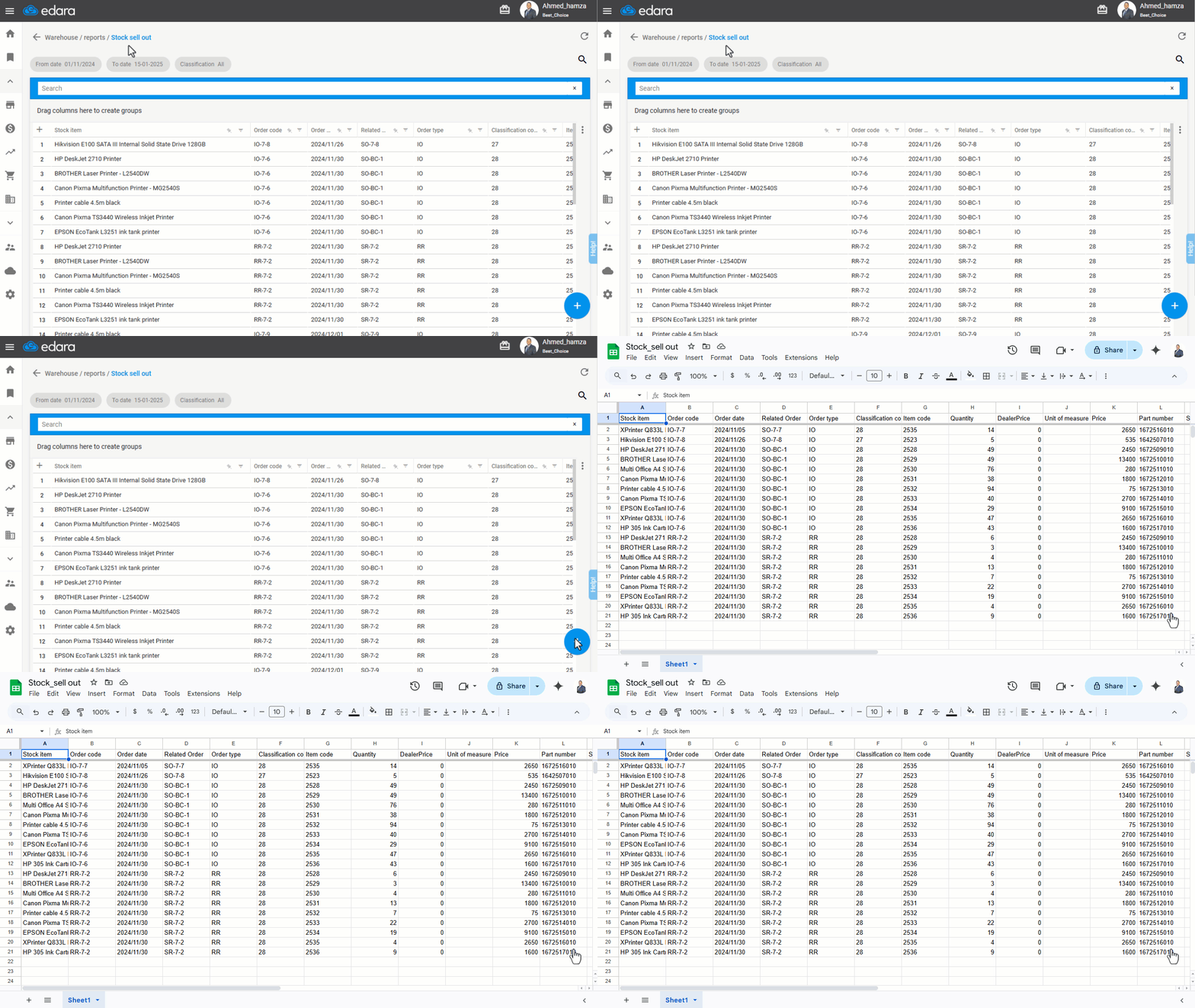
Example Use Case: You can utilize this integration to export an Stock sell-out Report to Google Sheets for tracking and analysis.
Disconnecting Google Sheets Integration
If you wish to disable the integration, you can do so by following these steps:
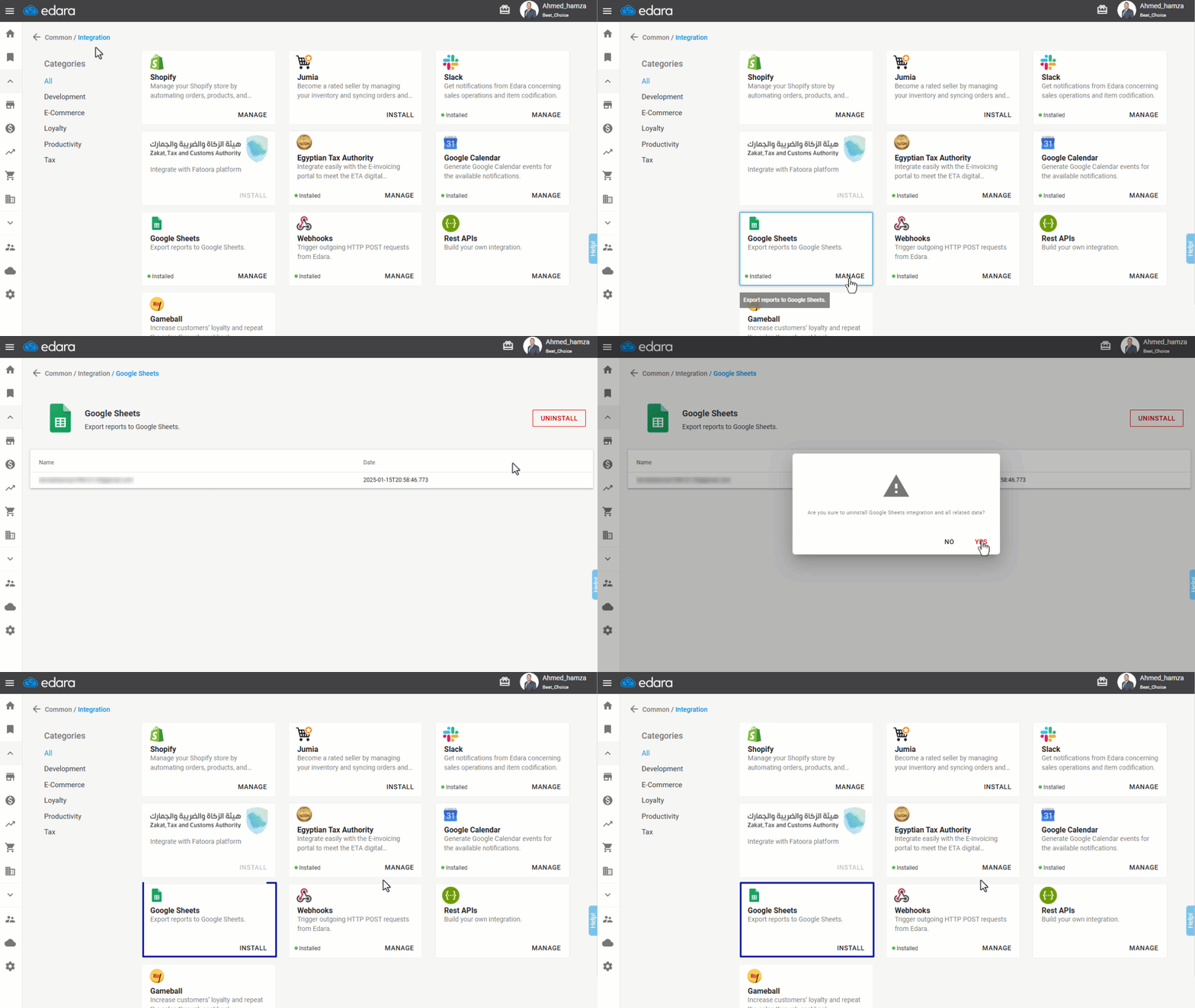
- Go to the Data module.
- Open the “Integration” page.
- Click “Manage” under Google Sheets.
- Click “Uninstall”.
- Confirm by clicking “Yes” in the deletion confirmation message.
If you encounter any challenges or have questions during these processes, you can contact our technical support team, who are ready to assist you at any time.
Did this answer your question?