

Viewing Customer Account Reports in Bulk
Last updated:
“Edara” allows you to view customer account statement reports in multiple ways based on user permissions. This ensures that data is only accessible to the relevant persons, thereby maintaining data security.
Viewing Customer Account Reports in Bulk
There are three ways to view customer accounts in bulk:
First: Through the General Ledger
- Go to the Accounting module.
- Open the “General Ledger” report.
- Choose the required levels to access the group of customers from the dropdown list under “Accounts classification”.
- Select the required date range.
Note: When selecting the "Trial Balance of” date, opening balances will appear automatically. But, when selecting "GL From... To...", this does not occur by default. Therefore, you must enable the "Get year to date info” option.
- Specify transaction status "All" or "Posted Only".
- Display the required columns using “Custom View”.
- Click on "Generate".
- Click the “+” icon to view each account in detail.
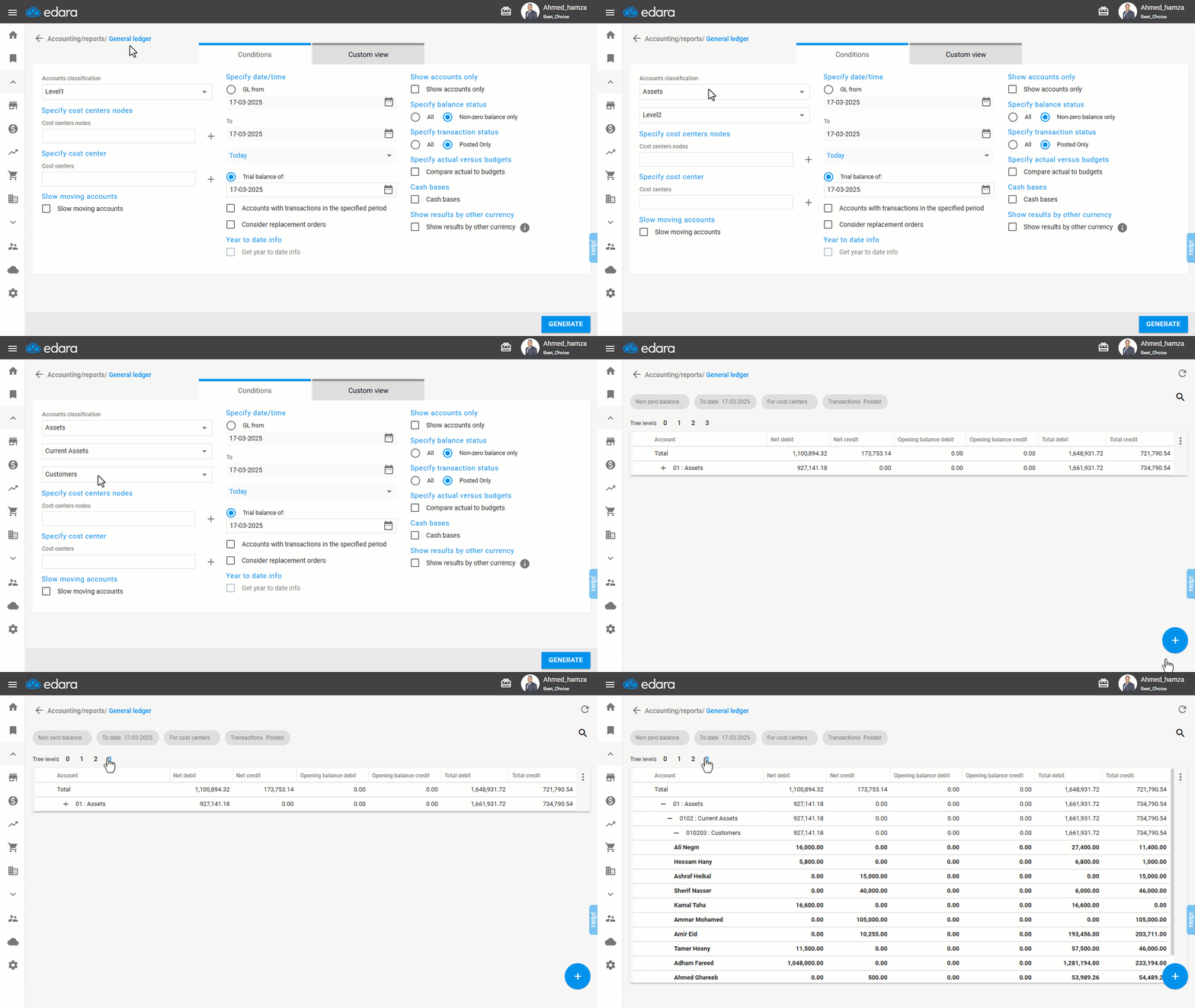
Note: The report can be exported to Excel or Google Sheets, or printed by clicking the "+" button.
Second: Through the Account Ledger
- Go to the Accounting Module.
- Open the "Account Ledger” report.
- Select the customer classifications from "Specify account classification", or select specific customer accounts using "Specify Account".
- Set the desired date range.
- Specify transaction status "All" or "Posted Only".
- Display the required columns using “Custom View”.
- Click on "Generate".
- Click the “+” icon next to the account name to review its transactions.
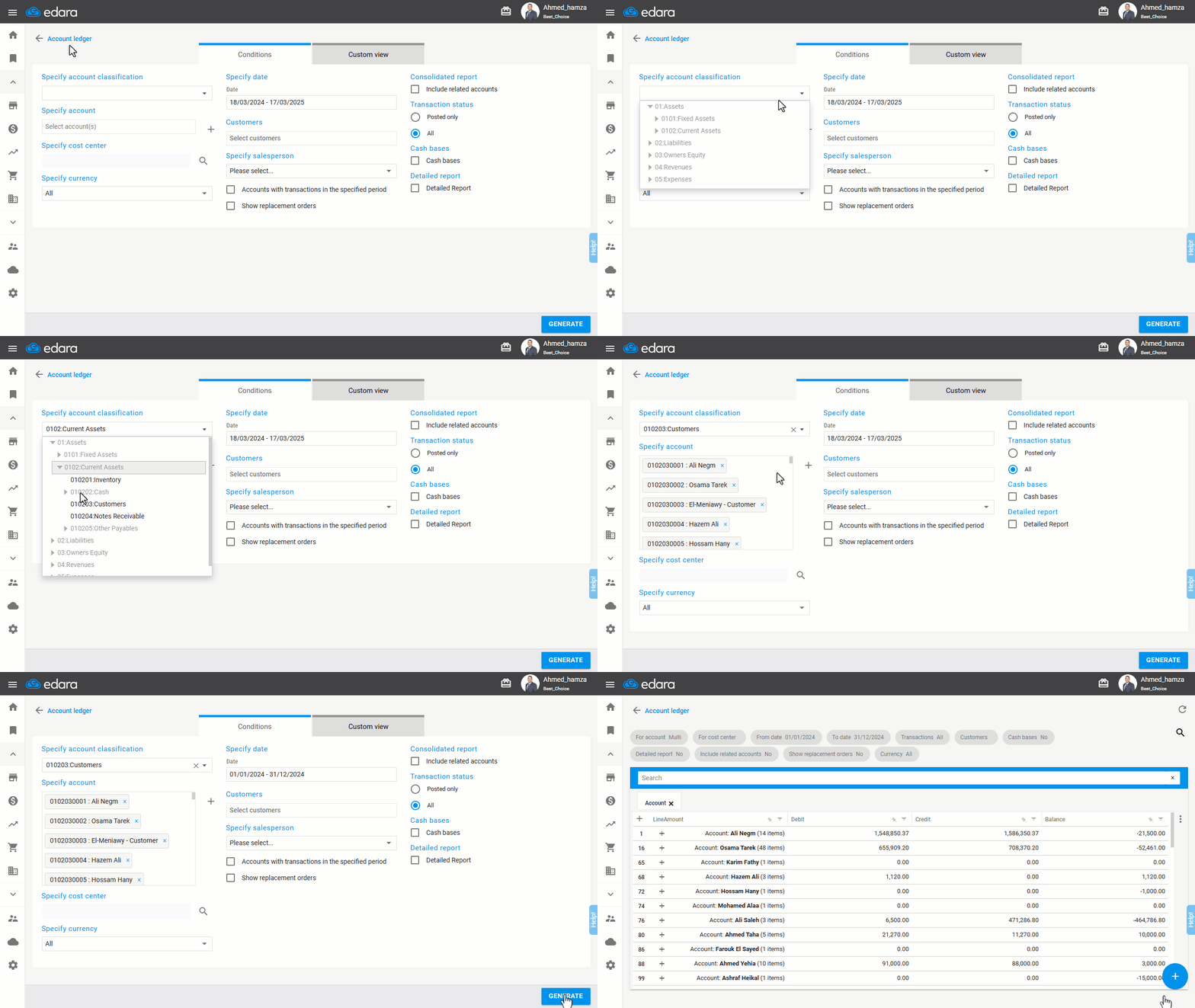
Note: The report can be exported to Excel or Google Sheets, or printed by clicking the "+" button.
Note: If the customer is linked to a supplier, you can enable the setting “Include Related Accounts” to view the net balance for the account.
Third: Through the Customer Data Page
- Go to the Sales module.
- Open the “Customers Data” page.
- Ensure to select the "Balance" column and display the other required columns using “Custom View”.
- Click on "Generate".
Here, the current balances for all transactions (posted and unposted) for each customer will be displayed in the "Balance" column.
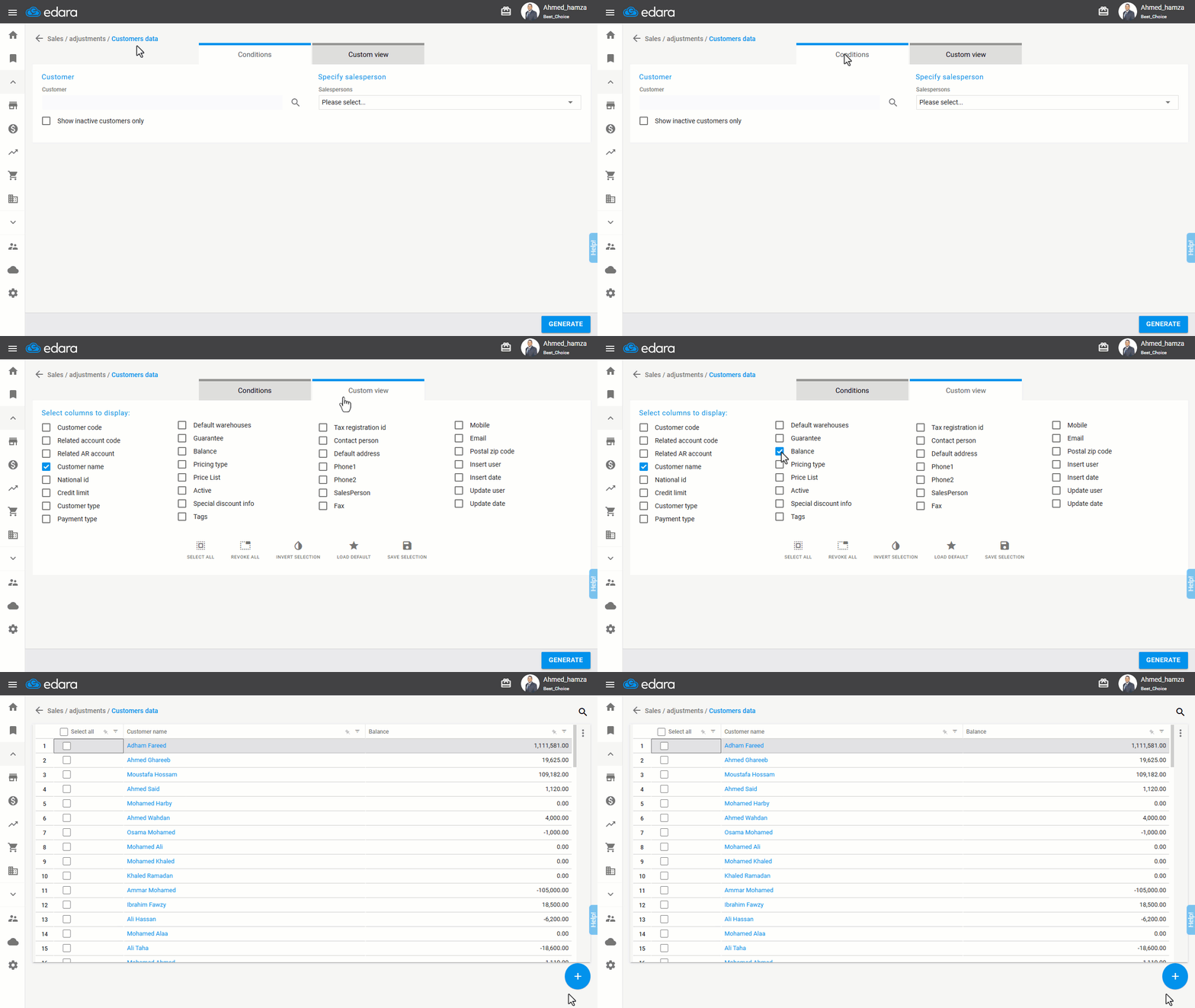
Note: The report can be exported to Excel or Google Sheets, or printed by clicking the "+" button. Additionally, you can perform bulk edits on customer data through the Customer Data page.
Frequently asked questions
How do I see the net balance of a customer linked to a supplier?
If the customer is linked to a supplier, you can enable the setting “Include Related Accounts” to view the net balance for the account.
If you encounter any challenges or have questions during these processes, you can contact our technical support team, who are ready to assist you at any time.