

Updating Products in Bulk
Last updated:
Some businesses need to update their product data regularly, sometimes almost daily, due to continuous price changes. Of course, updating each product individually can take a lot of time and effort.
Updating Products in Bulk
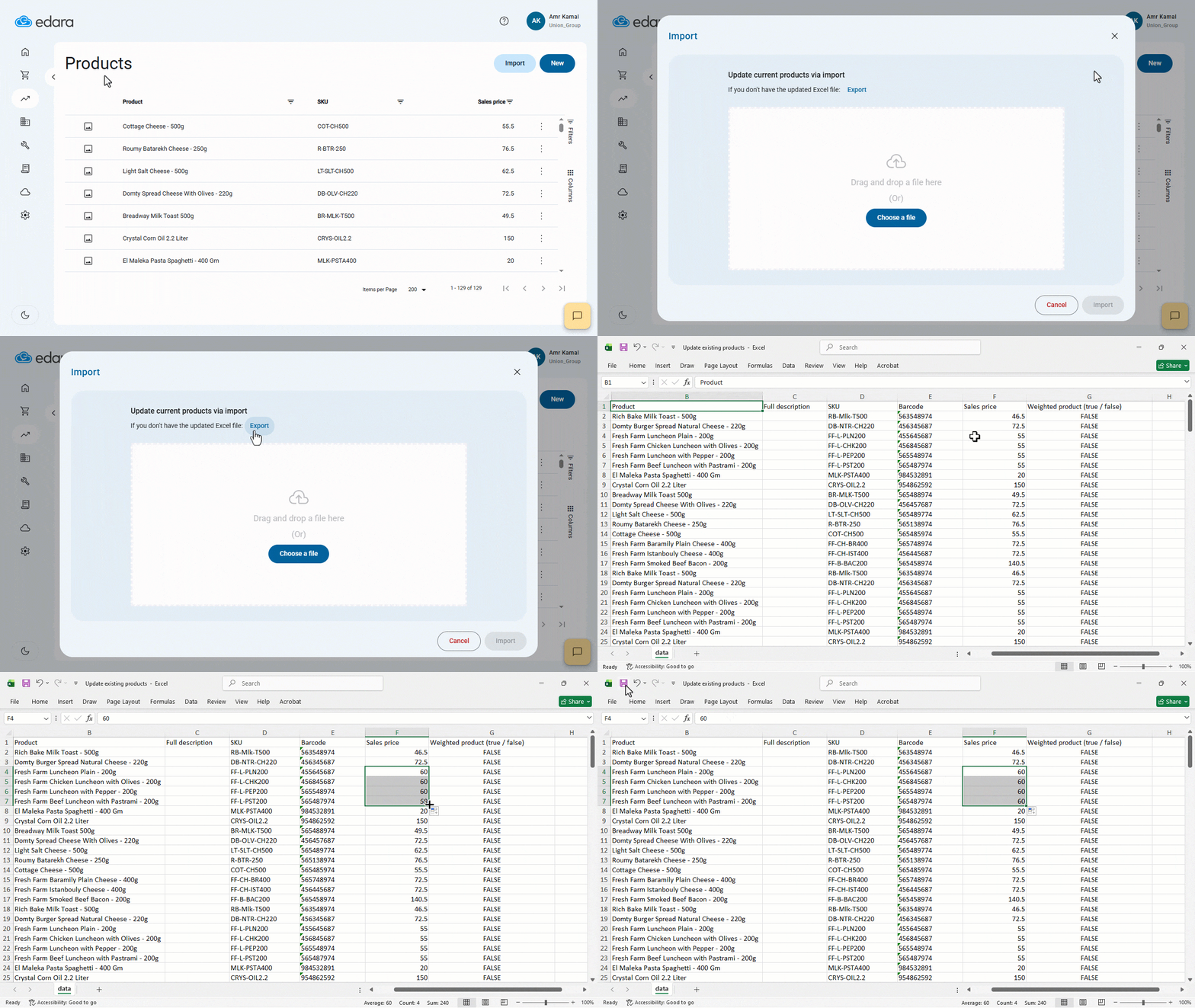
- Go to the POS module.
- Open the “Products” page.
- Click on “Import”.
- Click on “Export” to download all product data into an Excel file.
- Open the Excel file and edit the products' data.
Below are the columns available for editing (Fields marked with an asterisk are mandatory):
- Product*
- Full description
- SKU*
- Barcode*
- Sales price
- Weighted product: true/false
- Save your changes in the Excel file.
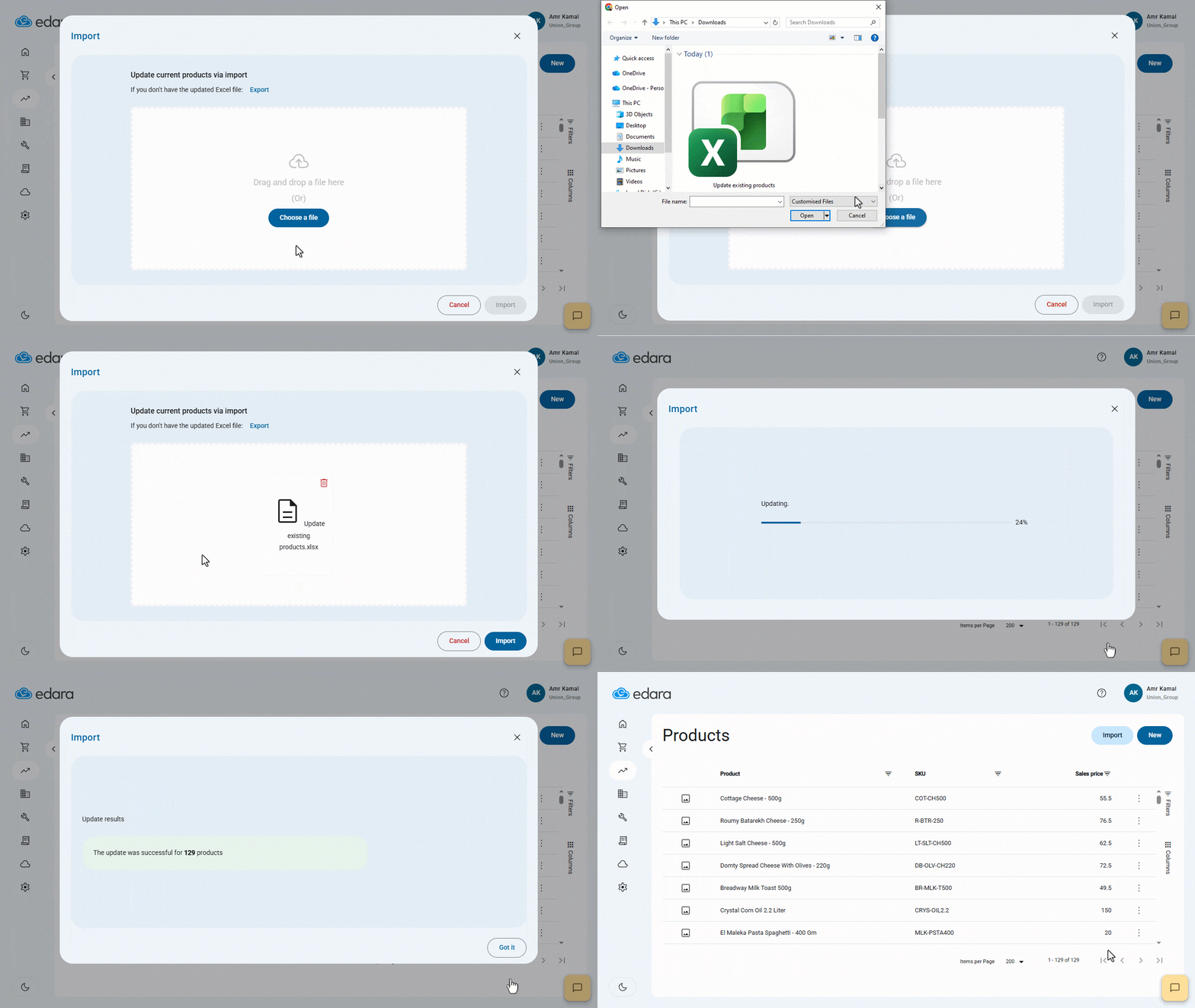
- Click on “Choose a File”.
- Select the updated Excel file from your device.
After uploading the file, the system will verify the imported data. If all data is correct and ready to update, the “Import” button will become active.
- Click on “Import”.
A progress bar will appear showing the update process. Once complete, a message will display the number of updated products.
- Click on “Got it”.
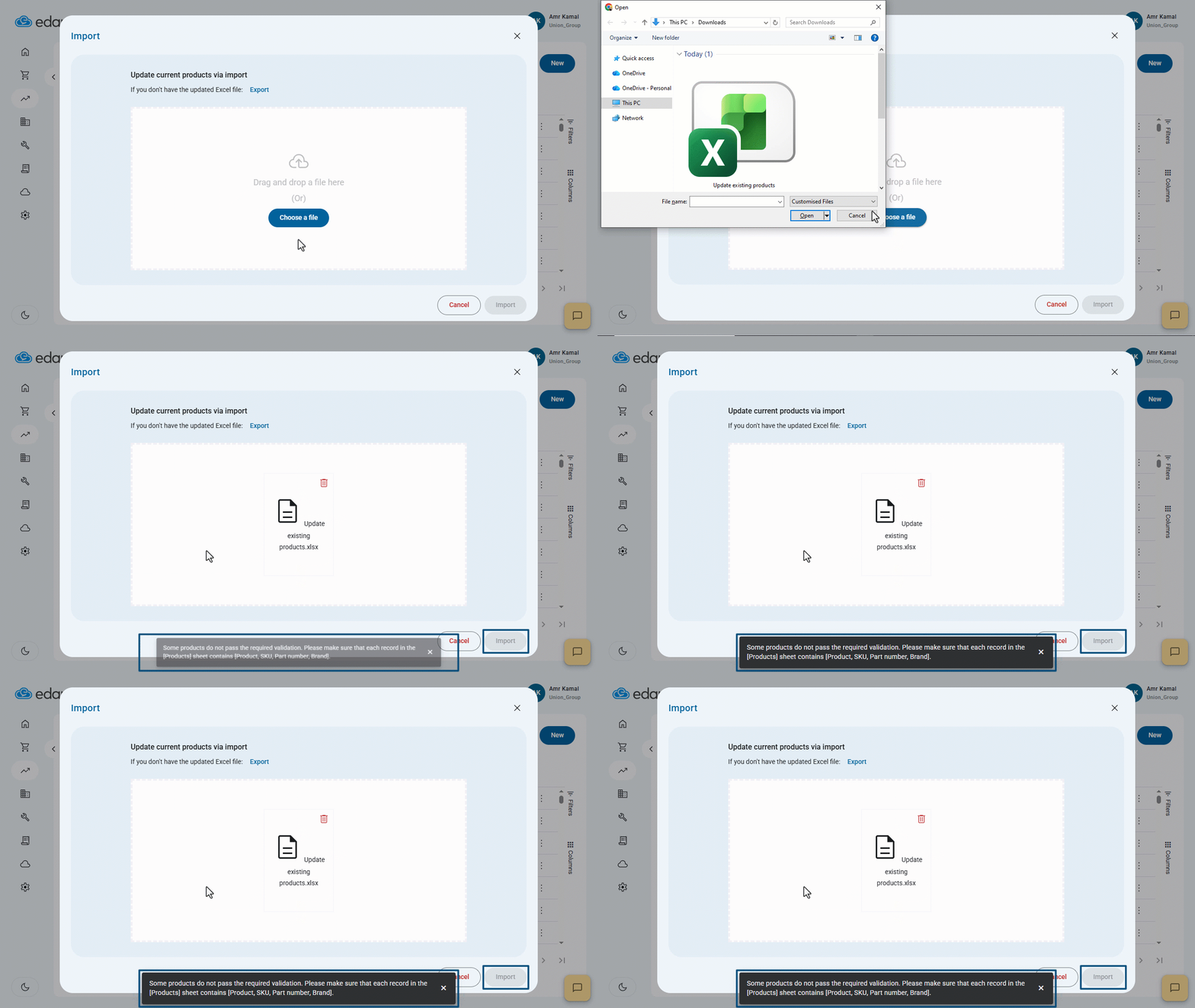
If some data does not pass validation, the “Import” button will remain inactive, and the following message will appear:
Some products do not pass the required validation. Please make sure that each record in the [Products] sheet contains [Product, SKU, Part number, Brand].
Notes:
- Only product data can be exported and imported in bulk; but sales bundles cannot be updated this way.
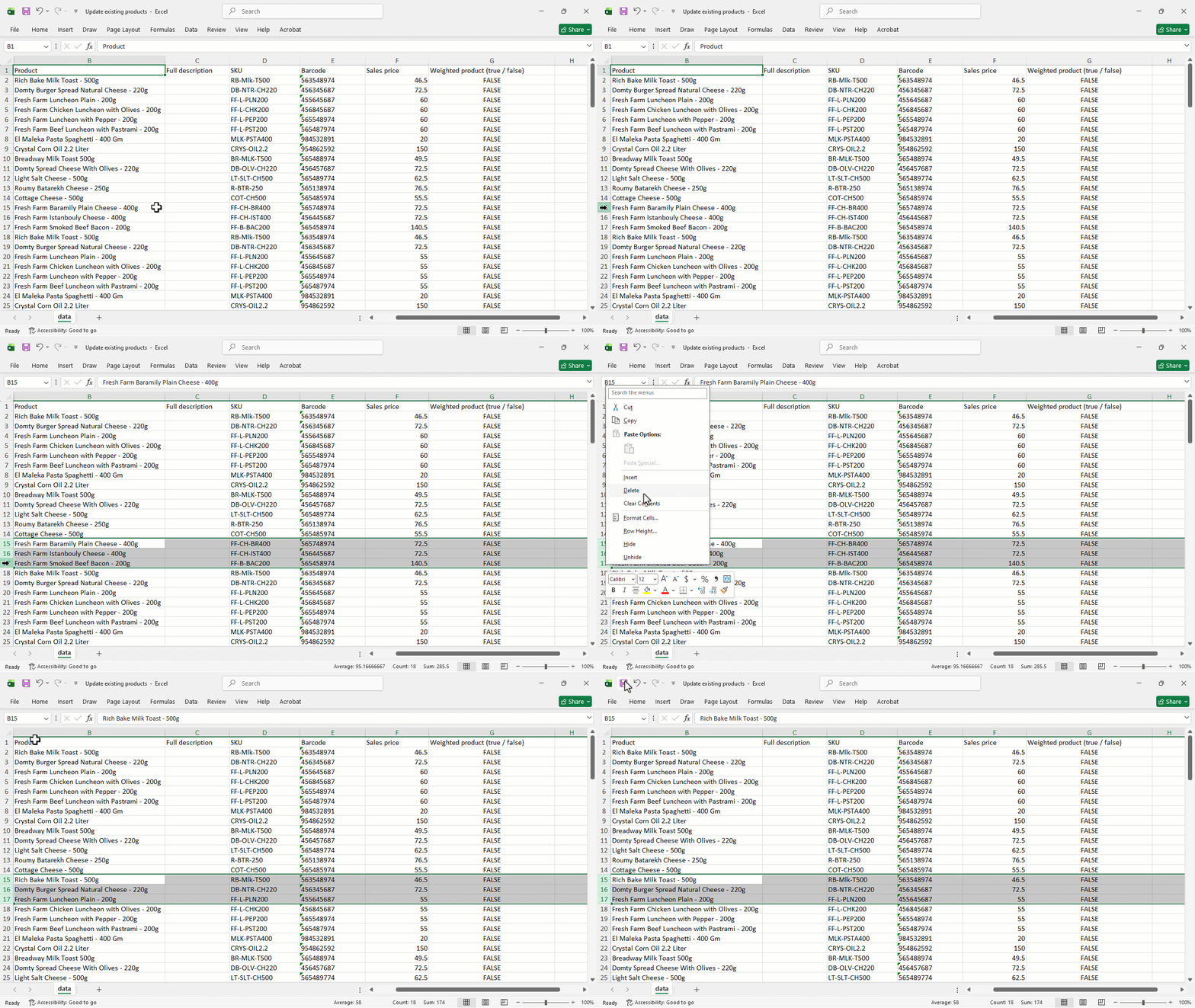
- If a product has not been edited, you can delete it by removing its entire row from the Excel file before uploading it, as shown in the image below:
Frequently asked questions
Can sales bundles be updated in bulk?
Only product data can be exported and imported in bulk; but sales bundles cannot be updated this way.
If you encounter any challenges or have questions during these processes, you can contact our technical support team, who are ready to assist you at any time.