

Creating Products in the POS
Last updated:
Product creation in “Edara” is one of the first essential steps to getting started with the system. It allows you to organize sales orders in the POS, and then work with them and take full advantage of the features offered by the system.
Creating Products in the POS
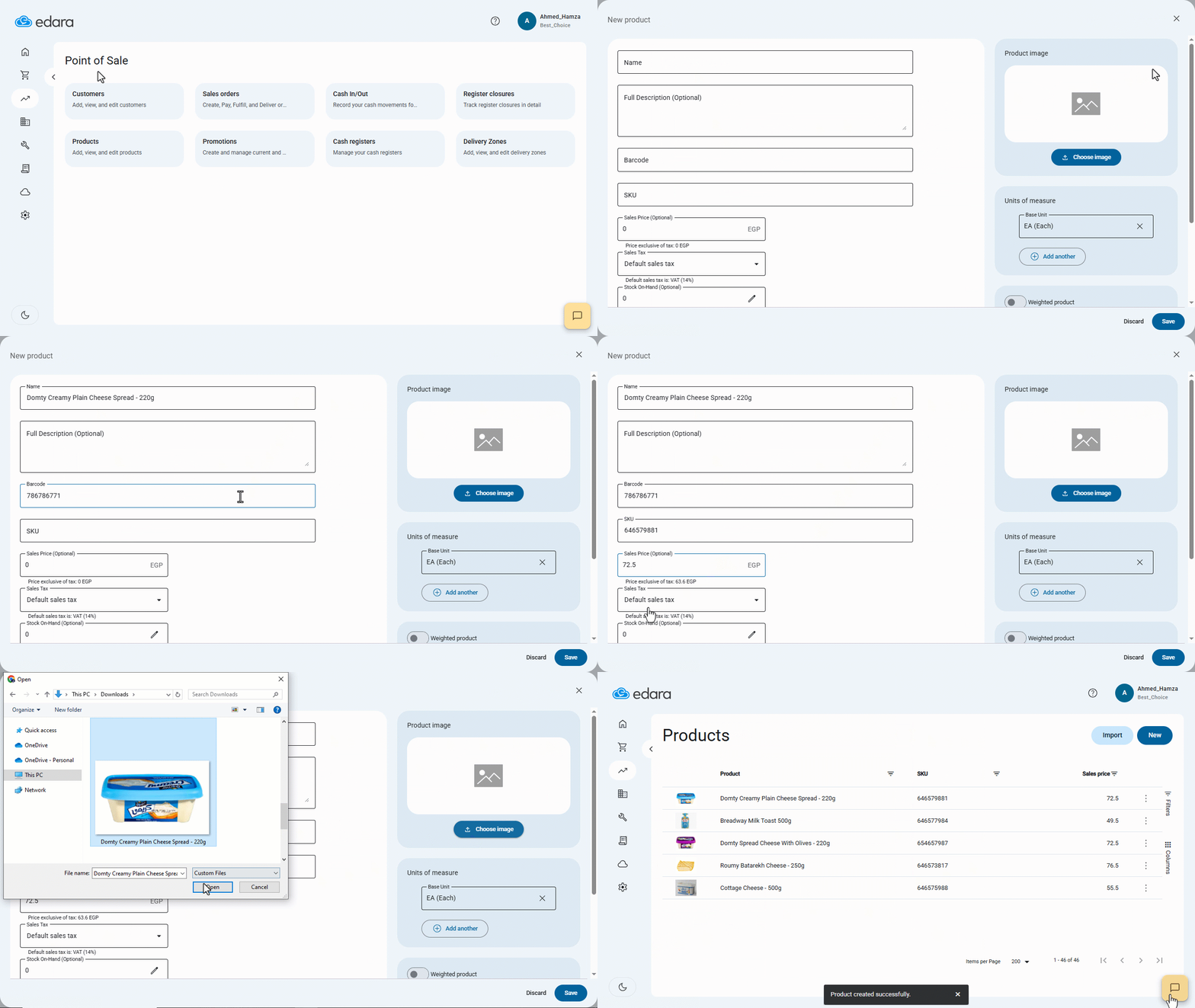
- Go to the Point of Sale module.
- Open the “Products” page.
- Click on "New".
- Enter the Product Name and a Full Description.
- Enter the product’s Barcode.
- Add the SKU.
- Set the sales Price.
- Specify the Sales Tax (If you select “Default Sales Tax”, the system will automatically apply the rate set in your settings. You can manually override it if needed).
- Define the Stock On-Hand (the available quantity of the product in each warehouse).
- Enter the Cost (if linked to a warehouse, this field will be updated automatically).
Also learn how to create a set of products that are sold as a single unit in our article: Creating a Sales Bundle at the POS.
- Add a Product Image (Optionally).
- Choose the Base Unit of Measure (by default, this is set to “EA – Each”, but you can add new units if required).
If the product is sold by weight, enable the “Weighed Product” option. In this case, the SKU must consist of exactly 5 digits.
- Click on "Save".
If you encounter any challenges or have questions during these processes, you can contact our technical support team, who are ready to assist you at any time.
Did this answer your question?