

Creating Units of Measure for Products in POS
Last updated:
When dealing with a variety of products, it's essential to assign a specific unit of measure to each one (e.g., kilogram, liter, piece, etc.), as well as define conversion rates between units where applicable.
“Edara” allows you to configure units of measure in the POS module.
Creating Units of Measure for Products in POS
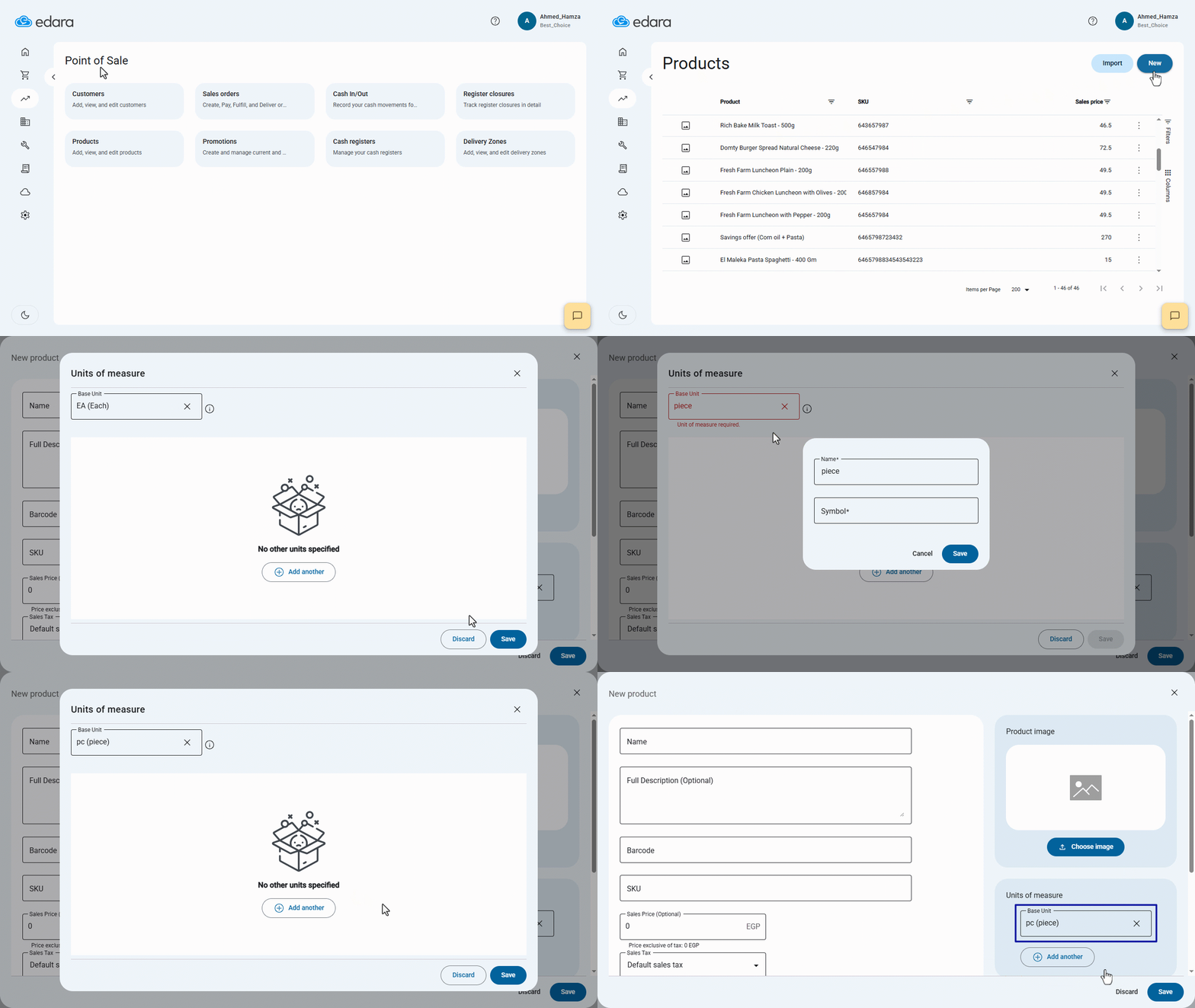
- Go to the POS module.
- Open the “Products” page.
- Click on “New”.
- Click “Add Another” in the “Units of Measure” field.
- Enter the name of the base unit you want to create.
- Click on “Create”.
- Enter the “Symbol” for the unit of measurement.
- Click on “Save” to store the name and symbol.
- Click “Save” again to register the unit in the system as a base unit.
You can also add multiple ratios for a single unit of measure. Be sure to start by creating the base unit first (e.g., one piece), then add additional ratios (e.g., carton of 6 pieces, carton of 12 pieces, etc.).
Follow these steps:
- Repeat steps 1–5 from the previous section.
- Click on “Add Another”.
- Enter the name of the “Ratio”, and specify its quantity or weight equivalent.
- Enter the SKU and barcode.
- Add the sales price.
- Click “Add Another” again to create additional unit ratios, and fill in the required data for each.
- Click on “Save”.
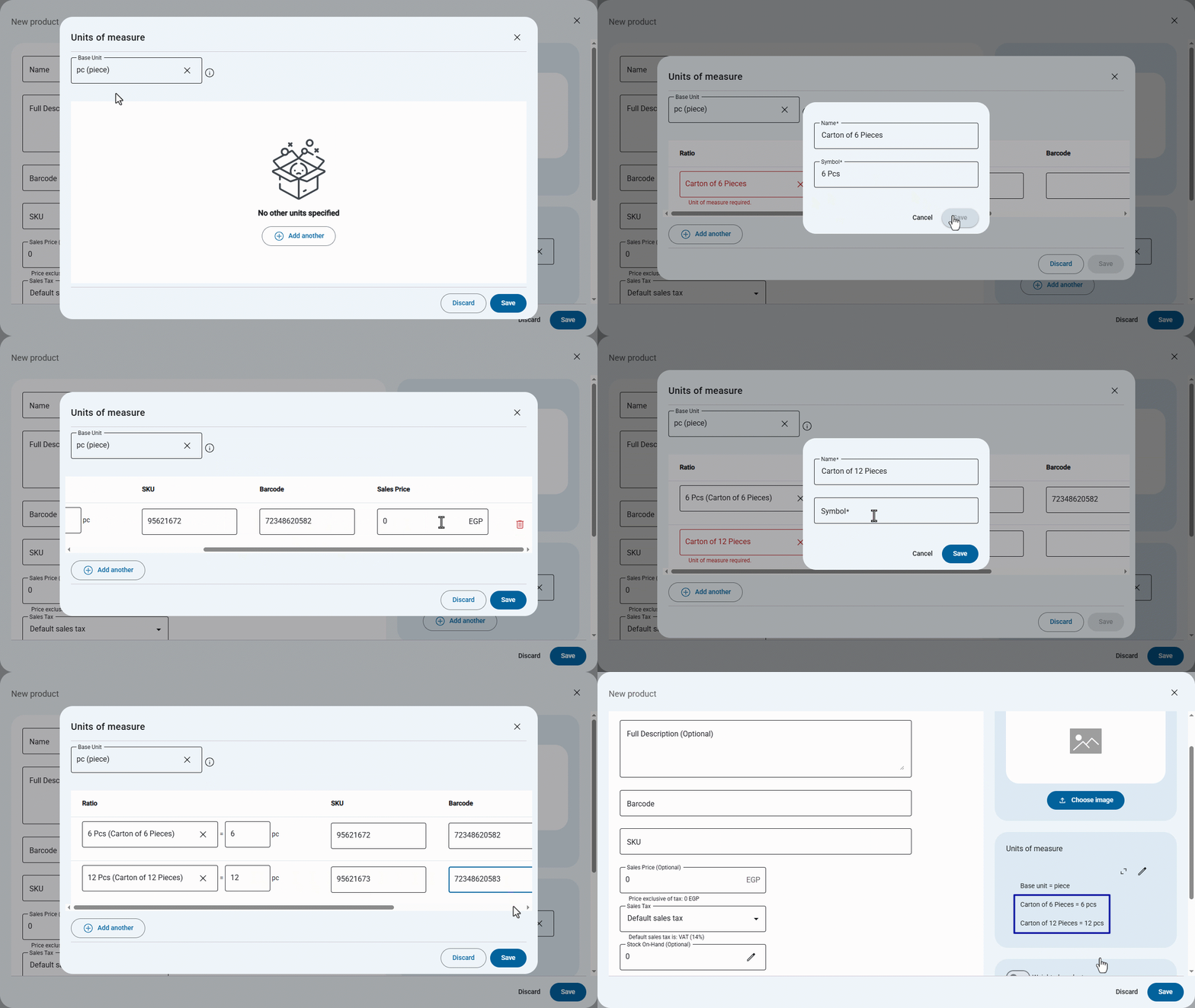
Note: You can also edit or delete previously registered units of measure by hovering over the unit and clicking the " " icon to delete or the "
 " icon to edit.
To complete the remaining steps of product setup in “Edara”, read the article: Creating Products in the POS.
Frequently asked questions
How do I edit or delete a unit of measure?
You can also edit or delete previously registered units of measure by hovering over the unit and clicking the " " icon to delete or the "
 " icon to edit.
If you encounter any challenges or have questions during these processes, you can contact our technical support team, who are ready to assist you at any time.