

Creating a Sales Bundle at the POS
Last updated:
Many times you need to make special offers to customers to attract them to deal with you and buy new products at special prices, or sell your product range in a single offer.
For example, if you work in the field of computer accessories, you can sell a laptop with a laptop bag in one bundle, and to make it easier, you will need to create a sales offer that brings the two products together.
Creating a Sales Bundle at the POS
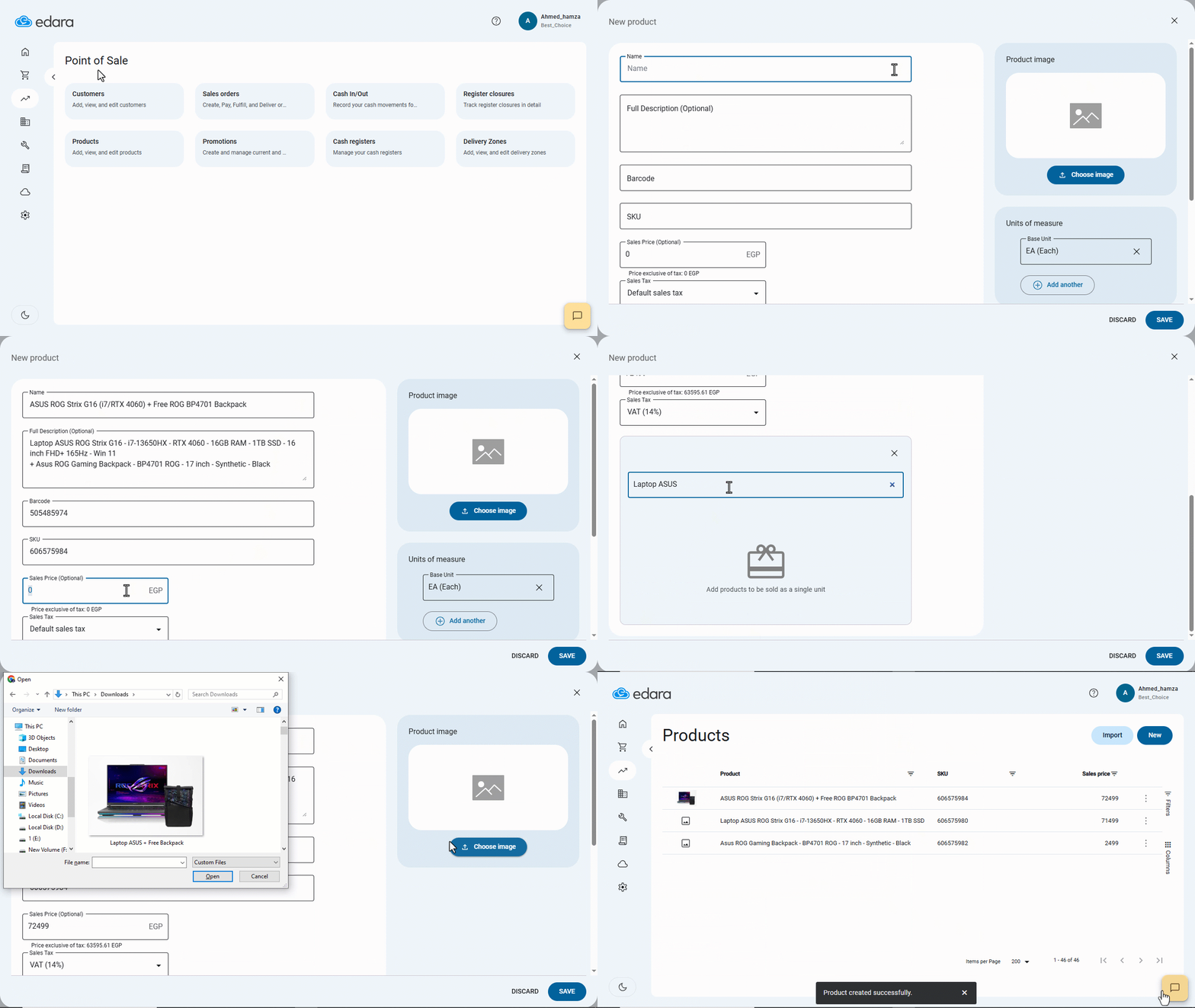
- Go to the POS module.
- Open the “Products” page.
- Click on “New”.
- Enter the bundle name and a detailed description.
- Enter the Barcode.
- Add the SKU.
- Set the sales price (the full price of the bundle).
- Select the applicable Sales Tax.
- Click “Add Products” in the “Products sold as a single unit” field.
- Add all the products included in the bundle.
- Add an image for the bundle by clicking “Choose Image”.
- Click on “Save”.
If you encounter any challenges or have questions during these processes, you can contact our technical support team, who are ready to assist you at any time.
Did this answer your question?