

Creating an Opening Balance for a Supplier
Last updated:
To record a supplier’s previous balance before using the system and ensure financial data accuracy, you can create an opening balance for the supplier within the system.
Creating an Opening Balance for a Supplier
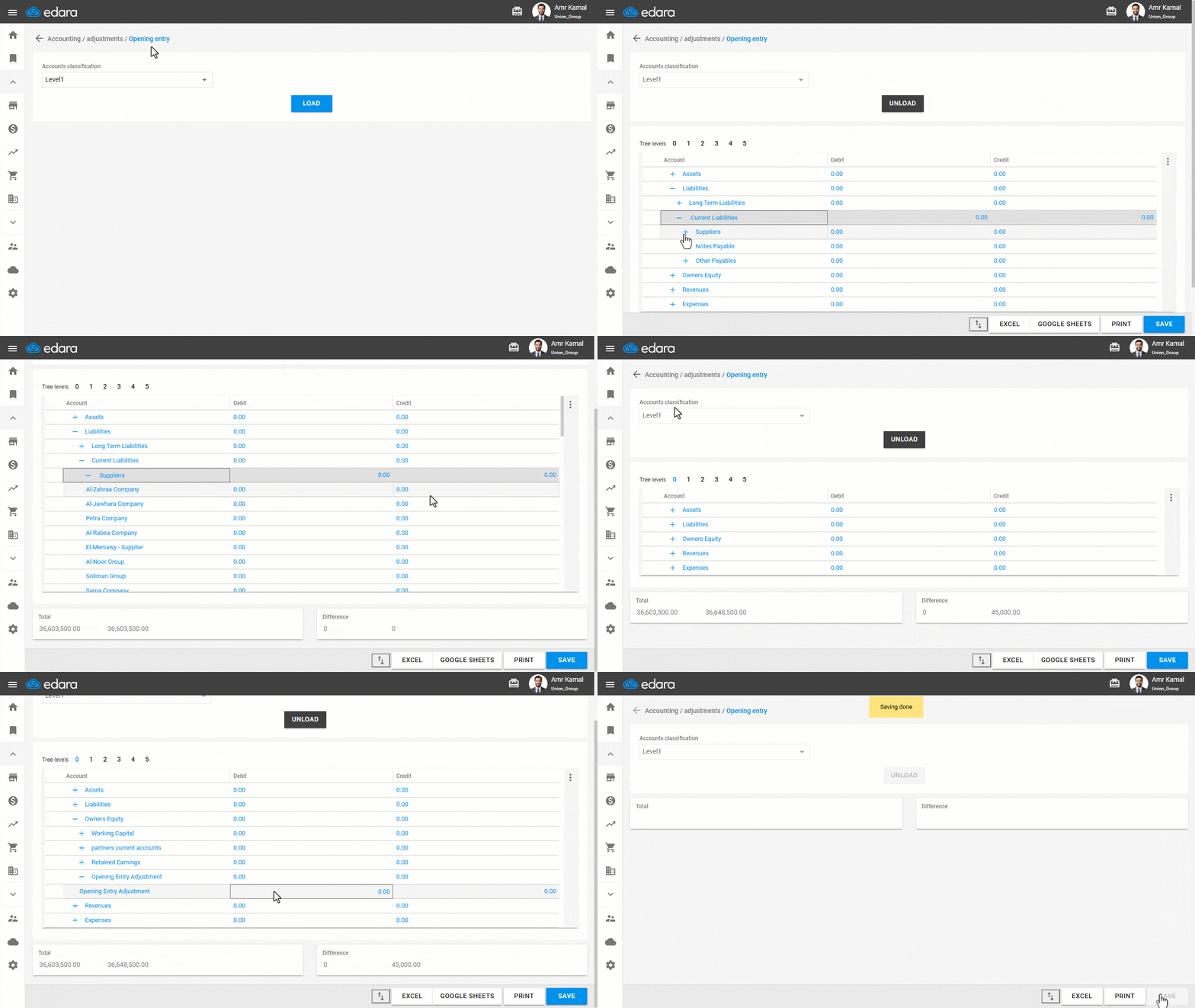
- Go to the “Accounting” module.
- Open the “Opening entry” page.
Note: The default selection in the accounts classification is “Level 1,” and you can choose the classification you want.
- Click on “Load”.
- Click on the “+” icon to display the tree levels of accounts until you reach the supplier's account.
- Enter the supplier’s opening balance.
Note: The opening entry must be balanced before saving (Debit side = Credit side ).
- Click on “Save”.
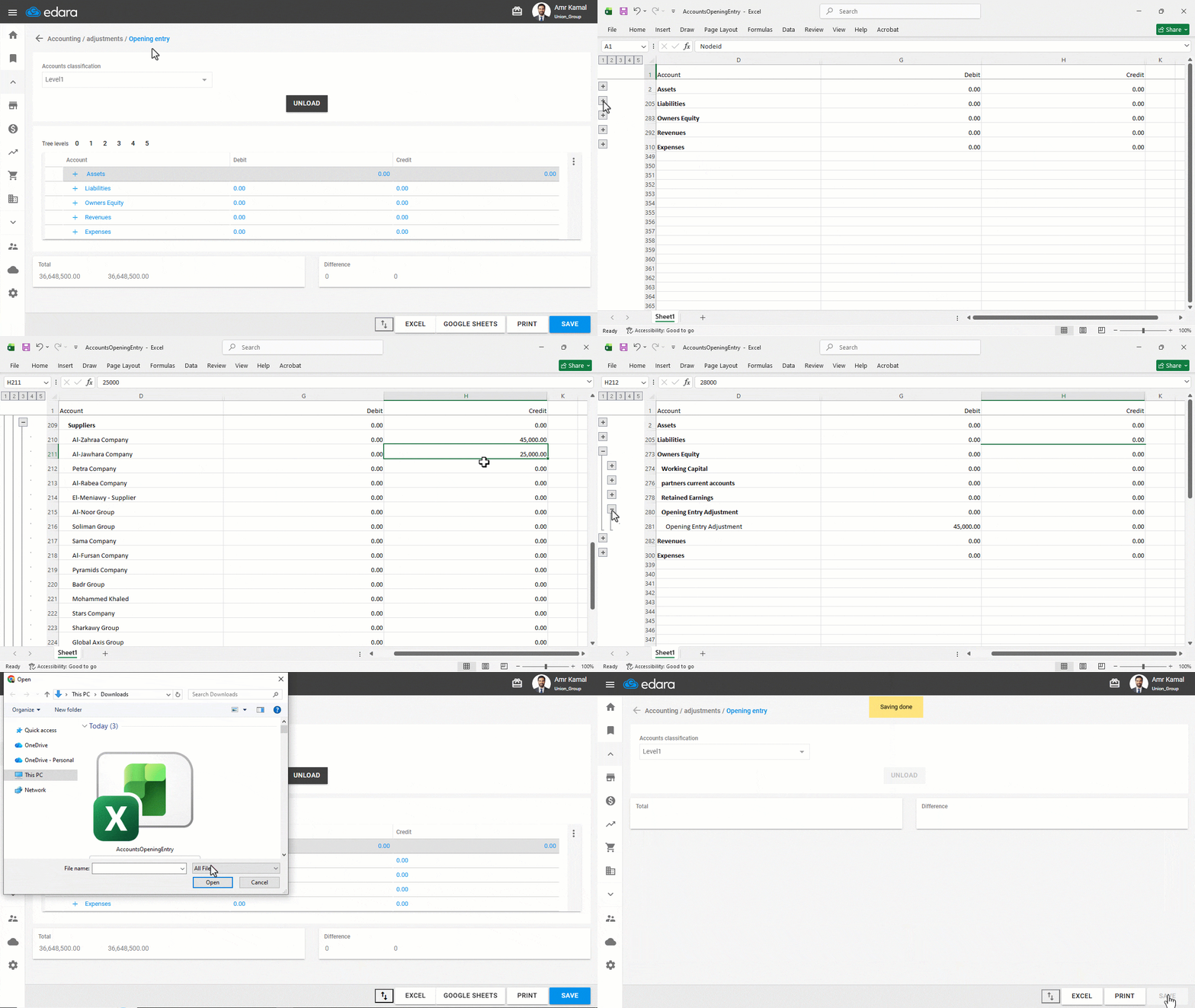
Note: You can enter opening balances for multiple suppliers in Bulk using an Excel file by following these steps:
- Click on “Excel”.
- Enter the required opening balances in the file.
- Save the file after editing.
- Click on “⇅” to upload the edited file.
- Click on “Save”.
If you encounter any challenges or have questions during these processes, you can contact our technical support team, who are ready to assist you at any time.
Did this answer your question?