

Inserting the Opening Entry Manually or Using Excel
Last updated:
When starting to use “Edara,” it’s important to carry forward account balances from the previous period into the system. The opening entry allows you to record these balances in a single transaction, saving time and effort while ensuring data accuracy.
Here’s how to do it.
Inserting the Opening Entry
Note: Before proceeding, make sure the “Open/Close Accounting Period” setting is disabled.
You have two ways to enter the opening entry in Edara:
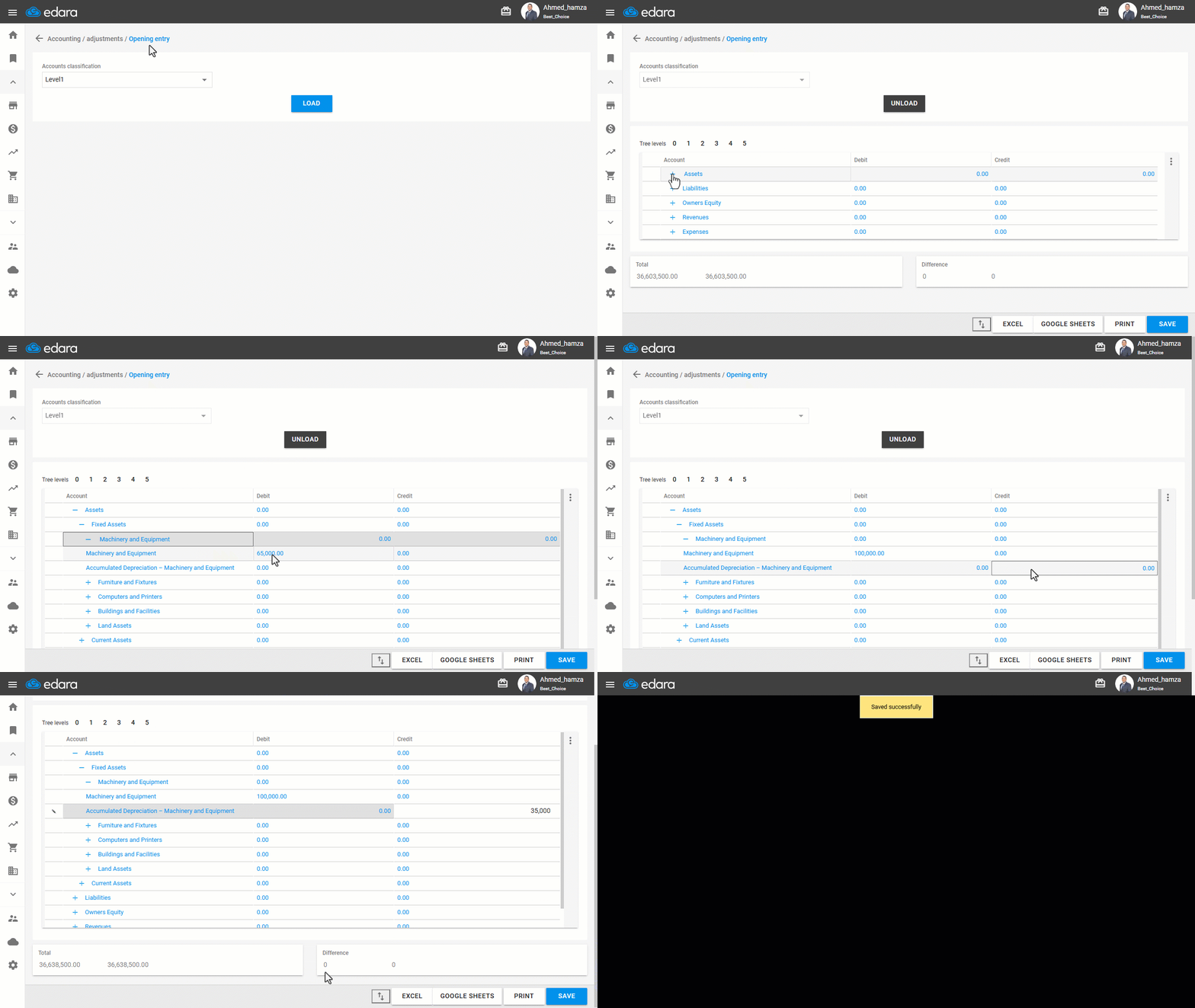
1- Inserting the Opening Entry Manually
1- Go to the Accounting module.
2- Open the “Opening Entry” page.
3- Click on "Load".
4- Click the “+” icon to expand the account classifications.
5- Specify the opening balance amount in the desired account and its corresponding account, ensuring that the opening entry is equal on both the debit and credit sides.
Note: Ensure that the debit and credit totals are equal.
6- Click on “Save”.
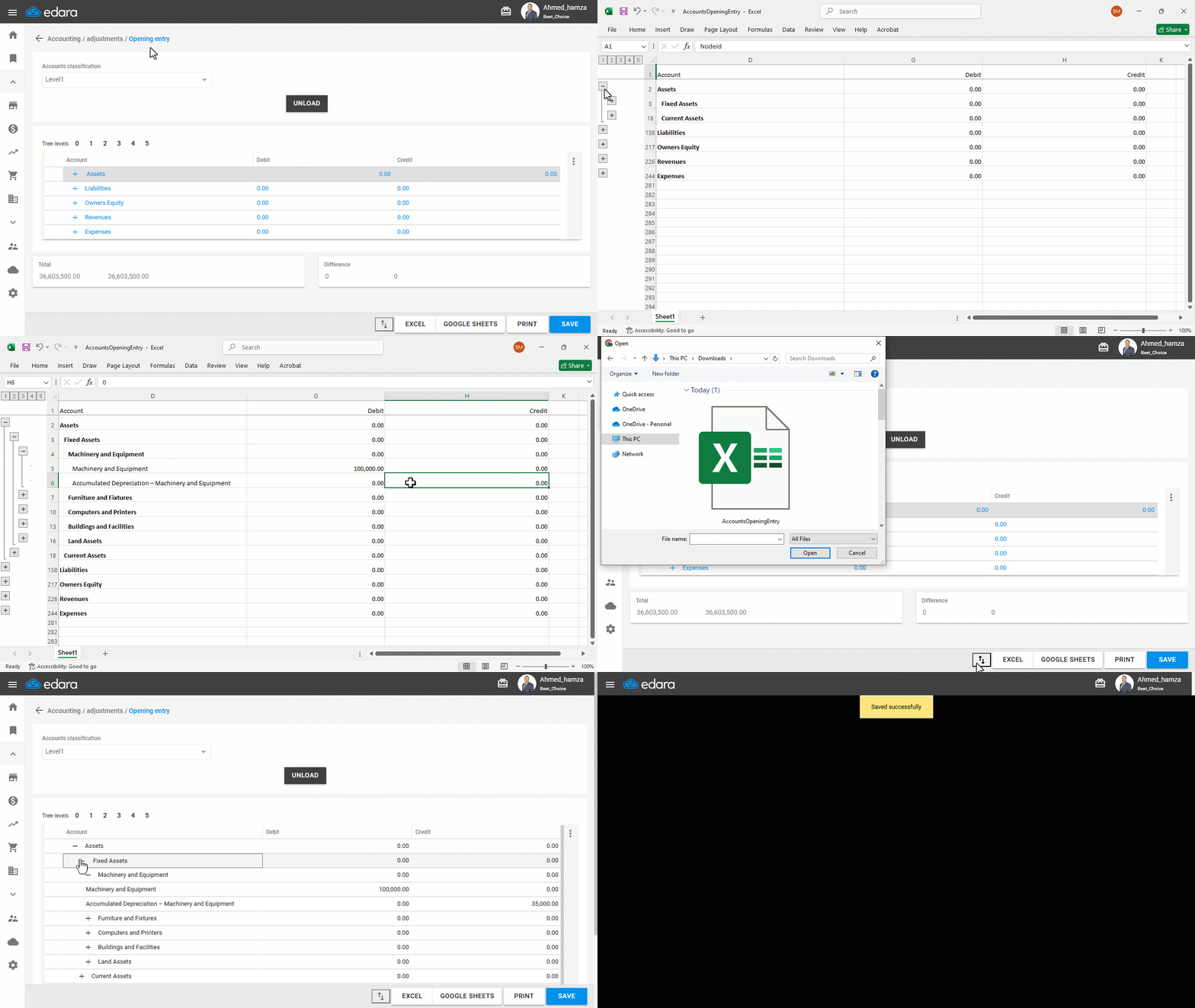
2- Inserting the Opening Entry Using Excel
Follow the same initial steps as in Method 1 up to step 3, then:
- Click on “Excel”.
- Specify the opening balance amount in the desired account and its corresponding account, ensuring that the opening entry is equal on both the debit and credit sides.
- Save the changes you made in the Excel file.
- Then, repeat steps 1 to 3 from Method 1, and continue as follows:
- Import the Excel file by clicking the ⇅ icon.
- Select the file containing the opening entry data.
- Click on "Save".
If you encounter any challenges or have questions during these processes, you can contact our technical support team, who are ready to assist you at any time.