

Using Loyalty Points in Sales Orders
Last updated:
Once Loyalty Points is configured and connected to "Edara", customers earn points based on the rules you have set and can later redeem their available points as discounts on purchases. You can track each customer's balance and transaction history, redeem points while creating a sales order, and monitor Loyalty Points performance through the Dashboard and Reports.
Using Loyalty Points in Sales Orders
First: Displaying Members and Points Balances
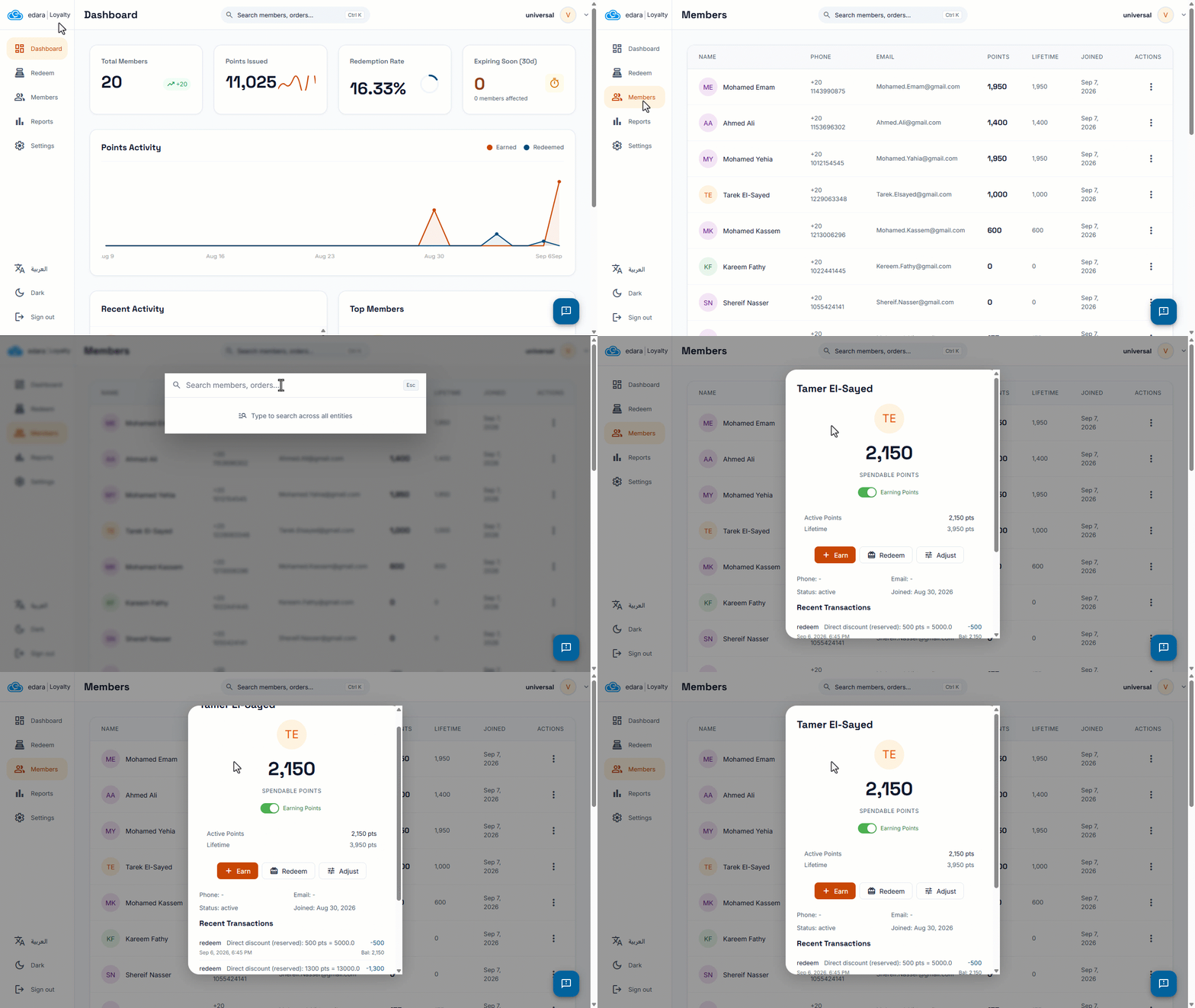
You can view customers enrolled in Loyalty Points and track each customer's current points balance, earned points, and redemption activity.
- Go to "Loyalty".
- Open the "Members" page.
- Search for the required customer.
- Click on the customer to view their points details.
From the customer's details, you can view:
- Active Points: The points currently available for the customer to redeem.
- Lifetime Points: The total number of points the customer has earned since joining Loyalty Points, including points that were later redeemed.
- Customer Details: Phone number, email address, status, and joining date.
- Recent Transactions: The customer's points earning and redemption transactions.
You can also disable point earning for a specific customer when needed.
Second: Redeeming Points in a Sales Order
When a customer has points available to use, you can redeem them while creating a sales order and apply their value as a discount to the order.
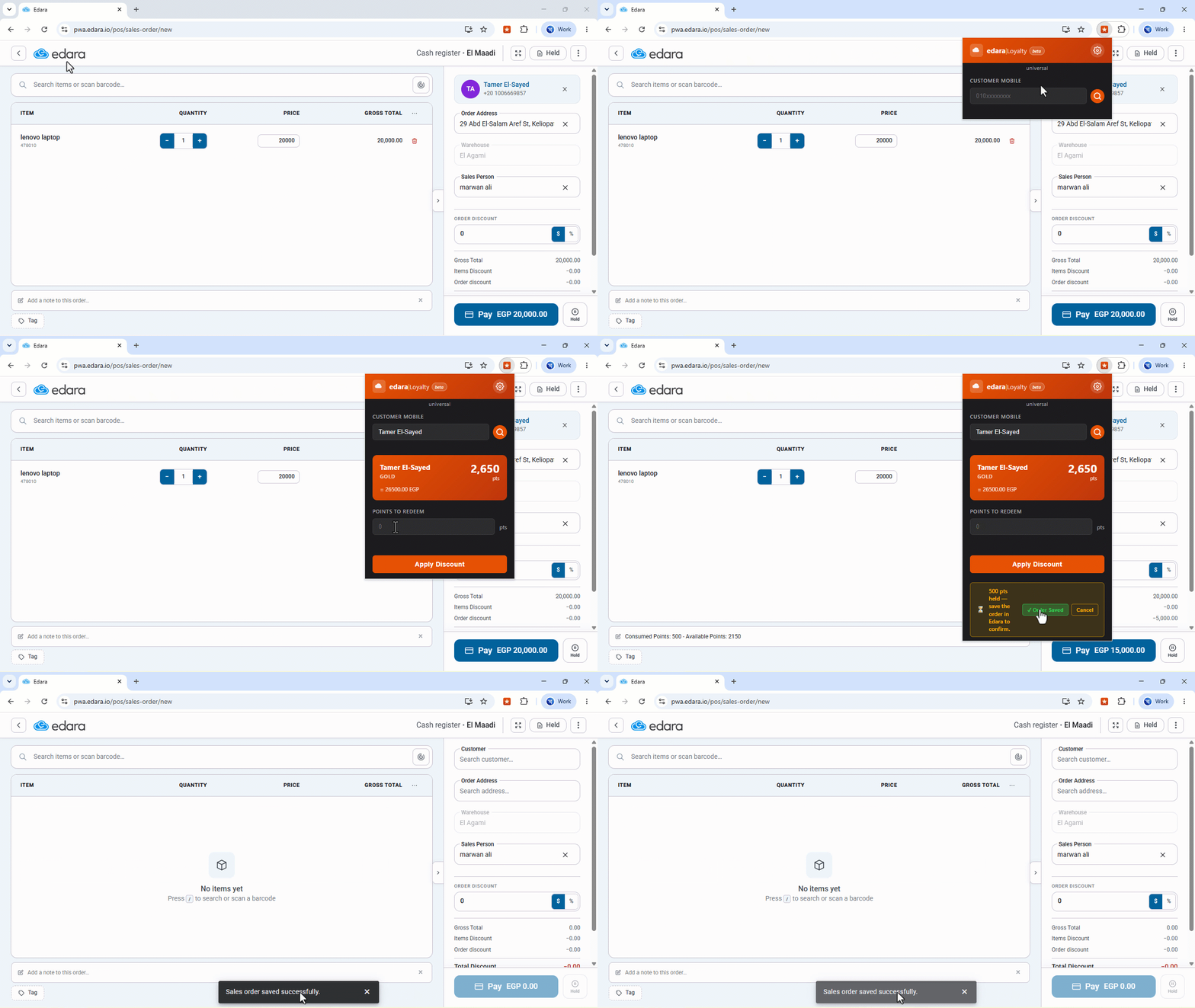
Points are applied using the Loyalty POS Assistant Chrome extension. You can access the extension through the link available under "Data Sources" in Loyalty settings or directly from the Chrome Web Store.
- Open the sales order in POS.
- Open the "Loyalty POS Assistant" Chrome extension.
- Search for the customer by name or phone number.
- The customer's available points balance will appear.
- Enter the number of points to redeem.
- The corresponding discount value will appear based on the "Point Value" defined in "Earn & Redeem Rules".
- Click on "Apply Discount".
The discount will be applied automatically to the sales order, and the number of redeemed points will be recorded in the order notes.
Once the transaction is completed, the redeemed points are deducted from the customer's balance, while any new points earned from the purchase are calculated according to the configured earn rules.
Note: Points earned from the current sales order cannot be redeemed on the same order. They become available according to the "Points Availability" setting defined in "Earn & Redeem Rules".
Third: Monitoring the Dashboard
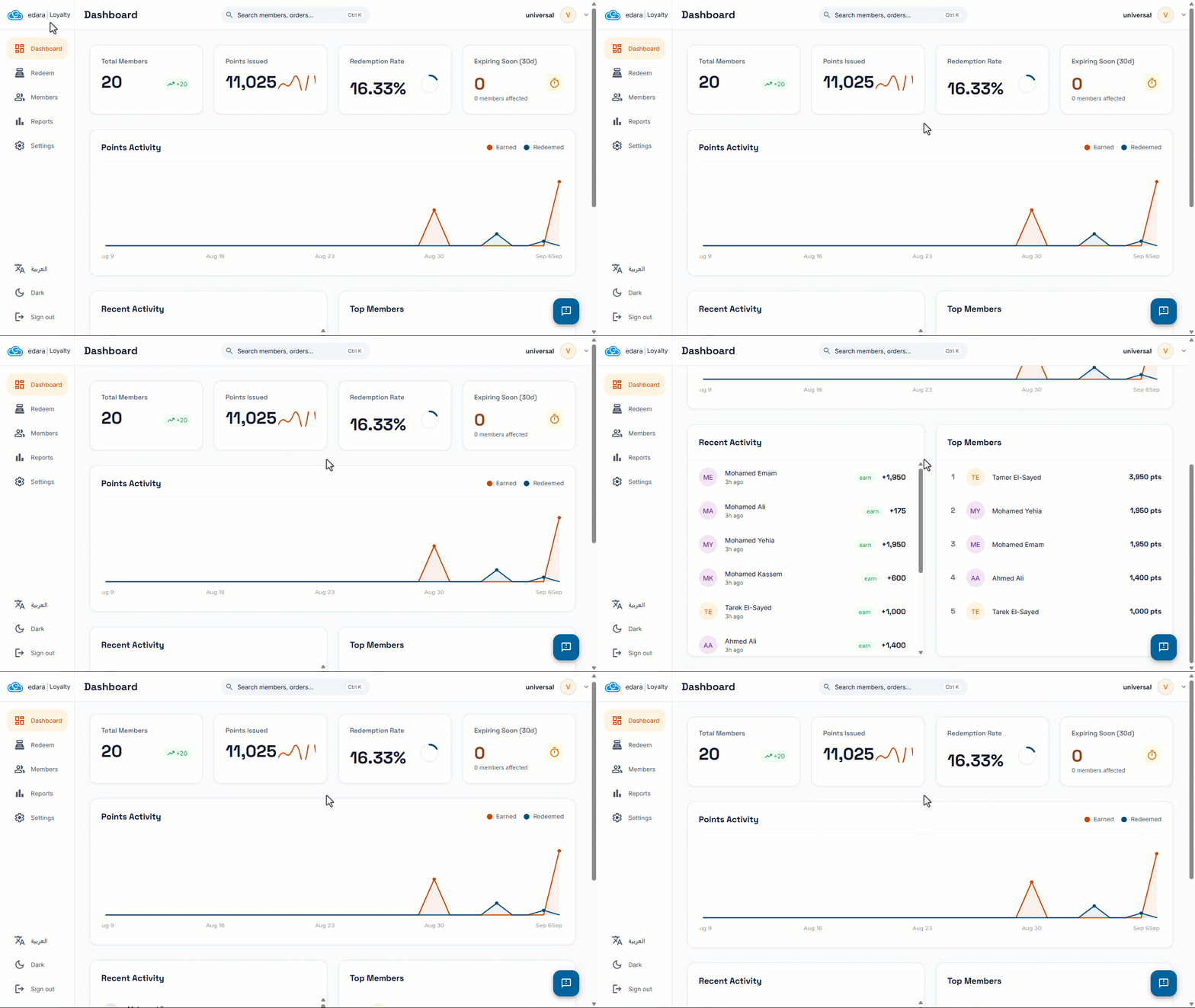
The "Dashboard" helps you monitor Loyalty Points activity and customer balances through several indicators, including:
- Total Members: The total number of customers registered in Loyalty Points.
- Points Issued: The total number of points issued during the period.
- Redemption Rate: The percentage of points redeemed.
- Expiring Soon (30d): Points that will expire within the next 30 days.
- Points Activity: Shows points activity during the period.
- Recent Activity: Shows the latest points transactions.
- Top Members: Shows customers with the highest points balances.
Fourth: Displaying Loyalty Points Reports
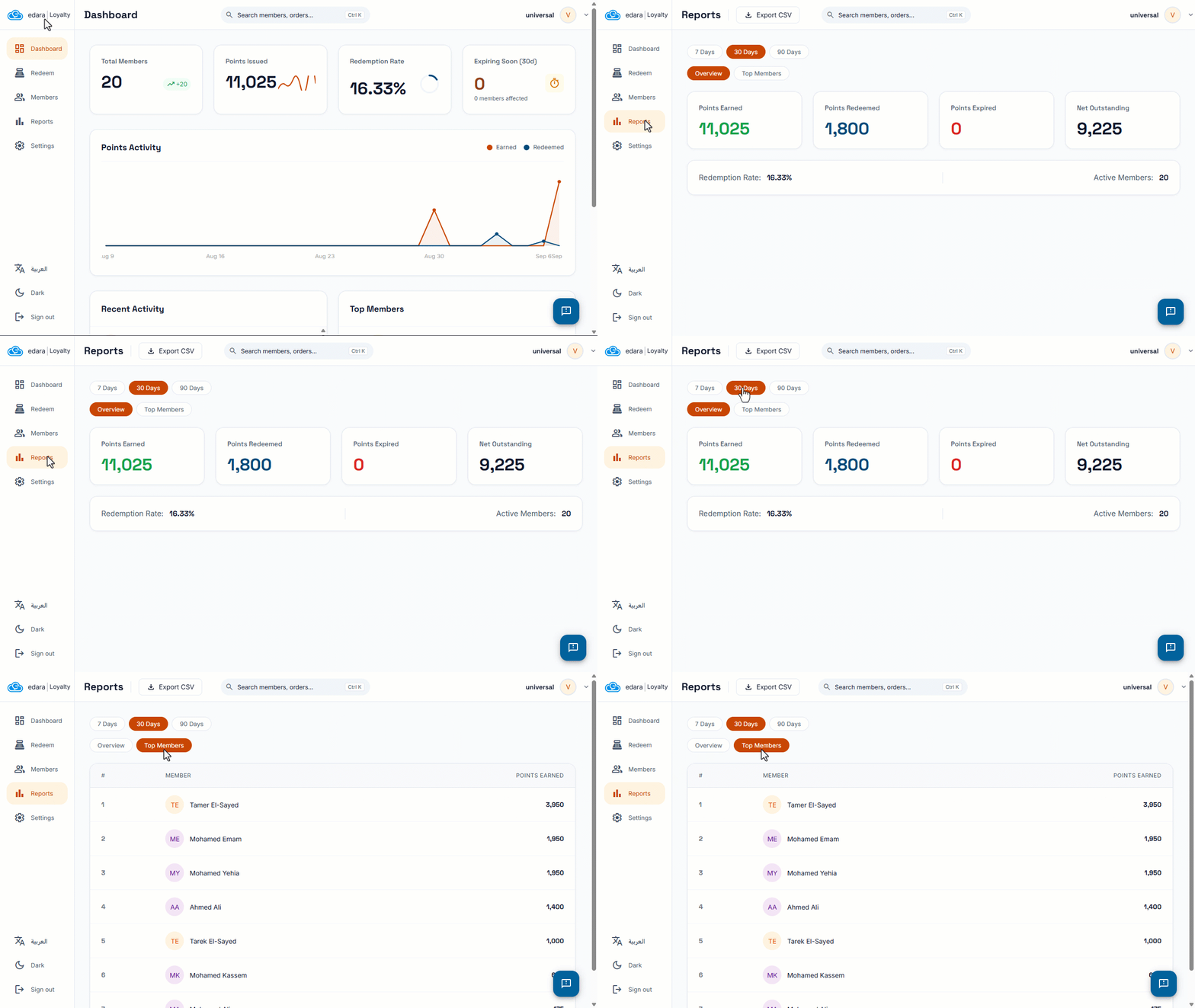
You can use the "Reports" page to get an overview of:
- Points Earned.
- Points Redeemed.
- Points Expired.
- Net Outstanding points available for redemption.
- Redemption Rate.
- Active Members.
You can also view "Top Members" and the total points they earned during the selected period.
Frequently asked questions
When do points earned from a sales order become available?
Points earned from the current sales order cannot be redeemed on the same order. They become available according to the "Points Availability" setting defined in "Earn & Redeem Rules".
If you encounter any challenges or have questions during these processes, you can contact our technical support team, who are ready to assist you at any time.