

Controlling Modules Activation
Last updated:
When setting up the system for the first time or modifying the way it works, you may need to control the modules available within the system by activating the modules you rely on in your work and disabling unused modules. This helps organize the system interface, ensure it meets your needs, and improve the user experience.
Controlling Modules Activation

Before you start, make sure that you have access to the “Modules Activation” page and that your current subscription plan supports the module you want to activate.
- Go to “Settings”.
- Open the “Modules Activation” page.
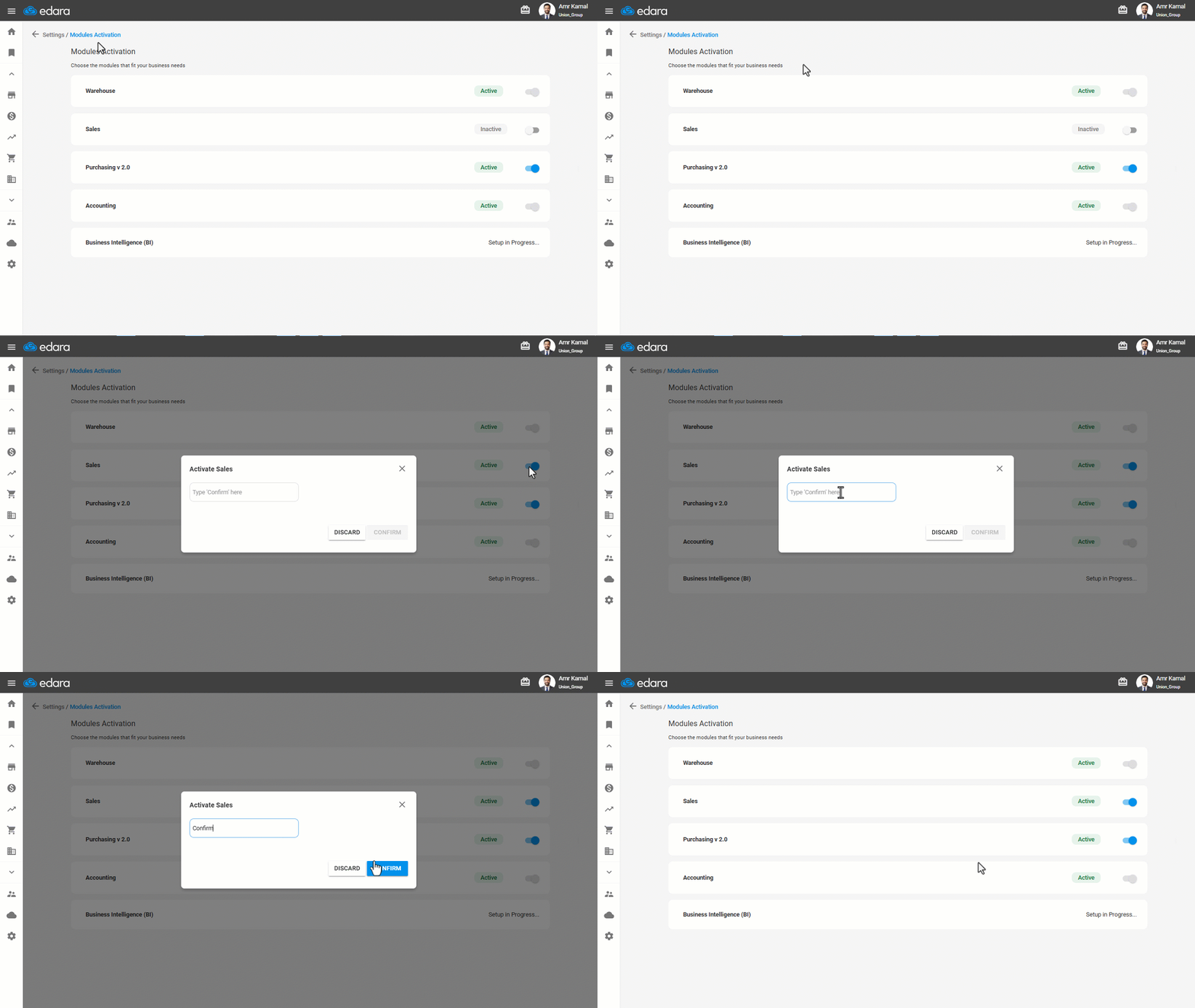
A list of all available system modules will appear.
- Enable the module you want to use by clicking on the corresponding activation button.
A confirmation window will appear to confirm the activation.
- Enter the word “Confirm”.
- Click on “Confirm”.
After activation, the module status will appear as “Active”.
Notes:
- Some modules are enabled by default and cannot be deactivated, such as the “Warehouse” and “Accounting” modules.
- If a module is not included in your current subscription plan, a notification will appear asking you to upgrade before completing the activation.
- Some modules may require a short time to set up the necessary technical infrastructure before they become available for use, such as the “Business Intelligence” module.
- After completing the activation, it is recommended to log out of the system and then log in again.
Frequently asked questions
Can I deactivate any module?
Some modules are enabled by default and cannot be deactivated, such as the “Warehouse” and “Accounting” modules.
If you encounter any challenges or have questions during these processes, you can contact our technical support team, who are ready to assist you at any time.