

Adding Webhook Notifications to Communicate Data from Edara to your Website
Last updated:
When connecting between “Edara” and your WordPress store, you will need to send some notifications from “Edara” to the store, such as: (creating or updating product data - available/reserved product balance, etc.)
Adding Webhook Notifications to Communicate Data from Edara to your Website
There are two main steps:
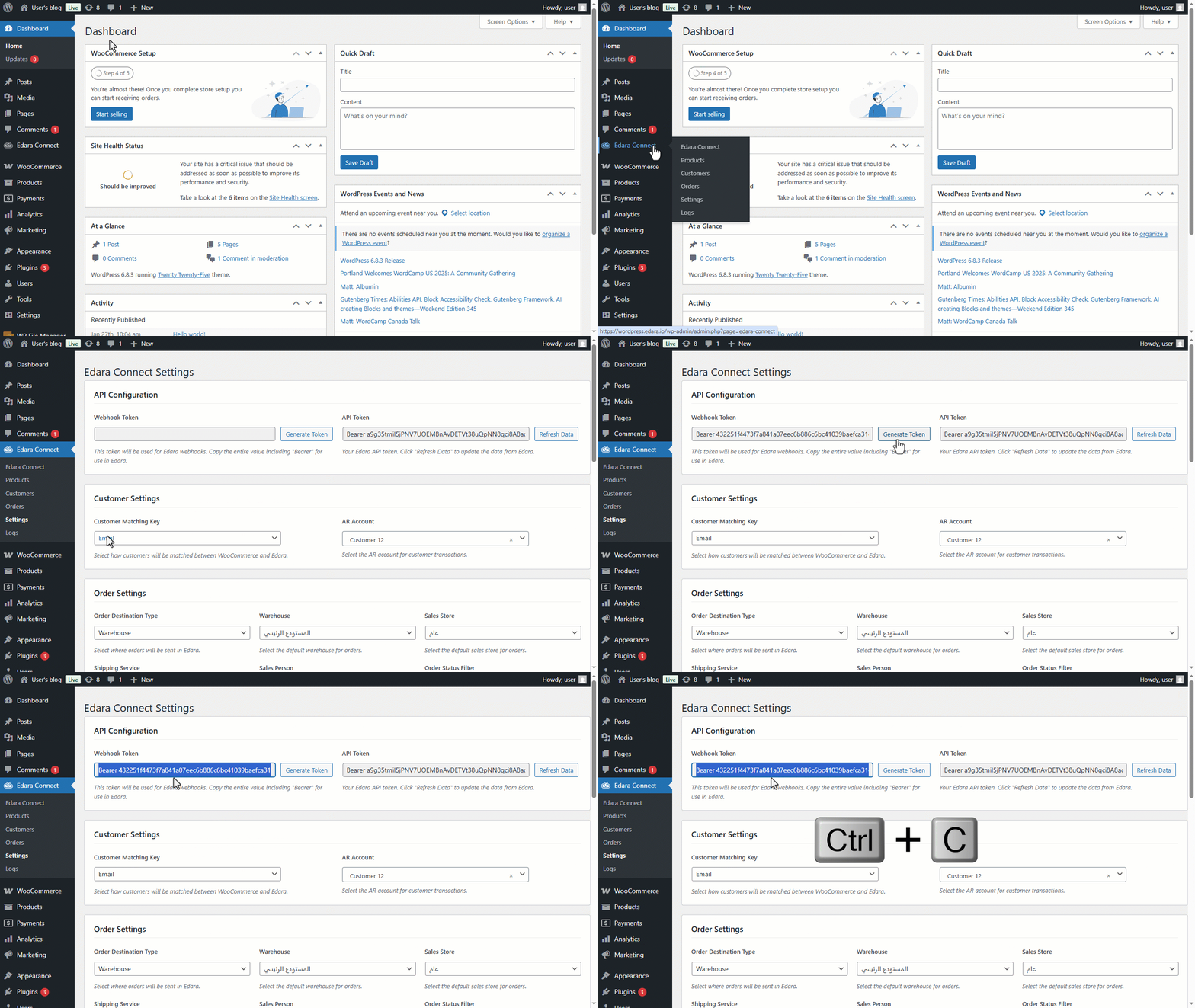
1- Generating a Webhook Token from WordPress
- Go to WordPress.
- Open the "Edara Connect" page.
- Click on "Settings".
- Click on "Generate Token" next to the "Webhook Token" field.
- Copy the Token you generated.
2- Adding the Generated Token to “Edara”
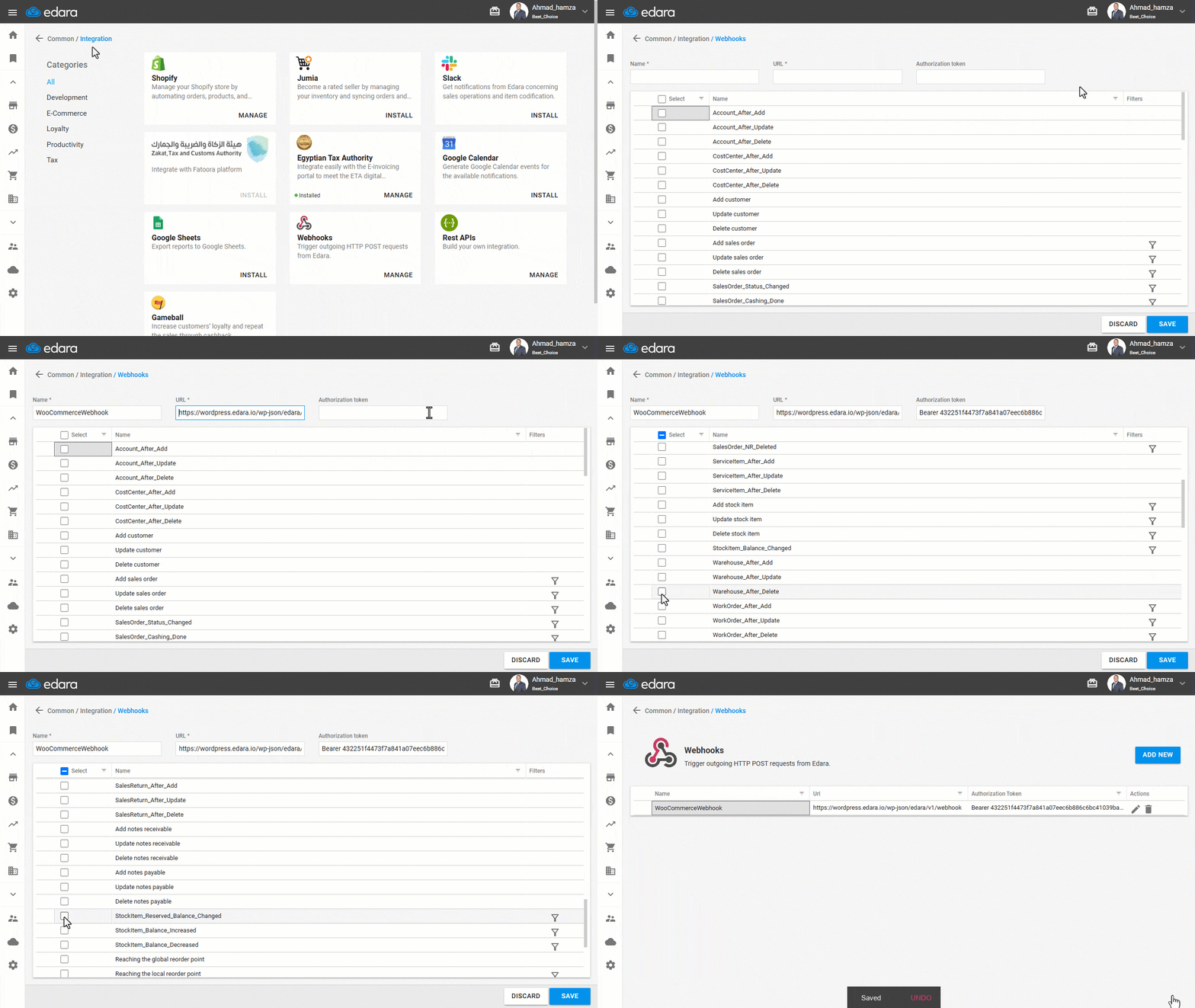
- Go to "Data".
- Open the "Integration" page.
- Click on "Manage" below the "Webhooks" field.
- Click on "Add New".
- Add the "Name" (e.g., Edara Connect – Your Tenant Name).
- Add the "URL" as shown in the example, replacing domain.com with your store’s domain (e.g., https://domain.com/wp-json/edara/v1/webhook)
- Paste the Token you copied from WordPress into the "Authorization Token" field.
- Choose the notifications you want the store to receive.
Note: The notifications that are currently available to use are: (Add Stock Item - Update Stock Item - Update Sale Order - StockItem_Balance_Changed - StockItem_Reserved_Balance_Changed).
- Click on "Save".
If you encounter any challenges or have questions during these processes, you can contact our technical support team, who are ready to assist you at any time.
Did this answer your question?