

Displaying the Register Closures Report
Last updated:
“Edara” allows you to view the Register Closures Report, which provides detailed insights into each Point of Sale (POS) on the system.
This includes information such as: (The user who opened/closed the cash register - Date and time of each shift’s start and end - Business day - Starting cash - Cash sales - Closing difference …and other valuable data that help you monitor the daily performance of each POS).
Displaying the Register Closures Report
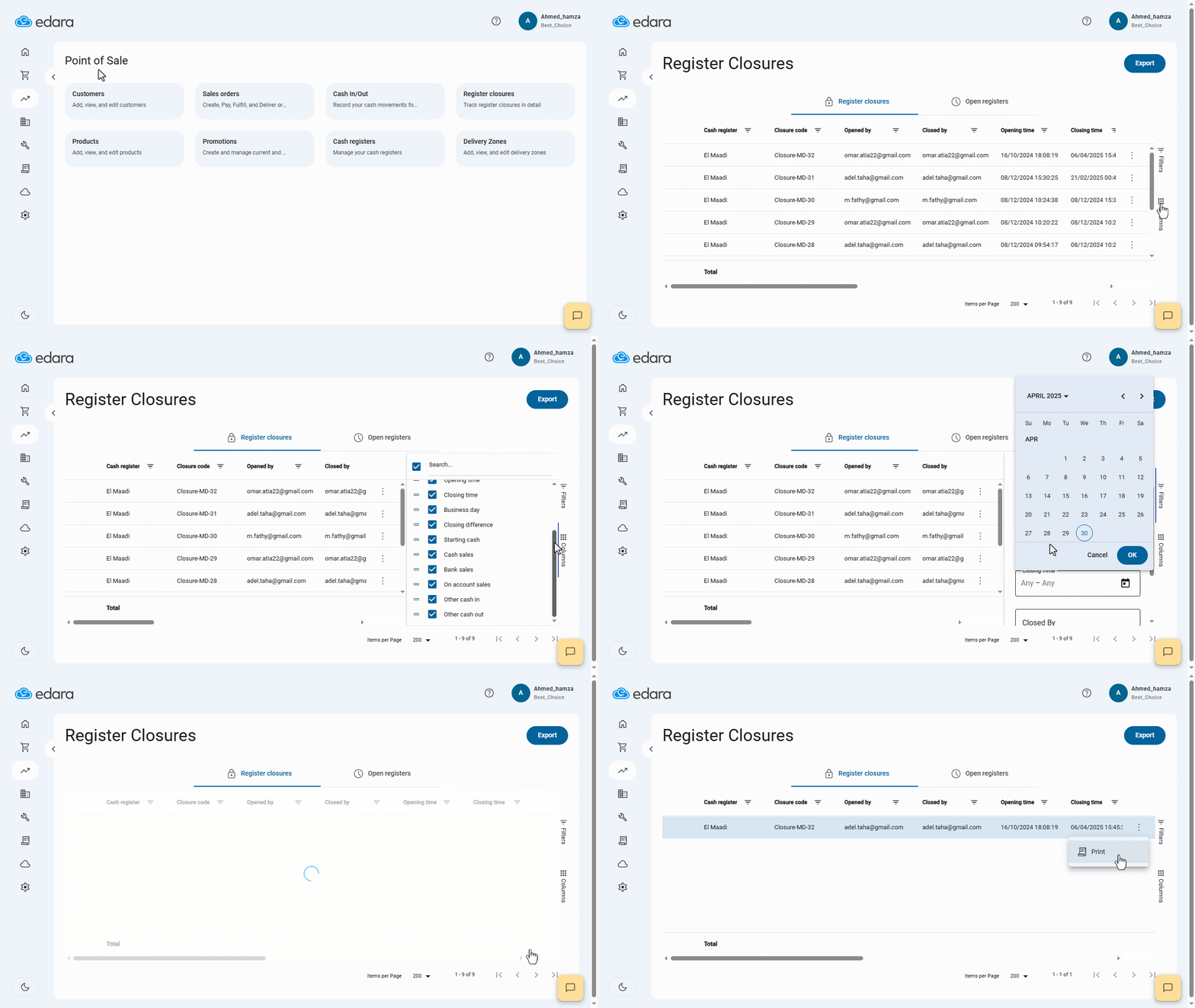
- Go to the POS module.
- Open the “Register Closures” page.
- Click on “Columns” in the upper right to choose which columns to display in the report.
Note: Available columns in this report include:
- Cash Register: Name of the POS.
- Closure Code: Unique code for each Cash Register shift.
- Opened/Closed By: The user who started/closed the shift.
- Opening/Closing Time: Timestamp for opening/closing the shift.
- Business day: The date the cash register was first opened for the shift.
- Closing Difference: Difference between expected and actual cash.
- Starting Cash: Cash on hand when the shift started.
- Sales (Cash - Bank - On Account): Sales totals by payment method.
- Other Cash-in: Any incoming cash not from sales.
- Other Cash-out: Any non-sales cash-out (e.g., utility bills).
After selecting the columns you want to display in the Register Closures Report, you can also filter the report results by following these steps:
- Click on “Filters”.
- Set the conditions you want to filter by.
- Click on “Apply”.
Once you've applied your filters, you can print any register closure by clicking on “⁝”, then selecting “Print”.
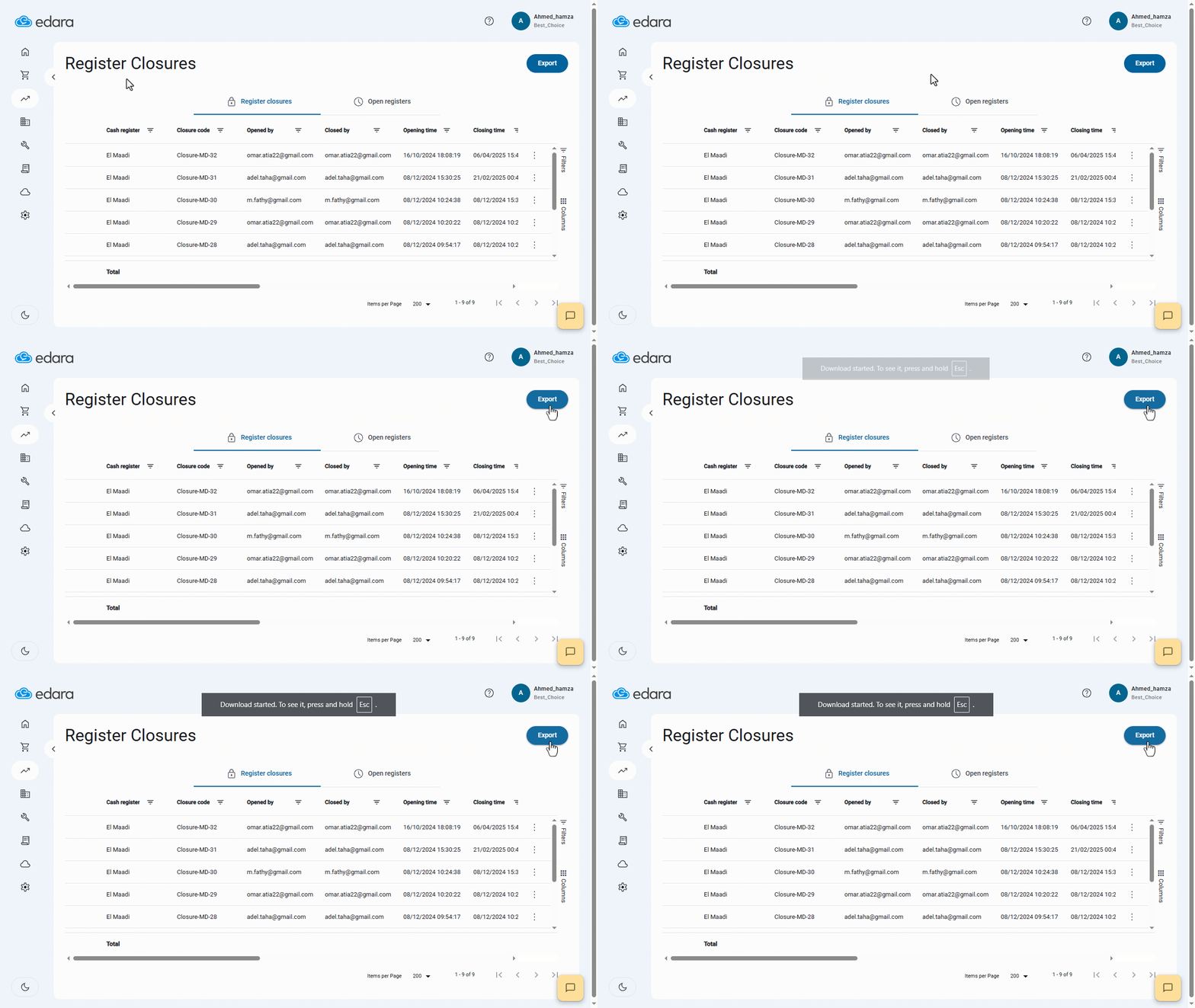
Note: You can also export the report results to Excel by clicking on “Export”.
Displaying the Open Registers
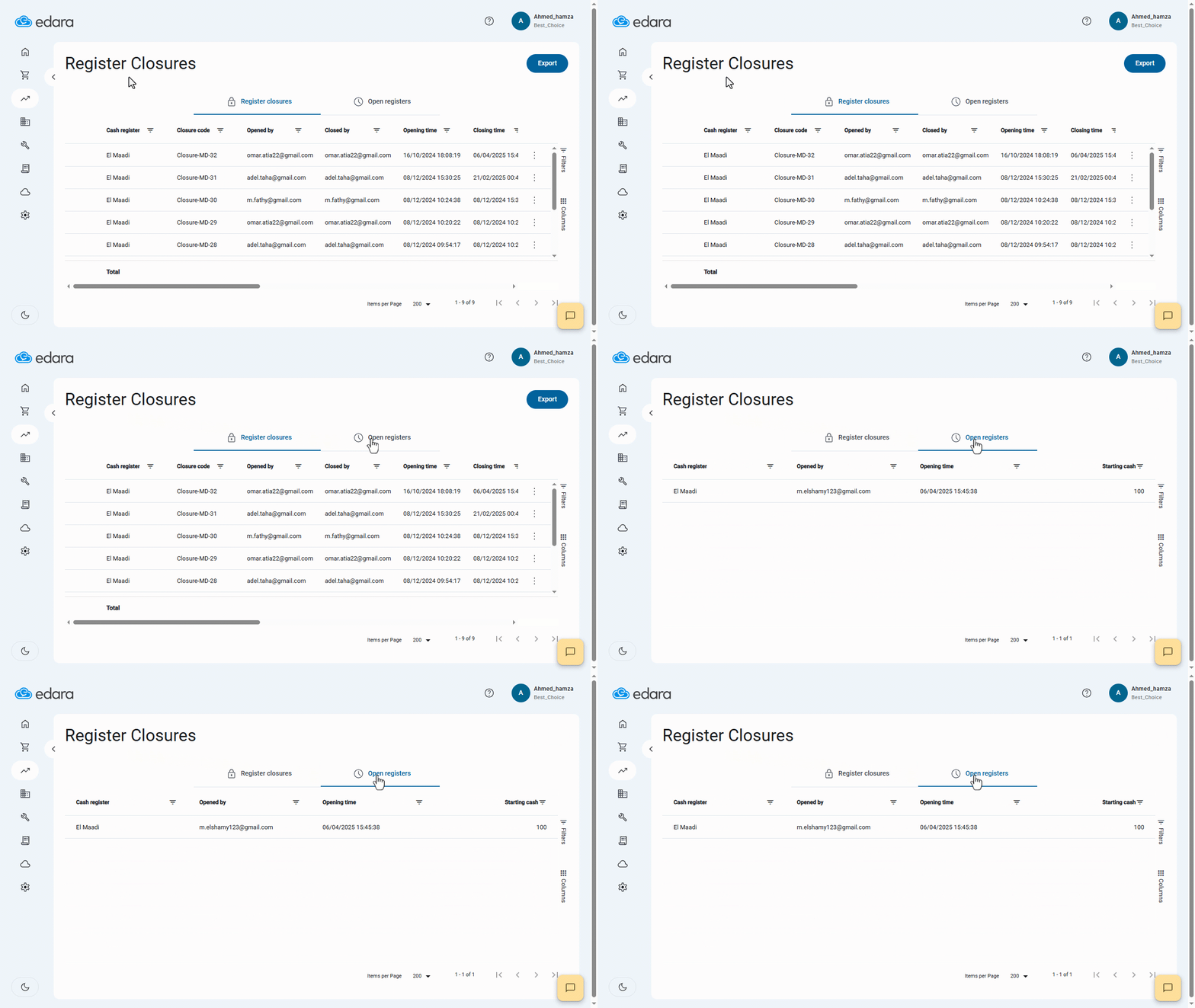
While viewing the report, you might notice some users have started their shift but haven’t closed it yet. You can check ongoing shifts by clicking “Open Registers”.
Columns available here include: (Cash Register - Opened By - Opening Time - Starting Cash).
Note: For more detailed insights into each shift, you can display the closure summary.
Frequently asked questions
Can I export the Register Closures report to Excel?
You can also export the report results to Excel by clicking on “Export”.
If you encounter any challenges or have questions during these processes, you can contact our technical support team, who are ready to assist you at any time.