

Editing Cash-In and Cash-Out Documents
Last updated:
If an error occurs while entering data in cash-in/out documents, you will need to edit this data to ensure your accounts are recorded correctly.
Editing Cash-In and Cash-Out Documents
Below is an example using cash-out documents:
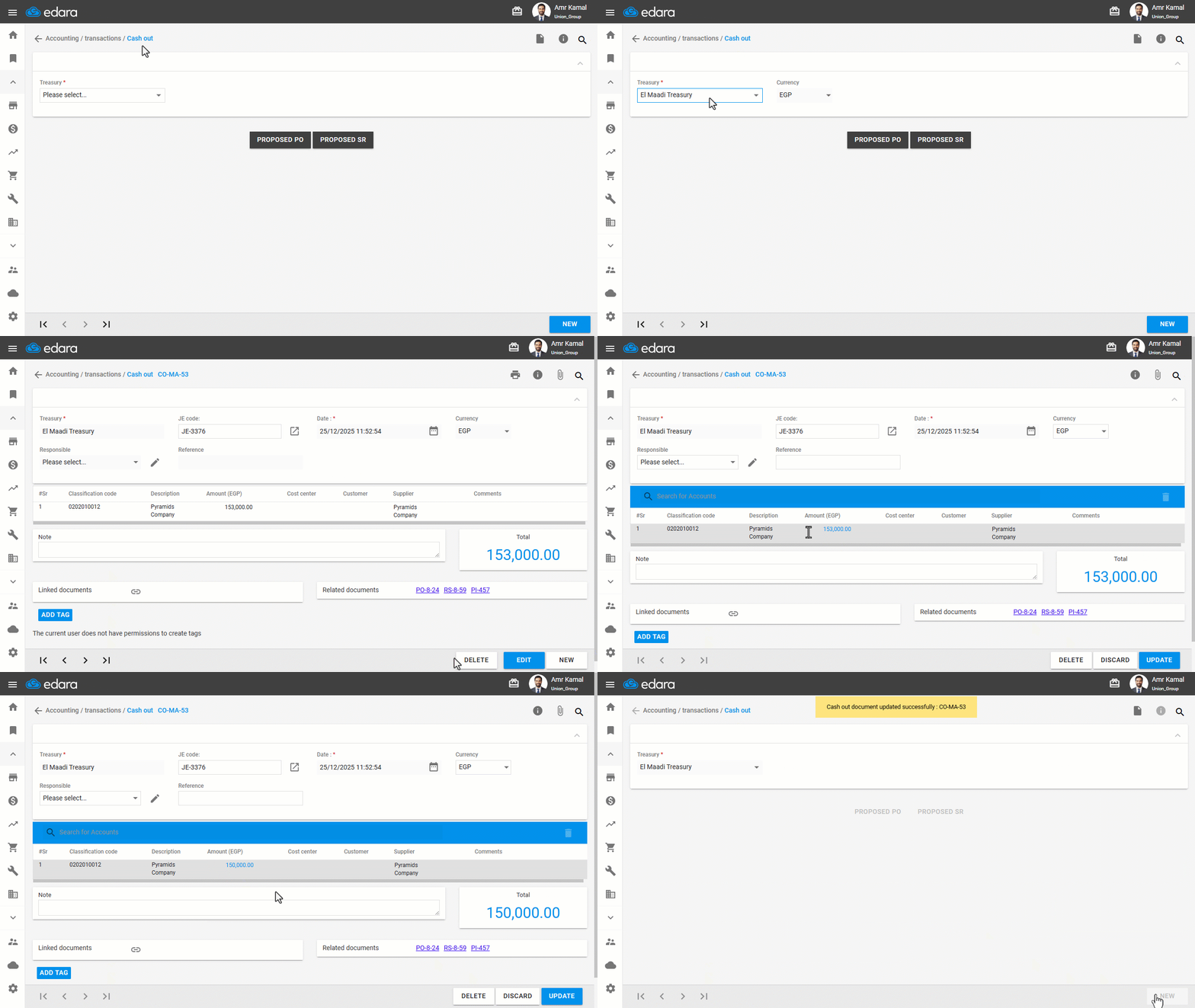
- Go to the “Accounting” Module.
- Open the “Cash out” page.
- Select “Treasury”.
- Search for the document you want to edit using the “🔍” icon or the arrows at the bottom left of the screen.
- Click on “Edit”.
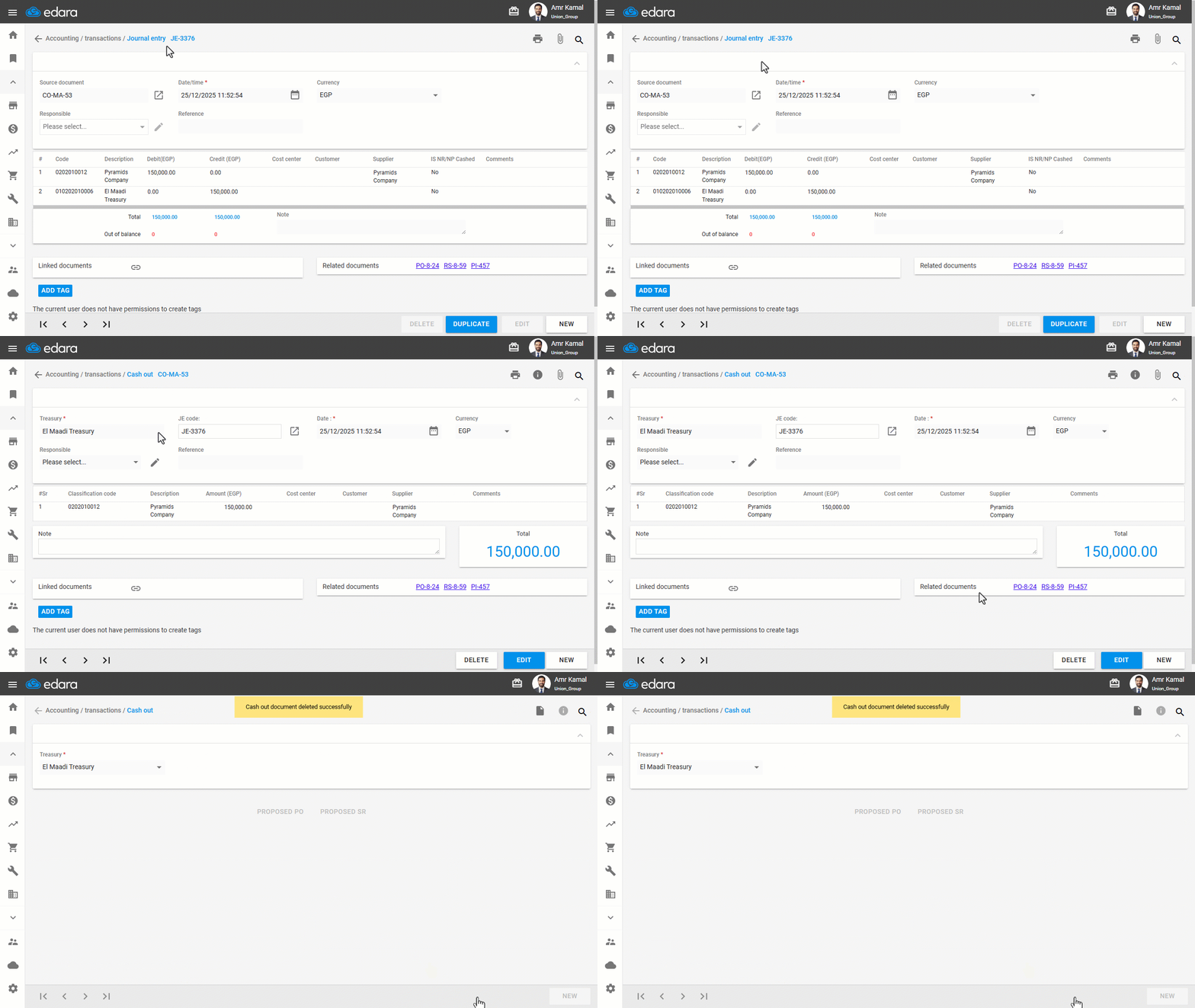
Note: To delete a cash-out or cash-in document, follow the same steps above, then click on “Delete”.
- Make the required changes.
- Click on “Update”.
Note: To edit or delete a cash in/out document linked to a journal entry, click on the “ ” icon next to the “Source document” field. You will be redirected to the document page, where you can edit or delete the document.
Frequently asked questions
How do I delete a cash-out or cash-in document?
To delete a cash-out or cash-in document, follow the same steps above, then click on “Delete”.
How do I edit a cash document linked to a journal entry?
To edit or delete a cash in/out document linked to a journal entry, click on the “” icon next to the “Source document” field. You will be redirected to the document page, where you can edit or delete the document.
If you encounter any challenges or have questions during these processes, you can contact our technical support team, who are ready to assist you at any time.