

Preparing the Vertical Financial Statement
Last updated:
Business owners need to prepare a vertical financial statement to ensure accurate financial reporting, understand the company’s financial position, and make effective decisions.
Preparing the Vertical Financial Statement
To create the vertical financial statement in "Edara", follow these steps:
First: Creating the Balance Sheet
- Go to the Accounting section.
- Open the "Vertical FS setup" page.
- Click on "New Section" beside the "Chart of FS".
- Enter a new section named "Balance Sheet" and set it to "Debit".
- Click on "Save".

Second: Creating the Income Statement
- Enter a new section named "Income Statement" and set it to "Credit".
- Click on "Save".
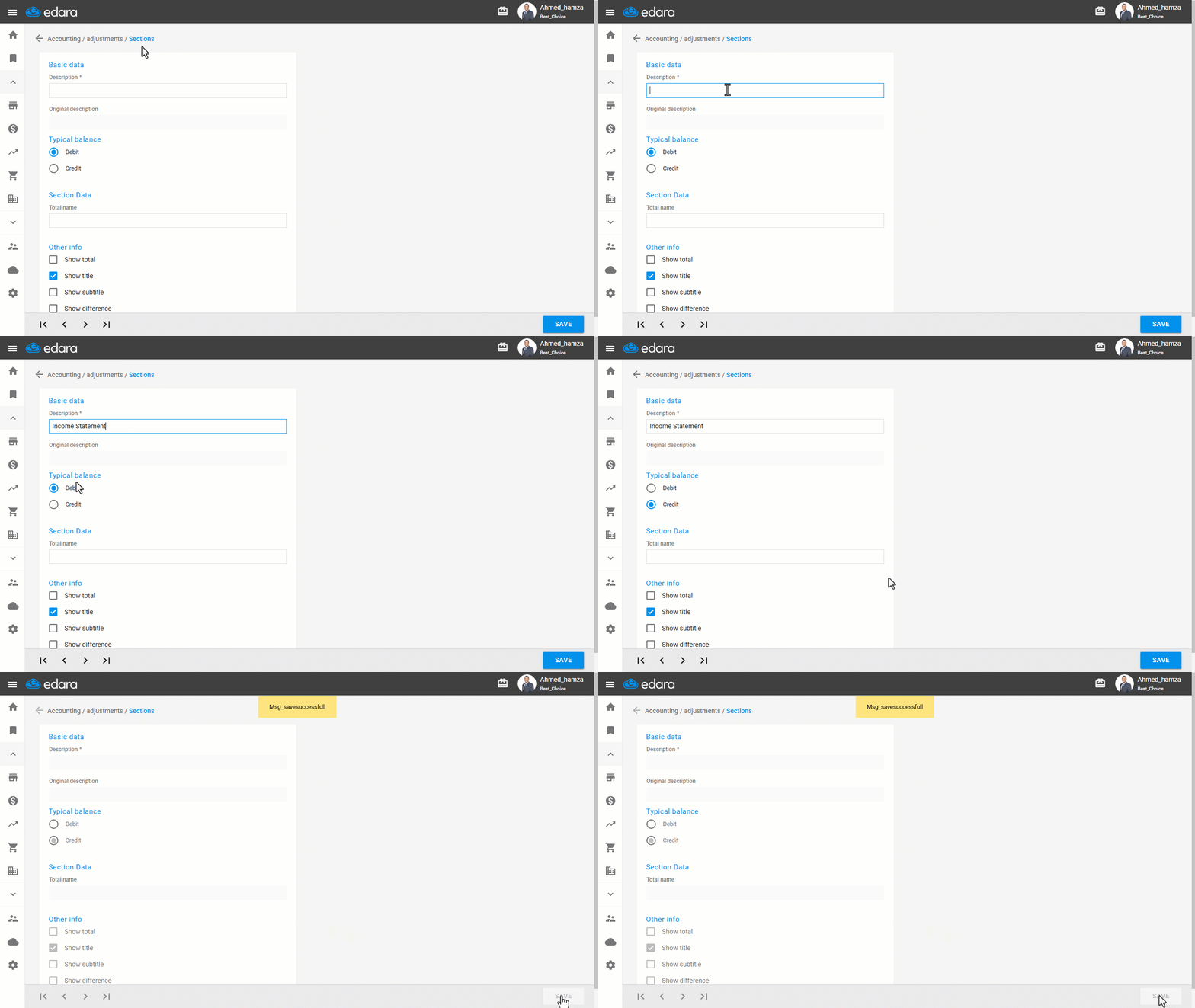
Third: Assigning Accounts to the Sections and Groups Created
Assigning Balance Sheet Accounts
- Click on "Assets", then click on "Balance Sheet" from the “Chart of FS”, then click ▶.
- Click on "Liabilities", then click on "Balance Sheet" from the “Chart of FS“, then click ▶.
- Click on "Owners' equity", then click on "Balance Sheet" from the “Chart of FS”, then click ▶.
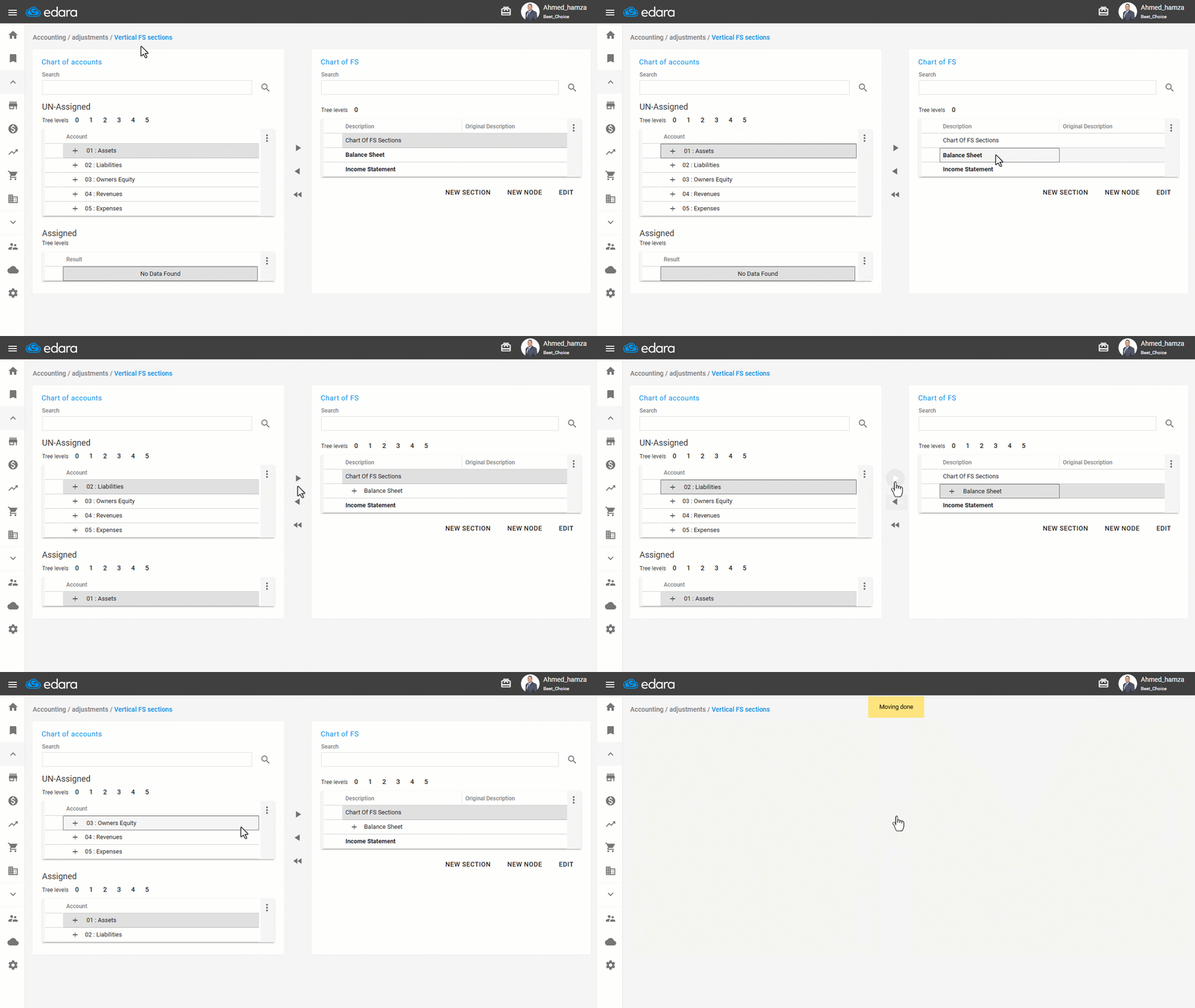
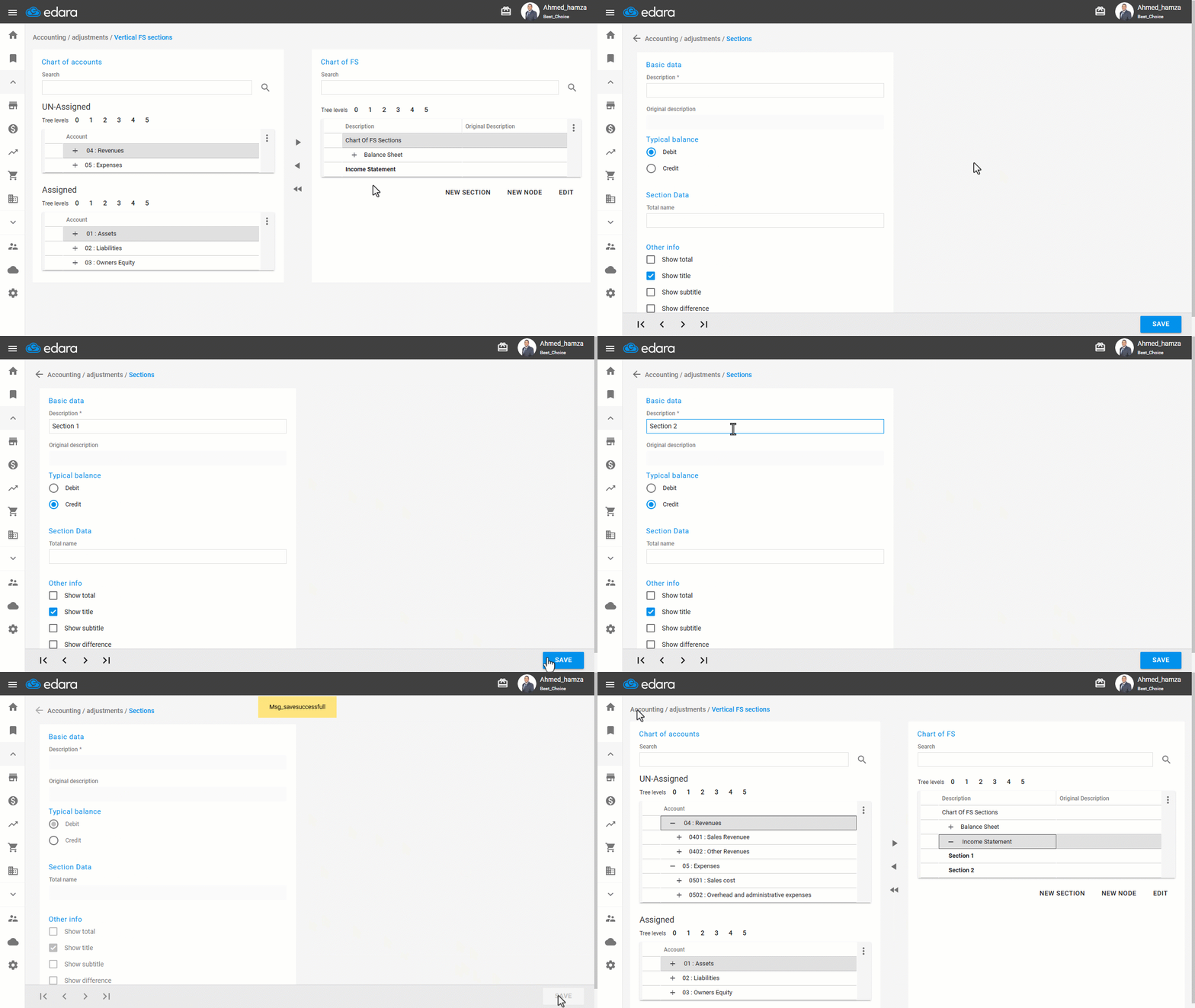
Creating Sections within the Income Statement
- Select "Income Statement".
- Click on "New Section".
- Enter the group description (First Section), and set it to "Credit"
- Click on "Save".
- Enter the group description (Second Section), and set it to "Debit"
- Click on "Save".
- Click on ← to return to the previous page.
Assigning Activity Accounts to the Gross Profit Group
- Select revenue and expense accounts related to the activity, such as (Sales Revenues – Cost of Goods Sold).
- Click on "First Section" from the Income Statement in the “Chart of FS”.
- Click ▶.
Assigning Other Accounts to the Profits and Losses Group
- Select other revenue and expense accounts.
- Click on "Second Section" from the Income Statement in the “Chart of FS”.
- Click ▶.
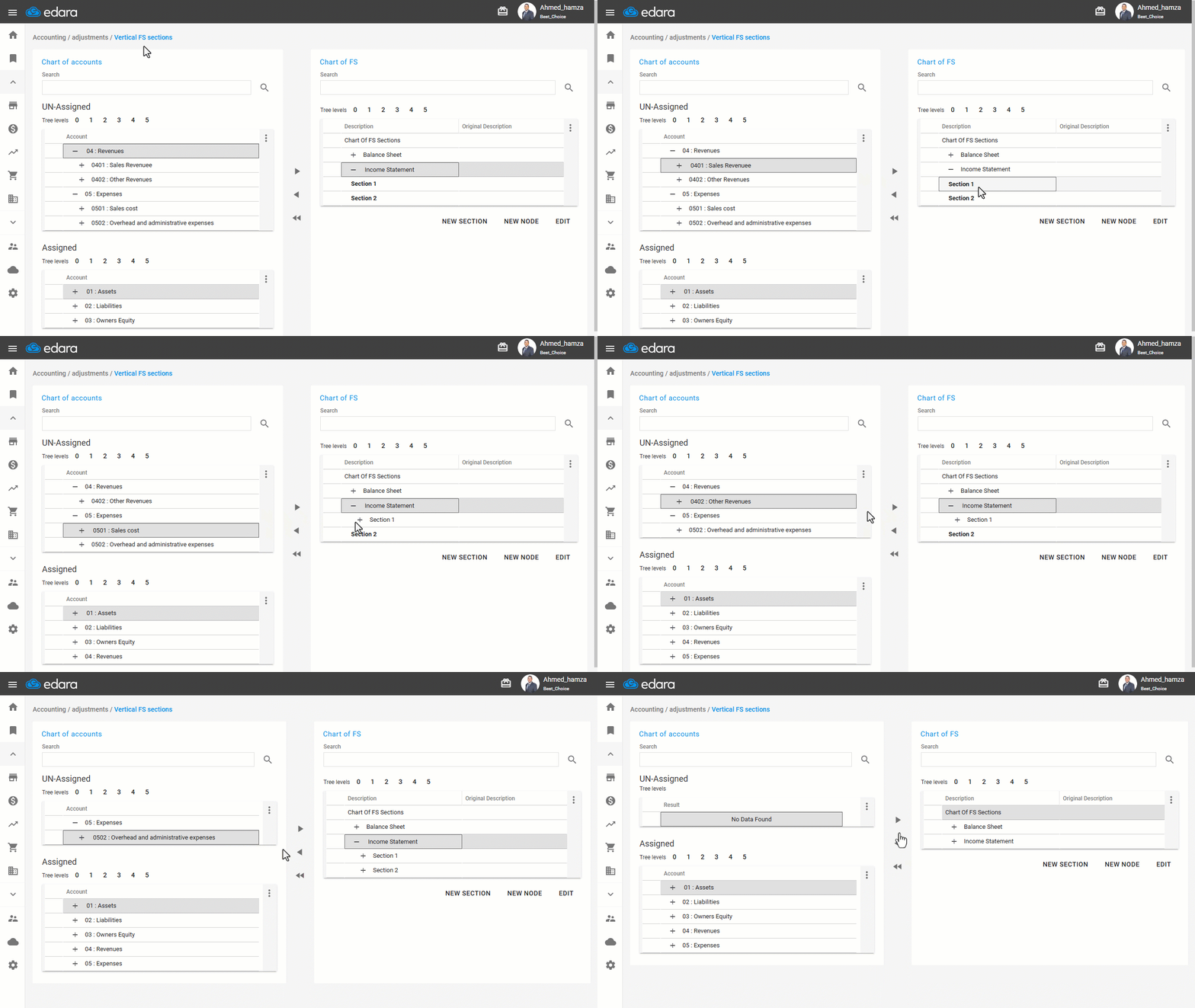
Fourth: Completing the Income Statement Setup
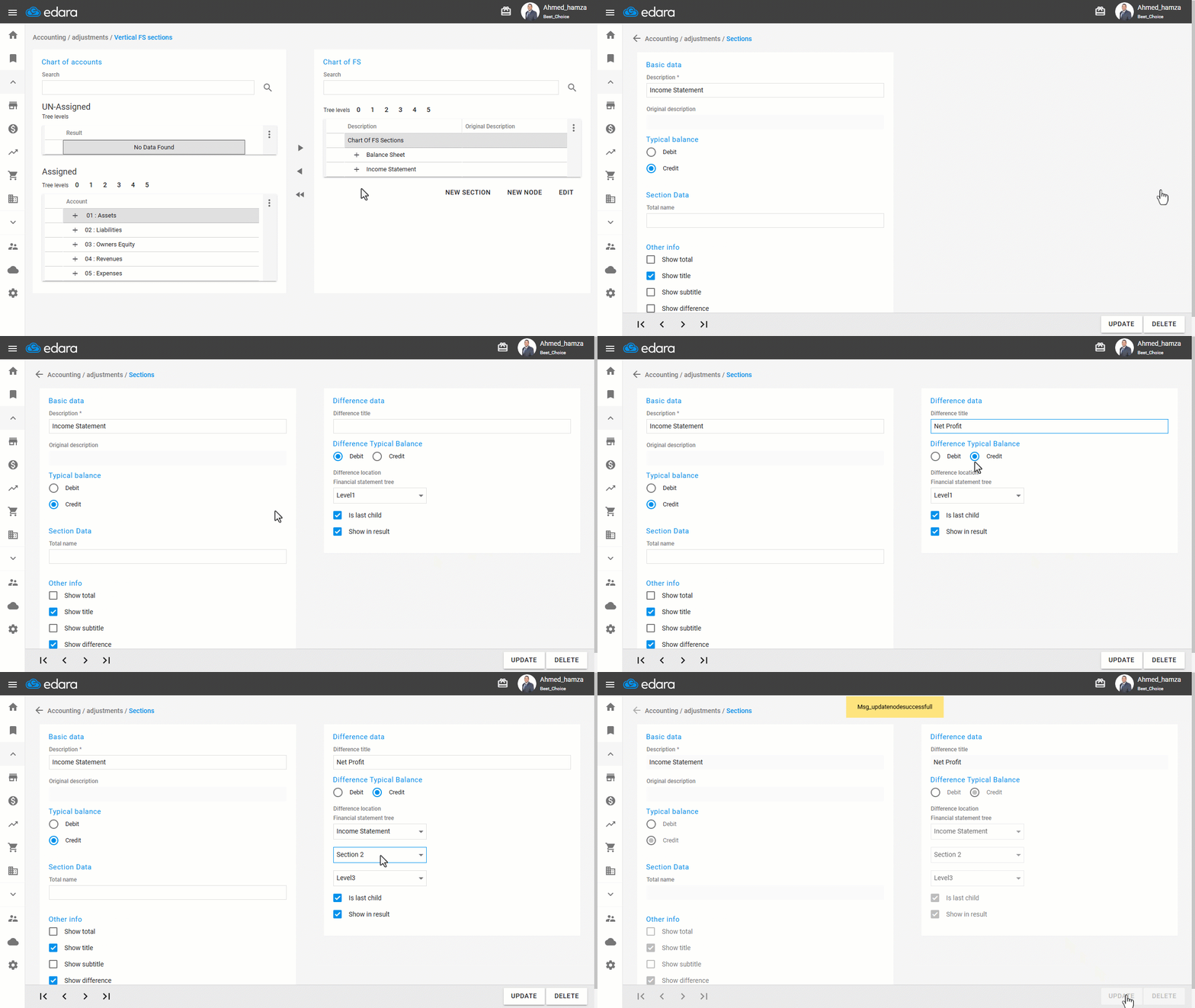
- Click on "Income Statement".
- Click on "Edit".
- Select ☑️ next to "Show Difference".
- Enter “Net Profit” in the “Difference Title” field
- Set it to "Credit".
- Choose the “Difference Location”
- Click on "Update".
- Click on “←” to return to the previous page.
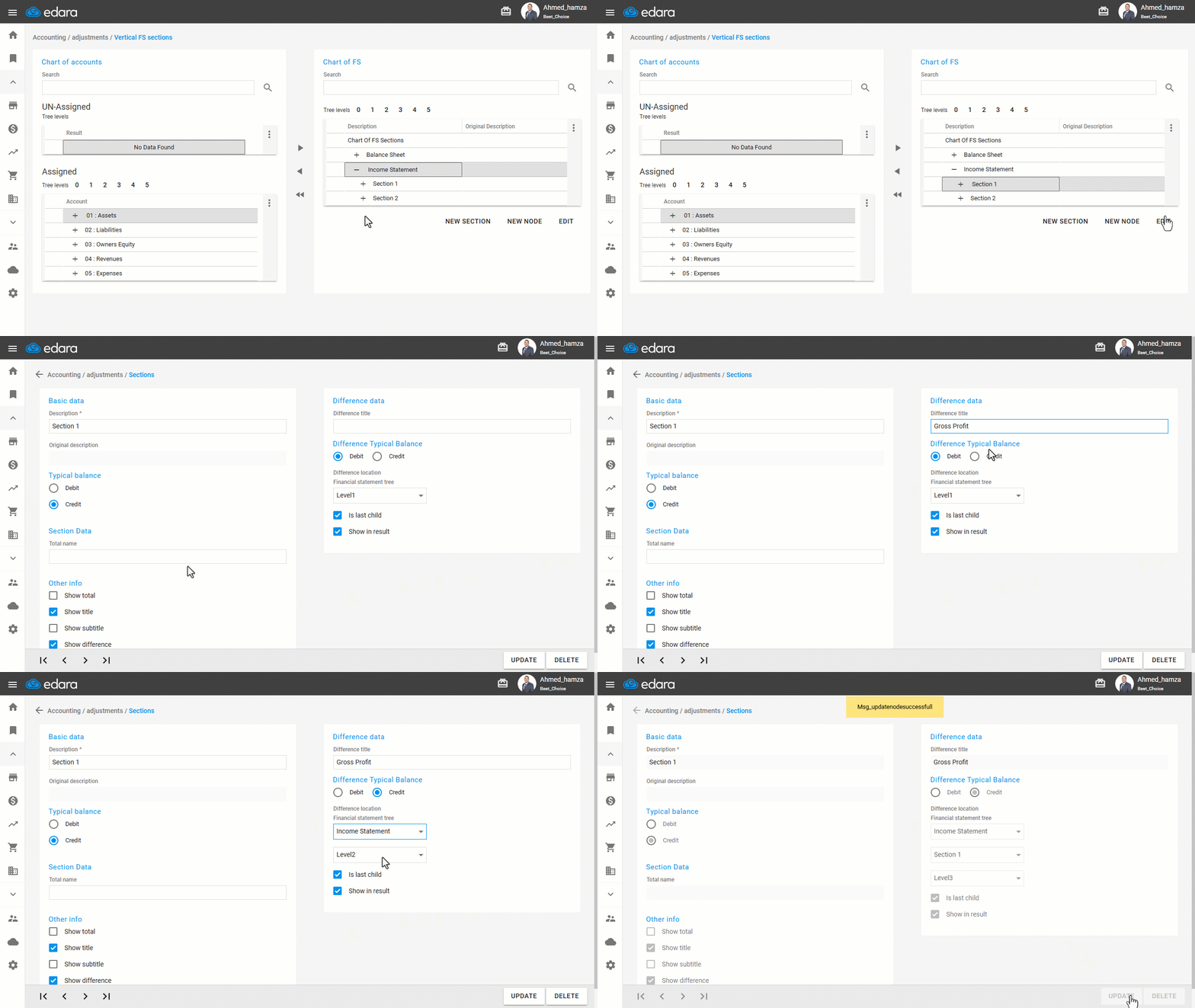
- Click on the “First Section”.
- Click on "Edit".
- Select ☑️ next to "Show Difference".
- Enter “Gross Profit” in the “Difference Title” field
- Set it to "Credit".
- Choose the “Difference Location”
- Click on "Update".
If you encounter any challenges or have questions during these processes, you can contact our technical support team, who are ready to assist you at any time.
Did this answer your question?