

Canceling Payment of Notes Payable
Last updated:
Canceling the payment of notes payable in accounts may be required to correct errors, adjust for changes in transactions, or address other financial needs.
It's essential to handle this process carefully, as it impacts financial accounts. Ensure that all transactions are accurately documented.
Steps to Cancel the Payment of Notes Payable
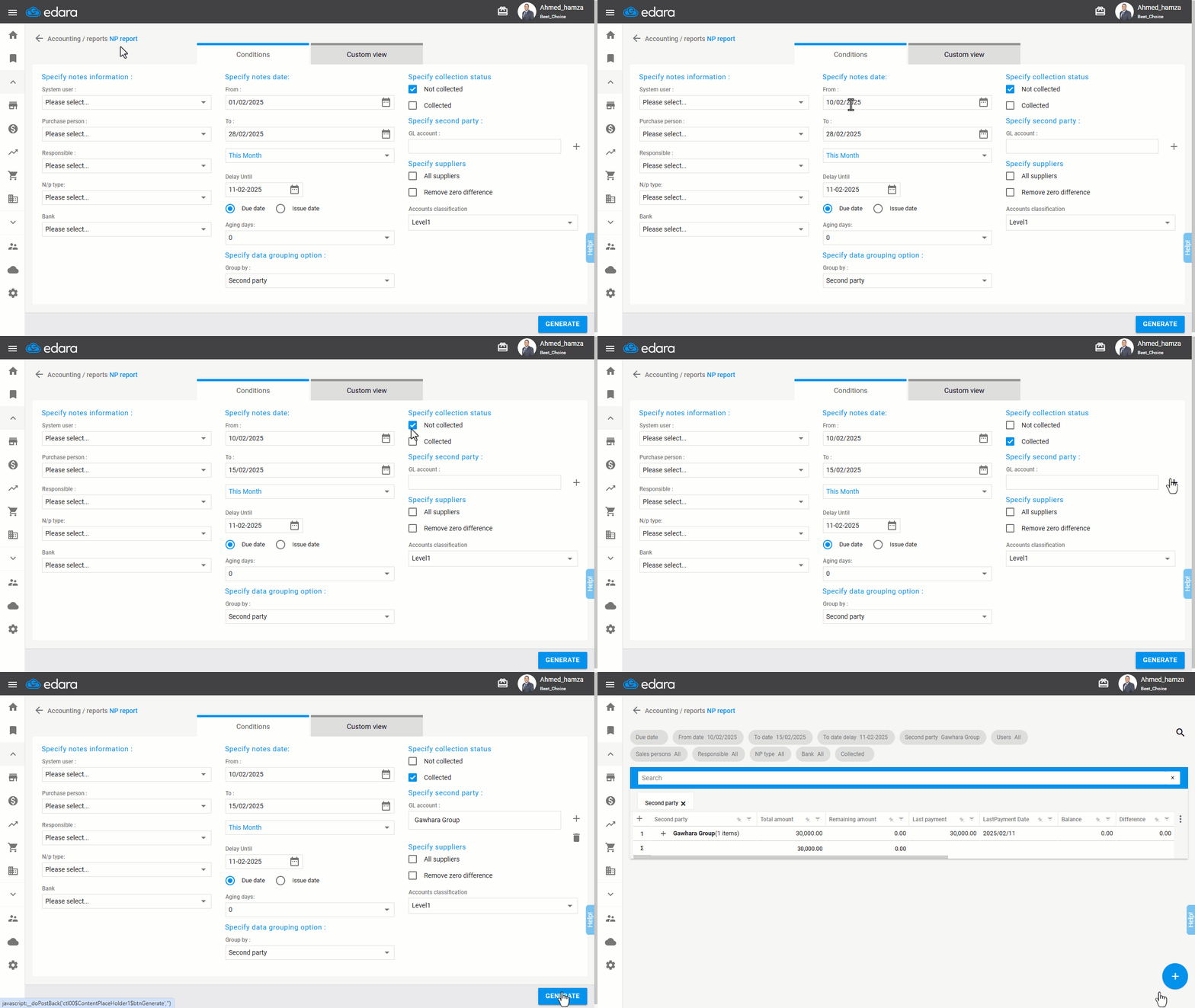
- Go to the Accounting module.
- Select the "NP Report".
- Specify the desired date range.
- Click "+" to filter by the supplier's account (the second party to the note payable).
- Set the collection status to "Collected".
- Go to "Custom View" and enable the desired columns to display.
- Click on "Generate".
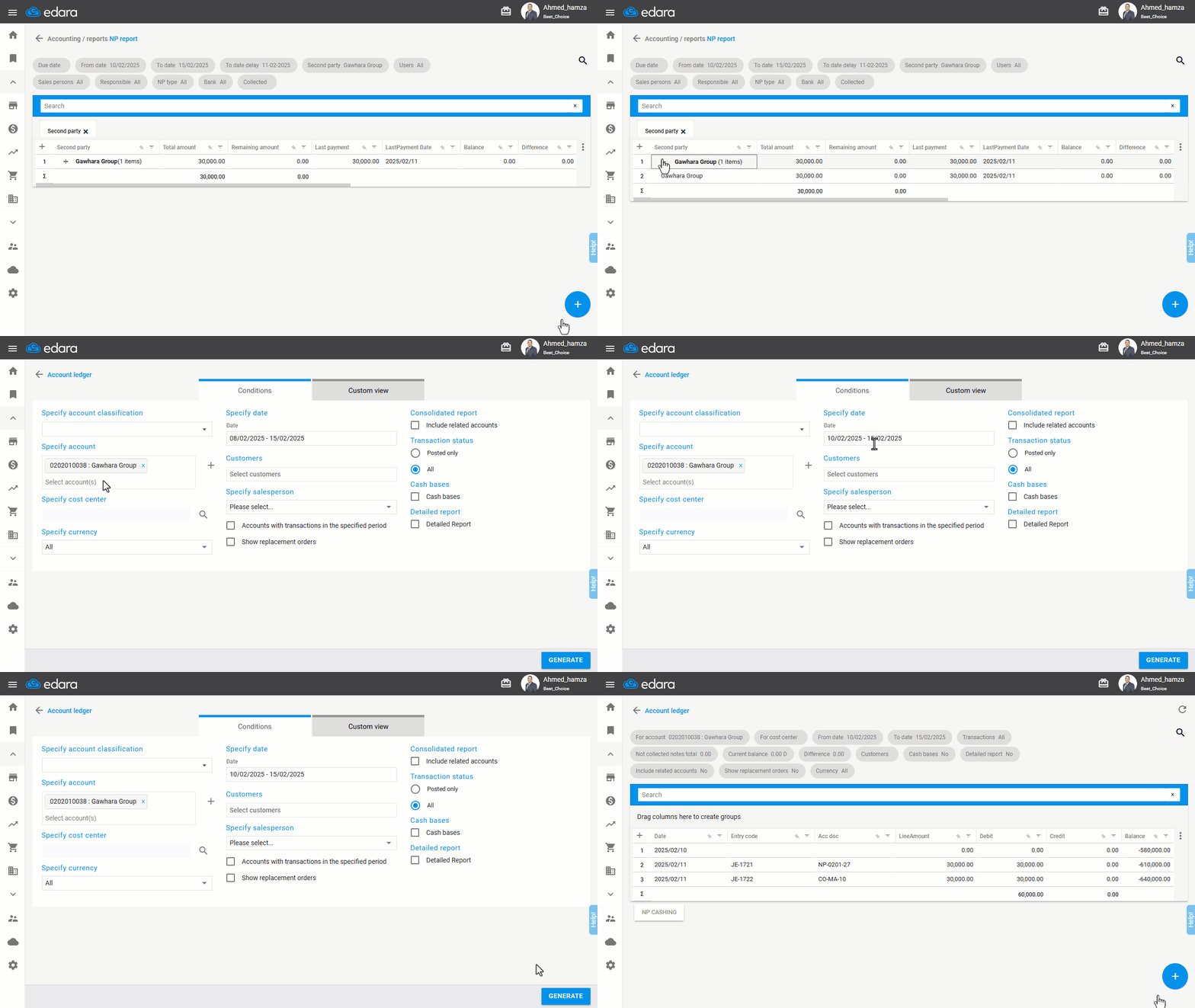
- Click "+" to expand the details of the notes payable.
- Double-click the desired note payable to navigate to the Account Ledger Report.
- Select the appropriate period.
- Ensure the transaction type is set to "All" to display all activities.
- Click on "Generate".
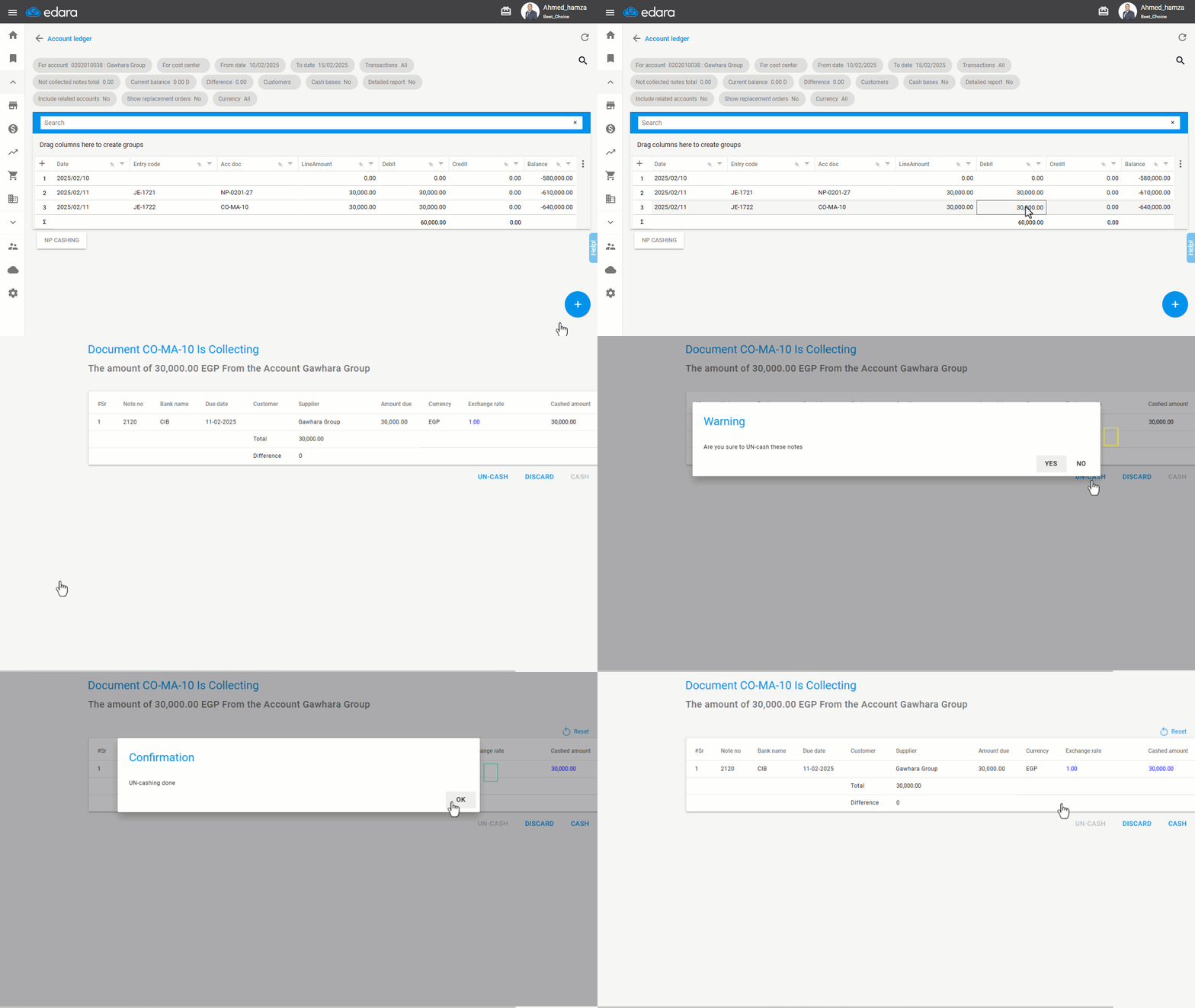
- Locate the amount of the note payable you want to cancel.
- Focus on the "Debit" field for the transaction.
- Click on "NP Cashing" at the bottom of the report.
- Select "UN-CASH".
- Confirm the action by clicking "Yes".
If you encounter any challenges or have questions during these processes, you can contact our technical support team, who are ready to assist you at any time.
Did this answer your question?