

Editing or Deleting a Note Payable Document
Last updated:
Accounting teams may need to edit a note payable if there’s an error—such as an incorrect price, wrong quantity of goods, or incorrect supplier information.
And if a sale is canceled for any reason—such as item unavailability or the customer requesting a different payment method—you'll need to delete the note receivable.
Editing a Note Payable Document
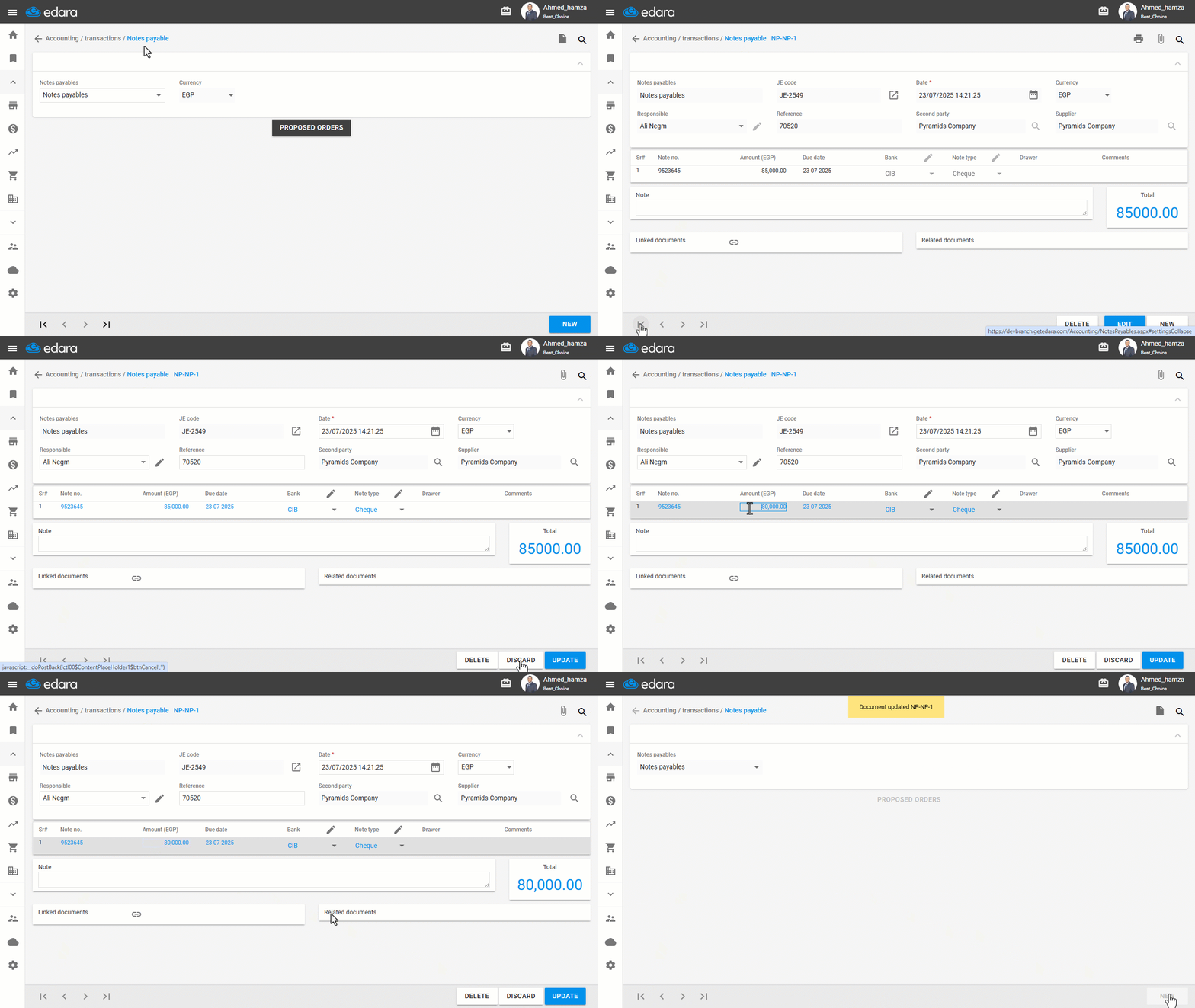
Before you begin, make sure you have the necessary permission to edit, Then:
- Go to the Accounting module.
- Open the “Notes Payable” page.
- Search for the NP number using the 🔍 icon.
- Click on “Edit”.
- Make the required changes.
- Click on “Save”.
Deleting a Notes Receivable Document
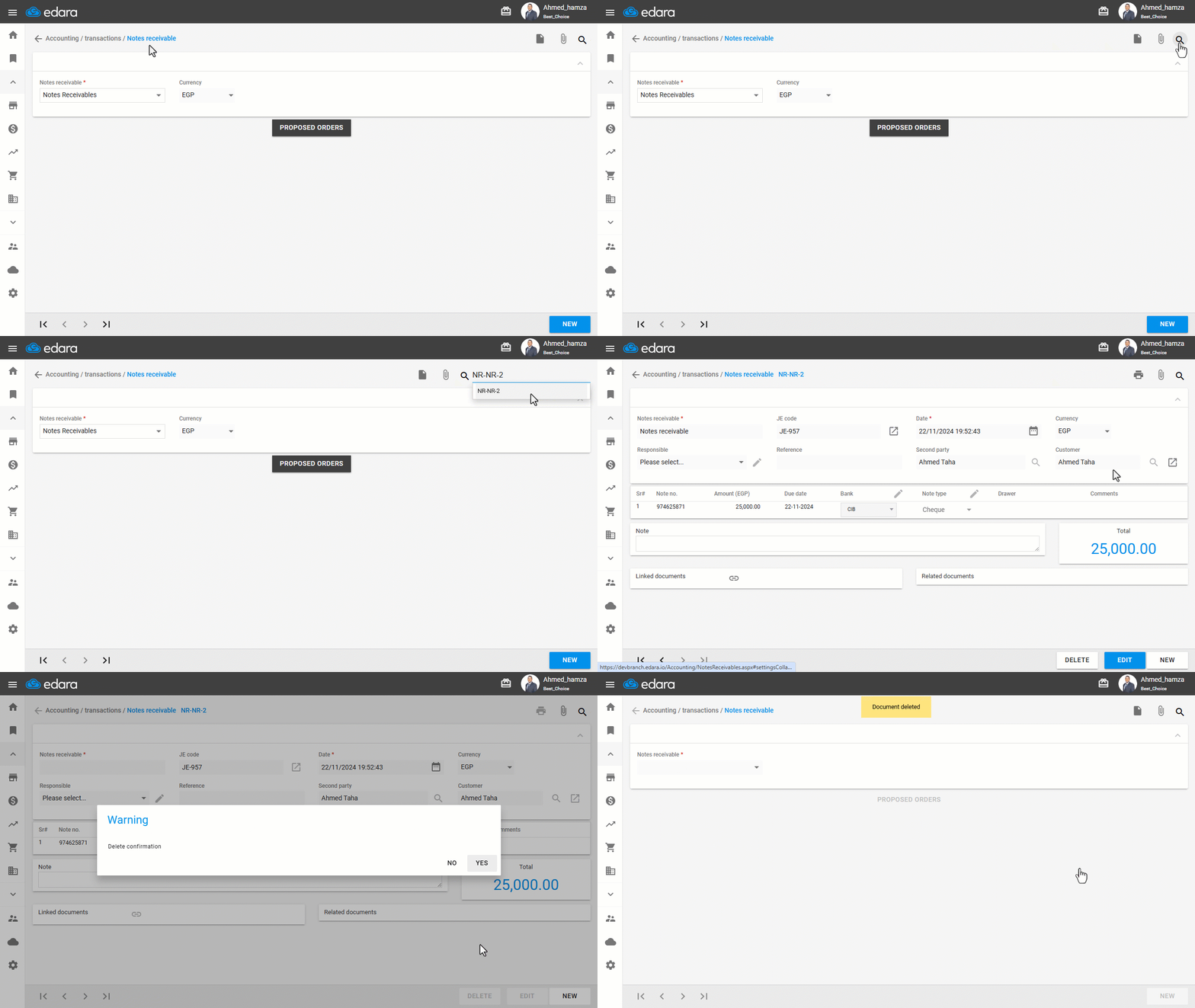
Make sure you have the required permission to perform deletions, then:
- Go to the Accounting module.
- Open the “Notes Receivable” page.
- Search for the NR number using the 🔍 icon or use the arrows at the bottom of the page.
- Click on “Delete”.
- Click “Yes” to complete the deletion.
If you encounter any challenges or have questions during these processes, you can contact our technical support team, who are ready to assist you at any time.
Did this answer your question?