

Creating a Free Unit of Measure
Last updated:
If you are dealing with stock items that have limited units of measure, such as cartons, boxes, and pieces, but the ratios of these units are not fixed—for example, one carton contains 6 pieces, another includes 12 pieces, and so on—then you need to create free units of measure for these items.
Creating a Free Unit of Measure
- Go to the warehouse module
- Open “Unit of measures”
- Choose "Free UOM"
- Press “Yes”
Note: When selecting the free unit of measure, a message will appear warning that the type of unit of measure cannot be changed once a transaction related to this selection has been created.
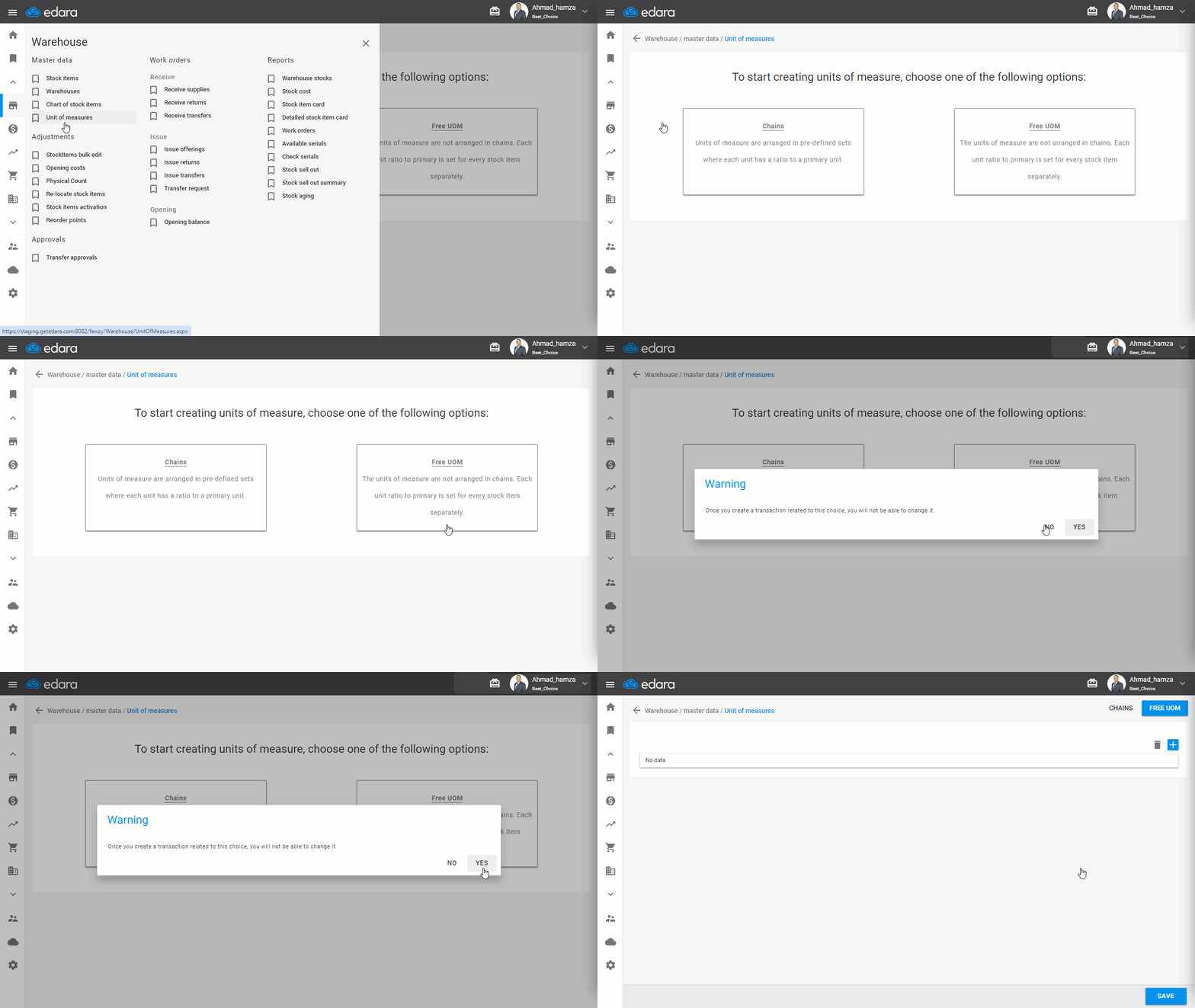
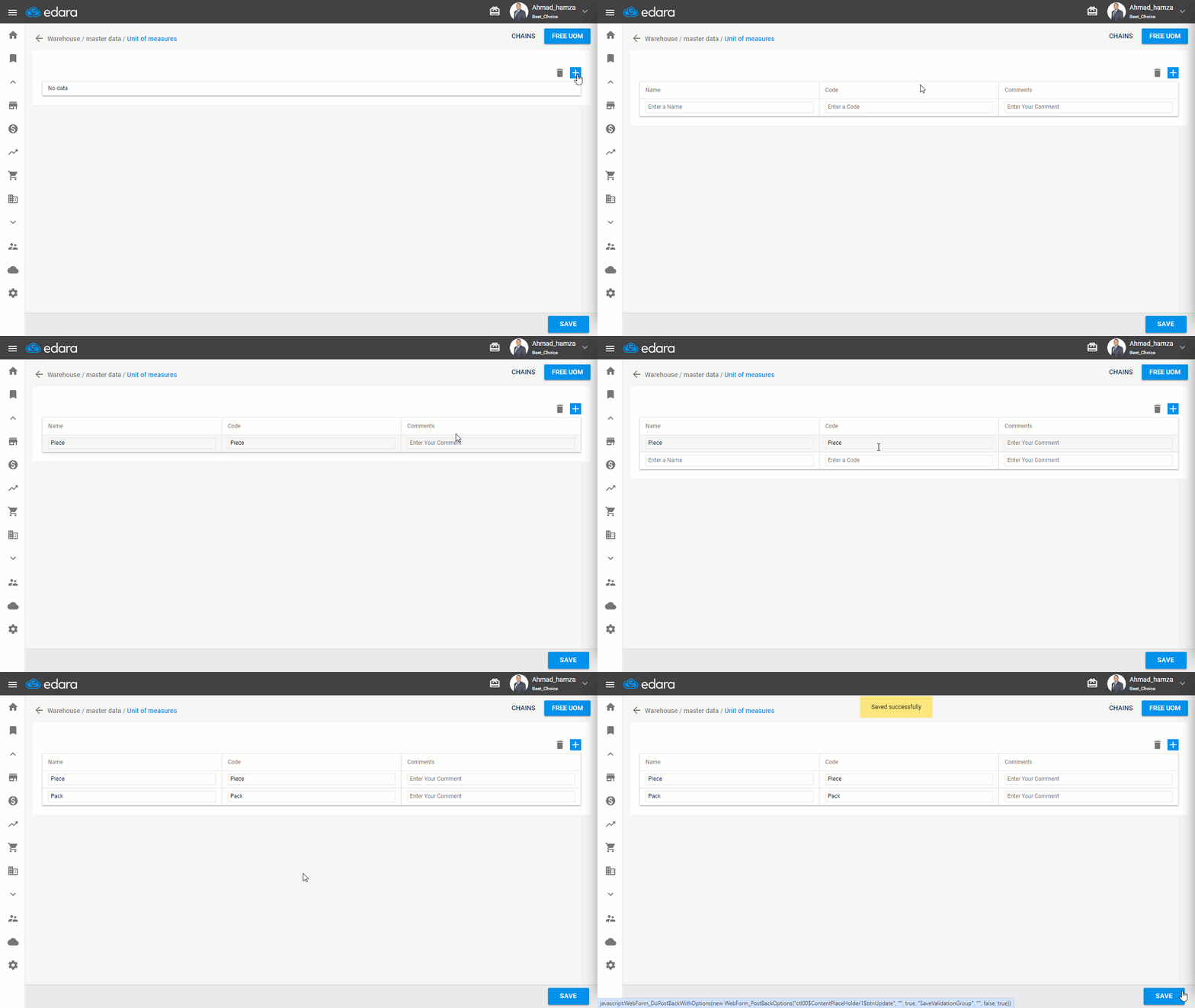
- Press "➕"
- Add the "UOM Name"
- Repeat the previous step to add more units of measure
- Click "Save"
Additional Notes
1- You can easily use this feature for limited items; however, it is better to use chain units of measure for larger quantities, as the import feature is currently unavailable for free units of measure.
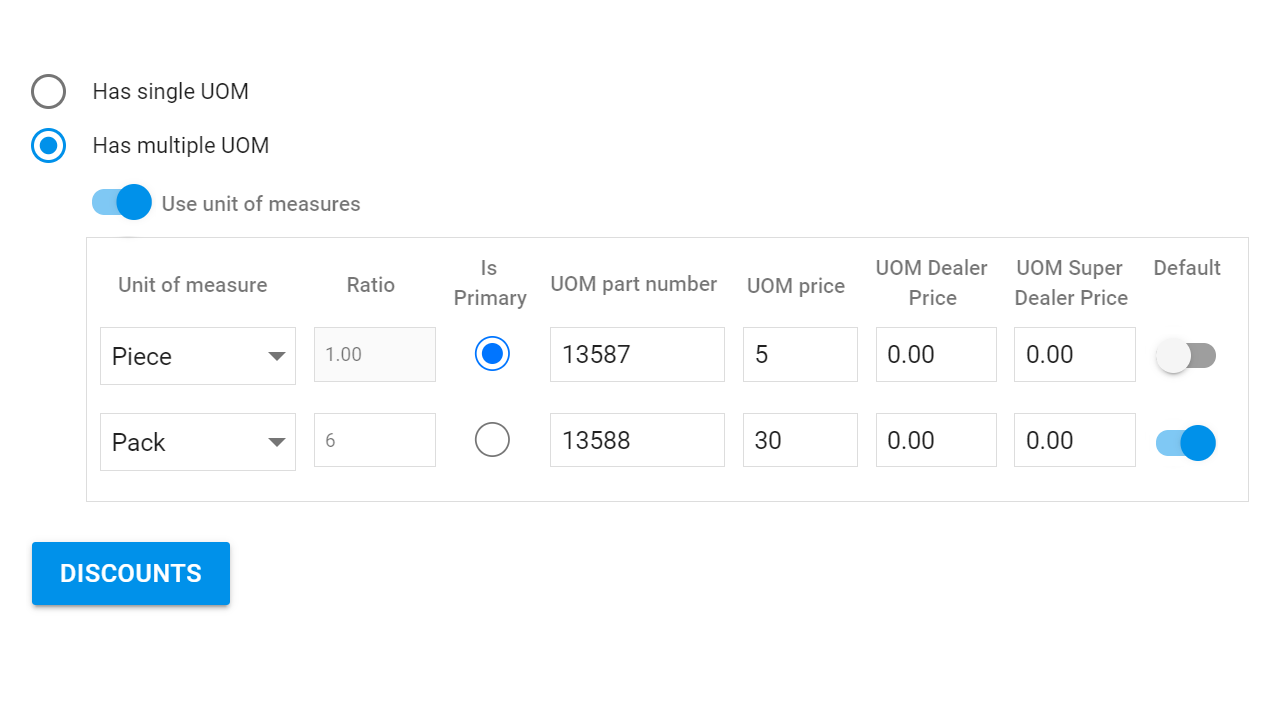
2- Free units of measure linked to an item are selected on the stock item creating page as shown in the picture, in addition to:
- Specifying the main unit
- Determining the ratios of other units to the main unit
- Setting the default unit
- Entering various price data
- Entering the stock item code
If you encounter any challenges or have questions during these processes, you can contact our technical support team, who are ready to assist you at any time.