

Controlling Purchase Incentives
Last updated:
Purchase Incentives helps you accurately track your receivables from suppliers by calculating incentives and agreements linked to purchase orders and returns—whether the incentives are fixed amounts or percentages—so you can track their impact on costs and make more accurate decisions.
Controlling Purchase Incentives
Creating a New Rule
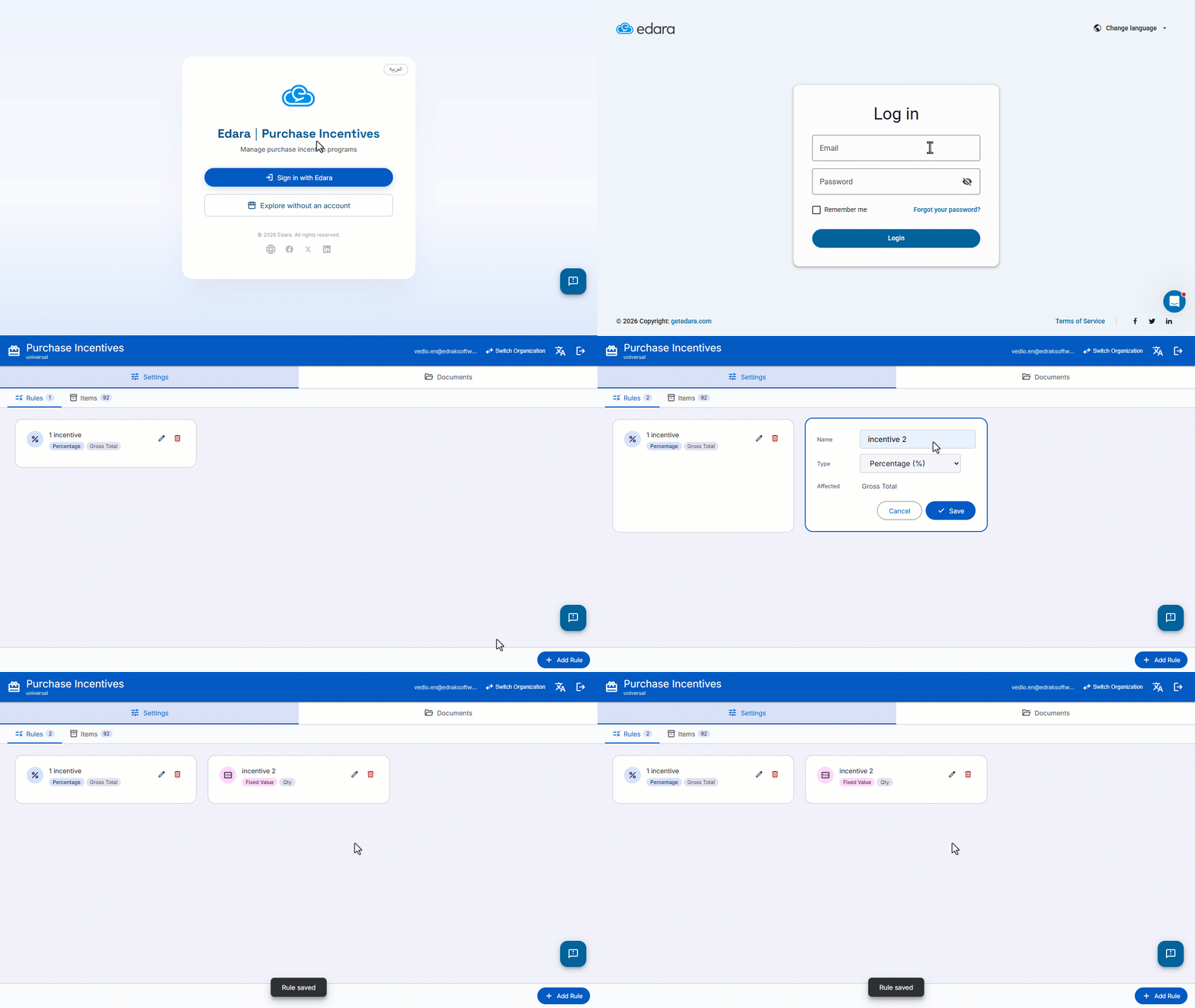
- Go to the “Purchase Incentives” extension.
- Click on “Sign in with Edara”.
- Enter your Edara account email and password
- Click on “Add Rule”.
- Enter the rule name.
- Select the incentive type: “Fixed Value (per unit)” or “Percentage (%)”.
- Click on “Save”.
Note: The rule name cannot be duplicated within the same organization. The incentive type cannot be modified or deleted after being linked to saved documents.
Setting Item Incentives
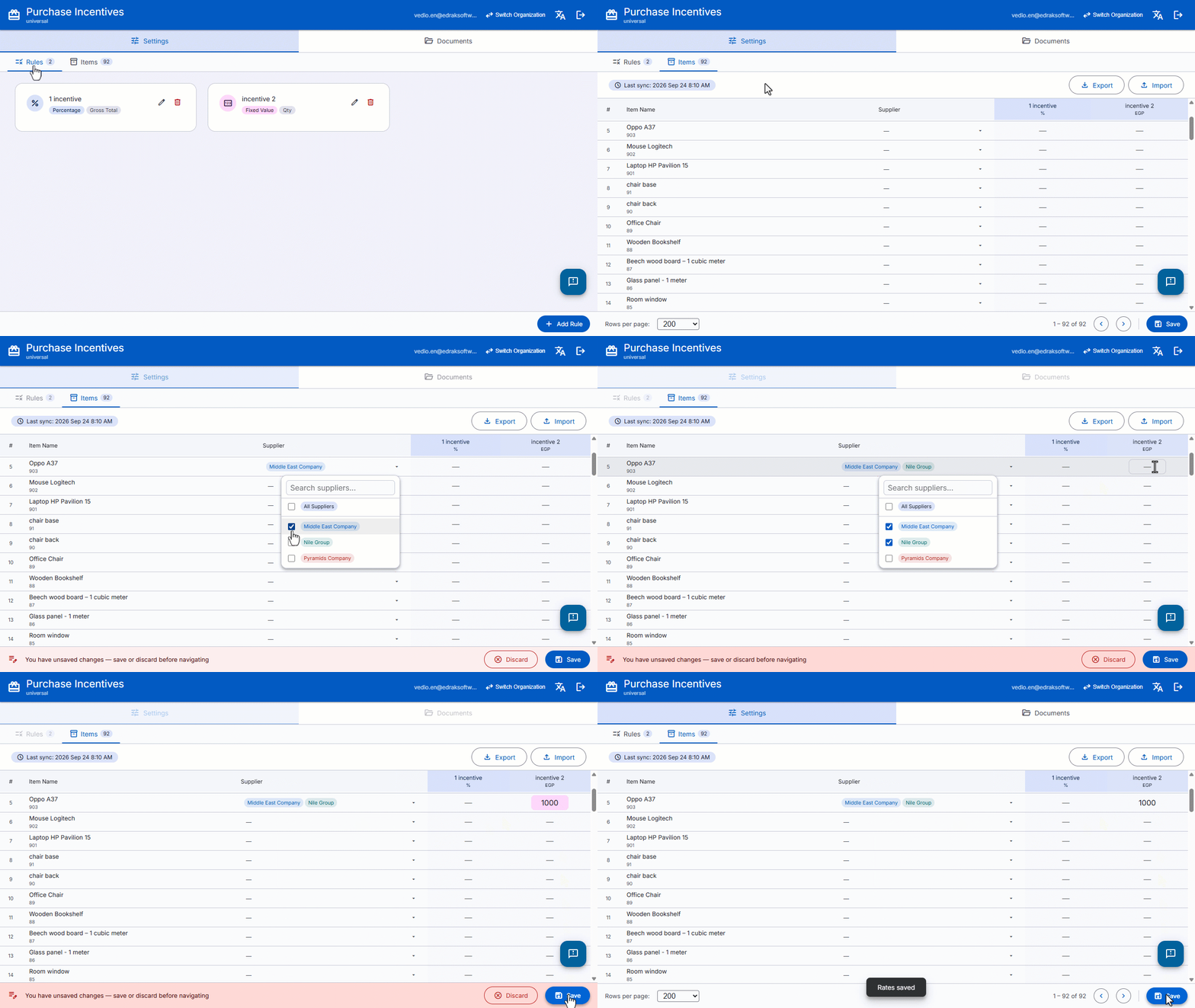
- Go to “Items”.
- Select the supplier or suppliers to whom the incentive should be applied for each item.
- Enter the incentive value or percentage for the items to which the incentive applies.
- Click on “Save”.
Note: You can update item incentives in bulk by exporting the item data to an Excel file, modifying it, and then re-importing the file into the system. If the incentive is applied to more than one supplier for the same item, Excel will not allow you to select multiple suppliers from the drop-down list.
Applying Purchase Incentives to Documents
- Go to “Documents”.
- Click on “New Document”.
- Select the year.
- Click on “Load Lines”.
- Click on “Save”.
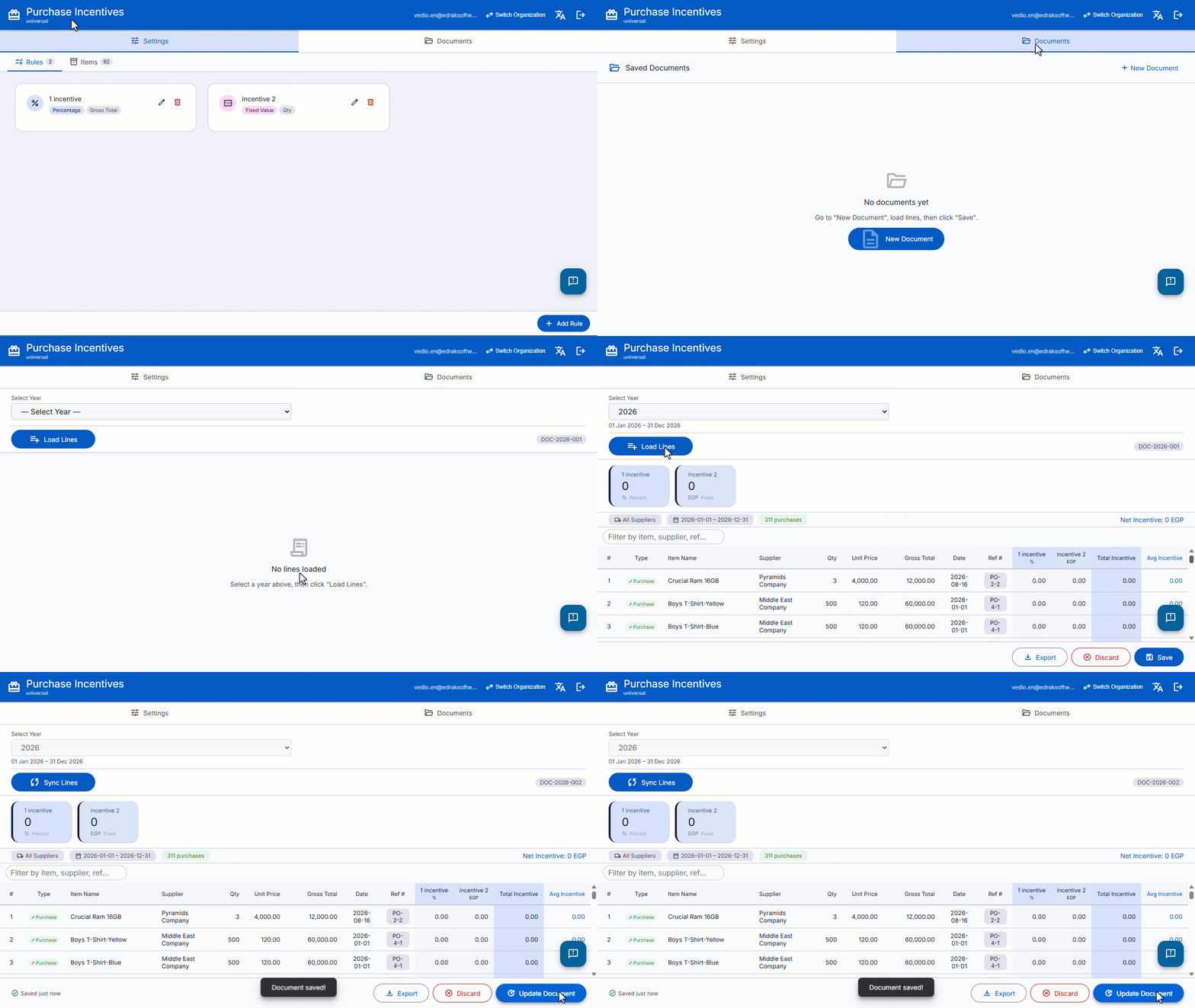
Note: The system allows creating only one purchase incentive document per year.
When you click on “Load Lines”, the Purchase Incentive document will display the lines associated with purchase orders and returns made from the beginning of the year up to the date and time the lines are loaded. The incentive value for each line is calculated based on the incentive settings configured for the items.
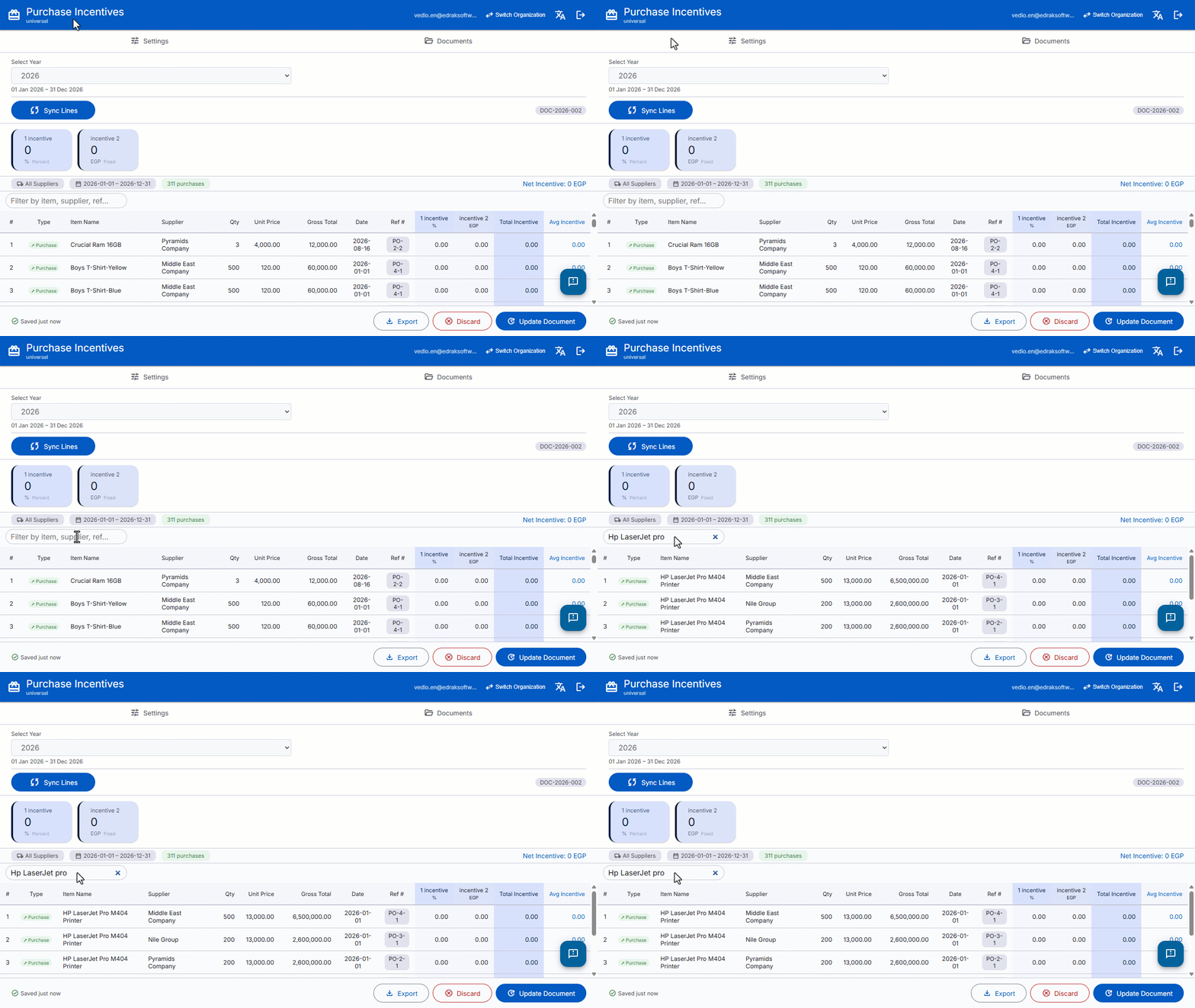
You can search within the document for items, suppliers, or references by entering part of the required value in the “Filter” field above the table.
Editing a Saved Purchase Incentive Document
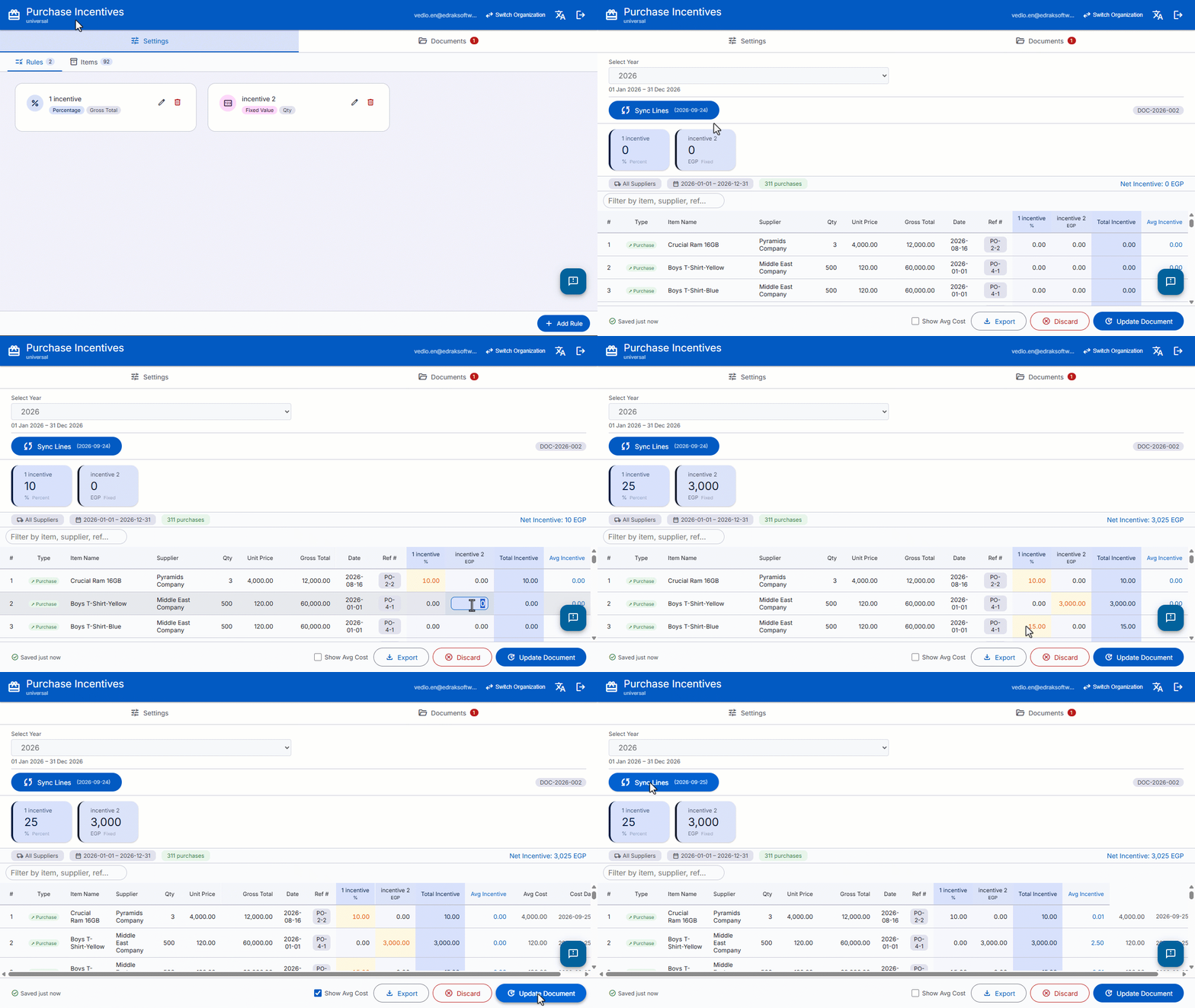
If an exceptional incentive is agreed upon for a specific purchase transaction, you can edit the incentive value directly on the required line in the document without affecting the basic incentive settings by following these steps:
- Go to “Saved Documents”.
- Click on the required document.
- Make the required changes.
- Click on “Update Document”.
Lines are synchronized manually by clicking on “Sync Lines” after modifying incentive values. This ensures that updated values are applied and new orders are not calculated based on previous values. New lines are imported from the last synchronization date up to the synchronization time, and their incentives are calculated according to the current item settings, without modifying or recalculating previously saved lines, even if the incentive value is changed later.
You can enable the “Show Avg Cost” option to display the current average cost of the item at the time the document is displayed, which helps you compare the average cost with the average incentive. The total incentive is calculated on a per-line basis by summing the incentive values applied to that line, while the average incentive is calculated for the entire year at the item level by dividing the total incentives for the item by the total quantities. It appears next to the lines linked to the same item.
Frequently asked questions
Can the incentive type be changed after it is linked to documents?
The rule name cannot be duplicated within the same organization. The incentive type cannot be modified or deleted after being linked to saved documents.
How many purchase incentive documents can be created per year?
The system allows creating only one purchase incentive document per year.
If you encounter any challenges or have questions during these processes, you can contact our technical support team, who are ready to assist you at any time.