

Importing Suppliers from “Edara 2.0” to “Edara 3.0”
Last updated:
After completing the product import, you can proceed with importing supplier data from “Edara 2.0” to “Edara 3.0”, ensuring that purchasing operations are completed and stock items are correctly linked to their suppliers.
Importing Suppliers from “Edara 2.0” to “Edara 3.0”
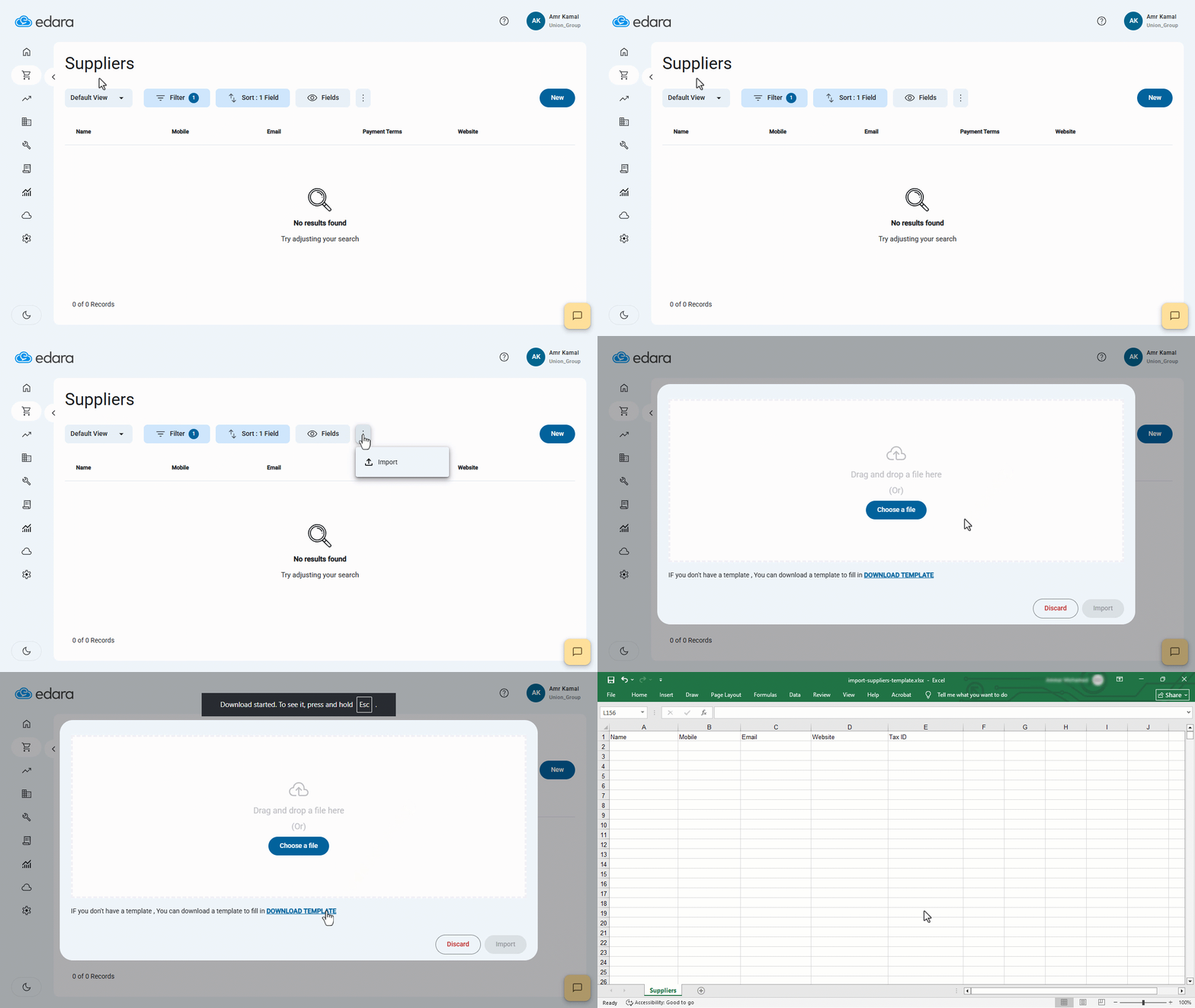
- Go to the “Purchasing” module in “Edara 3.0”.
- Open the “Suppliers” page.
- Click on the “︙” icon.
- Click on “Import”.
- Click on “Download Template”.
The supplier template includes a set of basic data, such as: supplier Name, Mobile, Email, Website, and Tax ID (if available).
To get supplier information:
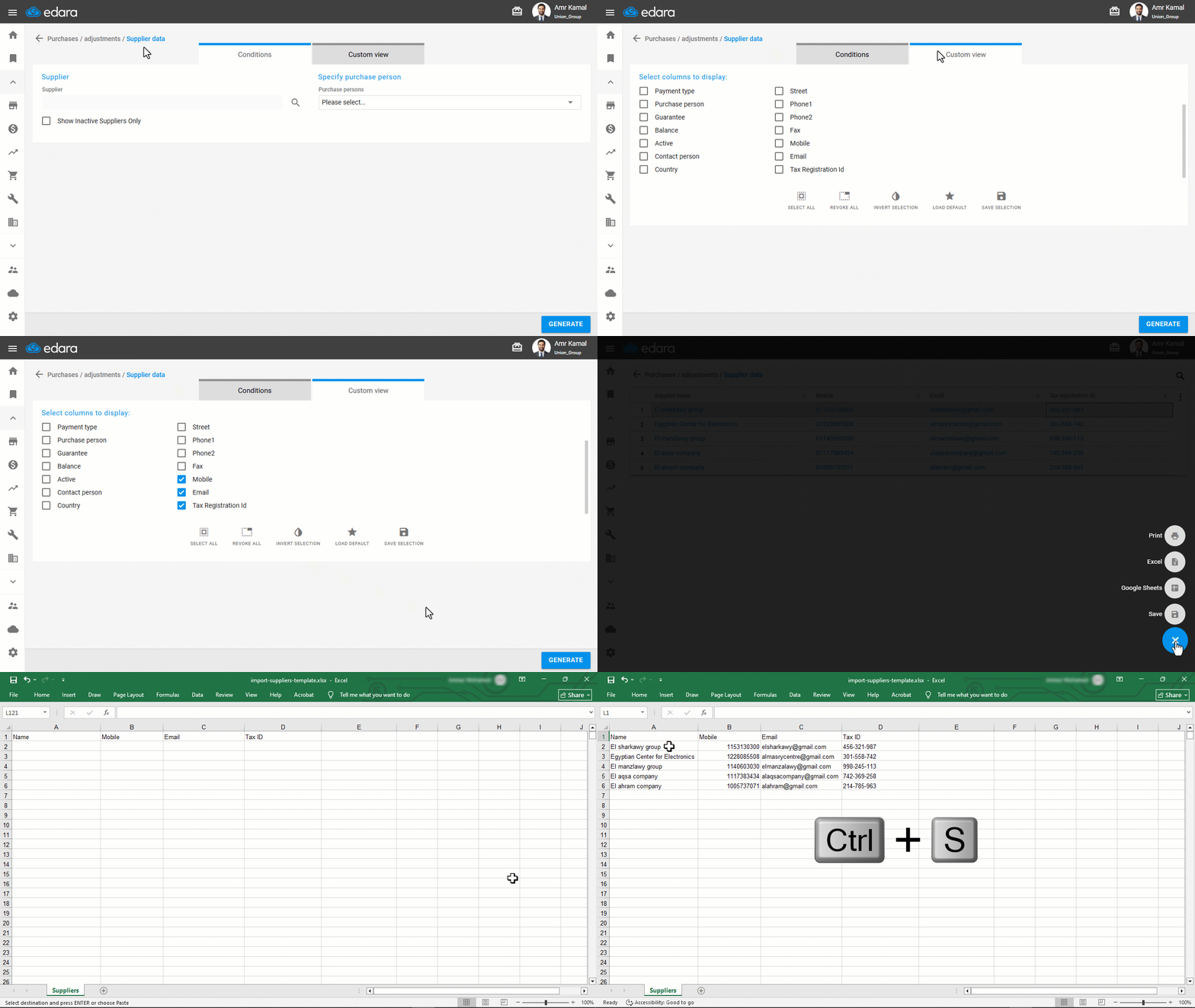
- Go to the “Purchase” module in “Edara 2.0”.
- Open the “Supplier Data” page.
- Go to “Custom view”.
- Enable the columns you want to display.
- Click on “Generate” to display the list of suppliers and their data.
- Hover over the “➕” icon.
- Click on “Excel”.
Transfer this data into the import template.
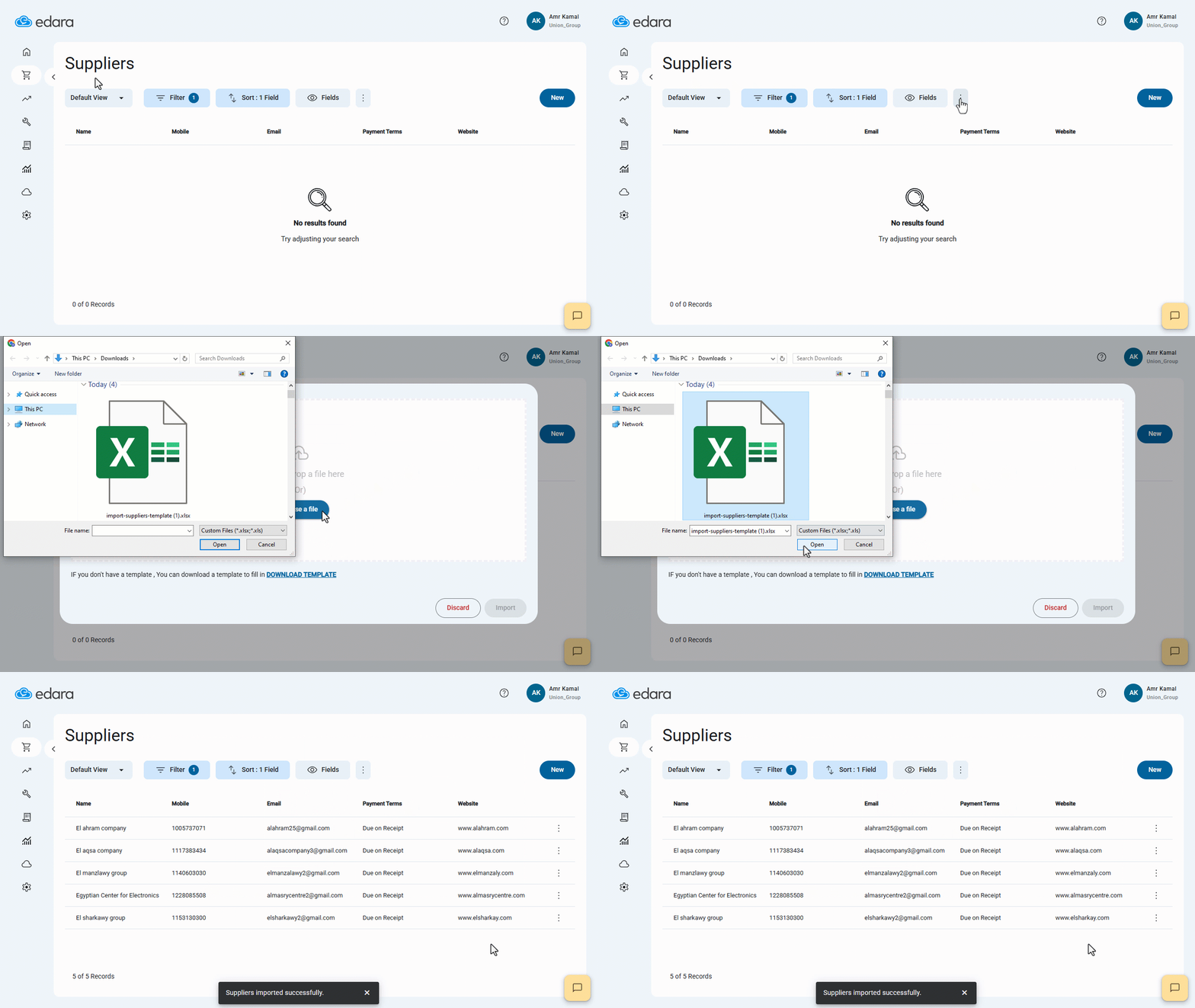
- Go to the “Purchasing” module in “Edara 3.0”.
- Open the “Suppliers” page.
- Click on the “︙” icon.
- Click on “Import”.
- Click on “Choose a File” to upload the supplier template.
- Click on “Import”.
If you encounter any challenges or have questions during these processes, you can contact our technical support team, who are ready to assist you at any time.
Did this answer your question?