

Creating a New Asset Type
Last updated:
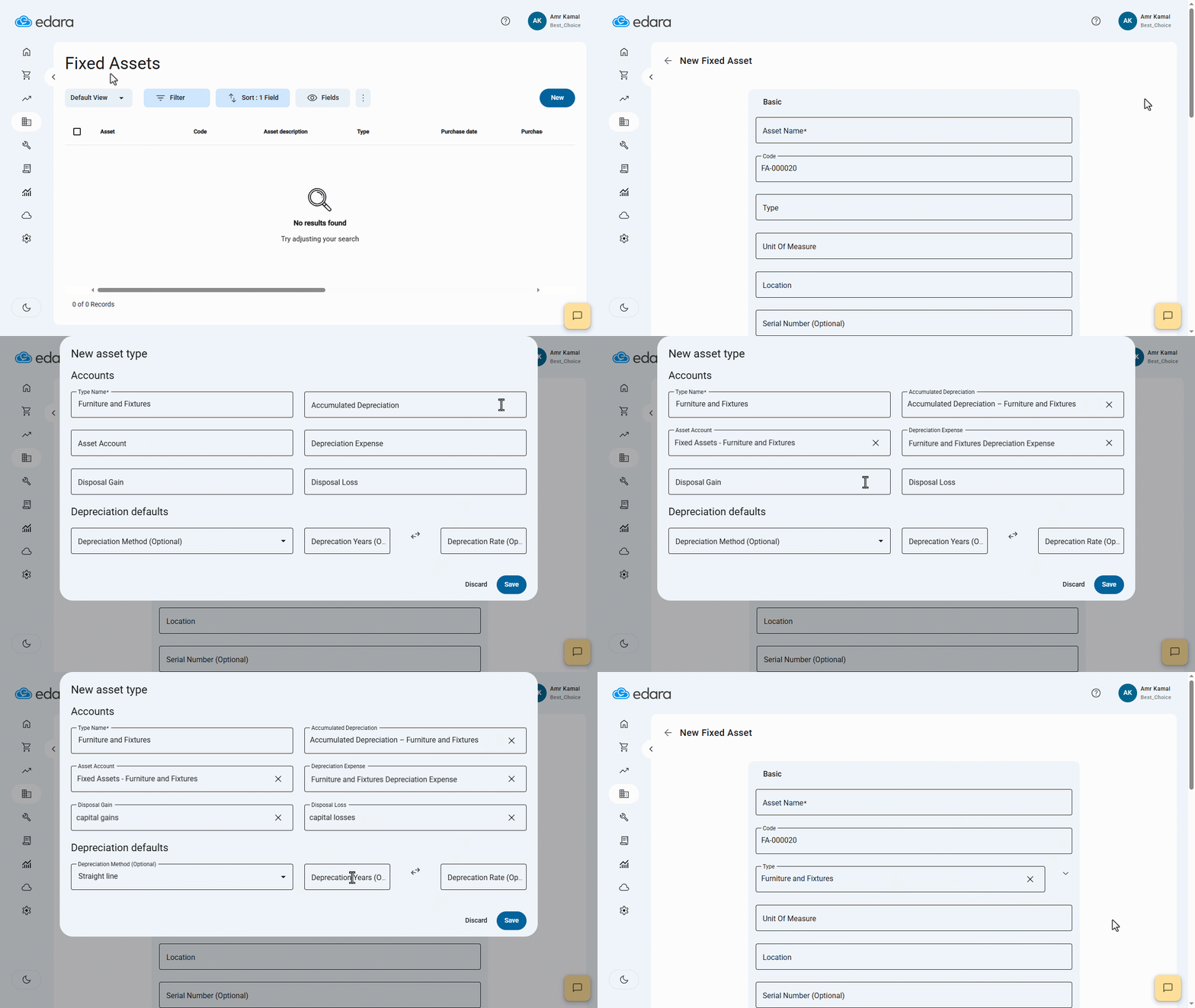
You may need to create a new asset type to group similar fixed assets under a single classification while defining their accounts and default depreciation defaults. These values are then suggested automatically whenever you create a new fixed asset of that type.
Creating a New Asset Type
- Go to the "Fixed Assets" module.
- Open the "Assets" page.
- Click on "New".
- Enter the asset type name in the "Type" field.
- Click on "Create".
- Select the "Accumulated Depreciation” account.
- Select the "Asset Account".
- Select the "Depreciation Expense” account.
- Enter the "Disposal Gain" account.
- Enter the "Disposal Loss" account.
Note: These accounts must be created in the Chart of Accounts beforehand, as they are used when calculating depreciation and recording asset disposal transactions according to your accounting setup.
- Enter the depreciation defaults, if required (Depreciation Method – Depreciation Years – Depreciation Rate).
Note: These values are used as default settings and are suggested automatically when creating a fixed asset of this type. You can modify them for each asset individually if needed.
- Click on "Save".
Notes:
- You can edit an asset type after creating it by clicking on the Edit icon "
 ", making the required changes, and then clicking on "Save".
 - You can delete an asset type by clicking on the "
 " icon next to the asset type name, then confirming the deletion by clicking on "OK". If the asset type is linked to registered transactions in the system, deletion will not be available.
Frequently asked questions
Can I delete an asset type linked to registered transactions?
You can delete an asset type by clicking on the "" icon next to the asset type name, then confirming the deletion by clicking on "OK". If the asset type is linked to registered transactions in the system, deletion will not be available.
If you encounter any challenges or have questions during these processes, you can contact our technical support team, who are ready to assist you at any time.