

Creating a New Fixed Asset
Last updated:
You may need to create a new fixed asset to register it, track its details and value throughout its usage period, and calculate its periodic depreciation to monitor its net value over time.
Creating a New Fixed Asset
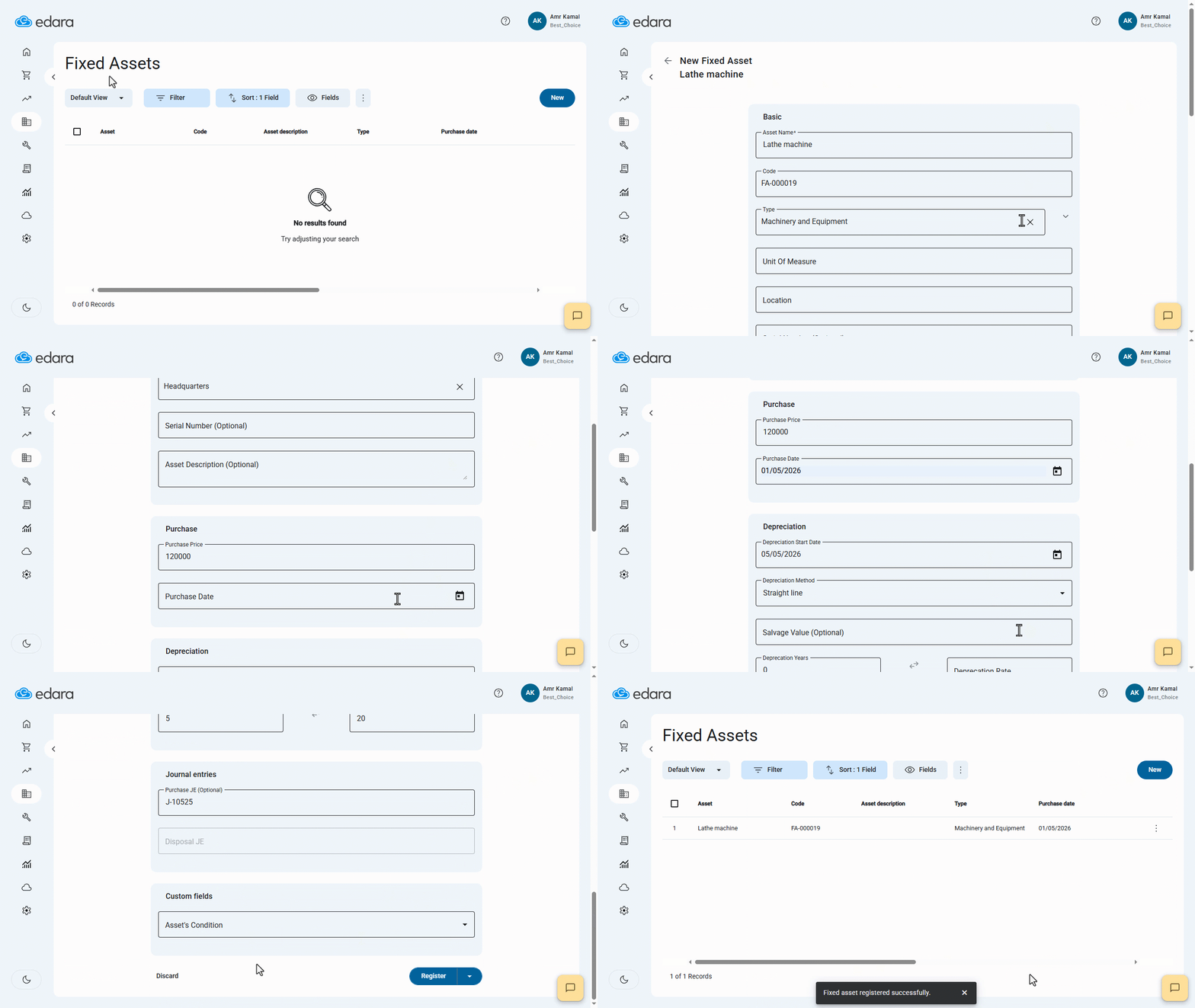
- Go to the "Fixed Assets" module.
- Open the "Assets" page.
- Click on "New".
- Enter the asset name.
An asset code is generated automatically. You can modify it by clicking on the Code Configuration icon " ", then enter the code number and prefix, and click on "Save".
- Select the asset type.
- Select the unit of measure.
- Select the location.
You can create a new Unit of Measure or Location by entering its name in the corresponding field and clicking on "Create". You can also rename an existing unit of measure or location by hovering over it, clicking on the Edit icon " ", making the required changes, and clicking on "Save".
- Enter the purchase details (Purchase Price – Purchase Date).
- Enter the depreciation details (Depreciation Start Date – Depreciation Method – Salvage Value – Depreciation Years – Depreciation Rate).
Note: Depreciation details are suggested automatically based on the selected asset type and depreciation method. These values are used as the default settings for calculating periodic depreciation and can be modified for each asset if needed.
- Enter the Purchase JE, if required, as a reference for the asset purchase transaction.
Note: The Disposal JE is populated automatically when the asset is disposed of or removed from service.
- Add custom fields, if required.
- Click on "Register".
Note: You can save the asset as a draft by clicking on "▼" next to the "Register" button, then clicking on "Save as Draft". You can return to it later, complete its details, and convert it into a registered asset.
If you encounter any challenges or have questions during these processes, you can contact our technical support team, who are ready to assist you at any time.